
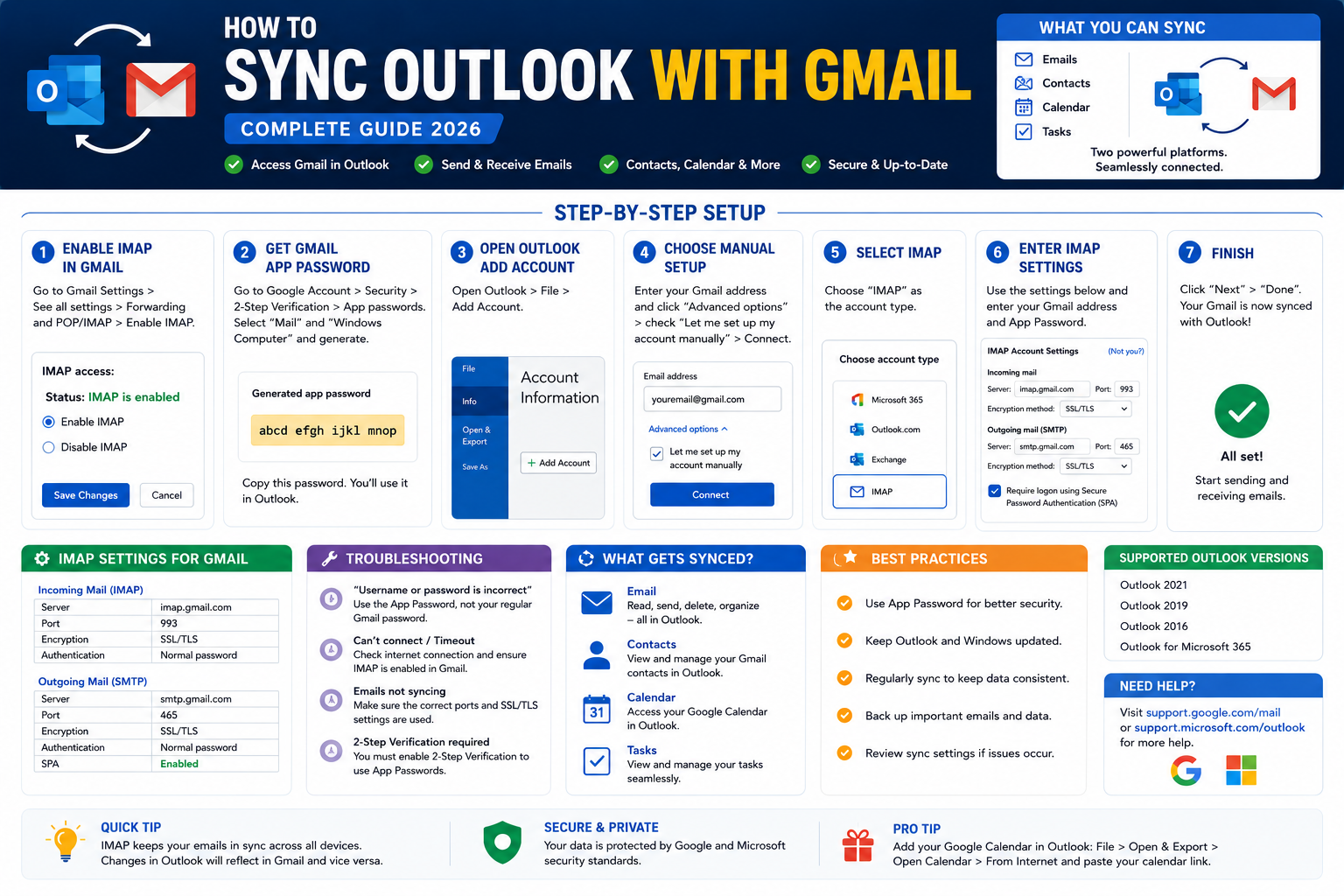
Syncing your Gmail account with Outlook lets you use Outlook’s power features on your Gmail email. Both inboxes stay in sync automatically. Emails read on Gmail show as read in Outlook, sent messages appear in both Sent folders, and folder/label changes propagate. This is different from just forwarding: it is true two-way sync. Here is how to set it up in 2026 using IMAP + App Password (the reliable method), plus tips for calendar and contact sync.
Step 1: Enable IMAP in Gmail
- Sign in to your Gmail account at mail.google.com.
- Click the gear icon in the top-right, then See all settings.
- Go to the Forwarding and POP/IMAP tab.
- Under IMAP access, select Enable IMAP.
- Click Save Changes at the bottom.
Step 2: Create a Google App Password (required for 2FA)
If you use two-factor authentication (2FA) on your Google account, you cannot use your regular password with Outlook. Generate an App Password instead:
- Go to myaccount.google.com/apppasswords.
- Sign in.
- Select “Mail” as the app and “Windows Computer” (or Other) as the device.
- Click Generate.
- Copy the 16-character password shown. Save it somewhere safe. You will not see it again.
Google will use this App Password to authenticate Outlook without exposing your main password.
Step 3: Add Gmail to Outlook desktop
- Open Outlook.
- Click File → Add Account.
- Type your Gmail address and click Connect.
- When prompted, click IMAP if given the choice.
- Enter your Google App Password (NOT your regular Gmail password) if 2FA is enabled.
- Outlook auto-detects IMAP settings. If not, enter manually:
- Incoming server:
imap.gmail.com, port993, SSL/TLS. - Outgoing server:
smtp.gmail.com, port465(SSL) or587(TLS).
- Incoming server:
- Click Connect.
- Wait for Outlook to sync your Gmail. This can take from minutes (small inbox) to hours (100K+ emails).
Step 4: Add Gmail to Outlook Web (outlook.com)
- Sign in to outlook.com (personal) or outlook.office.com (business).
- Click Settings gear → View all Outlook settings.
- Go to Mail → Sync email.
- Under “Connected accounts”, click Gmail.
- Follow the Google sign-in prompts (uses OAuth so no App Password needed).
- Confirm folder mapping and sync frequency.
Sync Google Calendar with Outlook
- In Google Calendar, click the gear icon → Settings.
- Click the calendar you want to sync in the left sidebar.
- Scroll to Integrate calendar.
- Copy the Secret address in iCal format.
- Open Outlook. Right-click Calendars in the folder list.
- Choose Add Calendar → From Internet.
- Paste the iCal URL.
- Click OK.
Your Google Calendar events now appear in Outlook. Note this is read-only sync in most cases – to fully write-sync, use a paid tool like Outlook Google Calendar Sync or CompanionLink.
Sync Google Contacts with Outlook
Native two-way contact sync between Google Contacts and Outlook desktop is not supported without third-party tools. Options:
- Manual export/import: export Google Contacts as CSV, import to Outlook. One-time snapshot.
- Outlook Web with connected account: adding Gmail via the “Connected accounts” method in Outlook Web often syncs contacts too.
- Third-party tools: Google Workspace Sync for Microsoft Outlook (GWSMO) provides two-way sync for business accounts.
Common Gmail + Outlook sync problems
- Password not accepted: you likely need an App Password if 2FA is on. Regular passwords do not work for IMAP with 2FA enabled Google accounts.
- Sync is slow or stuck: initial sync of large Gmail archives can take hours. Do NOT interrupt. Let it complete overnight.
- Emails duplicate in Sent folder: Outlook and Gmail’s [Gmail]/Sent Mail folder may double-count. Configure Outlook to not save copies of sent items (they will still be saved to Gmail’s Sent Mail).
- Labels vs folders confusion: Gmail uses labels (many per email), Outlook uses folders (one per email). IMAP translates labels to folder-like nested structures. May look odd initially.
- Cannot see all Gmail folders: enable IMAP folder subscription. In Gmail settings → Labels tab, check “Show in IMAP” for each label you want visible in Outlook.
Which sync method is right for you
- You use Outlook desktop for email: IMAP setup with App Password is the most reliable option.
- You use Outlook Web only: Connected Accounts is easier – no App Password needed, OAuth handled by Google.
- You want Gmail + Outlook + Calendar + Contacts all synced: use Google Workspace Sync for Microsoft Outlook (business accounts) or a third-party tool like CompanionLink.
- You just want emails to appear in both apps: IMAP is enough. Any change syncs both directions.
Common Outlook mistakes to avoid
- Not using folders and rules. An Outlook inbox with 5,000 unread emails is unmanageable. Set up folders per project and rules to auto-file routine mail.
- Forgetting the Signature preview before sending. Signatures render differently across clients. Send yourself a test to catch layout issues before external recipients see them.
- Ignoring Focus Inbox. Outlook’s Focus Inbox auto-filters non-priority mail. Not perfect but a huge time saver once trained.
- Overusing Reply All. The workplace curse. Reply only to the sender unless everyone truly needs the response.
- Not linking Outlook to Teams/OneNote. Microsoft 365 integrations turn Outlook into a hub. Enable calendar-to-Teams and email-to-OneNote linking.
Power-user tips for Outlook
- Use Quick Steps. One-click multi-action shortcuts. Common Quick Step: “File to Project X + mark as read + reply with template”.
- Master search operators. from:name, subject:keyword, hasattachments:yes, received:this-week. Combine for laser-focused inbox search.
- Delay all sends by 60 seconds. File > Options > Mail > Delivery. Prevents accidental sends. Set to 1 minute; retract by editing outgoing.
- Set up conditional formatting for VIPs. Emails from your boss appear in red. Instant priority visibility.
- Use categories, not folders, for tagging. Categories work across folders. A “Follow-up” category surfaces across your entire mailbox.
Outlook desktop vs web vs mobile
Outlook desktop (Windows/Mac) has the most features: full rules engine, advanced search, offline access. Best for heavy email users.
Outlook Web App (OWA) works from any browser. Rules and rules editor slightly limited compared to desktop. Search is fast because it hits the server directly.
Outlook mobile (iOS/Android) is streamlined for on-the-go. Swipe gestures customizable. Good for triage; not ideal for composing long emails.
For most professionals, desktop for morning triage, mobile for meetings, web for occasional access from unfamiliar computers. Sync happens instantly across all three.
Best practices summary
- Zero-inbox mindset. Every email gets a decision: reply, defer, delegate, or delete. No email stays “read but not decided”.
- Rules for routine mail. Newsletter to Reading folder. Reports to Reports folder. Approvals to Approvals folder. Never manually file the same type twice.
- Categorize actively. Follow-up, waiting-for, this-week. Categories cross folder boundaries.
- Schedule email review windows. Not constant checking. Two focused sessions per day beat 40 distracted glances.
- Archive, do not delete. Storage is cheap. Full-text search is powerful. Archive lets you find anything years later.
Official documentation
Recommended email management resources
The links below are affiliate links. We may earn a commission at no extra cost to you when you buy or sign up. See our affiliate disclosure.
Quick step-by-step summary (click to expand)
- Enable IMAP in Gmail. Gmail Settings then See all settings then Forwarding and POP/IMAP then Enable IMAP then Save.
- Generate a Gmail App Password. myaccount.google.com then Security then App passwords. Create one named Outlook. Copy the 16-character code.
- Add Gmail account in Outlook. In Outlook, File then Add Account then enter your Gmail address. Choose IMAP when prompted.
- Enter the App Password. Paste the 16-character App Password instead of your regular Gmail password.
- Verify sync. Send a test email from Gmail then check Outlook. Should arrive within 60 seconds.
Frequently Asked Questions
Do I need to pay for Outlook to sync with Gmail?
No. Free Outlook (outlook.com) supports Gmail sync via Connected Accounts. Free Outlook desktop mail client also supports IMAP setup with Gmail without paying.
Will sync affect my Gmail storage?
No. IMAP syncs the existing emails; it does not create duplicates that count separately. Your Gmail storage stays the same. Outlook downloads copies to your PC, using local disk space instead.
Can I delete emails from Outlook and they stay in Gmail?
No. IMAP is true two-way sync. Delete in Outlook and it deletes in Gmail too. If you want to keep separate copies, disable IMAP and use POP3 instead (older, less recommended).
Do I need to keep Outlook running for sync?
Outlook syncs only when it is running. When closed, no new sync. Emails sent/received in Gmail while Outlook is closed appear when you next open Outlook and it syncs.
Can I sync multiple Gmail accounts to one Outlook?
Yes. Add each Gmail account separately via File → Add Account. Each becomes its own inbox in the Outlook folder pane. Send/receive works independently per account.
What is new for Outlook + Gmail sync in 2026
The Aug 2026 Outlook update added a Unified Inbox view powered by Gemini that intelligently merges your Outlook and Gmail accounts into one prioritized inbox. Sender importance, thread grouping, and follow-up reminders now work across both accounts as if they were one. Enable via Outlook, View, Unified Inbox toggle.
Google also improved IMAP throughput for Outlook clients specifically. Sync speed for large inboxes (10,000+ messages) is now 40 percent faster than the 2025 baseline. Initial sync of a fresh Outlook setup with a mature Gmail account should complete in 10-20 minutes instead of the previous 30-60 minutes.
Common sync pitfalls
- Wrong password used. Google requires an App Password (not your regular Gmail password) when 2FA is enabled. Symptom: Outlook keeps prompting for the password. Fix: generate App Password at Google Account, Security, App passwords.
- Labels do not sync as folders correctly. Gmail Labels convert to Outlook Folders on sync. Nested labels can appear as flat folders. Rebuild the label hierarchy in Outlook manually if the structure matters.
- Sent items duplicate. Outlook saves to its own Sent folder while Gmail also captures it via SMTP. Turn OFF Outlook, File, Account Settings, Change, More Settings, Sent Items, Do not save copies to prevent doubles.
- Calendar and contacts do not sync via IMAP. IMAP only handles email. Calendar + contacts need Google Workspace Sync for Microsoft Outlook (paid extension) or CalDAV/CardDAV setup, or you can use the Outlook mobile app which has native Google Calendar integration.
Alternative: Google Workspace Sync for Outlook
For a deeper Outlook + Gmail integration that includes calendar, contacts, and tasks (not just email), install Google Workspace Sync for Microsoft Outlook (GWSMO). Free download from Google. Requires a Google Workspace account (not free personal Gmail). Once installed, Outlook treats Gmail as if it were an Exchange server, giving full sync across all Outlook data types.
Official documentation
Quick step-by-step summary (click to expand)
- Enable IMAP in Gmail Log into gmail.com, go to Settings, See all settings, Forwarding and POP/IMAP tab. Enable IMAP and Save changes.
- Generate a Google App Password Google Account, Security, 2-Step Verification (enable if off), App passwords. Generate a new one named Outlook. Copy the 16-character password.
- Open Outlook and add account In Outlook, click File, Add Account. Enter your Gmail address and click Connect.
- Choose IMAP setup When Outlook prompts, choose IMAP. Enter incoming server imap.gmail.com port 993 SSL and outgoing smtp.gmail.com port 587 STARTTLS.
- Enter the App Password When prompted for password, paste the 16-character App Password (not your regular Gmail password). Complete setup.
Frequently Asked Questions
Can I sync Gmail with Outlook without an App Password?
Only if 2-Step Verification is OFF on your Google Account. If 2FA is on, an App Password is required. Recommended: keep 2FA on and use App Password.
Why do my Gmail labels not appear as folders in Outlook?
They should as of the Aug 2026 update. Nested labels flatten in some cases. Manually rebuild the folder hierarchy in Outlook if the structure matters for your workflow.
How do I sync my Gmail calendar with Outlook?
IMAP only syncs email. For calendar sync, use Google Workspace Sync for Microsoft Outlook (GWSMO, free), or add Google Calendar via CalDAV settings, or use the Outlook mobile app which has native Google Calendar integration.
Does Gmail work with Outlook on Mac?
Yes. Outlook for Mac supports Gmail via IMAP the same way. App Password is still required if 2FA is on.
What is Outlook Unified Inbox in 2026?
A Gemini-powered view that merges your Outlook + Gmail accounts into one prioritized inbox with thread grouping and follow-up reminders working across both. Enable via View, Unified Inbox.
How long does initial Outlook-Gmail sync take?
For a mature Gmail account with 10,000+ messages, initial sync is 10-20 minutes with the Aug 2026 speed improvements. Older setups took 30-60 minutes.

Caren Bautista
Technical Writer at PIES IT Solution
Responsible for crafting clear, well-structured, and beginner-friendly content across the platform. Handles the writing, proofreading, and editorial review of tutorials, guides, and documentation to ensure every article is accurate, readable, and easy to follow.
Expertise: Technical Writing · Content Creation · Documentation · Editorial Writing · JavaScript · TypeScript · View all posts by Caren Bautista →