
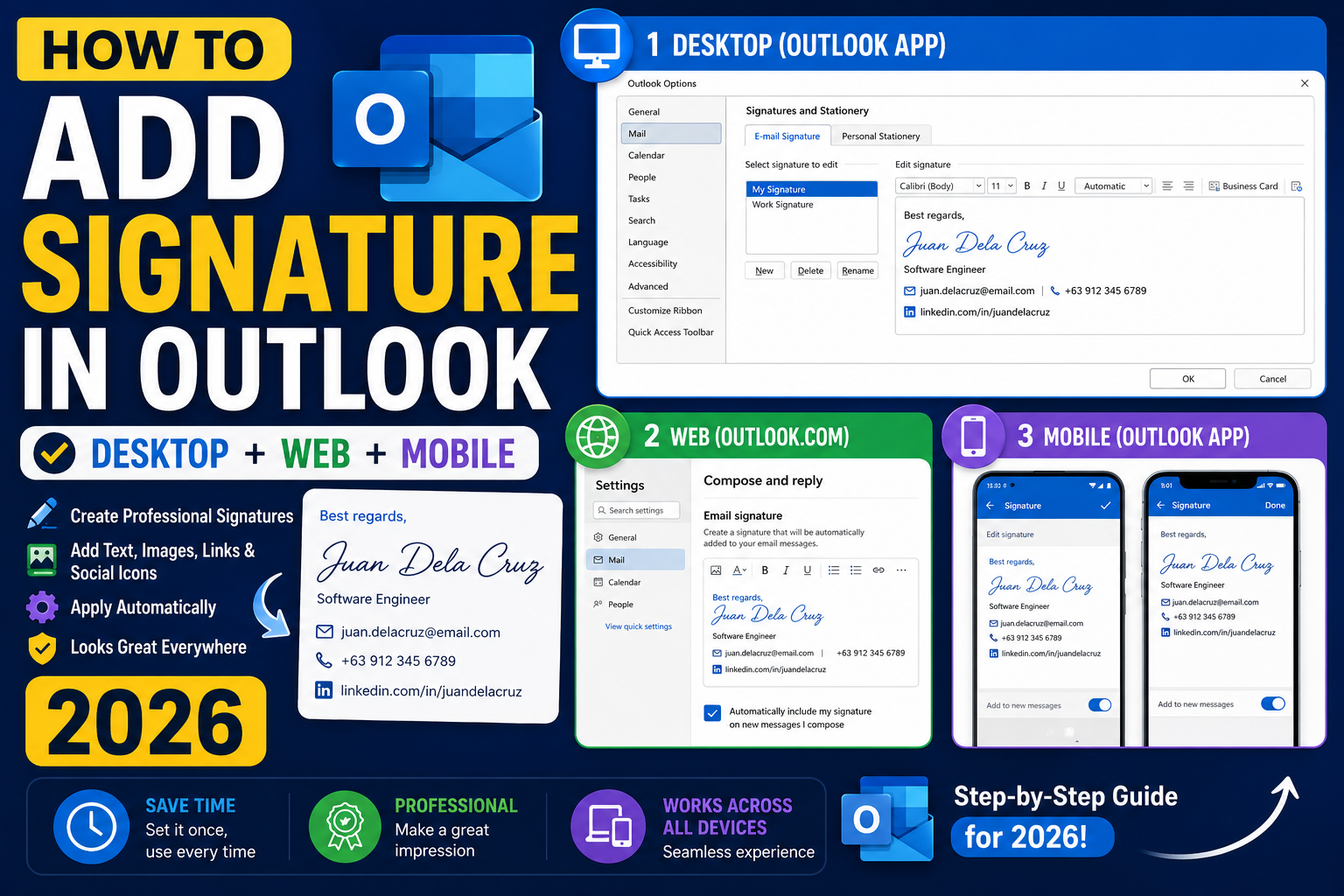
Outlook signatures appear at the bottom of every email you send. A well-designed signature includes your name, role, contact details, and a company logo. Outlook lets you set different signatures for different accounts, and even different signatures for new emails vs replies. Here is how to add a signature in Outlook on desktop, web, Android, and iPhone in 2026, plus templates and troubleshooting.
Add signature in Outlook desktop (Windows)
- Open Outlook on your Windows PC.
- Click File in the top-left, then Options.
- In the Options window, click Mail in the left sidebar.
- Click the Signatures button.
- Click New and type a name for your signature (example: “Work” or “Personal”).
- Type your signature in the Edit signature box.
- Format with the toolbar: font, size, color, bold, italic, hyperlink, image.
- Under “Choose default signature”, set which signature to use for new emails and for replies/forwards.
- Click OK to save.
Add signature in Outlook desktop (Mac)
- Open Outlook for Mac.
- Click Outlook in the top menu bar, then Settings (or Preferences on older versions).
- Click Signatures.
- Click the + button to create a new signature.
- Give it a name and type your signature.
- Close the window to save.
- Set the default signature for each account by choosing from the dropdown at the bottom of the Signatures window.
Add signature in Outlook Web App (outlook.office.com)
- Sign in to outlook.office.com.
- Click the gear icon in the top-right corner.
- Click View all Outlook settings at the bottom of the panel.
- Go to Mail → Compose and reply.
- Under Email signature, type your signature.
- Check the boxes for “Automatically include my signature on new messages” and “on messages I forward or reply to”.
- Click Save.
Add signature in Outlook mobile (Android and iPhone)
- Open the Outlook app on your phone.
- Tap your account icon in the top-left.
- Tap the gear icon in the bottom-left of the panel.
- Under Mail, tap Signature.
- Toggle “Per account signature” ON if you want different signatures for different accounts.
- Type your signature in the text box.
- Tap the back arrow or checkmark to save.
Add an image or logo to your Outlook signature
- Open the Signatures dialog (File → Options → Mail → Signatures on Windows).
- Click in the Edit signature box where you want the image.
- Click the Image icon (small picture) in the toolbar above the edit box.
- Browse and select your image (PNG or JPG, ideally 100-200px height).
- Optionally right-click the image and set a link so recipients can click it to visit your website.
- Click OK to save.
Note: images larger than 500px width often display broken in recipient email clients. Keep signature images small.
Professional Outlook signature templates
Minimal:
Ana Reyes
Senior Developer, PIES IT Solutions
ana@example.com | +63 917 xxx xxxx
With social links:
Ana Reyes
Senior Developer | PIES IT Solutions
Web: pies.ph  |  LinkedIn: linkedin.com/in/anareyes
+63 917 xxx xxxx
Executive style:
Ana Reyes
Chief Technology Officer
PIES Information Technology Solutions
Suite 302, Ortigas Center, Pasig City
ana@pies.ph  |  +63 917 xxx xxxx  |  pies.ph
Common Outlook signature problems
- Signature not appearing on replies: check “Automatically include on messages I reply to” is enabled in Signatures settings.
- Image shows as attachment for recipients: image was linked instead of embedded. Re-add via the Image button, not by pasting a URL.
- Signature looks different in sent emails: Outlook’s edit box uses your Outlook font. Recipients see the signature in their own email client’s default font. Keep formatting simple.
- Signature disappears after sync: signatures are stored per-device on Outlook desktop. To sync across devices, use the Outlook Web signature setting which travels with your account.
- Cannot save signature on work computer: your IT department may have policies limiting signature changes. Contact IT for a corporate signature template.
Common Outlook mistakes to avoid
- Not using folders and rules. An Outlook inbox with 5,000 unread emails is unmanageable. Set up folders per project and rules to auto-file routine mail.
- Forgetting the Signature preview before sending. Signatures render differently across clients. Send yourself a test to catch layout issues before external recipients see them.
- Ignoring Focus Inbox. Outlook’s Focus Inbox auto-filters non-priority mail. Not perfect but a huge time saver once trained.
- Overusing Reply All. The workplace curse. Reply only to the sender unless everyone truly needs the response.
- Not linking Outlook to Teams/OneNote. Microsoft 365 integrations turn Outlook into a hub. Enable calendar-to-Teams and email-to-OneNote linking.
Power-user tips for Outlook
- Use Quick Steps. One-click multi-action shortcuts. Common Quick Step: “File to Project X + mark as read + reply with template”.
- Master search operators. from:name, subject:keyword, hasattachments:yes, received:this-week. Combine for laser-focused inbox search.
- Delay all sends by 60 seconds. File > Options > Mail > Delivery. Prevents accidental sends. Set to 1 minute; retract by editing outgoing.
- Set up conditional formatting for VIPs. Emails from your boss appear in red. Instant priority visibility.
- Use categories, not folders, for tagging. Categories work across folders. A “Follow-up” category surfaces across your entire mailbox.
Outlook desktop vs web vs mobile
Outlook desktop (Windows/Mac) has the most features: full rules engine, advanced search, offline access. Best for heavy email users.
Outlook Web App (OWA) works from any browser. Rules and rules editor slightly limited compared to desktop. Search is fast because it hits the server directly.
Outlook mobile (iOS/Android) is streamlined for on-the-go. Swipe gestures customizable. Good for triage; not ideal for composing long emails.
For most professionals, desktop for morning triage, mobile for meetings, web for occasional access from unfamiliar computers. Sync happens instantly across all three.
Best practices summary
- Zero-inbox mindset. Every email gets a decision: reply, defer, delegate, or delete. No email stays “read but not decided”.
- Rules for routine mail. Newsletter to Reading folder. Reports to Reports folder. Approvals to Approvals folder. Never manually file the same type twice.
- Categorize actively. Follow-up, waiting-for, this-week. Categories cross folder boundaries.
- Schedule email review windows. Not constant checking. Two focused sessions per day beat 40 distracted glances.
- Archive, do not delete. Storage is cheap. Full-text search is powerful. Archive lets you find anything years later.
Official documentation
Recommended Outlook + Microsoft 365 resources
The links below are affiliate links. We may earn a commission at no extra cost to you when you buy or sign up. See our affiliate disclosure.
Quick step-by-step summary (click to expand)
- Open Outlook Settings. On Outlook desktop, click File then Options then Mail then Signatures. On Outlook web, click Settings then Compose and reply.
- Click New Signature. Give your signature a name (e.g. “Work default”). Choose whether it applies to new messages, replies, or both.
- Type or paste your signature. Add your name, title, phone, website. Use the toolbar to bold, add colors, or paste your logo image.
- Set default signatures. Pick the signature to use for new emails and replies from the dropdowns. Save.
- Test on mobile. Open Outlook mobile app, tap Menu then Settings then Signature. Mobile signatures are set separately.
Frequently Asked Questions
Do Outlook signatures sync across devices?
Only signatures created in the Outlook Web App (outlook.office.com) sync across devices via your Microsoft account. Signatures set in the desktop app or mobile app stay local to that device.
Can I have multiple Outlook signatures?
Yes. Desktop Outlook lets you create as many signatures as you want and switch between them per email. Web and mobile support one signature per account (or per-account signatures if you have multiple accounts).
Can I use HTML in my Outlook signature?
Not directly through the edit box. But if you create an HTML file and place it in %APPDATA%\\Microsoft\\Signatures folder (Windows), Outlook uses the HTML formatting. Test carefully because recipient clients may render HTML differently.
Why does my signature image show as an attachment for recipients?
The image was inserted as an attachment link instead of embedded. Re-add via the Image button in the Signature edit toolbar. Some corporate email systems still show images as attachments even when embedded correctly.
Can my company enforce a corporate signature?
Yes. Exchange administrators can set up transport rules that automatically add a corporate signature to outgoing emails. This overrides individual signature settings and typically appears below your personal signature.

Caren Bautista
Technical Writer at PIES IT Solution
Responsible for crafting clear, well-structured, and beginner-friendly content across the platform. Handles the writing, proofreading, and editorial review of tutorials, guides, and documentation to ensure every article is accurate, readable, and easy to follow.
Expertise: Technical Writing · Content Creation · Documentation · Editorial Writing · JavaScript · TypeScript · View all posts by Caren Bautista →