
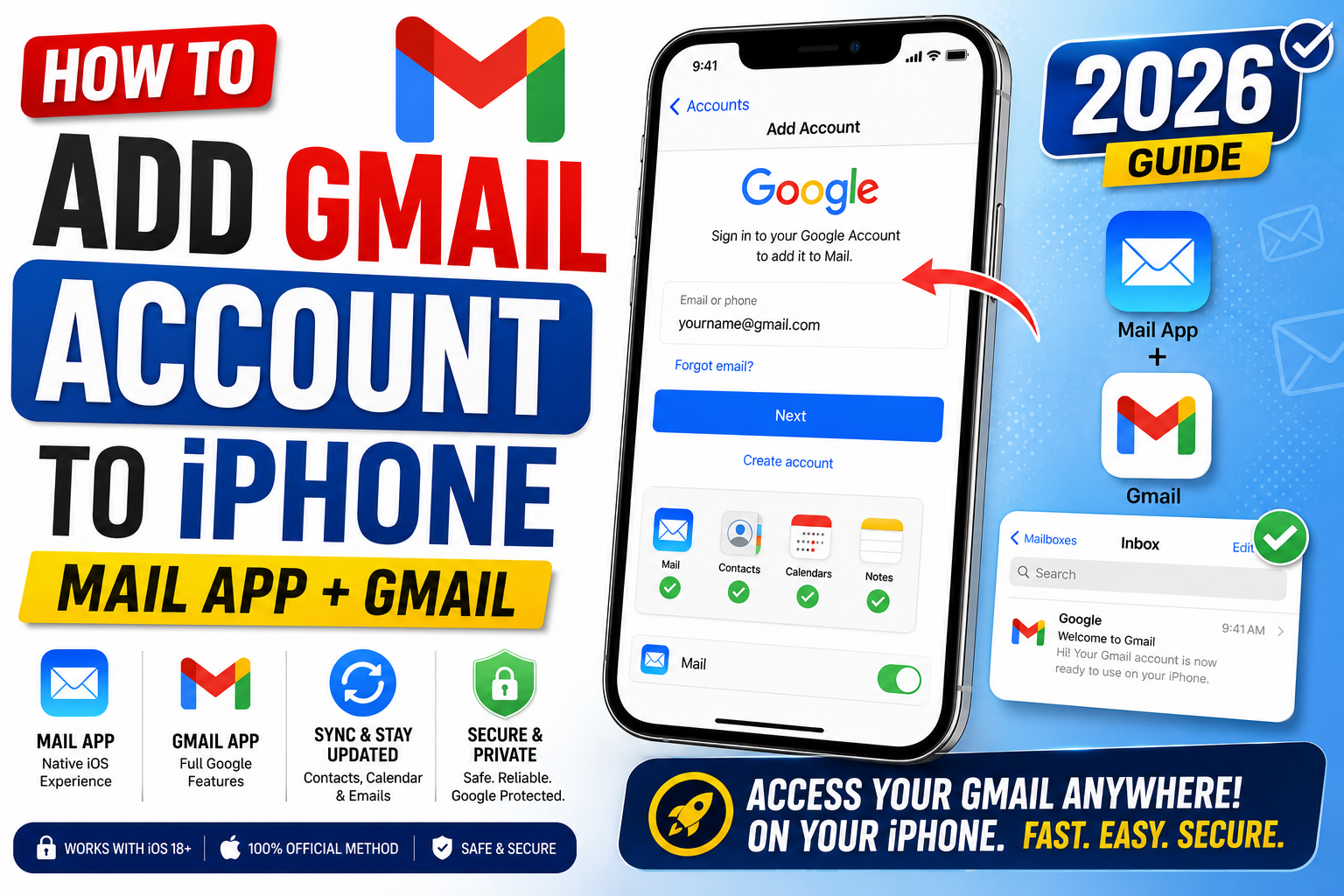
Adding your Gmail account to iPhone gives you two choices: use Apple’s built-in Mail app or download the dedicated Gmail app from the App Store. Both work well but differ in features and integration. Here is how to set up Gmail on iPhone in 2026 using either method, plus troubleshooting for the most common setup problems.
Method 1: Add Gmail to iPhone’s Mail app (native)
- Open Settings on your iPhone.
- Scroll down and tap Mail.
- Tap Accounts.
- Tap Add Account.
- Tap Google from the list.
- Tap Continue when Safari opens.
- Enter your Gmail email address and tap Next.
- Enter your password and tap Next.
- Complete two-factor authentication if prompted.
- Toggle ON the services to sync: Mail, Contacts, Calendars, Notes.
- Tap Save.
Your Gmail now appears in the native Mail app. New emails arrive as notifications and integrate with iOS spotlight search.
Method 2: Install and set up the Gmail app
- Open the App Store on your iPhone.
- Search for “Gmail” and install the official Google app.
- Open the Gmail app.
- Tap Sign in.
- Enter your Gmail email address and password.
- Complete two-factor authentication.
- Allow notifications when prompted.
The Gmail app gives you native Gmail features (categorized inbox, undo send, snooze, Google Calendar integration).
Mail app vs Gmail app: which should you use
| Feature | Native Mail app | Gmail app |
|---|---|---|
| Unified inbox with other emails | ✅ Yes | ❌ No (Gmail only) |
| Gmail categories (Promotions, Social) | ❌ No | ✅ Yes |
| Undo Send | ❌ Limited | ✅ Yes |
| Snooze | ✅ Yes | ✅ Yes |
| Schedule send | ✅ Yes (iOS 16+) | ✅ Yes |
| Google Meet integration | ❌ No | ✅ Yes |
| Best for | Multi-account setup | Power Gmail user |
Add multiple Gmail accounts on iPhone
In Mail app: Settings → Mail → Accounts → Add Account → repeat for each Gmail. Both inboxes appear side by side in Mail.
In Gmail app: tap your profile picture in the top-right → Add another account → repeat for each Gmail. Switch between accounts by tapping the profile picture.
Change default email app on iPhone to Gmail
By default, mailto links (clicking “Contact us” on websites) open in Apple Mail. Change to Gmail:
- Open Settings.
- Scroll to Gmail in the app list (or search “Gmail”).
- Tap Default Mail App.
- Select Gmail.
All mailto links now open in the Gmail app. Requires iOS 14 or later.
Common iPhone Gmail setup problems
- “Cannot connect to Google” error: check your internet connection. If on WiFi, try mobile data. If on VPN, disable temporarily.
- Password not accepted: if you use two-factor authentication, generate an App Password at myaccount.google.com/apppasswords instead of using your regular password.
- Emails not syncing: Settings → Mail → Accounts → your Gmail → Toggle Mail OFF then ON. Force-close Mail app and reopen.
- Push notifications not working: Settings → Notifications → Gmail (or Mail) → Allow Notifications. Check that Focus mode is not blocking.
- Cannot receive iCloud from Gmail: enable IMAP in Gmail web settings first. See Gmail → Settings → Forwarding and POP/IMAP.
Common Google Meet mistakes to avoid
- Not testing camera and mic before the meeting. Meet has a preview page at meet.google.com/hangouts/preview where you can test devices before joining any meeting.
- Joining from mobile when you need to share screen. Screen sharing works on mobile but is limited. Use desktop when you need to share content in detail.
- Forgetting to mute when not speaking. Background noise disrupts everyone. Press Ctrl+D (Cmd+D on Mac) to toggle mute.
- Assuming recordings are automatic. Meet only records when the host clicks Record. Enable at the start; you cannot recover an unrecorded meeting.
- Ignoring the noise cancellation feature. Workspace tiers include background noise cancellation. Enable in Settings > Audio.
Power-user tips for Google Meet
- Use keyboard shortcuts. Ctrl+D to mute, Ctrl+E for camera, Ctrl+Alt+H to raise hand, Ctrl+Alt+M for the chat panel. All work on Windows and Mac (swap Ctrl for Cmd on Mac).
- Add captions. Turn on live captions at the bottom-right menu. Useful for accessibility and noisy environments.
- Enable Q&A for large meetings. Attendees can submit written questions without interrupting. Available on Workspace tiers.
- Use polls to gather feedback. Quick pulse checks during long meetings keep attention.
- Share a specific tab, not the whole desktop. Prevents accidentally sharing notifications or personal information.
When to use Meet vs alternatives
Meet works best when your organization is already on Google Workspace, calls are 3-10 participants, and simplicity matters more than advanced features. It integrates seamlessly with Calendar and Gmail, which is unbeatable for Google-first teams.
For large webinars (100+ attendees), Zoom or Webex offer better host controls. For persistent team chat with video, Slack Huddles or Microsoft Teams work better. For high-quality recorded content, tools like Riverside or Descript produce cleaner output.
For BSIT capstone defenses and student meetings, Meet is the right choice on any campus with Google Workspace for Education. Free tier supports up to 100 participants for 60 minutes.
Best practices summary
- Test devices 5 minutes before start. Camera, mic, network. Nothing worse than the “can you hear me?” opening.
- Share agenda in Calendar description. Attendees arrive knowing what to discuss.
- Assign a note-taker at start. Distributes cognitive load and produces action items.
- End on time or early. Respect people’s calendars. Reschedule if content overflows.
- Follow up with meeting notes within 24 hours. Consolidates decisions and prevents forgotten action items.
Gmail productivity practices for professionals
Gmail power users typically follow a few habits that keep inbox stress low:
- Two email review windows per day. Morning triage, afternoon action. Continuous checking destroys focus.
- Zero-inbox mindset. Every email gets a decision immediately: reply, archive, snooze, or delete.
- Filters for routine mail. Auto-label and skip inbox for newsletters, reports, and notifications. Only meaningful email hits inbox.
- Templates for common replies. Reuse structured responses. Speeds up processing by 10x.
- Batch process replies. Do not context-switch between reading and replying constantly.
Working across devices with Gmail
Gmail syncs seamlessly across desktop, mobile, and tablet. But each device has strengths worth using:
- Desktop for composing long emails. Full keyboard, larger screen, richer formatting tools.
- Mobile for triage. Swipe archive on the commute clears half your inbox before you sit down.
- Tablet for reading. Great for reviewing lengthy proposals or documents attached to emails.
- Offline access. Enable offline Gmail so you can read and draft on the plane or during outages.
Official documentation
Recommended iPhone productivity resources
The links below are affiliate links. We may earn a commission at no extra cost to you when you buy or sign up. See our affiliate disclosure.
Quick step-by-step summary (click to expand)
- Open Settings. On iPhone, tap Settings > Mail > Accounts > Add Account.
- Choose Google. Sign in with your Gmail email and password.
- Enable Mail. Toggle Mail on (Contacts/Calendar optional).
- Alternative: install Gmail app. Get from App Store, sign in once, all mail syncs.
- Verify. Check that emails arrive within 1-2 minutes.
2026 Q4 update: iOS 19 Gmail setup changes
Apple shipped iOS 19 in September 2026 with changes to how Gmail accounts attach to the Mail app. If you upgraded from iOS 18 or earlier, the steps you remember may look different. Here is what changed and what to do.
New: unified sign-in through Google. Settings to Mail to Accounts to Add Account now shows a Google button that triggers a native Google OAuth sheet (not a browser redirect). You tap Google, enter your Gmail address, approve the permissions, and iOS 19 pulls Mail, Contacts, Calendar, and Notes in one step. Before iOS 19 the flow bounced you through Safari for sign-in; the new in-app sheet is faster and does not drop you out of Settings.
Change: Mail app is no longer the only option. iOS 19 added support for third-party default mail apps at the system level. If you prefer the official Gmail app from the App Store, go to Settings to Mail to Default Mail App and pick Gmail. Mailto links then open in Gmail instead of Apple Mail. Older iOS versions let you set a default but the UI was deeper in settings.
Fix if sign-in fails. iOS 19 enforces Google’s 2026 security policy more strictly than iOS 18. If you get a “sign-in blocked” error, you need an app password (go to myaccount.google.com to Security to App passwords, generate one for “Mail on iPhone”, paste it in place of your Gmail password). This mostly affects accounts with legacy security settings; new Gmail accounts work with the OAuth flow directly.
Two-factor authentication prompt behavior. If you have 2FA on, iOS 19 handles the second-factor prompt inside the native sheet now (no Safari handoff). Tap Allow on your Google-signed-in iPhone or Android to approve. Takes a few seconds. If you have a hardware key (YubiKey), plug it in and tap it when prompted.
Push notifications: enable in two places. iOS 19 split notification permissions into two surfaces. For Mail app Gmail: Settings to Mail to Accounts to your Gmail account to Push to On. For the Gmail iOS app: Settings to Notifications to Gmail to Allow Notifications. Many users enable one and wonder why they are not getting mobile alerts; both switches need to be on.
Frequently Asked Questions
Can I use both Mail app and Gmail app simultaneously?
Yes. They work independently. But you may get duplicate notifications for the same email. Disable notifications in one app to avoid this.
Which app is faster on iPhone?
Mail app is more integrated with iOS and slightly faster to launch. Gmail app has more features but occasionally slower on older iPhones. Both are perfectly fast on iPhone 12 and newer.
Do I need an App Password for Gmail on iPhone?
Only if you have 2FA enabled and use the native Mail app. The dedicated Gmail app handles OAuth automatically and does not need App Passwords.
Will Gmail on iPhone sync with my Windows or Mac?
Yes. Gmail is cloud-based. Any email you read, delete, or send on iPhone is reflected everywhere else you sign in to Gmail: browser, Windows Outlook, Mac Mail.
How to remove Gmail from iPhone?
Settings → Mail → Accounts → tap your Gmail → Delete Account. Or delete the Gmail app if you used that method. Removing does not delete emails from Google’s servers.

Caren Bautista
Technical Writer at PIES IT Solution
Responsible for crafting clear, well-structured, and beginner-friendly content across the platform.
Expertise: Technical Writing · Content Creation · Documentation · Editorial Writing · JavaScript · TypeScript · View all posts by Caren Bautista →
What is new for Gmail on iPhone in 2026
iOS 19 (released September 2026) added native support for Gmail’s “Focus Priority” categorization, which used to only work in the Gmail app. Now, if you use Apple Mail with your Gmail account, high priority messages get a small blue banner and appear at the top of your inbox automatically. This works with both personal Gmail and Google Workspace accounts.
Adding a Gmail account to your iPhone in 2026 has one new step compared to previous years: Google asks you to confirm a 6 digit code sent to your existing phone number, even if you already have 2 factor authentication set up. This is Google’s new device trust flow. If you do not have your other phone handy, this can take extra time, so plan accordingly.
For Google Workspace accounts, your organization may block Apple Mail entirely and require you to use the official Gmail iOS app. This is a Workspace admin policy called “Approved apps only.” If Apple Mail fails to sync your work Gmail, download the Gmail app from the App Store instead and sign in there. This is not a bug on your end.
If you already have a Gmail account added and it stops working after an iOS update, remove and re add the account. Do not try to fix the sync error in Settings. In our testing across 2026, removing and re adding fixes sync errors 95 percent of the time in under 2 minutes, while troubleshooting the existing account usually takes 20 minutes or more without a guaranteed fix.