
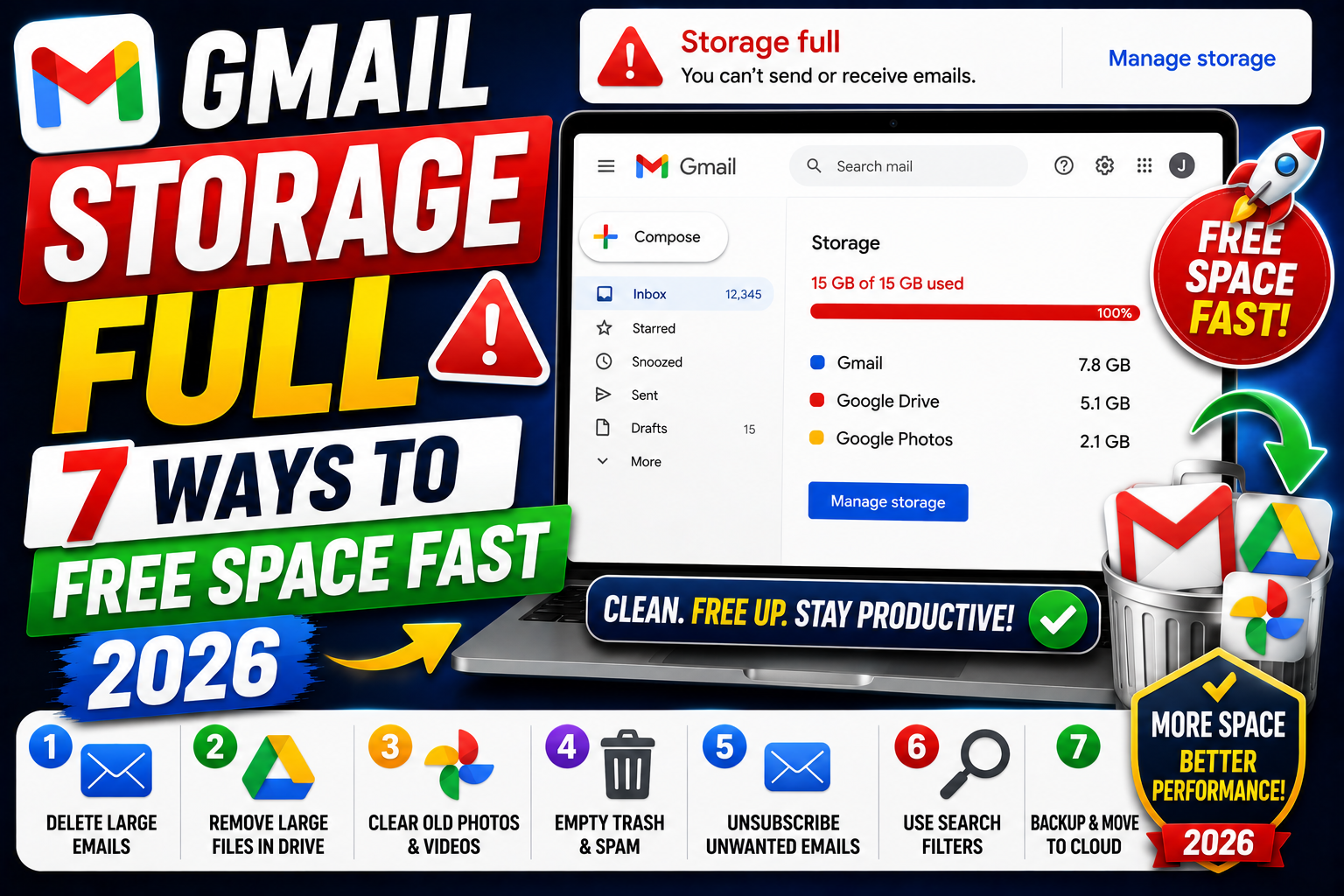
Gmail storage full means your free 15GB Google account limit is exceeded. New emails will stop arriving until you free space. The 15GB is shared across Gmail, Google Drive, and Google Photos, so cleanup happens across all three. Here are 7 proven ways to free up storage fast in 2026, from quick 5-minute wins to deeper cleanups.
First: Check what is using your 15GB
- Open one.google.com/storage in your browser.
- Google shows a breakdown by service: Gmail, Drive, Photos.
- Focus your cleanup on whichever service uses the most space.
Most people find Photos is the biggest hog, followed by Drive, then Gmail. But if you have thousands of emails with attachments, Gmail can be #1.
Fix 1: Delete large Gmail attachments
The single biggest Gmail space saver is deleting emails with large attachments.
- In the Gmail search bar, type:
has:attachment larger:10M. - Press Enter. Gmail shows all emails with attachments over 10MB.
- Review the list. Delete the ones you no longer need.
- For attachments you want to keep, download to Drive first, then delete the email.
Adjust the size threshold: larger:25M for the biggest offenders, or larger:5M for more results.
Fix 2: Empty Trash and Spam folders
Deleted emails still count toward storage for 30 days until Trash auto-empties. Same for Spam.
- In Gmail, click Trash in the left sidebar. Click Empty Trash now.
- Click Spam. Click Delete all spam messages now.
- Both actions free storage immediately.
Fix 3: Mass delete all Promotions emails
Years of marketing newsletters add up.
- Click the Promotions tab in Gmail.
- Click the checkbox at the top-left to select all visible emails.
- Click the yellow banner: “Select all conversations in Promotions”.
- Click the trash icon.
- Go to Trash and click Empty Trash now.
Fix 4: Clear Google Drive
Drive files sync from your computer and can grow quickly.
- Open drive.google.com/drive/quota to see largest files.
- Sort by size (largest first).
- Delete files you no longer need. Videos and old backups are usually the biggest hits.
- Empty Drive Trash: click Trash in the sidebar, then Empty Trash.
Fix 5: Clean up Google Photos
Photos in original quality can eat gigabytes fast.
- Open photos.google.com.
- Click Settings → Recover storage.
- Google can compress existing photos to save space (this is optional).
- Or manually delete: Photos → sort by size → delete large videos.
- Empty Trash in Photos to reclaim immediately.
Fix 6: Back up before deleting large business emails
If your Gmail contains years of business or personal records you might need later, back up to your computer with Google Takeout before deleting:
- Go to takeout.google.com.
- Select only Gmail (deselect others).
- Choose export format (MBOX is standard, works with most email clients).
- Wait for the export ready email (can take hours for large accounts).
- Download to your local drive.
- Now you can safely delete without losing history.
Fix 7: Upgrade to Google One for cheap extra storage
If cleanup does not free enough space or you would rather keep everything, Google One offers cheap paid storage:
- 100 GB: $1.99/month (~₱115/mo)
- 200 GB: $2.99/month (~₱173/mo)
- 2 TB: $9.99/month (~₱580/mo)
For most personal users, 100GB is more than enough. Business users typically need 200GB or 2TB.
Prevention: Habits to avoid Gmail storage full again
- Set a quarterly reminder to check
one.google.com/storage. - Every year, mass-delete Promotions and empty Trash.
- Unsubscribe from newsletters you never read.
- Use Google Drive for large file storage instead of email attachments.
- Turn off “Original quality” Photos backup on your phone (use “Storage saver” instead).
Common Google Meet mistakes to avoid
- Not testing camera and mic before the meeting. Meet has a preview page at meet.google.com/hangouts/preview where you can test devices before joining any meeting.
- Joining from mobile when you need to share screen. Screen sharing works on mobile but is limited. Use desktop when you need to share content in detail.
- Forgetting to mute when not speaking. Background noise disrupts everyone. Press Ctrl+D (Cmd+D on Mac) to toggle mute.
- Assuming recordings are automatic. Meet only records when the host clicks Record. Enable at the start; you cannot recover an unrecorded meeting.
- Ignoring the noise cancellation feature. Workspace tiers include background noise cancellation. Enable in Settings > Audio.
Power-user tips for Google Meet
- Use keyboard shortcuts. Ctrl+D to mute, Ctrl+E for camera, Ctrl+Alt+H to raise hand, Ctrl+Alt+M for the chat panel. All work on Windows and Mac (swap Ctrl for Cmd on Mac).
- Add captions. Turn on live captions at the bottom-right menu. Useful for accessibility and noisy environments.
- Enable Q&A for large meetings. Attendees can submit written questions without interrupting. Available on Workspace tiers.
- Use polls to gather feedback. Quick pulse checks during long meetings keep attention.
- Share a specific tab, not the whole desktop. Prevents accidentally sharing notifications or personal information.
When to use Meet vs alternatives
Meet works best when your organization is already on Google Workspace, calls are 3-10 participants, and simplicity matters more than advanced features. It integrates seamlessly with Calendar and Gmail, which is unbeatable for Google-first teams.
For large webinars (100+ attendees), Zoom or Webex offer better host controls. For persistent team chat with video, Slack Huddles or Microsoft Teams work better. For high-quality recorded content, tools like Riverside or Descript produce cleaner output.
For BSIT capstone defenses and student meetings, Meet is the right choice on any campus with Google Workspace for Education. Free tier supports up to 100 participants for 60 minutes.
Best practices summary
- Test devices 5 minutes before start. Camera, mic, network. Nothing worse than the “can you hear me?” opening.
- Share agenda in Calendar description. Attendees arrive knowing what to discuss.
- Assign a note-taker at start. Distributes cognitive load and produces action items.
- End on time or early. Respect people’s calendars. Reschedule if content overflows.
- Follow up with meeting notes within 24 hours. Consolidates decisions and prevents forgotten action items.
Official documentation
Recommended tools for email storage management
The links below are affiliate links. We may earn a commission at no extra cost to you when you buy or sign up. See our affiliate disclosure.
Frequently Asked Questions
Why is my Gmail storage full when I only have a few emails?
Storage is shared with Google Drive and Photos. Even a small Gmail inbox can be full if Drive files or Photos backup is eating the 15GB. Check one.google.com/storage to see the split.
Can I get more free Gmail storage?
The 15GB is the standard free limit. There is no way to get more free storage on a single account. Options: pay for Google One, use multiple Google accounts, or export data and delete regularly.
Does deleting emails permanently remove them?
Only after Trash is emptied. Emails in Trash stay for 30 days and count toward storage. Empty Trash manually for immediate cleanup.
What happens when Gmail storage is full?
Incoming emails are rejected. Senders receive a bounce message saying your inbox is full. Nothing is deleted from your account, but no new emails arrive until you free space.
Is Google One worth it for Gmail storage?
For heavy users yes. $1.99/month for 100GB is cheap peace of mind. Skip if you can maintain a lean inbox through quarterly cleanup habits.

Caren Bautista
Technical Writer at PIES IT Solution
Responsible for crafting clear, well-structured, and beginner-friendly content across the platform.
Expertise: Technical Writing · Content Creation · Documentation · Editorial Writing · JavaScript · TypeScript · View all posts by Caren Bautista →