
Google never deletes your Gmail emails without warning or without giving you the chance to backup your data, but accounts can still be lost: forgotten password with no recovery method, account compromise, accidental deletion, or Google’s automated abuse detector flagging you incorrectly.
A local backup of your inbox protects against all of those scenarios. The official, free, no-third-party-tool way to do this is Google Takeout.
This guide walks you through a full Gmail backup in 2026, including how to choose the right format and what to do with the downloaded file.
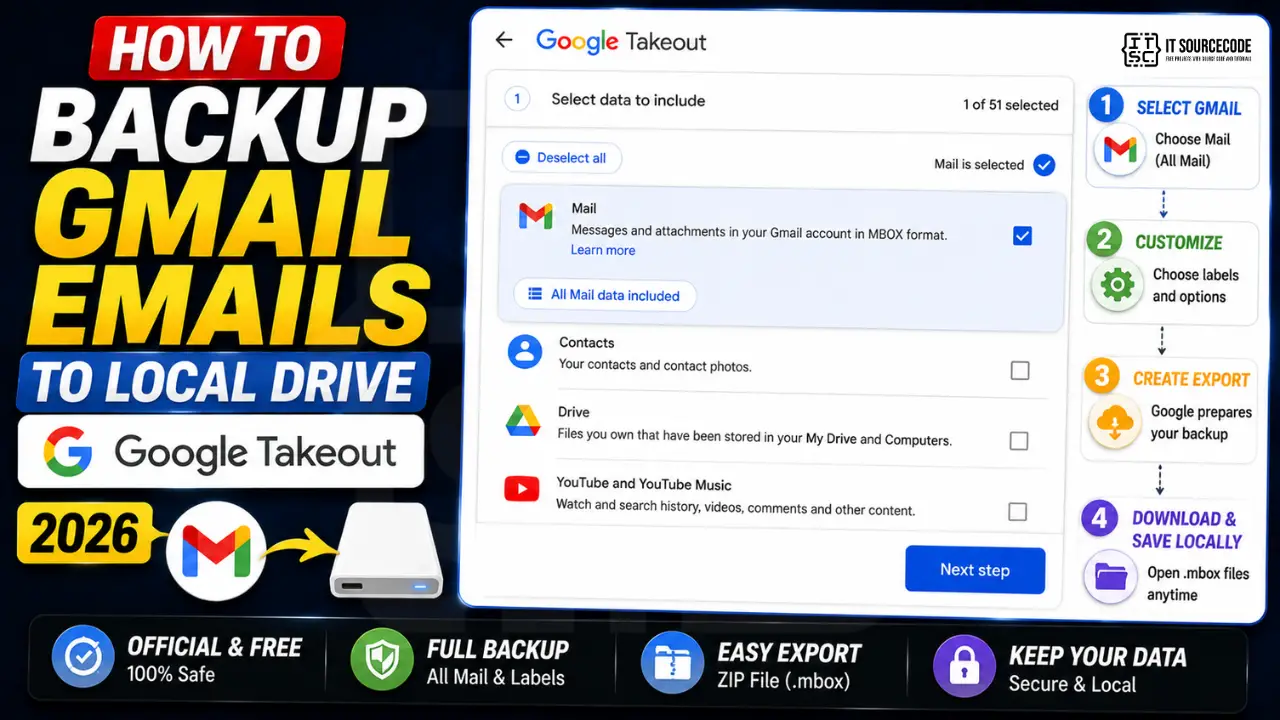
Step 1: Open Google Takeout and select Gmail
- Go to
takeout.google.comand sign in to the Gmail account you want to back up. - You’ll see a list of all Google services. By default, every service is checked.
- Click “Deselect all” at the top.
- Scroll down to “Mail” and check it.
- Click “All Mail data included” (just below Mail) to choose which labels to back up. By default, all labels including Trash and Spam are selected. Uncheck Trash and Spam unless you specifically need them.
- Click “OK” to confirm label selection.
- Scroll to the bottom and click “Next step.”
Step 2: Choose delivery, frequency, file type, and size
| Setting | Recommended choice | Why |
|---|---|---|
| Destination | “Send download link via email” | Simplest; alternatives upload to Drive/Dropbox/OneDrive |
| Frequency | “Export once” (one-time) | For quarterly backups; alternative is auto-monthly for 1 year |
| File type | .zip | Universal; .tgz is smaller but needs extra software |
| File size limit | 2 GB or 4 GB | Larger inboxes split into multiple files; 2 GB is safest for slow connections |
Click “Create export.” Google starts processing in the background.
Step 3: Wait for the export (1 hour to 1 week, depending on inbox size)
Google says “from a few hours to a few days.” In practice:
- Under 1 GB inbox: 1-4 hours
- 1-5 GB inbox: 4-12 hours
- 5-15 GB inbox: 1-3 days
- Over 15 GB inbox: 3-7 days
You will get an email at the same Gmail address when the export is ready. The email contains a download link valid for 7 days.
Step 4: Download and extract the file
- Open the “Your Google data is ready” email.
- Click “Download your files.” You may need to re-verify your password.
- The .zip file downloads to your computer (file name includes the date).
- Right-click the .zip > Extract All (Windows) or double-click (Mac).
- Inside the extracted folder, find the “Mail” subfolder. Your emails are in
.mboxfiles, one file per label (Inbox.mbox, Sent.mbox, etc.).
Step 5: Open and read the .mbox files
.mbox is a standard format readable by most desktop email clients. Free options to view the backup:
- Thunderbird (Windows / Mac / Linux): install Thunderbird > install “ImportExportTools NG” add-on > right-click Local Folders > ImportExportTools > Import mbox file > pick your .mbox.
- Apple Mail (Mac): File > Import Mailboxes > choose “Files in mbox format” > navigate to the .mbox file.
- Microsoft Outlook (Windows): does not support .mbox natively. Use a free converter (Aid4Mail, Mailstore Home) to convert .mbox to .pst first.
- Just searching / reading: use a tool like MBox Viewer (free) for read-only browsing without importing.
How big will my backup be?
The backup file size roughly matches the storage shown at one.google.com/storage for your Mail bucket. Typical sizes by user type:
| User type | Typical backup size |
|---|---|
| Casual personal Gmail (2-5 years) | 500 MB – 2 GB |
| Heavy personal Gmail (10+ years) | 3 – 8 GB |
| Business / professional Gmail | 8 – 30 GB |
| Power user with archive | 30+ GB (multiple .zip parts) |
Best practices for ongoing backups
- Schedule a quarterly reminder: 4 backups per year covers most edge cases without filling your hard drive.
- Keep backups in 2 places: external SSD plus an encrypted cloud folder (iCloud, Drive, Dropbox).
- Encrypt sensitive backups: use 7-Zip (free) to create a password-protected archive. Use a long passphrase.
- Trash before backup: empty Spam and Trash first to avoid bloating the export.
- Test a restore yearly: open one .mbox in Thunderbird to confirm the backup is readable, not just downloaded.
Limitations of Google Takeout for Gmail
- You cannot back up only emails newer than a specific date through Takeout. Workaround: archive everything you do not need into a “Backup-Archive” label first, then deselect it from the export.
- Takeout includes attachments but does not include shared Drive files you only have View access to.
- Labels are preserved in the .mbox file as headers but may need re-applying when importing to a different email client.
- If you delete your Gmail account, Takeout backups remain on your local drive (Google has no way to revoke them).
Official documentation
Quick step-by-step summary (click to expand)
- Sign in to Google Takeout. Open takeout.google.com in your browser and sign in with the Gmail account you want to backup.
- Deselect all products first. Click “Deselect all” at the top so only the products you want are exported.
- Select Mail. Scroll down the list and check the box next to “Mail”. Optionally click “All Mail data included” to filter by label.
- Choose export format and delivery. Scroll to the bottom and click “Next step”. Choose Zip format and delivery method (email link or Google Drive).
- Create the export and download. Click “Create export” and wait. Google emails you a download link within 1 hour to a few days depending on inbox size.
Frequently Asked Questions
Is Google Takeout free?
Yes. Google Takeout is a free service for all Google account holders. There is no limit on how many times you can export, and no fee for storage size or frequency. Your only cost is local hard-drive space for the downloaded files.
How long does a Gmail Takeout backup take?
From 1 hour for small inboxes (under 1 GB) to several days for very large inboxes (15+ GB). Google emails you the download link when ready. Most personal accounts complete within 4-12 hours.
What format are the backed-up Gmail emails in?
MBOX format. One .mbox file per Gmail label (Inbox.mbox, Sent.mbox, etc.). MBOX is a standard format readable by Thunderbird, Apple Mail, and most other email clients. Outlook requires a free converter to .pst format first.
Can I back up only specific Gmail labels?
Yes. In Takeout, click “All Mail data included” under the Mail option and uncheck the labels you do not want. Common choices: skip Trash, Spam, and large attachment-heavy labels. This dramatically reduces backup size and download time.
Does the backup include attachments?
Yes. Every attachment in your Gmail (PDFs, photos, documents, ZIP files) is preserved inside the .mbox file as base64-encoded data. When you open the .mbox in Thunderbird or Apple Mail, attachments appear normally and can be saved out.
If I delete my Gmail account, do Takeout backups still work?
Yes, but only if you completed the backup BEFORE deletion. The .mbox files on your local drive remain readable forever; they are independent of your Google account. Once the account is deleted, you cannot create new Takeout exports. Always back up before deciding to delete an account.

Caren Bautista
Technical Writer at PIES IT Solution
Responsible for crafting clear, well-structured, and beginner-friendly content across the platform. Handles the writing, proofreading, and editorial review of tutorials, guides, and documentation to ensure every article is accurate, readable, and easy to follow.
Expertise: Technical Writing · Content Creation · Documentation · Editorial Writing · JavaScript · TypeScript · Python · Python Errors · HTTP Errors · MS Excel · View all posts by Caren Bautista →