
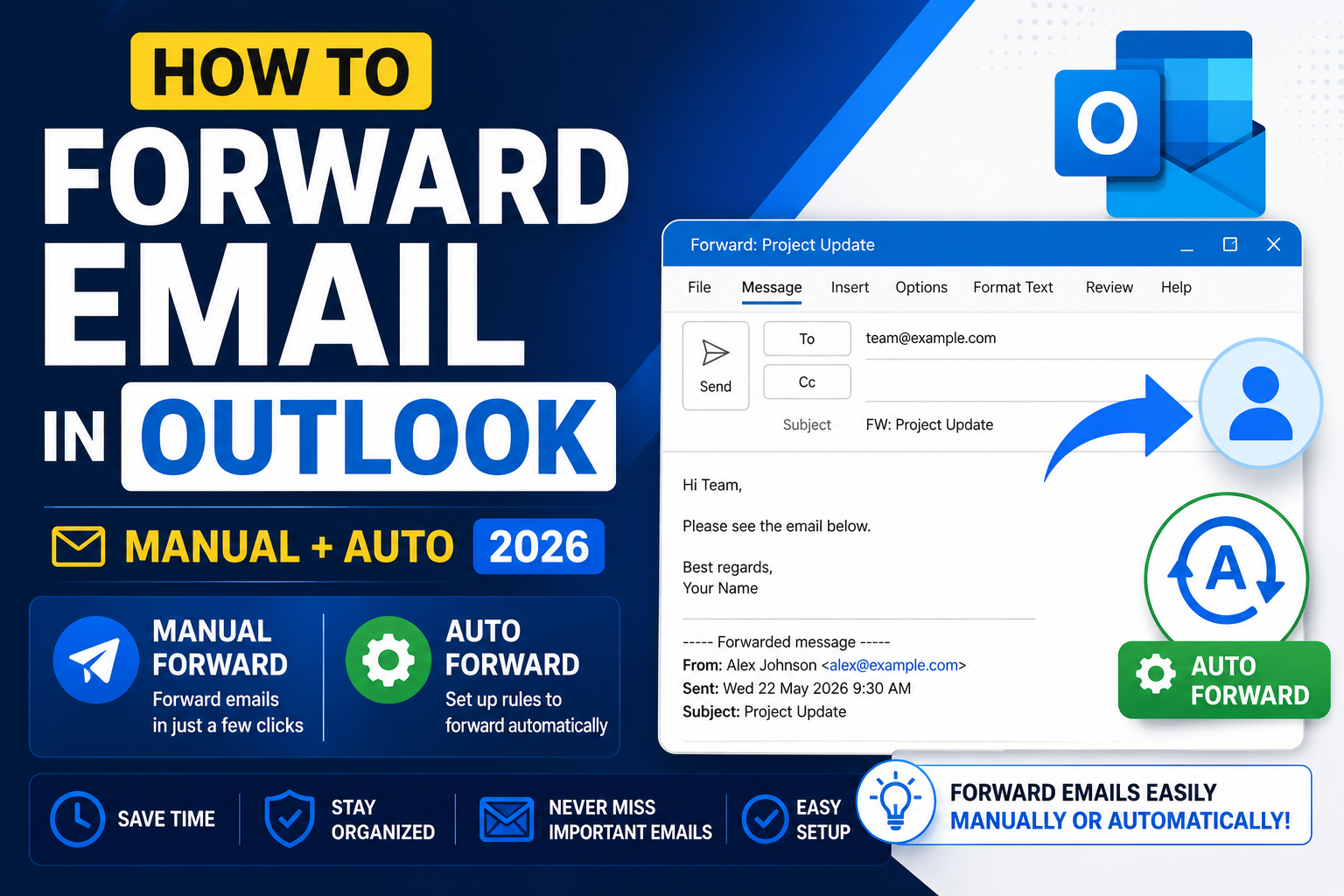
Forwarding email in Outlook works two ways. Manual forwarding is one-off: you open an email, click Forward, and send to someone else. Auto-forwarding is rule-based: Outlook automatically forwards future emails matching criteria you set. Here is how to do both on Outlook desktop, web, and mobile in 2026, plus common problems and how to avoid forwarding loops.
Forward a single email manually (desktop)
- Open Outlook.
- Click the email you want to forward to open it.
- Click the Forward button (or press Ctrl+F on Windows, Cmd+Shift+J on Mac).
- Type the recipient’s email address in the To field.
- Optional: add a note above the forwarded content to explain context.
- Click Send.
Forward a single email in Outlook Web (outlook.office.com)
- Sign in and open the email.
- Click Forward in the top toolbar or the arrow-forward icon in the message.
- Enter recipient and optional context.
- Click Send.
Forward email in Outlook mobile (Android and iPhone)
- Open the Outlook app.
- Tap the email to open it.
- Tap the arrow-forward icon at the bottom or in the three-dot menu.
- Enter recipient email.
- Tap Send.
Set up automatic forwarding of ALL emails
In Outlook Web (recommended):
- Sign in to outlook.office.com.
- Click Settings gear → View all Outlook settings.
- Go to Mail → Forwarding.
- Toggle Enable forwarding ON.
- Enter the destination email address.
- Optional: check “Keep a copy of forwarded messages” so emails also stay in Outlook.
- Click Save.
In classic desktop Outlook:
- Click File → Manage Rules and Alerts.
- Click New Rule.
- Choose Apply rule on messages I receive.
- Click Next without adding conditions.
- Confirm “This rule will apply to every message” when prompted.
- Check forward it to people or public group.
- Click the underlined “people or public group” link and add the destination address.
- Click Next → Finish.
Set up filter-based auto-forwarding (only specific emails)
- In Outlook Web: Settings → Rules → Add new rule.
- Name the rule.
- Set a condition (from specific sender, subject contains keyword, has attachment, etc.).
- Set action to Forward to and enter destination.
- Optional actions: Also mark as read, Also add category.
- Save.
Common auto-forwarding recipes
- Forward all boss’s emails to your assistant: from CEO email → forward to assistant.
- Forward invoices to accounting: subject contains “invoice” OR “receipt” → forward to accounting@company.com.
- Forward vendor emails to relevant department: from vendor domain → forward to that department’s inbox.
- Forward large attachments to Drive-linked email: has attachment AND larger than 10MB → forward to backup inbox with more storage.
Turn off automatic forwarding
- Outlook Web: Settings → Mail → Forwarding → toggle Enable forwarding OFF → Save.
- Desktop rules: File → Manage Rules and Alerts → uncheck or delete the forwarding rule.
Common Outlook forwarding problems
- Forwarded email lost attachments: Outlook may strip attachments when forwarding across services. Try downloading and re-attaching, or use “Forward as attachment” to preserve the original.
- Auto-forward is blocked by admin: many Exchange/Microsoft 365 organizations block auto-forwarding to external addresses for security. Contact IT to enable if needed.
- Forwarding creates loops: if Address A forwards to B and B forwards back to A, Outlook detects the loop and stops delivery. Set one-way forwarding.
- Forwarded sensitive email: bank statements, tax documents, and password resets should not be auto-forwarded. Anyone with access to destination inbox sees them.
- Recipient marks forwarded email as spam: if you auto-forward newsletters, recipients may report them as spam, hurting your address reputation. Only forward relevant emails.
Common Outlook mistakes to avoid
- Not using folders and rules. An Outlook inbox with 5,000 unread emails is unmanageable. Set up folders per project and rules to auto-file routine mail.
- Forgetting the Signature preview before sending. Signatures render differently across clients. Send yourself a test to catch layout issues before external recipients see them.
- Ignoring Focus Inbox. Outlook’s Focus Inbox auto-filters non-priority mail. Not perfect but a huge time saver once trained.
- Overusing Reply All. The workplace curse. Reply only to the sender unless everyone truly needs the response.
- Not linking Outlook to Teams/OneNote. Microsoft 365 integrations turn Outlook into a hub. Enable calendar-to-Teams and email-to-OneNote linking.
Power-user tips for Outlook
- Use Quick Steps. One-click multi-action shortcuts. Common Quick Step: “File to Project X + mark as read + reply with template”.
- Master search operators. from:name, subject:keyword, hasattachments:yes, received:this-week. Combine for laser-focused inbox search.
- Delay all sends by 60 seconds. File > Options > Mail > Delivery. Prevents accidental sends. Set to 1 minute; retract by editing outgoing.
- Set up conditional formatting for VIPs. Emails from your boss appear in red. Instant priority visibility.
- Use categories, not folders, for tagging. Categories work across folders. A “Follow-up” category surfaces across your entire mailbox.
Outlook desktop vs web vs mobile
Outlook desktop (Windows/Mac) has the most features: full rules engine, advanced search, offline access. Best for heavy email users.
Outlook Web App (OWA) works from any browser. Rules and rules editor slightly limited compared to desktop. Search is fast because it hits the server directly.
Outlook mobile (iOS/Android) is streamlined for on-the-go. Swipe gestures customizable. Good for triage; not ideal for composing long emails.
For most professionals, desktop for morning triage, mobile for meetings, web for occasional access from unfamiliar computers. Sync happens instantly across all three.
Best practices summary
- Zero-inbox mindset. Every email gets a decision: reply, defer, delegate, or delete. No email stays “read but not decided”.
- Rules for routine mail. Newsletter to Reading folder. Reports to Reports folder. Approvals to Approvals folder. Never manually file the same type twice.
- Categorize actively. Follow-up, waiting-for, this-week. Categories cross folder boundaries.
- Schedule email review windows. Not constant checking. Two focused sessions per day beat 40 distracted glances.
- Archive, do not delete. Storage is cheap. Full-text search is powerful. Archive lets you find anything years later.
Official documentation
Recommended Outlook resources
The links below are affiliate links. We may earn a commission at no extra cost to you when you buy or sign up. See our affiliate disclosure.
Frequently Asked Questions
Does forward preserve original sender in Outlook?
Yes. Forwarded email includes the original sender and their message in the body. The recipient sees YOU as the From address, with a “Forwarded message” header showing the original sender.
Can I forward to multiple recipients at once?
Yes. Add multiple email addresses in the To or CC fields separated by semicolons or commas.
What is the difference between Forward and Forward as Attachment?
Forward: puts the original email body inline in your new message. Forward as Attachment: sends the original email as a .eml or .msg file attached to a fresh message. Attachment mode preserves original formatting and headers exactly.
Why is auto-forwarding blocked by my organization?
Enterprises block external auto-forwarding to prevent data leaks (someone secretly forwarding company emails to personal addresses). Contact IT admin if you have a legitimate business need.
Can I forward to a distribution list?
Yes. Type the distribution list address in To. Everyone in the list receives the forwarded email. Check with IT if you can forward TO distribution lists you are not a member of.

Caren Bautista
Technical Writer at PIES IT Solution
Responsible for crafting clear, well-structured, and beginner-friendly content across the platform. Handles the writing, proofreading, and editorial review of tutorials, guides, and documentation to ensure every article is accurate, readable, and easy to follow.
Expertise: Technical Writing · Content Creation · Documentation · Editorial Writing · JavaScript · TypeScript · View all posts by Caren Bautista →