
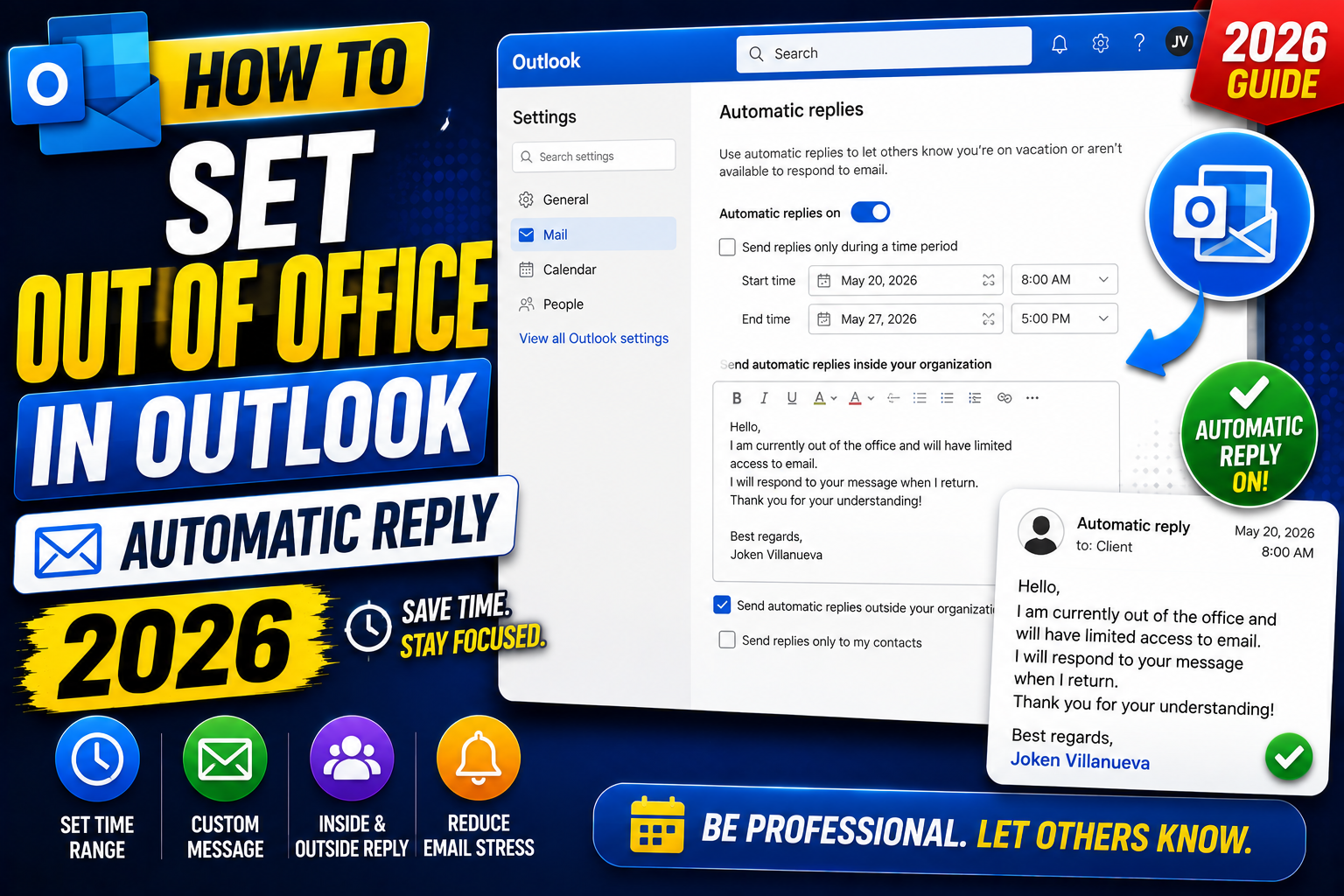
Setting up an out-of-office message in Outlook is essential before any vacation, sick leave, or long meeting stretch. Outlook lets you set different auto-reply messages for people inside your organization vs external senders, and you can schedule it to start and stop automatically. Here is how to set up Outlook out of office in 2026 on desktop, web, Android, and iPhone.
Set out of office in Outlook desktop (Windows)
- Open Outlook on your Windows PC.
- Click File in the top-left corner.
- Click Automatic Replies (Out of Office). If you do not see this option, you are on a POP3 account and need to use rules instead (see fallback below).
- Select Send automatic replies.
- Optional: check Only send during this time range and set your start and end times.
- On the Inside My Organization tab, type the reply for co-workers.
- On the Outside My Organization tab, type the reply for external senders. Enable “Auto-reply to people outside my organization” and choose “Anyone outside my organization” or “My Contacts only”.
- Click OK.
Set out of office in Outlook Web App (outlook.office.com)
- Sign in to outlook.office.com.
- Click the gear icon in the top-right corner.
- Click View all Outlook settings.
- Go to Mail → Automatic replies.
- Toggle Automatic replies on.
- Optional: check “Send replies only during a time period” and set the dates.
- Type your reply in the Inside my organization text box.
- Enable “Send replies outside my organization” and type an external reply (usually a shorter version).
- Click Save.
Set out of office in Outlook mobile (Android and iPhone)
- Open the Outlook app.
- Tap your account icon in the top-left.
- Tap the gear icon in the bottom-left.
- Tap your email account.
- Tap Automatic Replies.
- Toggle Automatic Replies ON.
- Choose Reply during a time period or Reply during a time (optional).
- Type your reply for internal recipients.
- If you want, toggle “Reply outside your organization” and type an external message.
- Tap the checkmark or Save to confirm.
Fallback: Set out of office for POP3 or IMAP accounts
If Outlook does not show the Automatic Replies option, your account is POP3 or IMAP (not Exchange or Microsoft 365). Use rules + template instead:
- Create a new email. Type your out-of-office message.
- Click File → Save As and choose Outlook Template (.oft).
- Close the draft.
- Click File → Manage Rules and Alerts.
- Click New Rule → Apply rule on messages I receive.
- Click Next twice to skip conditions.
- Check reply using a specific template.
- Choose your saved template.
- Complete the rule wizard.
Important: Outlook must be running for this rule to fire. So you cannot close your laptop and expect replies. Use Outlook Web instead for reliable out-of-office.
Professional out-of-office templates
Standard business vacation:
Hello,

Thank you for your email. I am currently out of the office and will return on August 15, 2026. I will respond to your email upon my return.

For urgent matters, please contact my colleague at colleague@company.com.

Best regards,
[Your name]
Internal (short):
Hi team,

Out on vacation through August 15. For urgent items, please reach out to Ben or check the shared team channel.

Thanks,
[Your name]
External (professional):
Thank you for reaching out.

I am away from the office through August 15 with limited email access. I will respond to your message upon my return.

For urgent matters, please contact hello@company.com and someone will assist you promptly.

Kind regards,
[Your name]
Best practices for Outlook out of office
- Set start AND end dates so you do not accidentally leave it on after returning.
- Test before leaving: send yourself an email from a personal account to verify the auto-reply fires.
- Different messages for internal vs external: internal can be casual and more specific. External should be professional and brief.
- Do not overshare: “In Bali until August 15” tells the world your house is empty. Say “out of office” without location.
- Provide alternate contact: someone should be able to help during your absence.
- Manage expectations for return: mention you may take 2-3 days to catch up on returning.
Common Outlook mistakes to avoid
- Not using folders and rules. An Outlook inbox with 5,000 unread emails is unmanageable. Set up folders per project and rules to auto-file routine mail.
- Forgetting the Signature preview before sending. Signatures render differently across clients. Send yourself a test to catch layout issues before external recipients see them.
- Ignoring Focus Inbox. Outlook’s Focus Inbox auto-filters non-priority mail. Not perfect but a huge time saver once trained.
- Overusing Reply All. The workplace curse. Reply only to the sender unless everyone truly needs the response.
- Not linking Outlook to Teams/OneNote. Microsoft 365 integrations turn Outlook into a hub. Enable calendar-to-Teams and email-to-OneNote linking.
Power-user tips for Outlook
- Use Quick Steps. One-click multi-action shortcuts. Common Quick Step: “File to Project X + mark as read + reply with template”.
- Master search operators. from:name, subject:keyword, hasattachments:yes, received:this-week. Combine for laser-focused inbox search.
- Delay all sends by 60 seconds. File > Options > Mail > Delivery. Prevents accidental sends. Set to 1 minute; retract by editing outgoing.
- Set up conditional formatting for VIPs. Emails from your boss appear in red. Instant priority visibility.
- Use categories, not folders, for tagging. Categories work across folders. A “Follow-up” category surfaces across your entire mailbox.
Outlook desktop vs web vs mobile
Outlook desktop (Windows/Mac) has the most features: full rules engine, advanced search, offline access. Best for heavy email users.
Outlook Web App (OWA) works from any browser. Rules and rules editor slightly limited compared to desktop. Search is fast because it hits the server directly.
Outlook mobile (iOS/Android) is streamlined for on-the-go. Swipe gestures customizable. Good for triage; not ideal for composing long emails.
For most professionals, desktop for morning triage, mobile for meetings, web for occasional access from unfamiliar computers. Sync happens instantly across all three.
Best practices summary
- Zero-inbox mindset. Every email gets a decision: reply, defer, delegate, or delete. No email stays “read but not decided”.
- Rules for routine mail. Newsletter to Reading folder. Reports to Reports folder. Approvals to Approvals folder. Never manually file the same type twice.
- Categorize actively. Follow-up, waiting-for, this-week. Categories cross folder boundaries.
- Schedule email review windows. Not constant checking. Two focused sessions per day beat 40 distracted glances.
- Archive, do not delete. Storage is cheap. Full-text search is powerful. Archive lets you find anything years later.
Official documentation
Recommended work-life balance resources
The links below are affiliate links. We may earn a commission at no extra cost to you when you buy or sign up. See our affiliate disclosure.
Quick step-by-step summary (click to expand)
- Open Outlook. On desktop, click File > Automatic Replies. On web, Settings > View all Outlook settings > Automatic replies.
- Turn on automatic replies. Toggle Send automatic replies. Set start and end dates.
- Write reply text. Include return date + alternate contact. Different text for external vs internal senders.
- Save. Click OK or Save. Replies auto-send until end date.
- On mobile. Settings > Account > Automatic Replies. Same fields.
Frequently Asked Questions
Does out of office reply to every single email?
Outlook Exchange/Microsoft 365 sends one auto-reply per external sender for the entire out-of-office period to prevent loops. Internal senders may receive one per email depending on organization settings.
Can I schedule out of office to start automatically?
Yes. Set the start date and end date when configuring the automatic reply. Outlook activates it at the start date and deactivates at the end date automatically.
Why cannot I find Automatic Replies option in my Outlook?
Your account is likely POP3 or IMAP instead of Exchange or Microsoft 365. Use the rules + template fallback described above. Or set up out of office via your email provider’s web interface (like Yahoo Mail, iCloud).
Will out of office reply to spam emails?
Emails caught by junk filter do not trigger auto-reply. To be extra safe, enable “Anyone outside my organization → My Contacts only” so unknown senders never receive the auto-reply.
Can I set different out of office for different email accounts?
Yes if you have multiple Exchange/Microsoft 365 accounts in Outlook. Each account has its own automatic replies setting configured independently.
What is new for Out of Office in 2026
The Aug 2026 Outlook update added Copilot-suggested OOO templates. Open Automatic Replies, click Get suggestions from Copilot, and choose an industry-appropriate template (Legal, Healthcare, Sales, Engineering, Executive). Copilot pre-fills tone and structure based on your Microsoft 365 role and organization.
Outlook also added calendar-triggered OOO automation. Set an event in your calendar as an Out of Office event type (new event category), and Outlook auto-enables Automatic Replies for that exact time window. Deactivates as soon as the event ends. No manual toggle-on-toggle-off needed for recurring PTO days.
Common Out of Office pitfalls
- Automatic Replies is greyed out. Only Exchange, Microsoft 365, and Outlook.com accounts have this feature. Gmail via IMAP or POP does not. For Gmail, use Gmail vacation responder instead.
- External replies not sending. Enable Outside My Organization tab separately. It defaults to OFF. Also check that My Contacts only is NOT selected if you want unknown senders to receive the reply.
- OOO fires only once per sender. Outlook only sends one automatic reply per sender per activation cycle to prevent spam loops. If a sender emails you twice during OOO, they only get the reply on the first email.
- Sensitive info in OOO message. Do not include your full itinerary, home address, or personal phone. External auto-replies are a common intelligence source for phishing and social engineering. Keep it minimal: I am away until DATE, contact NAME for urgent issues.
Setting OOO on Outlook mobile (iOS + Android)
Open the Outlook app on your phone. Tap your account avatar (top left), then Settings gear at bottom, tap your email account, and tap Automatic Replies. Toggle on, set date range, write internal + external messages, tap the checkmark to save. The mobile-set OOO applies across all your Outlook devices (desktop + web) instantly. Same feature parity as Aug 2026 desktop update, including the Copilot template suggestions.
Official documentation
Quick step-by-step summary (click to expand)
- Open Outlook Automatic Replies In Outlook desktop, click File, Automatic Replies (Out of Office). If greyed out, your account is not Exchange or Microsoft 365. In Outlook web, click gear, View all Outlook settings, Mail, Automatic replies.
- Turn on automatic replies Click Send automatic replies toggle. Choose date range if applicable (Only send during a time range option lets you set start and end).
- Write internal message In the first tab, write the reply that people INSIDE your organization see. Include your return date and who to contact for urgent issues.
- Write external message Click Outside My Organization tab. Enable Auto-reply to people outside my organization. Write a separate message for external senders (typically shorter and more formal).
- Click OK to activate Click OK. Outlook confirms replies are now active with a yellow banner at the top of the inbox.
Frequently Asked Questions
Why is Out of Office greyed out in my Outlook?
This feature is only available for Exchange, Microsoft 365, and Outlook.com accounts. Gmail (via IMAP) does not support Outlook automatic replies. Use Gmail vacation responder for Gmail-connected accounts.
How do I set different messages for internal vs external senders?
In Automatic Replies dialog, use the two tabs at the top. First tab is for people inside your organization, second is Outside My Organization. Enable each separately.
Can I schedule Out of Office to auto-enable on a specific date?
Yes. In Automatic Replies, check Only send during a time range and set start + end dates. Outlook auto-enables at start and disables at end. No manual action needed.
Will Outlook keep sending replies to the same sender repeatedly?
No. Outlook sends only ONE automatic reply per sender per activation cycle to prevent spam loops. Subsequent emails from the same sender during OOO get no reply.
How do I use Copilot to write my OOO message?
In the Aug 2026 update, open Automatic Replies and click Get suggestions from Copilot. Choose your industry template. Copilot pre-fills tone and structure.
Can I set Out of Office from the Outlook mobile app?
Yes. Open Outlook mobile, tap account avatar, Settings, tap your email account, Automatic Replies. Same feature parity as desktop as of Aug 2026.

Caren Bautista
Technical Writer at PIES IT Solution
Responsible for crafting clear, well-structured, and beginner-friendly content across the platform.
Expertise: Technical Writing · Content Creation · Documentation · Editorial Writing · JavaScript · TypeScript · View all posts by Caren Bautista →