
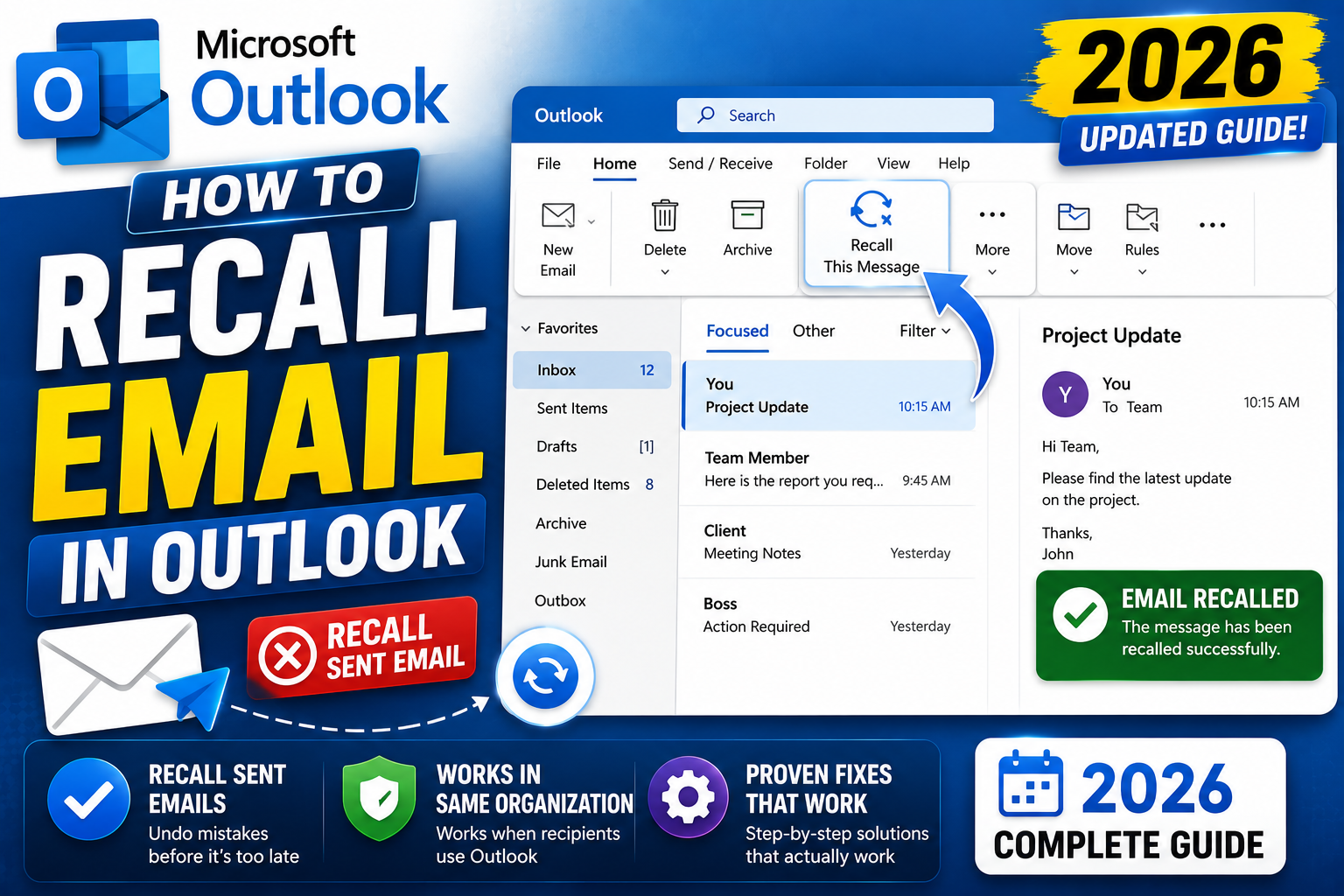
Outlook’s email recall feature is famous but limited. It only works under specific conditions: both sender and recipient must use Microsoft Exchange or Microsoft 365, the recipient must not have read the email yet, and both must be on the same Exchange organization or connected tenant. When it works, Outlook can delete the email from the recipient’s inbox. When it fails, it just sends a “recall attempted” notification. Here is the honest 2026 guide.
Recall an email in Outlook desktop (classic Windows)
- Open Outlook desktop.
- Click Sent Items in the left sidebar.
- Double-click the email you want to recall to open it in a new window.
- Click File → Info → Message Resend and Recall → Recall This Message.
- Choose an option: Delete unread copies of this message OR Delete unread copies and replace with a new message.
- Optional: check “Tell me if recall succeeds or fails for each recipient”.
- Click OK.
The recall attempts to remove the email from all recipient inboxes. You will receive a notification for each recipient showing success or failure.
Recall an email in New Outlook (Windows or Mac)
- Open New Outlook (the modern redesigned app).
- Click Sent Items.
- Open the email you want to recall.
- Click the three-dot menu at the top of the message.
- Click Recall message.
- Confirm the recall in the dialog.
- Outlook shows a status when the recall completes.
Recall an email in Outlook Web App (outlook.office.com)
- Sign in to outlook.office.com.
- Click Sent Items in the left sidebar.
- Open the email you want to recall.
- Click the three-dot menu at the top-right of the message.
- Click Recall message.
- Confirm.
Not all organizations have this option enabled in the Web App. Try the desktop app if the option is missing.
When Outlook recall actually works
Recall SUCCEEDS only when ALL of these are true:
- Sender and recipient use Microsoft 365 or Exchange Server (not Gmail, Yahoo, personal Outlook.com to external).
- Sender and recipient are in the SAME Exchange organization or federated tenant.
- Recipient has NOT opened or read the email yet.
- The recipient’s inbox has not filtered or moved the email out of the main inbox folder.
- Outlook cached mode is disabled OR the recipient is currently online.
Recall FAILS when:
- Recipient uses Gmail, Yahoo, iCloud, or any non-Exchange email.
- Recipient has already read the email.
- Recipient is in a different organization or uses a personal email account.
- Recipient has forwarded the email or added a filter/rule that moved it.
Prevent needing recall: use Delayed Delivery instead
Outlook has a built-in delayed-send feature. Turn it on to give yourself a buffer for every email:
- Open Outlook desktop.
- Click File → Manage Rules and Alerts.
- Click New Rule.
- Select Apply rule on messages I send.
- Click Next without adding conditions (rule applies to all sent emails).
- Check defer delivery by a number of minutes.
- Click “a number of” and set to 5 minutes (or higher).
- Complete the wizard. Every future email will be delayed 5 minutes, giving you time to recall from Outbox.
What to do when recall fails
- Send a follow-up correction: reply to the same recipients with “Please disregard my previous email. Corrected version below” and the fixed content.
- Apologize briefly if embarrassing: short, direct, no dwelling. Everyone has sent an email they wish they had not.
- Rotate credentials if sensitive: if you accidentally sent a password, API key, or private data, rotate immediately assuming the recipient will read it.
- Contact recipient directly: for critical mistakes, phone or Teams-chat the recipient and ask them to delete the email.
Common mistakes when recalling Outlook emails
- Assuming recall is silent: the recipient gets a “recall attempt” notification which itself signals something was wrong. Recall may be more embarrassing than the original mistake.
- Waiting hours to try recall: recall works only in the first minutes. After that the chance of success drops to nearly zero.
- Trying to recall Gmail-bound emails: Outlook recall cannot cross email service boundaries. Sending to external non-Exchange addresses means no recall.
- Not enabling delayed delivery for the future: recall works less than 20% of the time. Delayed delivery works 100% of the time.
Common Outlook mistakes to avoid
- Not using folders and rules. An Outlook inbox with 5,000 unread emails is unmanageable. Set up folders per project and rules to auto-file routine mail.
- Forgetting the Signature preview before sending. Signatures render differently across clients. Send yourself a test to catch layout issues before external recipients see them.
- Ignoring Focus Inbox. Outlook’s Focus Inbox auto-filters non-priority mail. Not perfect but a huge time saver once trained.
- Overusing Reply All. The workplace curse. Reply only to the sender unless everyone truly needs the response.
- Not linking Outlook to Teams/OneNote. Microsoft 365 integrations turn Outlook into a hub. Enable calendar-to-Teams and email-to-OneNote linking.
Power-user tips for Outlook
- Use Quick Steps. One-click multi-action shortcuts. Common Quick Step: “File to Project X + mark as read + reply with template”.
- Master search operators. from:name, subject:keyword, hasattachments:yes, received:this-week. Combine for laser-focused inbox search.
- Delay all sends by 60 seconds. File > Options > Mail > Delivery. Prevents accidental sends. Set to 1 minute; retract by editing outgoing.
- Set up conditional formatting for VIPs. Emails from your boss appear in red. Instant priority visibility.
- Use categories, not folders, for tagging. Categories work across folders. A “Follow-up” category surfaces across your entire mailbox.
Outlook desktop vs web vs mobile
Outlook desktop (Windows/Mac) has the most features: full rules engine, advanced search, offline access. Best for heavy email users.
Outlook Web App (OWA) works from any browser. Rules and rules editor slightly limited compared to desktop. Search is fast because it hits the server directly.
Outlook mobile (iOS/Android) is streamlined for on-the-go. Swipe gestures customizable. Good for triage; not ideal for composing long emails.
For most professionals, desktop for morning triage, mobile for meetings, web for occasional access from unfamiliar computers. Sync happens instantly across all three.
Best practices summary
- Zero-inbox mindset. Every email gets a decision: reply, defer, delegate, or delete. No email stays “read but not decided”.
- Rules for routine mail. Newsletter to Reading folder. Reports to Reports folder. Approvals to Approvals folder. Never manually file the same type twice.
- Categorize actively. Follow-up, waiting-for, this-week. Categories cross folder boundaries.
- Schedule email review windows. Not constant checking. Two focused sessions per day beat 40 distracted glances.
- Archive, do not delete. Storage is cheap. Full-text search is powerful. Archive lets you find anything years later.
Official documentation
Recommended Outlook + email productivity resources
The links below are affiliate links. We may earn a commission at no extra cost to you when you buy or sign up. See our affiliate disclosure.
Frequently Asked Questions
Can I recall an email sent to Gmail from Outlook?
No. Outlook recall only works when both sender and recipient use Microsoft Exchange or Microsoft 365. Any external non-Exchange recipient (Gmail, Yahoo, iCloud) cannot be recalled.
How long do I have to recall an email in Outlook?
No hard time limit, but the practical window is minutes. Recall works only if the recipient has not read the email yet. Most recipients check email frequently, so success rate drops sharply after 5-10 minutes.
Will the recipient know I tried to recall?
Yes. Regardless of whether recall succeeds or fails, the recipient gets a notification: “Sender would like to recall the message [subject]”. This is why some people find recall MORE embarrassing than sending an apology.
Does recall work in Outlook for Mac?
In New Outlook for Mac, yes if both sides are on Exchange/Microsoft 365. Classic Outlook for Mac has limited recall support. Use Outlook Web as backup if desktop options are unavailable.
What is the success rate of Outlook recall?
Microsoft does not publish official numbers but community estimates put success at 20-40% for internal Exchange emails, near 0% for external recipients. Delayed delivery is far more reliable at 100% because you cancel before sending.

Caren Bautista
Technical Writer at PIES IT Solution
Responsible for crafting clear, well-structured, and beginner-friendly content across the platform.
Expertise: Technical Writing · Content Creation · Documentation · Editorial Writing · JavaScript · TypeScript · View all posts by Caren Bautista →