
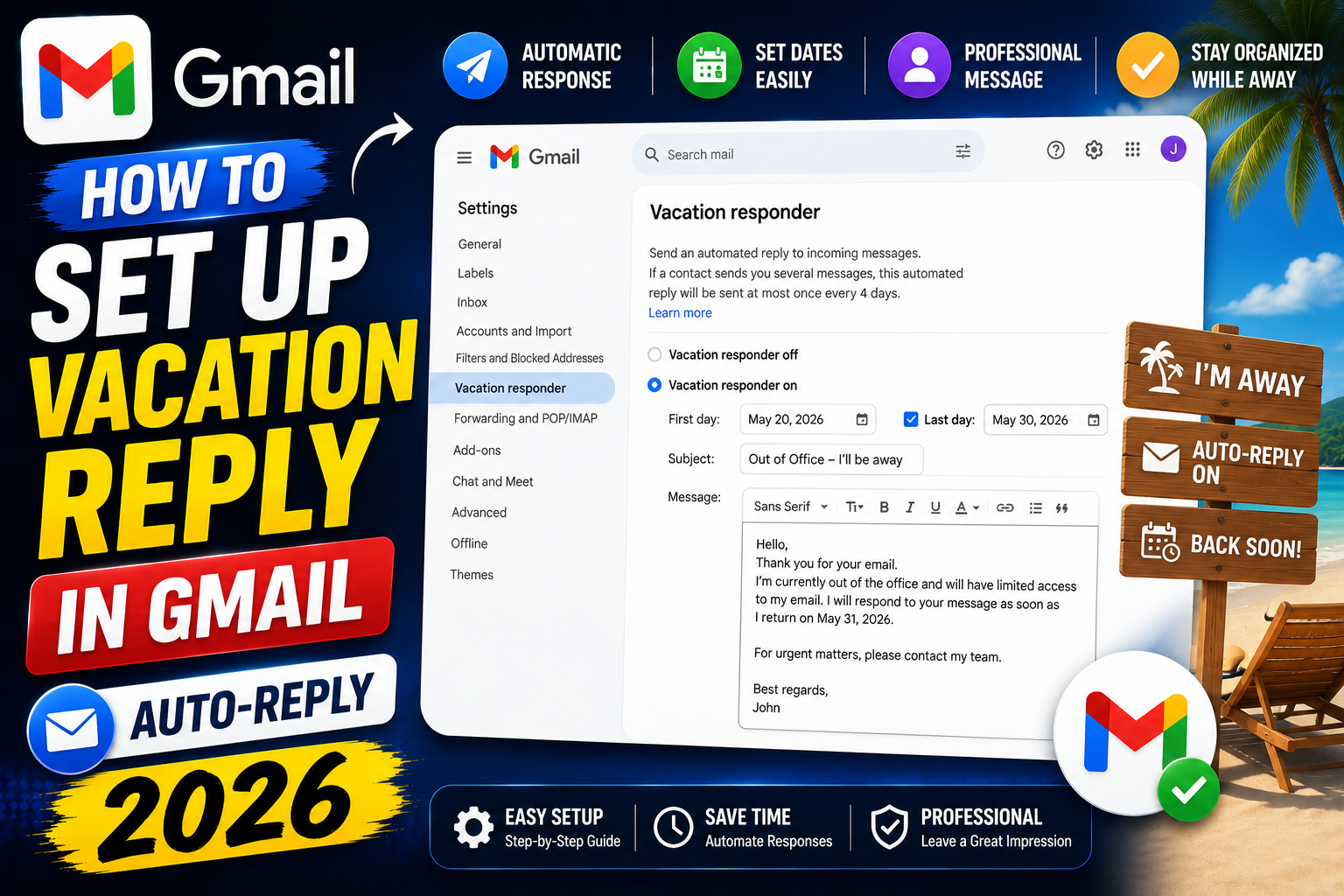
Vacation reply (Gmail calls it “vacation responder”) is Gmail’s built-in auto-reply feature. Turn it on before you leave for a trip and Gmail automatically responds to every email during your absence with a message you choose. Recipients get one auto-reply per 4 days (not on every email). Here is how to set it up on desktop and mobile plus professional templates you can copy.
Turn on vacation reply on Gmail desktop
- Open Gmail at
mail.google.com. - Click the gear icon in the top-right corner.
- Click See all settings.
- Scroll down to the Vacation responder section on the General tab.
- Select Vacation responder on.
- Set the First day (usually today or tomorrow).
- Optionally set the Last day (if you leave this blank, auto-reply runs until you turn it off).
- Type your Subject (example: “Out of office until August 15”).
- Type your Message (see templates below).
- Optionally check “Only send a response to people in my Contacts” to skip auto-replying to strangers or newsletters.
- Scroll to the bottom and click Save Changes.
Turn on vacation reply on Gmail Android
- Open the Gmail app.
- Tap the hamburger menu in the top-left.
- Scroll down and tap Settings.
- Tap your Gmail account.
- Tap Vacation responder.
- Toggle it ON.
- Set start and end dates, subject, and message.
- Tap Done.
Turn on vacation reply on Gmail iPhone
- Open the Gmail app on iPhone.
- Tap the hamburger menu.
- Scroll down and tap Settings.
- Tap your Gmail account.
- Tap Vacation responder.
- Toggle ON, set dates, and enter the subject + message.
- Tap Save.
Professional vacation reply templates
Simple absence:
Subject: Out of office until August 15, 2026

Hi,

Thank you for your email. I am currently out of the office and will return on August 15, 2026. I will respond to your message when I return.

For urgent matters, please contact [colleague name] at [colleague email].

Best regards,
[Your name]
With alternate contact:
Subject: Away from email through July 20

Thank you for reaching out.

I am on vacation from July 10 through July 20 with limited access to email.

For time-sensitive matters:
- Sales inquiries: sales@company.com
- Technical support: support@company.com
- General: hello@company.com

I will respond to your email upon return.

Warmly,
Ana Reyes
Freelancer version:
Subject: Currently offline

Hi there,

Thanks for reaching out. I am fully offline until August 3 recharging.

For new project inquiries, feel free to leave the details and I will respond when I return.

For urgent existing project matters, please message via [Slack / WhatsApp with number].

Talk soon,
Ana
Turn off vacation reply when you return
Two ways:
- Automatic: if you set an end date, Gmail turns off the auto-reply at midnight on the last day.
- Manual: go to Settings → Vacation responder → select “Vacation responder off” → Save Changes. Do this if you set no end date or came back early.
Best practices for vacation replies
- Include specific return date: “back on August 15” is more useful than “back soon”.
- Provide an alternate contact for urgent matters: prevents senders from resending or escalating.
- Do not over-promise: “I will respond to every email” is a bad idea if you receive 500. Say “I will respond to important messages” if realistic.
- Set expectations for response time on return: “please allow 3 business days for a reply as I catch up”.
- Skip the auto-reply for strangers: enable “Only send response to people in Contacts” to avoid signaling absence to spammers or unknown senders.
- Enable BOTH Contacts and Domain filters if you use Google Workspace for extra security.
Common vacation reply mistakes
- Forgetting to turn it off: use an end date so this cannot happen.
- Auto-replying to auto-replies (loops): Gmail limits to one auto-reply per sender per 4 days to prevent loops. Do not worry about this.
- Sharing too much detail: “I am in Bali until August 15” tells everyone your house is empty. Use vague location or skip entirely.
- Assuming co-workers will cover for you: coordinate handoff BEFORE leaving, not just via the vacation reply.
Common Google Meet mistakes to avoid
- Not testing camera and mic before the meeting. Meet has a preview page at meet.google.com/hangouts/preview where you can test devices before joining any meeting.
- Joining from mobile when you need to share screen. Screen sharing works on mobile but is limited. Use desktop when you need to share content in detail.
- Forgetting to mute when not speaking. Background noise disrupts everyone. Press Ctrl+D (Cmd+D on Mac) to toggle mute.
- Assuming recordings are automatic. Meet only records when the host clicks Record. Enable at the start; you cannot recover an unrecorded meeting.
- Ignoring the noise cancellation feature. Workspace tiers include background noise cancellation. Enable in Settings > Audio.
Power-user tips for Google Meet
- Use keyboard shortcuts. Ctrl+D to mute, Ctrl+E for camera, Ctrl+Alt+H to raise hand, Ctrl+Alt+M for the chat panel. All work on Windows and Mac (swap Ctrl for Cmd on Mac).
- Add captions. Turn on live captions at the bottom-right menu. Useful for accessibility and noisy environments.
- Enable Q&A for large meetings. Attendees can submit written questions without interrupting. Available on Workspace tiers.
- Use polls to gather feedback. Quick pulse checks during long meetings keep attention.
- Share a specific tab, not the whole desktop. Prevents accidentally sharing notifications or personal information.
When to use Meet vs alternatives
Meet works best when your organization is already on Google Workspace, calls are 3-10 participants, and simplicity matters more than advanced features. It integrates seamlessly with Calendar and Gmail, which is unbeatable for Google-first teams.
For large webinars (100+ attendees), Zoom or Webex offer better host controls. For persistent team chat with video, Slack Huddles or Microsoft Teams work better. For high-quality recorded content, tools like Riverside or Descript produce cleaner output.
For BSIT capstone defenses and student meetings, Meet is the right choice on any campus with Google Workspace for Education. Free tier supports up to 100 participants for 60 minutes.
Best practices summary
- Test devices 5 minutes before start. Camera, mic, network. Nothing worse than the “can you hear me?” opening.
- Share agenda in Calendar description. Attendees arrive knowing what to discuss.
- Assign a note-taker at start. Distributes cognitive load and produces action items.
- End on time or early. Respect people’s calendars. Reschedule if content overflows.
- Follow up with meeting notes within 24 hours. Consolidates decisions and prevents forgotten action items.
Official documentation
Recommended work-life balance resources
The links below are affiliate links. We may earn a commission at no extra cost to you when you buy or sign up. See our affiliate disclosure.
Quick step-by-step summary (click to expand)
- Open Gmail Settings. Gear icon top-right then See all settings.
- Scroll to Vacation Responder. On the General tab, scroll to the bottom.
- Toggle On. Choose Vacation responder on.
- Set dates + message. Pick First day and Last day. Add subject and message body.
- Save Changes. Click Save Changes at the bottom. Test with a second email.
Frequently Asked Questions
Does Gmail vacation reply respond to every email?
Once per sender per 4 days to prevent loops and spam. If the same person emails you 10 times during your vacation, they get one auto-reply, not 10.
Does vacation reply work in Gmail app on mobile?
Yes. Both Android and iOS Gmail apps support turning it on and off. Settings sync across all your devices.
Can I have different vacation replies for different senders?
Not natively. Gmail vacation responder sends one message to everyone. For different replies, use filters + canned responses (see Gmail Templates feature).
Will my vacation reply go to spam senders?
Not to filtered spam. Gmail’s spam filter runs first, then vacation responder handles what reaches inbox. Enable “Only Contacts” filter to skip unknown senders.
Can I schedule vacation reply in advance?
Yes. Set the First day to a future date. Vacation responder waits until that day and turns on automatically. Great for booking summer vacation in June and having it activate July 1.

Caren Bautista
Technical Writer at PIES IT Solution
Responsible for crafting clear, well-structured, and beginner-friendly content across the platform.
Expertise: Technical Writing · Content Creation · Documentation · Editorial Writing · JavaScript · TypeScript · View all posts by Caren Bautista →