
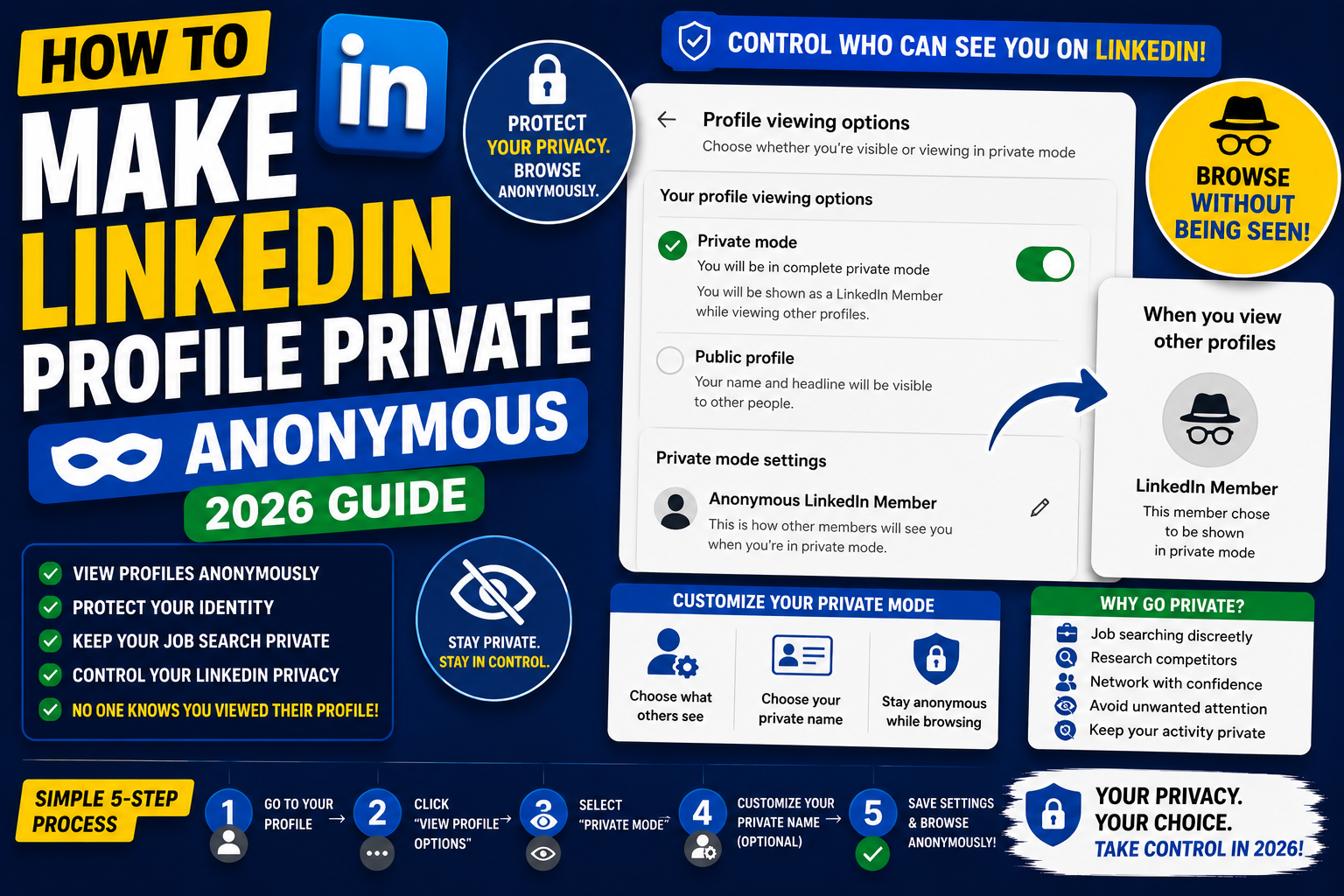
Making your LinkedIn profile private controls who sees your info, activity, and browsing history. Reasons to make it private: job searching while employed (avoid tipping off boss), avoiding recruiter spam, protecting sensitive info, or personal preference. This 2026 tutorial covers every privacy setting in detail.
Two levels of privacy
- Public/Anonymous browsing: hide who YOU are when viewing others’ profiles.
- Profile visibility: control who can see YOUR profile at all.
Setting 1: Browse anonymously
- Click your photo (top-right) > Settings & Privacy.
- Click Visibility.
- Click Profile viewing options.
- Choose:
- Your name and headline: they see you visited (default).
- Private mode characteristics: they see general info (industry, title).
- Private mode: fully anonymous.
- Save.
Trade-off: Private mode = you cannot see who viewed you either.
Setting 2: Hide profile from search engines
- Settings & Privacy > Visibility.
- Click Edit your public profile.
- Toggle Your profile’s public visibility off.
- Also uncheck sections that show publicly: photo, headline, experience, etc.
- Save.
Now your profile doesn’t appear in Google search results. Only LinkedIn members can see you.
Setting 3: Hide profile from specific people
- Block someone from seeing your profile at all: Settings & Privacy > Blocking.
- They cannot see your profile, send messages, or view your posts.
- You cannot see theirs either.
Setting 4: Hide activity from network
Prevent connections from being notified about your changes:
- Settings & Privacy > Communications.
- Click Share job changes, education changes, and work anniversaries from profile.
- Toggle to Off.
- No more “Congratulate John on his new role” notifications.
Setting 5: Hide who you’re connected with
- Settings & Privacy > Visibility.
- Click Connections.
- Toggle Who can see your connections to Only you.
- Others see your first-degree connections count but not individual names.
Setting 6: Hide from recruiter searches
- Job seekers actively want to appear; some professionals want to opt out.
- Settings & Privacy > Job seeking preferences.
- Toggle Open to Work off.
- You disappear from LinkedIn Recruiter searches.
Setting 7: Hide from being suggested to others
- Settings & Privacy > Communications.
- Click People you may know.
- Toggle Include me in People you may know suggestions off.
- LinkedIn stops suggesting you to others.
Setting 8: Hide profile photo from strangers
- Click your photo > Edit photo.
- Click Visibility.
- Choose:
- Your network: only connections see your photo.
- All LinkedIn members: default.
- Public: anyone on the internet.
- Save.
Setting 9: Turn off notifications you send others
- Settings & Privacy > Visibility.
- Click Sharing profile updates with your network.
- Toggle off if you don’t want connections notified of your changes.
Special case: job searching while employed
The most common privacy scenario. Enable these settings:
- Anonymous browsing (Private mode).
- Turn OFF “Share profile updates with your network”, so your boss doesn’t see “Karen updated her headline”.
- Turn ON “Let recruiters know you’re open” (BUT it’s private, only recruiters at other companies see; not your employer’s recruiters).
- Don’t post about your job search publicly.
Delete your LinkedIn account entirely
- Settings & Privacy > Account preferences.
- Click Account management.
- Click Close account.
- Confirm.
- Your profile becomes invisible immediately. Data purge takes 30 days.
Warning: this is permanent. Consider “Hibernation” (pause account) instead.
Hibernate account (pause instead of delete)
- Settings & Privacy > Account preferences > Account management.
- Click Hibernate account.
- Profile becomes invisible.
- You can reactivate anytime.
- Data preserved.
Common privacy issues
- Boss saw my profile change: turn off “Share profile updates”. Also enable Anonymous browsing.
- Getting too many InMail recruiters: turn off “Open to messages from recruiters” or restrict LinkedIn Premium messages.
- Profile still shows in Google: it takes up to 30 days for Google to remove after you hide public visibility.
- Someone I blocked seems to see me: block is one-way. They may be a mutual connection. Consider deleting the connection too.
- Cannot go fully private: some info always visible to LinkedIn members (your name, if you have an account). To be completely invisible: delete/hibernate account.
Official documentation
Recommended privacy and security resources
The links below are affiliate links. We may earn a commission at no extra cost to you when you buy or sign up. See our affiliate disclosure.
Anonymous LinkedIn browsing modes explained
LinkedIn does not offer full anonymous browsing like a private tab in Chrome. What it offers is a 3-level system where you control how much of your identity shows up when someone checks who viewed their profile. Understanding all 3 levels helps you use the right one for your situation.
Mode 1: Your name and headline visible (default)
This is the default when you sign up. When you view someone’s profile, they see your full name, photo, headline, and current company. This mode maximizes networking because the person you viewed might reach out to you. It also uses up your allowance of “Who viewed my profile” analytics (you can see who viewed you back).
Mode 2: Private characteristics (semi-anonymous)
This shows the other person a partial profile: your job title and industry, but not your name, photo, or company. For example, they see “Senior Software Engineer in Financial Services” without knowing which company or who specifically. This is useful for research: you can browse a competitor’s team without them knowing your identity.
Mode 3: Fully anonymous
The other person sees “LinkedIn Member” with no other information. This is the true anonymous mode. However, LinkedIn imposes a trade-off: switching to fully anonymous also disables your ability to see who viewed your profile. It is a symmetric privacy setting. You lose your view analytics in exchange for your own anonymity.
Privacy settings checklist for active job seekers
Being on the job market while employed is a delicate situation. LinkedIn has specific settings that reduce the risk of your current manager finding out. Here is the exact checklist I recommend to anyone quietly hunting for their next role.
- Set profile edits to private. Under Settings > Visibility > Share profile updates, toggle OFF the option that broadcasts your profile edits. Otherwise every skill you add, every experience update, and every headline change fires a notification to your network (including your current colleagues and manager).
- Signal Open to Work privately. LinkedIn’s Open to Work feature has two settings: “All LinkedIn Members” (public, adds a green frame to your photo) or “Recruiters only” (private, only shows to LinkedIn Recruiter subscribers). If you are employed, pick “Recruiters only.” Your manager cannot see it, but recruiters actively searching for candidates will.
- Hide your active status. Under Settings > Visibility > Manage active status, toggle OFF the green dot that shows you are currently on LinkedIn. Otherwise anyone can see exactly when you are logged in and browsing (often during work hours).
- Turn off connection visibility. Under Settings > Visibility > Who can see your connections, set this to “Only you.” That way your current company cannot map your network to see which recruiters and competitors you are connected to.
- Set profile viewing to semi-anonymous when researching. Toggle to “private characteristics” mode before browsing target companies. Switch back after you finish research.
These five settings together give you effective operational security while job hunting. Once you accept an offer and are ready to switch, revert everything to public so your new network can find and connect with you easily.
Frequently Asked Questions
Will my boss see if I’m job searching?
Not directly. Enable Anonymous browsing. Turn off “Share profile updates”. Enable “Open to Work”, it’s hidden from your current employer’s recruiters. Also avoid public job search posts.
Can I hide my profile from specific companies?
LinkedIn Premium’s “Open to Work” feature lets you block your current employer specifically from seeing your Open to Work status. For deeper hiding, block individual people at that company.
Does Private mode block all views?
No. Others still see “Anonymous LinkedIn Member” viewed. Only your name/details are hidden. Fully private requires deleting or hibernating account.
Will Google still show my old cached profile?
Yes for up to 30 days. Google Search Cache takes time to update. Also submit a URL removal request via Google Search Console for faster removal.
Can I hibernate then reactivate?
Yes. Hibernation preserves all data. To reactivate, sign in with your email + password. Profile returns exactly as before. Great for taking a “LinkedIn break”.

Leah Whynett Dela Pena
Technology Writer at PIES IT Solution
Leah Whynett Dela Pena is a technology writer at PIES IT Solution, author of 93 career and IT education guides at itsourcecode.com. Specializes in tech career paths (software engineering, web development, cybersecurity, IT analyst roles), degree and certification guidance, and IT industry how-to content for students and career changers.
Expertise: Tech Careers, IT Education, Web Development Careers, Software Engineering Careers, Cybersecurity Careers, IT Certifications, Career Guidance · View all posts by Leah Whynett Dela Pena →