
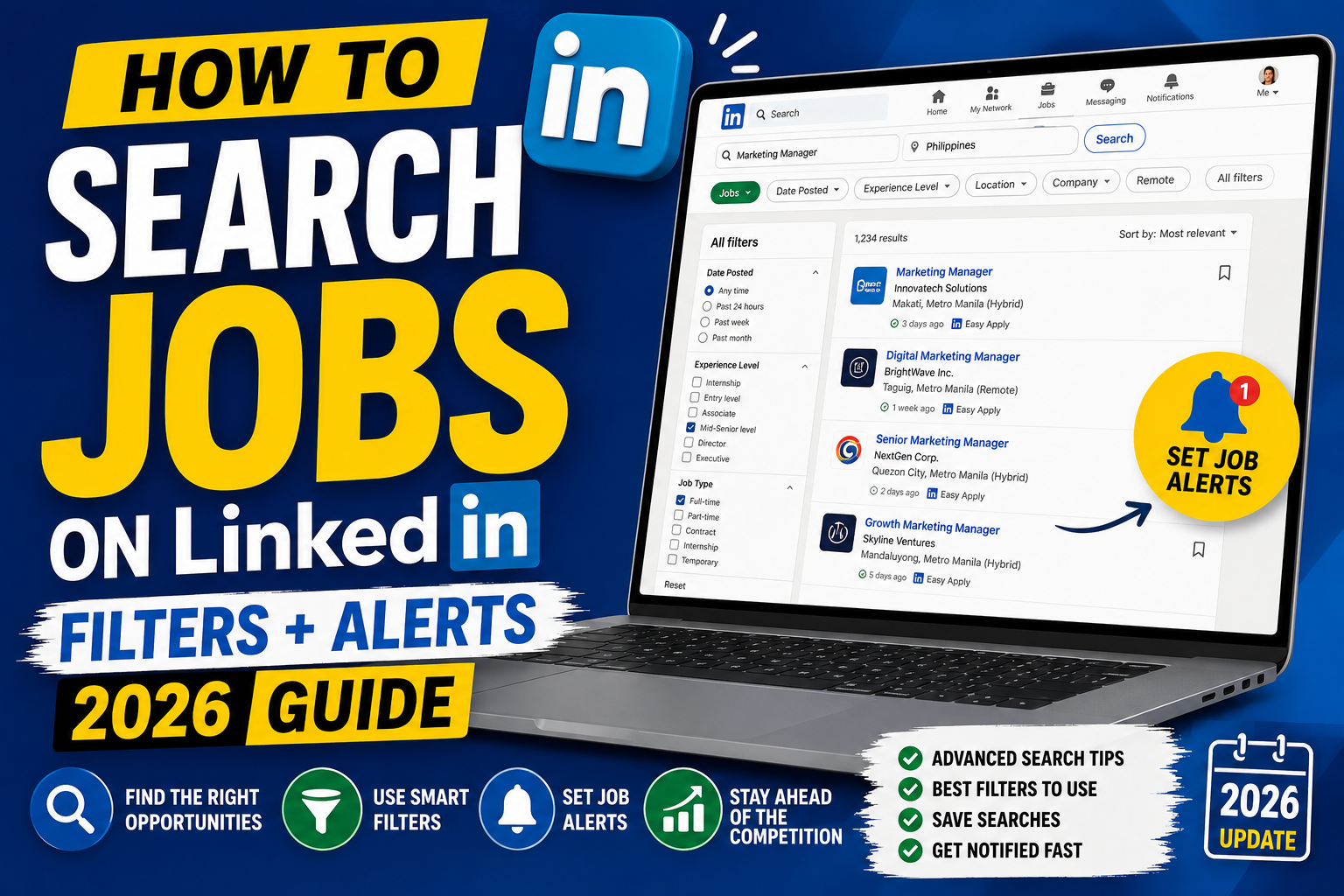
Searching jobs on LinkedIn is easy, searching them WELL is a skill. Most job seekers waste time on generic queries and miss the filters that surface high-quality matches. This 2026 tutorial covers keyword strategy, all filters, saved searches, job alerts, and Easy Apply best practices.
Access LinkedIn Jobs
- Sign into LinkedIn.
- Click Jobs tab in the top navigation.
- Or go to linkedin.com/jobs.
Basic search
- Type a job title in the search bar.
- Type location (or leave blank for global).
- Click Search.
- Results appear.
Advanced search operators
Use Boolean operators in the search bar:

AND: "python" AND "django", both must appear
OR: "developer" OR "engineer", either
NOT: "senior" NOT "management", exclude term
Quotes: "senior software engineer", exact phrase
Parentheses: (python OR java) AND aws, group logic

Real examples:
"junior developer" AND (remote OR philippines)
data scientist NOT contract
"technical writer" AND (SaaS OR api)
Essential filters (left sidebar after search)
- Date posted: Past 24 hours, Past week, Past month.
- Experience level: Internship, Entry, Associate, Mid-Senior, Director, Executive.
- Company: filter by specific companies.
- Job type: Full-time, Part-time, Contract, Internship, Temporary.
- On-site/Remote/Hybrid: work arrangement.
- Easy Apply: LinkedIn’s 1-click apply feature.
- Under 10 applicants: less competition.
- Salary: filter by range.
- Location: multiple cities.
Filter combinations for common goals
For fresh entry-level jobs:
- Date: Past 24 hours or Past week
- Experience: Entry level
- Easy Apply: On (fewer barriers)
- Under 10 applicants (best odds)

For remote-only:
- On-site/Remote/Hybrid: Remote
- Location: your country (some jobs are country-restricted)
- Job type: Full-time

For less-competitive niches:
- Under 10 applicants
- Company size: 11-50 or 51-200 (startups)
- Date: Past 24 hours (be first to apply)

For senior roles:
- Experience: Mid-Senior or Director
- Salary: min $100K
- Easy Apply: Off (real applications from qualified applicants)
Save a search (get job alerts)
- Set up your ideal filters.
- At top-left of search results, toggle Job alert ON.
- Choose alert frequency: daily or weekly.
- Choose delivery: email + LinkedIn notifications.
- LinkedIn emails you new matches automatically.
Save individual jobs
- Click a job listing.
- Click the bookmark icon.
- Job saves to “My Jobs” tab.
- Return anytime to review or apply.
Easy Apply vs Company Website
- Easy Apply: 1-click. Your LinkedIn profile is your resume. Faster but generic.
- Company Website: takes you to their careers site. Custom resume + cover letter possible. Higher effort, higher conversion.
- Best strategy: Easy Apply for fast/broad coverage; Company Website for top-target roles.
See who’s actively hiring
- Filter by Under 10 applicants, jobs where you’re not lost in a flood.
- Filter by Actively recruiting if available.
- Filter by Meets your qualifications, LinkedIn matches based on your profile.
Apply from mobile
- Open LinkedIn app.
- Tap Jobs.
- Search with filters.
- Tap a job > Easy Apply or open company page.
- Complete application on mobile or save for desktop.
Job search best practices
- Set up 3-5 saved job alerts for different target roles.
- Apply within 24-48 hours of a job being posted.
- Use Under 10 applicants filter for best odds.
- Don’t spray-and-pray Easy Apply on 200 jobs, quality over quantity.
- Follow companies you want to work at (Company Page > Follow) for updates.
- Enable “Open to Work” green frame on your photo.
- Update your LinkedIn profile before searching (headline, summary, skills).
LinkedIn Premium for job seekers
- See who viewed your profile (last 90 days).
- See salary insights for jobs.
- Applicant insights: “You’re in top 25% of applicants”.
- Send InMail messages to hiring managers directly.
- Free 1-month trial to test if it helps.
Common job search issues
- No results for my location: broaden filter, try “Remote” toggle.
- Same jobs repeated: sort by “Most recent” instead of “Best match”.
- Easy Apply not working: complete your LinkedIn profile (resume, contact info). Or use Company Website instead.
- Location filter too narrow: use metro area (e.g., “Manila” catches surrounding towns).
- Salary filter shows too few: many jobs don’t post salary. Remove salary filter, screen manually.
Official documentation
Recommended job search resources
The links below are affiliate links. We may earn a commission at no extra cost to you when you buy or sign up. See our affiliate disclosure.
Advanced LinkedIn job search filter combinations
Most people use LinkedIn Jobs like a basic search bar: type a keyword, get a list. That approach shows you the same jobs everyone else is applying to. The filter panel is where you find hidden opportunities and cut through the noise. Here are the filter combinations I recommend by career stage.
For early-career job seekers
Combine Experience Level: Entry level with Date Posted: Past 24 hours. Fresh listings for junior roles get flooded within days, so applying the same day gives you a huge advantage. Also filter by Under 10 applicants when the option appears. Those listings are goldmines because your resume actually gets read instead of buried.
For remote-only searches
Set On-site/Remote: Remote plus Location: your country (not your city). Remote jobs often list only a country requirement, and adding a city filter can hide them. Also enable Easy Apply to skip company career pages when you want to submit fast.
For salary-transparent searches
Use the Salary filter to hide roles below your minimum. Not every listing shows a salary, but the ones that do tend to be more transparent employers overall. This filter also helps you avoid wasting time on companies that expect senior work at junior pay.
For niche skill searches
Use quotes in the keyword field to force exact-match. Typing “data engineer” with quotes filters out data analyst and data scientist roles that clutter your feed. Combine with Industry filter to narrow further. If you want fintech data engineer roles specifically, add Financial Services under Industry.
How to save searches and set up job alerts
Job hunting is a marathon, not a sprint. Manual search every day burns you out fast. LinkedIn’s job alert system does the checking for you. Here is how to set it up correctly so you do not miss the good listings.
Step 1: Build your ideal search once
Combine every filter that matters for you: job title, location, experience level, remote setting, salary range, and industry. This is the search you would run manually every day. LinkedIn will save all of it in one alert.
Step 2: Toggle the alert to daily or weekly
At the top of the search results, click the toggle for Set alert. Choose Daily if you are actively hunting or if the market is competitive. Choose Weekly if you are passively browsing while employed. LinkedIn will email you a curated list of new matches on your chosen schedule.
Step 3: Create 3 to 5 separate alerts
One alert catches your primary target role. Create separate alerts for adjacent roles (a senior role you might grow into, a lateral role at a different company size, or a related specialty). Each alert takes 30 seconds to set up and covers a different slice of the job market. This is how you find opportunities you would never search for manually.
You can manage all your alerts from the Job Alerts tab in LinkedIn Jobs. Prune the ones that stop returning good matches every few weeks. A stale alert wastes your inbox space and adds noise to your job search.
Also worth noting for 2026: LinkedIn recently added AI-powered job matching that surfaces roles matching your profile even without an active search. Enable this by keeping your Skills section updated and your Open to Work status accurate. AI matching pulls from these signals to push relevant jobs to your feed automatically.
Frequently Asked Questions
Should I use Easy Apply or Company Website?
Both. Easy Apply for high-volume (100+ apps to test wide net). Company Website for top-target roles where custom application matters. Companies often prefer Company Website applications.
How many jobs should I apply to daily?
5-15 quality applications is much better than 100 spray-and-pray. Focus on jobs matching your skills. Best to apply within 24-48 hours of posting for higher visibility.
Does LinkedIn Premium help me get more interviews?
Small boost. Insights help you understand competition. InMails let you contact hiring managers directly. Premium is worth the free trial to test, but not required.
Why do same jobs appear repeatedly?
LinkedIn’s “Best match” algorithm surfaces top matches. Sort by “Most recent” to see the latest. Also refresh filters, LinkedIn caches recent searches.
What’s Under 10 applicants filter?
Shows jobs where fewer than 10 people applied. Your application has better odds of being seen. Great filter for less-competitive positions or fresh postings.

Leah Whynett Dela Pena
Technology Writer at PIES IT Solution
Leah Whynett Dela Pena is a technology writer at PIES IT Solution, author of 93 career and IT education guides at itsourcecode.com. Specializes in tech career paths (software engineering, web development, cybersecurity, IT analyst roles), degree and certification guidance, and IT industry how-to content for students and career changers.
Expertise: Tech Careers, IT Education, Web Development Careers, Software Engineering Careers, Cybersecurity Careers, IT Certifications, Career Guidance · View all posts by Leah Whynett Dela Pena →