
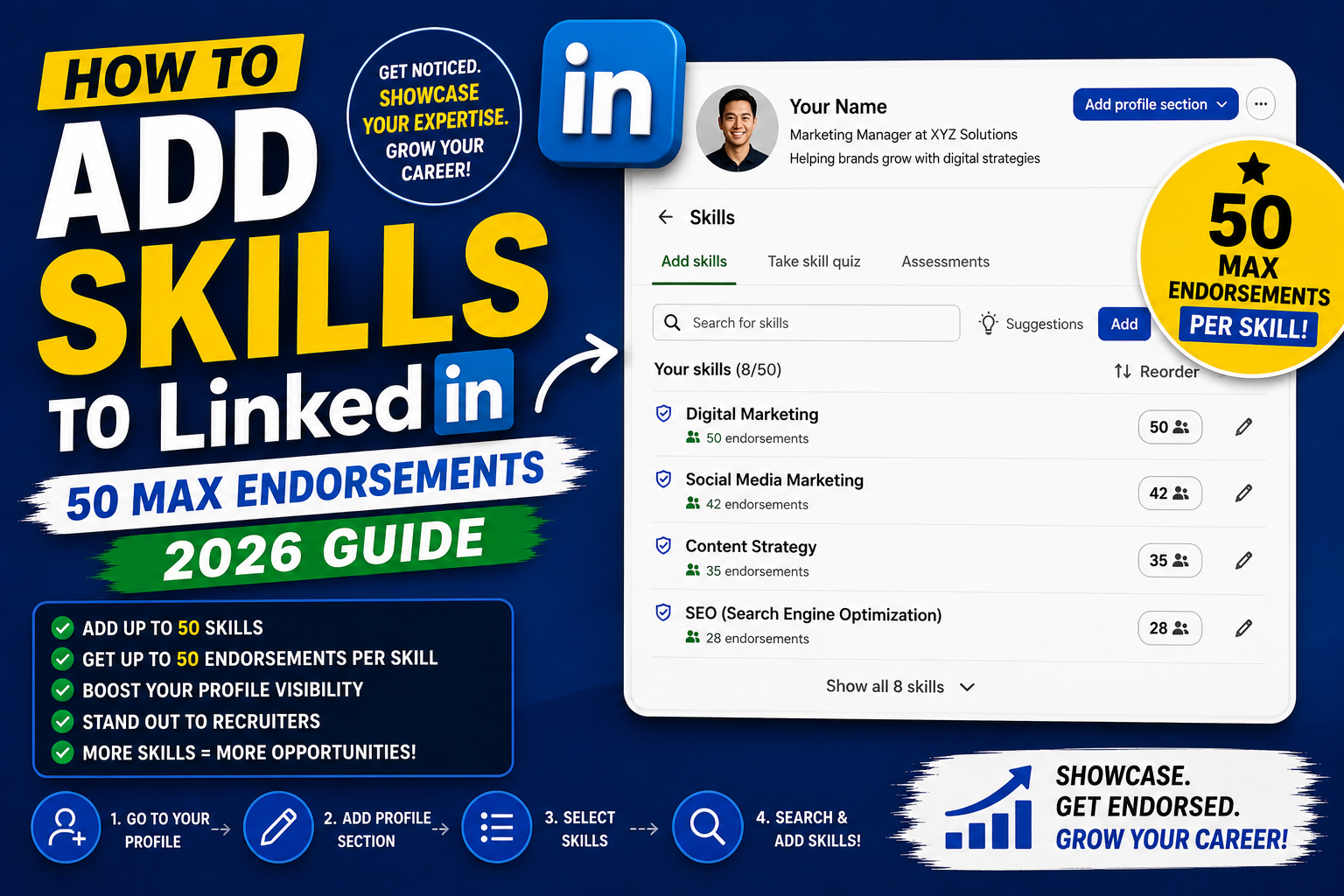
Skills on LinkedIn are what recruiters filter by. Add the right skills, in the right order, endorsed by the right people, and you show up in more recruiter searches. LinkedIn allows up to 50 skills per profile. This 2026 tutorial covers adding skills, getting endorsements, taking skill assessments, and organizing your Top Skills.
Why skills matter
- Recruiters search by skill keyword (Python, AWS, Salesforce).
- LinkedIn’s search algorithm boosts profiles matching search skills.
- Endorsements add social proof.
- Skill assessments (badge) verify your proficiency.
- Top 3 Skills display prominently on your profile.
Step 1: Add a skill
- Go to your LinkedIn profile.
- Scroll to the Skills section.
- Click the pencil (edit) icon or Add skill.
- Type a skill name (LinkedIn auto-suggests from its skill graph).
- Pick from suggestions (LinkedIn’s standardized skills perform better than custom).
- Save.
Choose skills strategically
Prioritize skills recruiters search for:
- Technical: Python, JavaScript, SQL, AWS, Docker, React, TypeScript.
- Tools: Salesforce, HubSpot, Jira, Confluence, Slack.
- Frameworks: Django, Flask, Spring Boot, Vue, Angular.
- Methodologies: Agile, Scrum, DevOps, Lean, CI/CD.
- Business: Project Management, Product Management, Marketing.
- Soft: Leadership, Communication, Problem Solving (add sparingly).
Set your Top 3 Skills
- Skills section > Edit.
- Click on a skill to pin it to Top 3.
- Or drag to reorder.
- Top 3 show prominently on your profile.
- Pick the 3 skills most relevant to jobs you want.
Get endorsements
Endorsements are 1-click social proof from your connections:
- Ask coworkers, managers, clients to endorse.
- Endorsement is reciprocal, endorse others first.
- Set your profile to “I’m looking for endorsements” so connections see prompts.
- 10+ endorsements per skill signals expertise.
Take a skill assessment (get a badge)
- Skills section > click Take skill quiz.
- Pick a skill: JavaScript, Python, Excel, Photoshop, etc.
- 15-question quiz, 15 minutes.
- Passing score adds a badge to your profile.
- You show in recruiter searches with badge highlighted.
Which skill assessments are worth taking?
- Skills relevant to jobs you’re seeking.
- Programming languages recruiters filter by (Python, Java, JavaScript).
- Tools (Excel, Photoshop, Salesforce).
- Assessments cost nothing but time. Take 3-5 relevant ones.
Remove old or irrelevant skills
- Skills section > Edit.
- Click X next to skills to remove.
- Remove: overly generic skills (“Microsoft Office”), outdated tech (Flash, PHP4), unrelated skills.
- Keep only skills that support your current career goals.
Skill count sweet spot
- 50 skills max (LinkedIn’s limit).
- Sweet spot: 20-35 skills.
- Too few (under 10): looks thin.
- Too many (50): waters down relevance.
- Focus quality over quantity.
Show skill proficiency (endorsements + assessments)
- Endorsement count from 3+ connections signals credibility.
- Assessment badge (top 30% or 70%) shows verified skill.
- Both display next to the skill name.
- Recruiters filter by “with verified badge” for higher confidence hires.
Skills and job matching
- Job descriptions list required and preferred skills.
- LinkedIn shows “Match” percentage between your skills and job’s skills.
- Add skills that appear on jobs you want (even if you’re just competent).
- Update skills when applying for new job categories.
Common skills issues
- Cannot find a specific skill: LinkedIn only shows standardized skills. Alternative: add as “Similar skill” or nearest match.
- Endorsements not appearing: your connections’ privacy setting affects if their name shows.
- Skill assessment failed: retake after 6 months. Study the topic first.
- Cannot reorder skills: use desktop version for drag-drop.
- Old skills showing on top: reorder them lower or remove.
Official documentation
Recommended LinkedIn career resources
The links below are affiliate links. We may earn a commission at no extra cost to you when you buy or sign up. See our affiliate disclosure.
Skill selection strategy by industry
Adding 50 skills is easy. Choosing the right skills to feature at the top is where most people go wrong. LinkedIn only highlights your top 3 skills in your profile preview, and recruiters filter searches by skill. The 3 you pin at the top matter more than the 47 below. Here is how to prioritize by career type.
Developers and engineers
Pin one primary language, one framework, and one adjacent skill. For example: Python, Django, PostgreSQL or React, TypeScript, AWS. These 3 skills should match the job listings you actually want. Search LinkedIn Jobs for your target role and note which 3 skills appear most often in the “Skills” section of listings. Those are the ones to pin.
Designers and creatives
Pin one tool, one methodology, and one specialization. For example: Figma, User Research, Design Systems. Tools and methodology are easy for recruiters to filter on. Specialization tells them what kind of design problem you solve best.
Marketers
Pin one channel, one tool, and one outcome-focused skill. Example: SEO, Google Analytics, Content Strategy. The channel filters you into the right recruiter searches. The tool proves you can execute. The outcome-focused skill signals seniority.
Sales and business development
Pin one industry, one sales methodology, and one CRM. Example: Enterprise SaaS Sales, MEDDIC, Salesforce. Sales recruiters search by industry vertical and methodology first. Your CRM proves you can actually work in the tools they use.
How to rank in your top 3 skills
Pinning a skill is not enough. LinkedIn ranks profiles for each skill based on endorsements, mutual connections, and profile completeness. If you want recruiters searching for “React” to find you first, you need to rank high for that specific skill. Here is how to climb the ranking.
Step 1: Get endorsements from people in the field
An endorsement from a fellow React developer counts more than one from a family member. LinkedIn weights endorsements based on how relevant the endorser is to that skill. Ask 3 to 5 colleagues in your field to endorse your top 3 skills specifically. Return the favor for them.
Step 2: Take the LinkedIn Skill Assessment
LinkedIn offers free skill assessments for major skills (React, Python, Excel, and more). Pass one and you earn a badge that appears next to that skill on your profile. Badges signal verified competence to recruiters and boost your ranking in search results for that skill. The assessment takes 15 minutes and you can retake it after 3 months if you fail.
Step 3: Feature the skill in your work experience
Add each of your top 3 skills to the “Skills” tag of your relevant job entries. When a recruiter clicks your job history, they see the exact skills used in each role. This confirms your endorsements with real-world context. Empty job entries with only titles get skipped over.
Track your search appearance count weekly. If it climbs after you optimize your top 3 skills, you are winning the ranking game. If it stays flat, your endorsements are probably from a network too small or too disconnected from your target field. Time to grow your network in the industry where you want to work.
Quick step-by-step summary (click to expand)
- Open your LinkedIn profile. Click your profile photo in the top nav, then View Profile.
- Scroll to the Skills section. Find the Skills section on your profile page. If missing, click Add profile section, then Core, then Add skills.
- Click the Add button. A dialog opens with a search field for skill names.
- Type and select each skill. Add up to 50 skills total. Pin your top 3 for maximum visibility.
- Save your changes. LinkedIn saves automatically after each addition. Refresh your profile to confirm.
Frequently Asked Questions
How many skills should I add?
20-35 is the sweet spot. Under 10 looks thin. Over 50 (max) dilutes relevance. Focus on skills relevant to jobs you want.
Are skill assessments worth taking?
Yes. Free to take, badge appears on profile, recruiters filter by “with verified badge”. Take 3-5 for skills relevant to your career.
How do I get more endorsements?
Endorse others first (it’s reciprocal). Ask former colleagues to endorse. LinkedIn also nudges your connections to endorse when they view your profile.
Can I fail a skill assessment publicly?
No. If you fail, the badge doesn’t appear on your profile. Only visible to you. You can retake after 6 months.
Does adding many skills spam my network?
No. You can turn off “Notify your network of profile changes” in Settings > Privacy. Then bulk-edit skills silently.

Leah Whynett Dela Pena
Technology Writer at PIES IT Solution
Leah Whynett Dela Pena is a technology writer at PIES IT Solution, author of 93 career and IT education guides at itsourcecode.com. Specializes in tech career paths (software engineering, web development, cybersecurity, IT analyst roles), degree and certification guidance, and IT industry how-to content for students and career changers.
Expertise: Tech Careers, IT Education, Web Development Careers, Software Engineering Careers, Cybersecurity Careers, IT Certifications, Career Guidance · View all posts by Leah Whynett Dela Pena →