
Forwarding email in Gmail is a two-part skill. First, forwarding a single message manually. Second, setting up auto-forwarding rules so future emails from certain senders or subjects go somewhere else automatically. Both are useful but they solve different problems.
Here is the complete 2026 guide for both approaches on desktop and mobile.
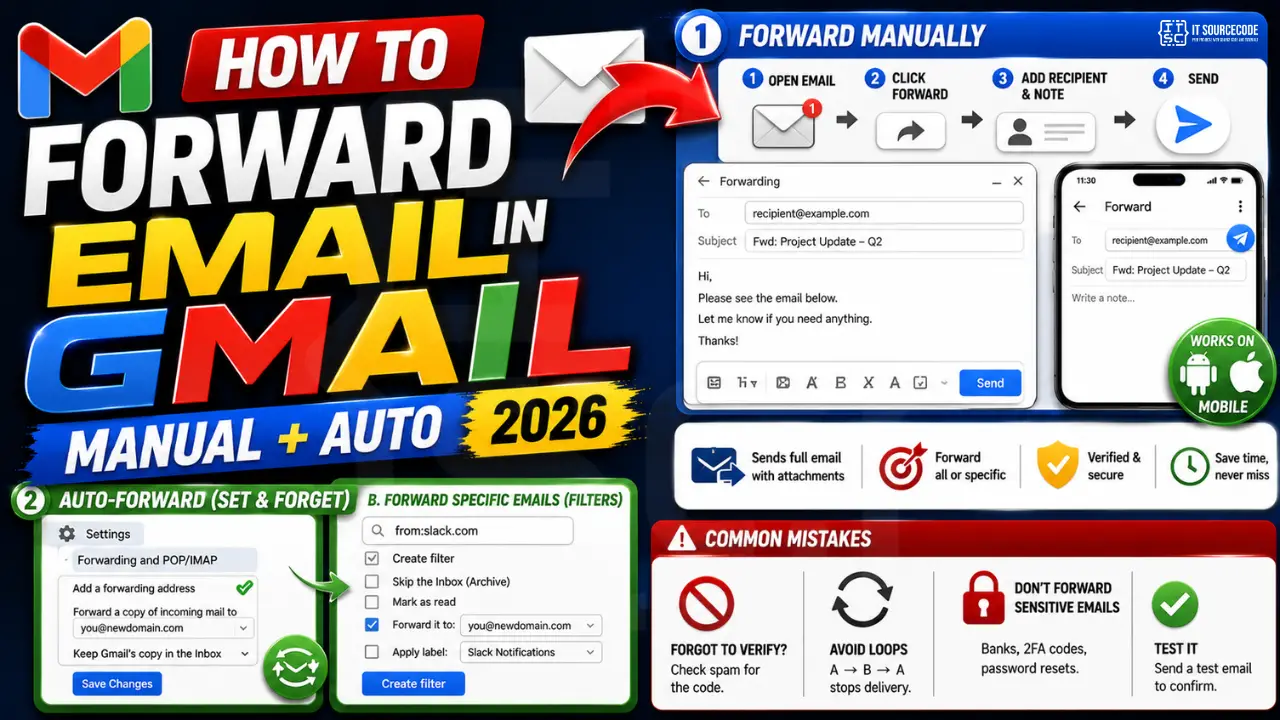
Forward a single email manually on desktop
- Open Gmail at
mail.google.com. - Open the email you want to forward.
- Click the Forward button at the bottom of the message (or press
Fkeyboard shortcut). - Type the recipient’s email address in the To field.
- Add a note above the forwarded content if you want to explain context.
- Click Send.
The recipient receives the full email including original sender, subject, and any attachments.
Forward an email on Gmail mobile (Android or iPhone)
- Open the Gmail app on your phone.
- Tap the email to open it.
- Tap the three dots in the top-right corner of the message.
- Tap Forward.
- Enter the recipient’s address.
- Tap the send arrow icon at the top-right.
Set up auto-forwarding for ALL new emails
This is useful when you switch to a new email address and want everything routed automatically for a period of time.
- Open Gmail on desktop. Click the gear icon in the top-right.
- Click See all settings.
- Go to the Forwarding and POP/IMAP tab.
- Click Add a forwarding address.
- Type the destination address and click Next.
- Confirm by clicking Proceed. Google sends a verification code to the destination address.
- Open the destination inbox, get the verification code, and enter it back in the original Gmail settings.
- Once verified, return to Forwarding and POP/IMAP and select “Forward a copy of incoming mail to [destination]”.
- Choose what to do with the Gmail copy: keep, mark as read, archive, or delete.
- Click Save Changes at the bottom of the page.
Set up auto-forwarding for SPECIFIC emails only (filter-based)
This is the more powerful option because you decide exactly which emails get forwarded.
- First, complete the “Add a forwarding address” verification above.
- Open Gmail. Click the search bar at the top.
- Click the Show search options icon on the right side of the search bar.
- Fill in the criteria: sender, subject, has words, has attachment, etc.
- Click Create filter at the bottom.
- Check “Forward it to” and select your verified destination address from the dropdown.
- Optionally add other actions like “Mark as read” or “Apply label”.
- Click Create filter.
Common auto-forwarding recipes
- Forward all invoices to accounting: search
subject:(invoice OR receipt)and forward to your accountant’s address. - Forward all Slack notifications to a secondary inbox: search
from:slack.comand forward. - Forward large attachments to Drive-linked account: search
has:attachment larger:10Mand forward. - Forward emails from a specific domain: search
from:@companyname.comand forward.
Turn off auto-forwarding when you no longer need it
- Go to Settings → Forwarding and POP/IMAP.
- Select “Disable forwarding”.
- Click Save Changes.
For filter-based forwarding, delete the filter from Settings → Filters and Blocked Addresses.
Common mistakes when forwarding email in Gmail
- Forgetting to verify the destination address. Gmail requires verification before it forwards anywhere. Check spam if the code does not arrive.
- Auto-forward loops. If Address A forwards to Address B and B forwards back to A, Gmail detects the loop and stops delivery. Set up one-way forwarding only.
- Forwarding sensitive emails. Bank statements, password resets, and 2FA codes should NOT be auto-forwarded. Anyone with access to the destination inbox sees them.
- Not testing after setup. Send yourself a test email to confirm forwarding works before relying on it.
Official documentation
Recommended email productivity resources
The links below are affiliate links. We may earn a commission at no extra cost to you when you buy or sign up. See our affiliate disclosure.
Frequently Asked Questions
Can I forward Gmail to multiple addresses at once?
Yes but you must set up separate filters for each destination. The auto-forward setting only supports one destination at a time. Use filter-based forwarding for multi-destination routing.
Does auto-forwarding include attachments?
Yes. Full email content including attachments up to 25MB is forwarded. Larger attachments become Google Drive links which the destination inbox can still access if they have permission.
Can I forward emails from an alias to another Gmail?
Yes. If you have Gmail aliases set up via “Send mail as”, each alias can have its own filter that forwards to a different destination.
Will the recipient see it was forwarded?
For auto-forwarded emails, the recipient sees the original sender in the From field. Gmail adds a small “via forwarding” note in the email header details for transparency.
Can I forward from Gmail to Outlook or Yahoo?
Yes. Auto-forwarding works to any email service including Outlook, Yahoo, ProtonMail, and custom domains. Just complete the verification step from the destination inbox.