
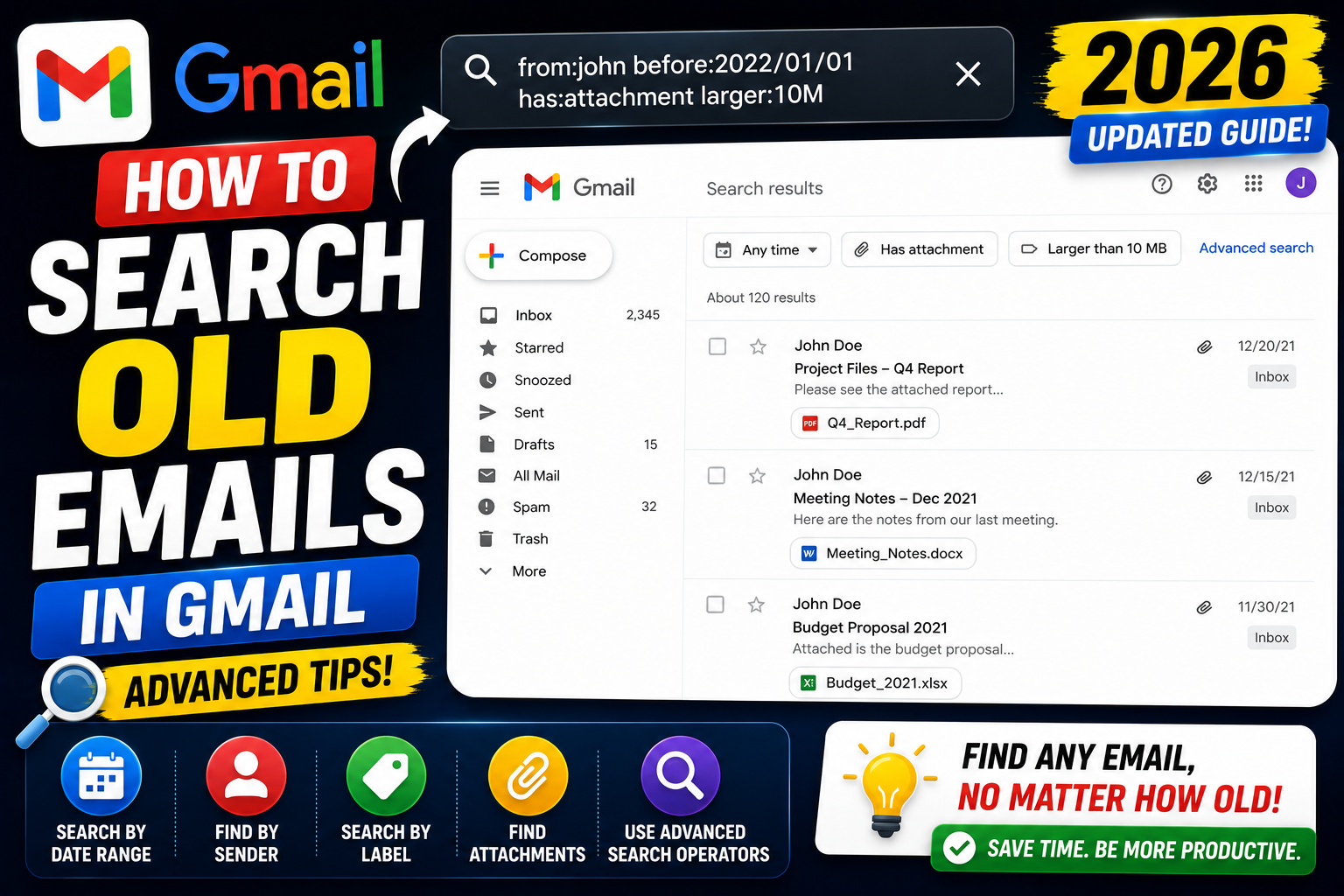
Gmail’s search bar is more powerful than most users realize. Beyond typing a keyword, you can use search operators to find emails by date, sender, subject, size, attachment, and dozens of other filters. Master these operators and you can find any email in your archive within seconds even if you have 100,000+ messages. Here is the complete 2026 guide.
The 10 most useful Gmail search operators
| Operator | What it does | Example |
|---|---|---|
from: | Emails from a sender | from:ana@company.com |
to: | Emails you sent to someone | to:client@company.com |
subject: | Emails with subject keyword | subject:invoice |
before: | Emails before a date | before:2024/01/01 |
after: | Emails after a date | after:2023/06/01 |
has:attachment | Emails with any attachment | has:attachment |
filename: | Emails with named attachment | filename:contract.pdf |
larger: | Emails larger than size | larger:10M |
is:unread | Unread emails only | is:unread |
label: | Emails with a label | label:important |
Combine operators for precise searches
Operators combine with spaces (AND) or with the pipe (OR):
- Find invoices from a specific vendor last year:
from:vendor@company.com subject:invoice after:2024/01/01 before:2025/01/01 - Find emails with PDF attachments over 5MB:
filename:pdf larger:5M - Find unread emails from your boss:
from:boss@company.com is:unread - Find emails from either colleague:
from:(ana@company.com OR ben@company.com) - Find important emails without an attachment:
label:important -has:attachment - Find emails older than 3 years:
older_than:3y - Find flight confirmations:
subject:(flight OR booking OR confirmation) has:attachment
Complete list of Gmail search operators (2026)
from:someone@example.com, from specific senderto:someone@example.com, to specific recipientcc:,bcc:, CC or BCC recipientssubject:keyword, subject contains keywordhas:attachment, has any attachmenthas:youtube, contains a YouTube videohas:drive, contains a Google Drive linkhas:document, contains a Google Docfilename:pdf, has PDF attachment (or any file type)filename:report.docx, has attachment with specific nameis:unread, unread onlyis:read, read onlyis:starred, starred emailsis:important, marked importantis:snoozed, snoozed emailslabel:name, under a specific labelcategory:promotions, in Promotions tab (also social, forums, updates)after:2024/01/01, after date (YYYY/MM/DD)before:2024/12/31, before dateolder_than:1y, older than 1 year (y, m, d)newer_than:7d, newer than 7 dayslarger:10M, larger than 10 MB (M or K)smaller:100K, smaller than 100 KBlist:mailinglist@example.com, from mailing listdeliveredto:alias@gmail.com, delivered to alias-word, exclude a word (minus prefix)"exact phrase", exact phrase match*, wildcard within phraseAROUND N, words within N words of each other
Use the Advanced Search form (no operators needed)
If you find operator syntax hard to remember, Gmail has a visual form:
- Click the Show search options icon on the right side of the search bar.
- Fill in the fields: From, To, Subject, Has words, Doesn’t have, Size, Date within.
- Click Search.
- Gmail runs the search AND shows you the equivalent operator syntax in the search bar so you can learn.
Save searches with filters (auto-run every time)
After you find the perfect search operator combination, save it as a filter so it runs automatically on new emails.
- Run your search in the Gmail search bar.
- Click the Show search options icon again.
- Click Create filter at the bottom.
- Choose what action to take on matching emails (label, star, forward, archive, delete).
- Click Create filter.
Future emails matching your criteria are handled automatically.
Common search problems and fixes
- Search finds nothing but you know the email exists: date format must be YYYY/MM/DD (not MM/DD/YYYY). Check date syntax.
- Search does not include Spam or Trash: add
in:anywhereto include those folders. - Search does not include Chats: Google Chat messages are searched separately in the Chat app.
- Operator syntax not working: no spaces after the colon:
from:ananotfrom: ana. - Case sensitivity: Gmail search is case-insensitive. INVOICE = invoice = Invoice.
Common Google Meet mistakes to avoid
- Not testing camera and mic before the meeting. Meet has a preview page at meet.google.com/hangouts/preview where you can test devices before joining any meeting.
- Joining from mobile when you need to share screen. Screen sharing works on mobile but is limited. Use desktop when you need to share content in detail.
- Forgetting to mute when not speaking. Background noise disrupts everyone. Press Ctrl+D (Cmd+D on Mac) to toggle mute.
- Assuming recordings are automatic. Meet only records when the host clicks Record. Enable at the start; you cannot recover an unrecorded meeting.
- Ignoring the noise cancellation feature. Workspace tiers include background noise cancellation. Enable in Settings > Audio.
Power-user tips for Google Meet
- Use keyboard shortcuts. Ctrl+D to mute, Ctrl+E for camera, Ctrl+Alt+H to raise hand, Ctrl+Alt+M for the chat panel. All work on Windows and Mac (swap Ctrl for Cmd on Mac).
- Add captions. Turn on live captions at the bottom-right menu. Useful for accessibility and noisy environments.
- Enable Q&A for large meetings. Attendees can submit written questions without interrupting. Available on Workspace tiers.
- Use polls to gather feedback. Quick pulse checks during long meetings keep attention.
- Share a specific tab, not the whole desktop. Prevents accidentally sharing notifications or personal information.
When to use Meet vs alternatives
Meet works best when your organization is already on Google Workspace, calls are 3-10 participants, and simplicity matters more than advanced features. It integrates seamlessly with Calendar and Gmail, which is unbeatable for Google-first teams.
For large webinars (100+ attendees), Zoom or Webex offer better host controls. For persistent team chat with video, Slack Huddles or Microsoft Teams work better. For high-quality recorded content, tools like Riverside or Descript produce cleaner output.
For BSIT capstone defenses and student meetings, Meet is the right choice on any campus with Google Workspace for Education. Free tier supports up to 100 participants for 60 minutes.
Best practices summary
- Test devices 5 minutes before start. Camera, mic, network. Nothing worse than the “can you hear me?” opening.
- Share agenda in Calendar description. Attendees arrive knowing what to discuss.
- Assign a note-taker at start. Distributes cognitive load and produces action items.
- End on time or early. Respect people’s calendars. Reschedule if content overflows.
- Follow up with meeting notes within 24 hours. Consolidates decisions and prevents forgotten action items.
Official documentation
Recommended Gmail power-user resources
The links below are affiliate links. We may earn a commission at no extra cost to you when you buy or sign up. See our affiliate disclosure.
Quick step-by-step summary (click to expand)
- Open Gmail search bar. Click the magnifying glass or press / to focus.
- Use older_than: operator. Type older_than:1y to find emails older than a year.
- Combine with date range. Use after:2020/01/01 before:2022/12/31 for a specific span.
- Filter by sender. Combine older_than:6m from:someone@example.com to narrow further.
- Sort by size for cleanup. Add size:5m or larger:5m to find and archive large old emails first.
Frequently Asked Questions
Do Gmail search operators work in the mobile app?
Yes. All operators work identically in Android and iOS Gmail apps. Type them in the search bar exactly like on desktop.
How far back does Gmail search go?
Gmail searches every email you have received since you created your account. If your Gmail is from 2004, you can search 20+ years of history.
Why does search sometimes miss emails I know exist?
Usually because the email is in Spam or Trash which are excluded by default. Add in:anywhere to include those folders. Also check date syntax (YYYY/MM/DD).
Can I search email body content specifically?
By default, Gmail searches the body along with subject and headers. To search body only, exclude subject: -subject:keyword body_keyword.
Can I save my searches for later reuse?
Gmail does not have “saved searches” natively but you can bookmark the URL after running a search. Or create a filter for the exact query which runs on new incoming emails.

Caren Bautista
Technical Writer at PIES IT Solution
Responsible for crafting clear, well-structured, and beginner-friendly content across the platform.
Expertise: Technical Writing · Content Creation · Documentation · Editorial Writing · JavaScript · TypeScript · View all posts by Caren Bautista →