
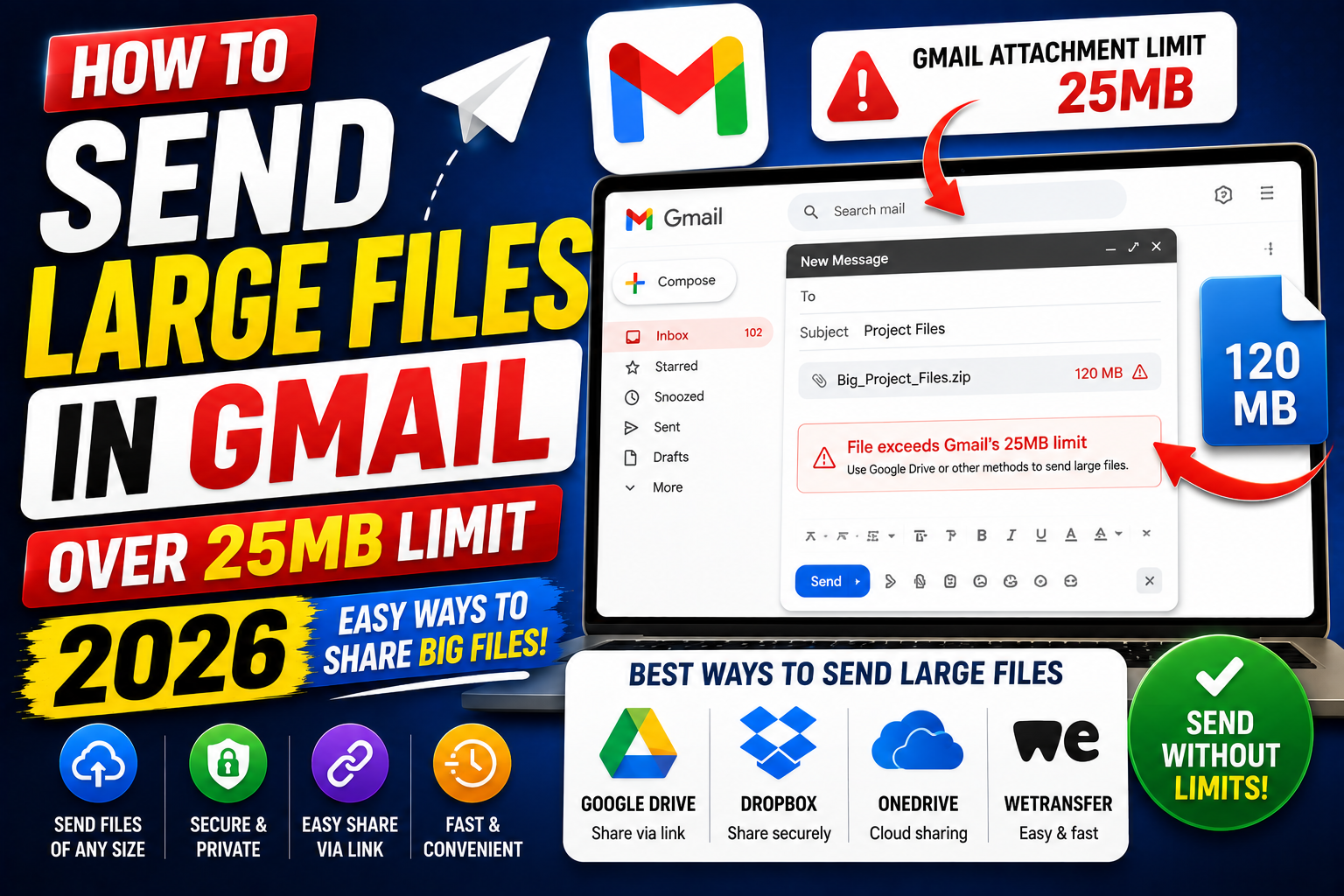
Gmail’s attachment limit is 25MB. Try to attach anything bigger and Gmail automatically converts it to a Google Drive link. The recipient gets a link to download instead of a direct attachment. This works for files up to 15GB (limited by your Drive storage). Here is how to send large files in Gmail properly, plus alternative approaches for extreme file sizes.
Method 1: Google Drive auto-conversion (easiest)
- Compose a new email in Gmail.
- Click the paperclip icon to attach a file.
- Select a file larger than 25MB.
- Gmail shows a message: “This file exceeds the 25MB attachment limit. It will be shared as a Google Drive link.”
- Click OK.
- Gmail uploads the file to your Drive and inserts a link in the email body.
- Click Send.
The recipient sees a preview thumbnail and a clickable “Open” link that opens the file in their browser.
Method 2: Insert an existing Google Drive file
If the file is already in your Drive, use this instead of uploading:
- Open a new Gmail compose window.
- Click the Google Drive icon at the bottom of the compose window (triangle with folded corner).
- Browse your Drive and select the file.
- Choose insert method: Drive link (recipient clicks to open) or Attachment (Gmail downloads then attaches, only if under 25MB).
- Click Insert.
Drive link is the right choice for large files. The link works forever until you revoke access.
Control who can access the shared Drive file
When Gmail creates the Drive link, it defaults to “restricted” access, only the email recipients can open.
- Before sending, Gmail may show a “Share with recipients” dialog.
- Click Share and send to give recipients view access.
- To restrict further, open Drive → right-click the file → Share → set to “Restricted” and manually add only the recipients you want.
Anyone with the direct link cannot access unless they are on the recipient list. This is different from “Anyone with the link can view”, which is less secure.
Method 3: Compress files before sending (fit under 25MB)
Sometimes you just need to send it as a real attachment (recipient prefers no Drive link). Compress first:
- Multiple files: right-click → “Compress” (Mac) or “Send to → Compressed folder” (Windows) → creates a .zip.
- Photos: use a photo compressor tool to reduce size before attaching. Or export at lower resolution.
- PDFs: use Adobe Acrobat’s “Reduce File Size” feature or online tools like SmallPDF.
- Videos: use HandBrake to compress. A 1GB video can often reduce to 100-200MB with minimal quality loss.
- Multiple photos: use a ZIP or 7z archive. Sometimes compresses well because raw photos have shared headers.
Method 4: Use a dedicated file-sharing service for extreme sizes
For files over 15GB or when you want the recipient to download without a Google account:
- WeTransfer: free up to 2GB. Simple browser upload.
- Dropbox: 2GB free tier. Persistent link.
- Google Drive with public link: works if you accept “Anyone with the link can view” security.
- SendAnywhere: peer-to-peer with 6-digit code.
Upload to the service, then paste the download link into your Gmail email body.
Common problems when sending large files via Gmail
- “Cannot send. Attachment too large” error: Gmail limit is 25MB total per email (all attachments combined). Split into multiple emails or use Drive.
- Drive link says “Access denied” for recipient: you didn’t grant view permission when Gmail asked. Reopen the Drive file → Share → add the recipient’s email.
- Upload takes hours: for gigabyte files, upload speed depends on your internet. Test upload speed at fast.com. Overnight upload for very large files.
- Recipient uses corporate email that blocks Drive links: some companies block external Drive access. Compress and send as attachment, or use WeTransfer.
- Files disappear from Drive later: if you delete the file from your Drive, the Gmail link breaks. Keep the file in Drive as long as recipient may need it.
Common Google Meet mistakes to avoid
- Not testing camera and mic before the meeting. Meet has a preview page at meet.google.com/hangouts/preview where you can test devices before joining any meeting.
- Joining from mobile when you need to share screen. Screen sharing works on mobile but is limited. Use desktop when you need to share content in detail.
- Forgetting to mute when not speaking. Background noise disrupts everyone. Press Ctrl+D (Cmd+D on Mac) to toggle mute.
- Assuming recordings are automatic. Meet only records when the host clicks Record. Enable at the start; you cannot recover an unrecorded meeting.
- Ignoring the noise cancellation feature. Workspace tiers include background noise cancellation. Enable in Settings > Audio.
Power-user tips for Google Meet
- Use keyboard shortcuts. Ctrl+D to mute, Ctrl+E for camera, Ctrl+Alt+H to raise hand, Ctrl+Alt+M for the chat panel. All work on Windows and Mac (swap Ctrl for Cmd on Mac).
- Add captions. Turn on live captions at the bottom-right menu. Useful for accessibility and noisy environments.
- Enable Q&A for large meetings. Attendees can submit written questions without interrupting. Available on Workspace tiers.
- Use polls to gather feedback. Quick pulse checks during long meetings keep attention.
- Share a specific tab, not the whole desktop. Prevents accidentally sharing notifications or personal information.
When to use Meet vs alternatives
Meet works best when your organization is already on Google Workspace, calls are 3-10 participants, and simplicity matters more than advanced features. It integrates seamlessly with Calendar and Gmail, which is unbeatable for Google-first teams.
For large webinars (100+ attendees), Zoom or Webex offer better host controls. For persistent team chat with video, Slack Huddles or Microsoft Teams work better. For high-quality recorded content, tools like Riverside or Descript produce cleaner output.
For BSIT capstone defenses and student meetings, Meet is the right choice on any campus with Google Workspace for Education. Free tier supports up to 100 participants for 60 minutes.
Best practices summary
- Test devices 5 minutes before start. Camera, mic, network. Nothing worse than the “can you hear me?” opening.
- Share agenda in Calendar description. Attendees arrive knowing what to discuss.
- Assign a note-taker at start. Distributes cognitive load and produces action items.
- End on time or early. Respect people’s calendars. Reschedule if content overflows.
- Follow up with meeting notes within 24 hours. Consolidates decisions and prevents forgotten action items.
Official documentation
Recommended tools for file management
The links below are affiliate links. We may earn a commission at no extra cost to you when you buy or sign up. See our affiliate disclosure.
Quick step-by-step summary (click to expand)
- Compose a new email. Click Compose in Gmail. Add recipient and subject.
- Click paperclip and select file. If under 25MB, Gmail attaches normally.
- For files 25MB-15GB, Gmail auto-suggests Google Drive. Gmail asks to Insert as Drive link. Click yes.
- Set Drive sharing permissions. Choose Anyone with link then Viewer for widest access.
- Alternative: WeTransfer, Firefox Send, or WeSendit. For 15GB+, use a third-party file transfer service and paste the download link in Gmail.
Frequently Asked Questions
What is the maximum file size Gmail supports?
25MB per email as direct attachment. Up to 15GB (or your Drive quota) via Google Drive link. No limit if you use external services like WeTransfer.
Does using Google Drive link count against Gmail storage?
Yes, but against your Drive storage (which shares the 15GB free pool with Gmail). The file lives in Drive. Deleting the email does not delete the Drive file.
Can recipients without Google accounts download the file?
If you set Drive sharing to “Anyone with the link”, yes. If restricted to specific email addresses, only Google account holders can open. WeTransfer or Dropbox work for anonymous recipients.
How long do Gmail Drive-linked files stay accessible?
Forever, until you delete the file from Drive or revoke access. Unlike WeTransfer which auto-expires after 7 days.
Can I attach multiple files that total over 25MB?
No. Gmail’s 25MB limit is total per email, all attachments combined. Split into multiple emails or use Drive for the whole batch.

Caren Bautista
Technical Writer at PIES IT Solution
Responsible for crafting clear, well-structured, and beginner-friendly content across the platform.
Expertise: Technical Writing · Content Creation · Documentation · Editorial Writing · JavaScript · TypeScript · View all posts by Caren Bautista →