
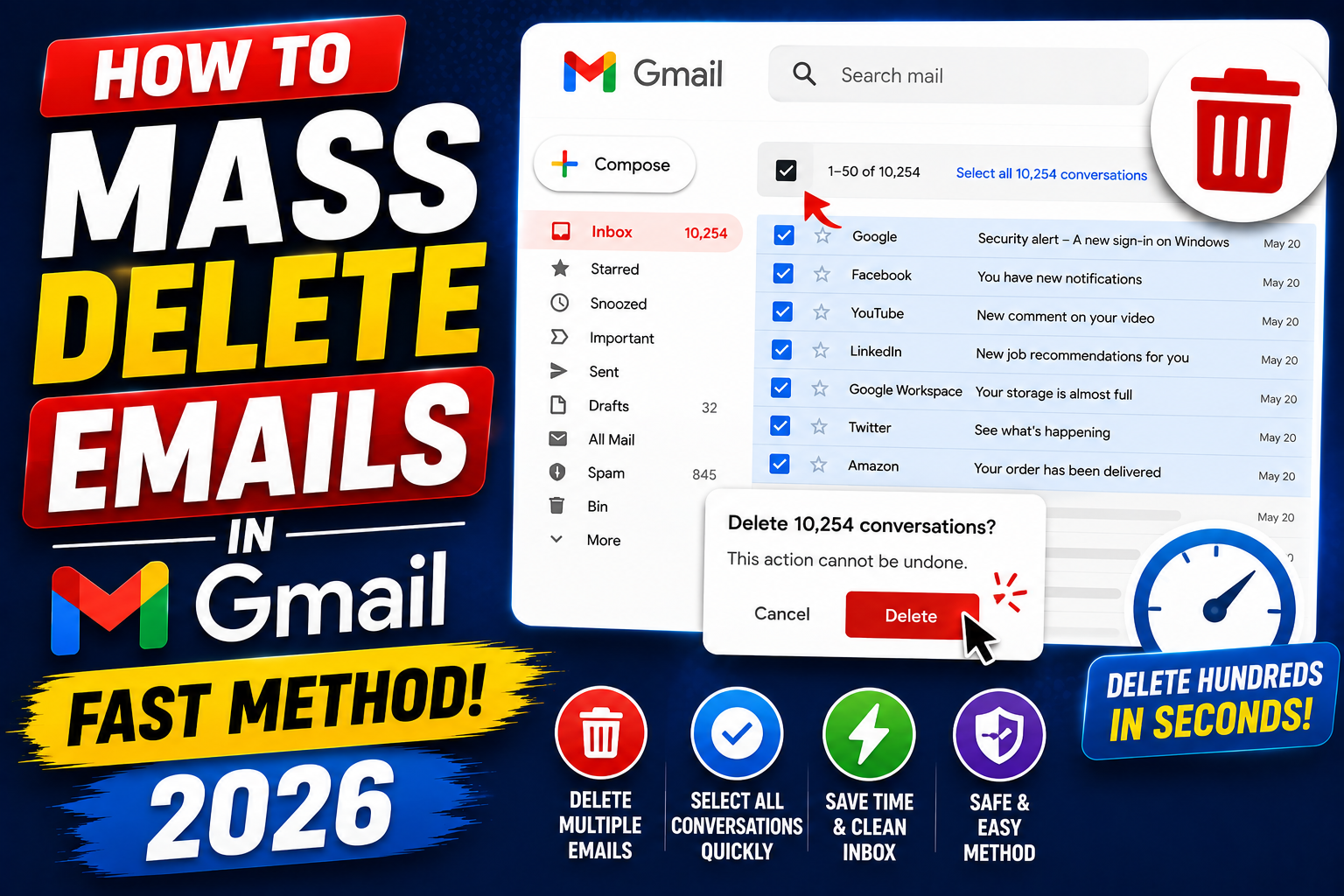
Deleting emails one at a time in Gmail is fine for daily use but useless when you need to clear thousands of promotional emails, old newsletters, or an unread pile that has been growing for years. Here is how to mass delete emails in Gmail in seconds using the built-in select-all trick, filters, and category shortcuts. Works on desktop and mobile with 2026 Gmail updates.
The core mass-delete trick: Select all conversations
Gmail hides the mass-delete option behind a two-step click. Once you know the trick, deleting 10,000 emails takes 10 seconds.
- Open Gmail at
mail.google.com. - Search or filter to show the emails you want to delete (see recipes below).
- Click the checkbox at the top-left to select all emails on the current page (usually 50 or 100).
- A yellow banner appears: “All 50 conversations on this page are selected. Select all X,XXX conversations in [category]”.
- Click the “Select all conversations” link in the banner.
- Click the trash icon in the toolbar.
- Confirm if prompted. All matching emails move to Trash.
Mass delete all promotional emails
- Open Gmail on desktop.
- Click the Promotions tab at the top of the inbox.
- Click the checkbox at the top-left.
- Click the yellow banner: “Select all X conversations in Promotions”.
- Click the trash icon.
- Confirm.
This is the fastest way to clear years of accumulated marketing emails without accidentally deleting important messages from your primary inbox.
Mass delete old emails (older than a specific date)
Use Gmail search to find and delete emails older than a certain date:
- In the search bar, type:
before:2024/01/01(adjust the date). - Press Enter. Gmail shows all emails older than that date.
- Click the checkbox at the top-left.
- Click “Select all conversations” in the yellow banner.
- Click the trash icon.
Combine with other operators: before:2024/01/01 category:promotions for promotional emails older than 2024.
Mass delete unread emails
- In the search bar, type:
is:unread. - Press Enter to see all unread emails.
- Click the checkbox at the top-left, then “Select all conversations”.
- Click the trash icon.
Caveat: this will delete ALL unread emails including recent ones. Combine with date filters if you only want to delete older unread emails.
Mass delete emails from a specific sender or domain
- All emails from one sender: search
from:noreply@newsletter.comthen select all + delete. - All emails from a domain: search
from:@companyname.comthen select all + delete. - All emails with a specific subject keyword: search
subject:invoicethen select all + delete. - All emails with attachments: search
has:attachmentthen select all + delete. - All emails larger than 10MB: search
larger:10Mto find storage hogs, then delete selectively.
Empty Trash to actually free up storage
Deleting emails moves them to Trash but they still count toward your 15GB Gmail storage limit until Trash is emptied.
- Click Trash in the left sidebar.
- Click Empty Trash now at the top.
- Confirm.
Gmail automatically empties Trash after 30 days but manual emptying frees up storage immediately.
Mass delete on Gmail mobile app
The mobile app does not have a “select all” trick as smooth as desktop. Best practice:
- Long-press the first email to enter selection mode.
- Tap each additional email you want to delete.
- Tap the trash icon at the top.
For thousands of emails, use desktop instead. Mobile is fine for tens of emails.
Common mistakes when mass deleting Gmail
- Forgetting the yellow banner. Just clicking the top checkbox only selects the visible page (50 emails). The banner is required to select ALL matching emails.
- Deleting without emptying Trash. Storage does not free up until Trash is empty. Manually empty it after mass delete.
- No search filter first. Selecting all in the general inbox can delete important emails. Always filter to a specific category, sender, or date range first.
- Not backing up first. If deleting years of business emails, use Google Takeout to download an archive before deleting.
Common Google Meet mistakes to avoid
- Not testing camera and mic before the meeting. Meet has a preview page at meet.google.com/hangouts/preview where you can test devices before joining any meeting.
- Joining from mobile when you need to share screen. Screen sharing works on mobile but is limited. Use desktop when you need to share content in detail.
- Forgetting to mute when not speaking. Background noise disrupts everyone. Press Ctrl+D (Cmd+D on Mac) to toggle mute.
- Assuming recordings are automatic. Meet only records when the host clicks Record. Enable at the start; you cannot recover an unrecorded meeting.
- Ignoring the noise cancellation feature. Workspace tiers include background noise cancellation. Enable in Settings > Audio.
Power-user tips for Google Meet
- Use keyboard shortcuts. Ctrl+D to mute, Ctrl+E for camera, Ctrl+Alt+H to raise hand, Ctrl+Alt+M for the chat panel. All work on Windows and Mac (swap Ctrl for Cmd on Mac).
- Add captions. Turn on live captions at the bottom-right menu. Useful for accessibility and noisy environments.
- Enable Q&A for large meetings. Attendees can submit written questions without interrupting. Available on Workspace tiers.
- Use polls to gather feedback. Quick pulse checks during long meetings keep attention.
- Share a specific tab, not the whole desktop. Prevents accidentally sharing notifications or personal information.
When to use Meet vs alternatives
Meet works best when your organization is already on Google Workspace, calls are 3-10 participants, and simplicity matters more than advanced features. It integrates seamlessly with Calendar and Gmail, which is unbeatable for Google-first teams.
For large webinars (100+ attendees), Zoom or Webex offer better host controls. For persistent team chat with video, Slack Huddles or Microsoft Teams work better. For high-quality recorded content, tools like Riverside or Descript produce cleaner output.
For BSIT capstone defenses and student meetings, Meet is the right choice on any campus with Google Workspace for Education. Free tier supports up to 100 participants for 60 minutes.
Best practices summary
- Test devices 5 minutes before start. Camera, mic, network. Nothing worse than the “can you hear me?” opening.
- Share agenda in Calendar description. Attendees arrive knowing what to discuss.
- Assign a note-taker at start. Distributes cognitive load and produces action items.
- End on time or early. Respect people’s calendars. Reschedule if content overflows.
- Follow up with meeting notes within 24 hours. Consolidates decisions and prevents forgotten action items.
Official documentation
Recommended inbox productivity resources
The links below are affiliate links. We may earn a commission at no extra cost to you when you buy or sign up. See our affiliate disclosure.
Quick step-by-step summary (click to expand)
- Search or filter to isolate emails. Use search: older_than:1y, from:sender, or in:promotions to target a group.
- Select all on page. Click the checkbox at the top-left of the inbox.
- Select all conversations. A yellow banner appears: Select all N conversations. Click it.
- Delete. Click the Trash icon. All selected messages go to Trash.
- Empty Trash. Trash > Empty Trash Now to permanently delete.
Frequently Asked Questions
Can I undo a mass delete?
Yes but only while emails are still in Trash. Go to Trash, select the emails, and click “Move to Inbox” or the label you want. After 30 days Trash empties automatically and recovery is not possible.
Is there a limit to how many emails I can delete at once?
No published limit. Gmail handles tens of thousands of emails per bulk action. For truly massive deletions (100K+), the operation may take a minute or two but completes reliably.
Does mass delete affect other Google services?
No. Deleting emails only affects Gmail. Your Drive files, Calendar events, and Photos are separate and untouched.
Can I mass delete emails from specific label?
Yes. Click the label name in the left sidebar, then use the same select-all + banner + trash trick. All emails under that label will be deleted.
Will mass delete free up 15GB storage immediately?
Not until you empty Trash. Deleted emails still count toward storage until Trash is manually cleared or 30 days pass. Empty Trash for immediate storage relief.

Caren Bautista
Technical Writer at PIES IT Solution
Responsible for crafting clear, well-structured, and beginner-friendly content across the platform.
Expertise: Technical Writing · Content Creation · Documentation · Editorial Writing · JavaScript · TypeScript · View all posts by Caren Bautista →