
Gemini AI inside Gmail can draft an entire email from a one-line prompt, summarize a 30-message thread into 3 bullet points, and suggest replies that sound like you (not a robot).
This guide shows you the three main Gemini-in-Gmail features for 2026, what is free versus paid, and the prompt patterns that get results worth sending.
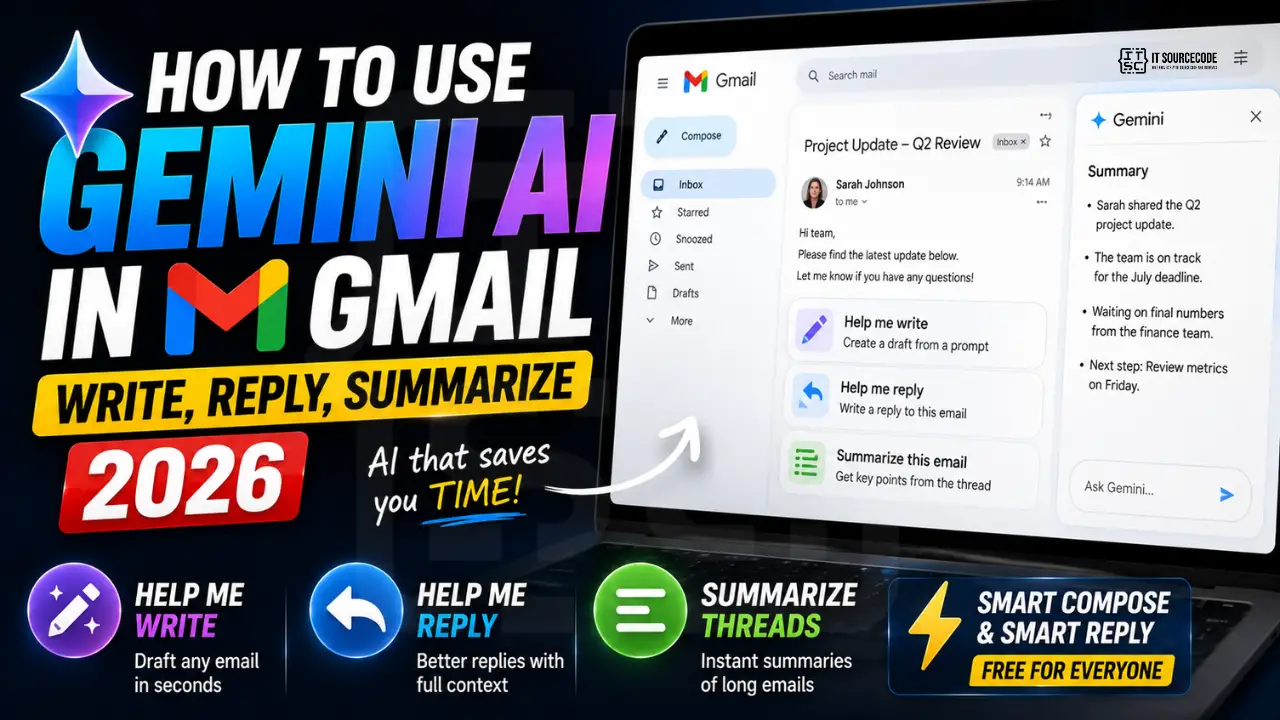
Feature 1: Smart Compose (free, autocomplete as you type)
Smart Compose suggests the rest of your sentence in gray text as you type. Press Tab to accept the suggestion, or just keep typing to ignore it. It is enabled by default for most accounts.
To verify it is on:
- Gmail desktop > gear icon > See all settings > General tab.
- Find “Smart Compose” > select “Writing suggestions on.”
- Optionally enable “Smart Compose personalization” so it learns your writing style.
- Save Changes.
Smart Compose works best for routine phrases (“Thanks for your email,” “Let me know if you have any questions,” “Talk soon”). It struggles with technical content and unusual names, so do not blindly accept suggestions for those.
Feature 2: Smart Reply (free, 3 one-tap replies)
When you open an email, Smart Reply shows 3 short reply suggestions at the bottom (typical: “Thanks!”, “Sounds good”, “Let me check”). Click one to insert it into the reply, then edit or send as-is.
Smart Reply is on by default. To turn off (some users find the suggestions distracting): Settings > General > “Smart Reply” > “Smart Reply off” > Save.
Feature 3: Help me write (paid, full draft generation)
This is the headline Gemini feature. From a one-line prompt, it generates a full draft you can refine, shorten, formalize, or elaborate before sending.
How to access it:
- Open Gmail (must be on a Workspace plan with Gemini, or Gemini Advanced personal account).
- Click Compose to open a new message.
- Click the pencil-with-sparkles icon in the compose toolbar (labeled “Help me write”).
- Type a one-line prompt describing what you want: “Decline the meeting on Friday politely, suggest a 30-min call next week instead.”
- Click Create. Gemini generates a draft in 3-5 seconds.
- Use the toolbar to refine: Formalize, Elaborate, Shorten, “I’m feeling lucky” (random rewrite), or “Refine” (custom rewrite instruction).
- Click Insert when you are happy. The draft replaces your compose area.
- Edit personal details before sending.
Feature 4: Help me reply (paid, thread-aware response)
Inside an open email thread, Gemini can read the conversation and draft a reply that references prior context.
- Open the email you want to reply to.
- Click “Help me reply” at the bottom of the email (replaces the standard Reply button when Gemini is enabled).
- Gemini reads the thread and offers 3 draft replies of different lengths or tones (short, medium, detailed).
- Click one to load it into the reply box.
- Use the refinement toolbar (Formalize, Elaborate, Shorten) if needed.
- Edit and send.
Help me reply is more accurate than Smart Reply because it sees the entire thread, not just the last message. Best use cases: long client threads where you forgot the context, escalations where tone matters, and “thanks for the report” responses to data-heavy emails.
Feature 5: Summarize this email (paid, thread digest)
For long threads (10+ messages, scrolling for screens), Gemini can produce a 3-5 bullet summary so you do not have to read the whole chain.
- Open the long thread.
- Click the Gemini side-panel icon (sparkle icon, top-right of the email view).
- Side panel opens with a “Summarize this email” button.
- Click it. Summary appears in 5-10 seconds depending on thread length.
- You can ask follow-ups in the side panel: “What did Sarah propose?”, “What are the next steps?”, “Who needs to take action?”
Prompt patterns that get sendable drafts
Bad prompts (“write an email to my boss”) produce generic results. Good prompts include: who, why, tone, and any constraints.
| Goal | Good prompt |
|---|---|
| Decline a meeting | “Decline Friday 3 PM meeting, conflict with deadline, suggest Tuesday next week, friendly tone” |
| Follow up on quote | “Following up on quote sent Monday, gentle nudge, ask if they have questions, signature: Jane / Sales” |
| Decline a service vendor | “Decline vendor proposal, going with a different provider, brief, polite, no need to share reason” |
| Ask for a deadline extension | “Request 1 week extension on Friday report, reason: extra data validation needed, professional tone” |
| Cold outreach to client | “Intro to potential client, I run AI consulting agency in PH, they are an e-commerce startup, focus on chatbot use case, brief” |
When NOT to use Gemini in Gmail
- Highly personal messages: condolences, apologies, personal news. AI-drafted versions sound performative.
- Legal or compliance text: Gemini can hallucinate clauses. Have a real human review.
- Confidential content: Workspace Gemini does not use your data for training, but Gemini Advanced (personal tier) policies are more permissive. Review your tier’s data terms before pasting sensitive info.
- Anything in a language you do not speak: you cannot catch errors.
How to enable or disable Gemini in Gmail
For Workspace admins: Admin console > Apps > Google Workspace > Gmail > Gemini for Gmail > toggle on/off for the organization.
For personal users: Open Gmail > gear icon > See all settings > “AI features” tab (if visible) > “Use Gemini in Gmail” > on/off. The tab only appears if your account is eligible.
If you do not have Gemini and want it, check pricing at workspace.google.com/products/gemini for business plans, or gemini.google/advanced for personal subscription.
Official documentation
Frequently Asked Questions
Is Gemini in Gmail free?
Smart Compose and Smart Reply (short suggestions and one-tap replies) are free for all Gmail users. The full Gemini features (Help me write, Help me reply, thread summaries) require Google Workspace with the Gemini add-on or a personal Gemini Advanced subscription at $19.99 per month.
Why do I not see the Help me write button in Gmail?
Most common reason: your account does not have Gemini enabled. Personal Gmail accounts need Gemini Advanced; Workspace accounts need the Gemini add-on enabled by admin. Other reasons: outdated browser, ad blocker blocking AI scripts, or your region does not have Gemini rollout yet.
Does Gemini read all my emails to train its AI?
For Workspace customers, Google’s contract says your data is not used to train Gemini. For personal Gemini Advanced users, by default conversations may be used for model improvement; you can disable this at myactivity.google.com/product/gemini. Either way, Gemini only processes emails you actively trigger features on, not your whole mailbox.
Can Gemini summarize a thread with 50+ messages?
Yes, but the quality drops past about 30 messages or when there are many attachments. For very long threads, the summary tends to favor the most recent and the first few messages. To get a balanced summary, ask follow-up questions in the side panel like “What did each person decide?” or “What is the timeline?”
Can I use Gemini in Gmail on mobile?
Yes, on both Android and iOS Gmail apps. Look for the same pencil-with-sparkles icon when composing or the Gemini side-panel icon in the email view. Mobile rollout has been slower than desktop, so update to the latest Gmail app if you do not see it.
Is Gemini in Gmail better than ChatGPT for email?
For emails you draft directly in Gmail, Gemini wins because it stays inside Gmail (no copy-paste) and can read the thread for context. For research-heavy emails, complex multi-turn drafting, or non-email content, ChatGPT and Claude often produce better prose. Use Gemini for quick drafts in Gmail and use ChatGPT or Claude for everything else, then paste the result into Gmail.

Caren Bautista
Technical Writer at PIES IT Solution
Responsible for crafting clear, well-structured, and beginner-friendly content across the platform. Handles the writing, proofreading, and editorial review of tutorials, guides, and documentation to ensure every article is accurate, readable, and easy to follow.
Expertise: Technical Writing · Content Creation · Documentation · Editorial Writing · JavaScript · TypeScript · Python · Python Errors · HTTP Errors · MS Excel · View all posts by Caren Bautista →