
Power users move through Gmail at 3x the speed of casual users, and the difference is almost entirely keyboard shortcuts. Once you stop reaching for the mouse, archiving 30 emails takes 30 seconds instead of 5 minutes.
This 2026 cheat sheet is organized by task category so you can learn 4-5 shortcuts at a time without memorizing the whole list at once.
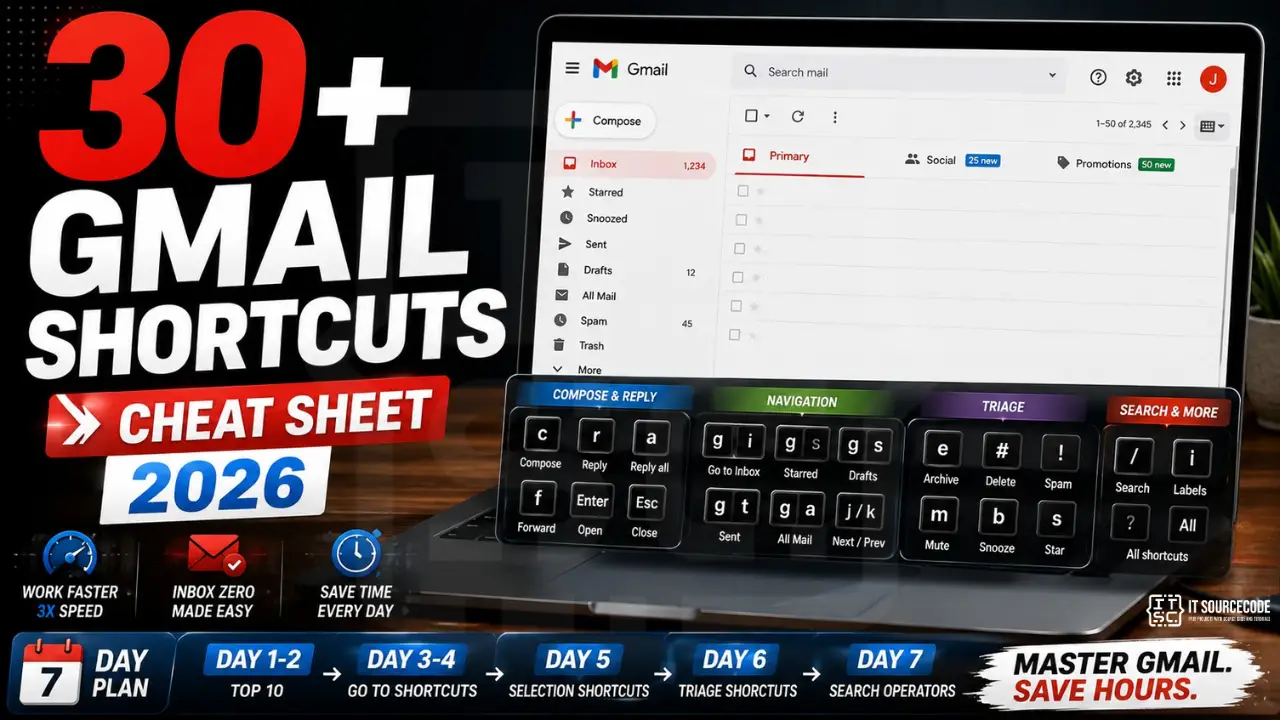
Quick reference: the 10 you will use 80% of the time
| Key | Action | When you’ll use it |
|---|---|---|
c | Compose new email | 100x a day |
r | Reply | 100x a day |
a | Reply all | Group threads |
f | Forward | Sharing emails |
e | Archive (remove from inbox) | 50x a day, inbox zero |
# | Delete | Permanent trash |
/ | Focus search bar | Find old emails fast |
j / k | Newer / older conversation | Walking the inbox |
Enter | Open conversation | From list view |
Esc | Close compose / cancel | Without sending |
Navigation: jump around without scrolling
| Key | Action |
|---|---|
g i | Go to Inbox |
g s | Go to Starred |
g t | Go to Sent |
g d | Go to Drafts |
g a | Go to All Mail |
g l | Open Label list (type label name to jump) |
u | Back to conversation list from open email |
Press g then the second key within 1.5 seconds. Think of g as “Go to.”
Selection: pick multiple emails fast
| Key | Action |
|---|---|
x | Select current conversation |
* a | Select all conversations |
* n | Select none (clear selection) |
* r | Select all read |
* u | Select all unread |
* s | Select all starred |
Combine: press * u then e to archive every unread email in one shot.
Compose and reply: faster than clicking
| Key | Action |
|---|---|
c | Compose new email |
d | Compose in new tab |
Ctrl + Enter | Send email (Cmd + Enter on Mac) |
Ctrl + . | Move to next compose window |
Ctrl + , | Move to previous compose window |
Ctrl + Shift + c | Add Cc recipients |
Ctrl + Shift + b | Add Bcc recipients |
Ctrl + k | Insert hyperlink |
Ctrl + Shift + 7 | Numbered list |
Ctrl + Shift + 8 | Bullet list |
Triage: label, archive, mute, snooze
| Key | Action |
|---|---|
l | Open Label menu (type name to assign) |
v | Open Move-to menu (label + archive) |
m | Mute conversation (no more notifications) |
b | Snooze conversation (pick a future date) |
s | Star / unstar |
! | Report as spam |
I (Shift + i) | Mark as read |
U (Shift + u) | Mark as unread |
+ | Mark as important |
- | Mark as not important |
Search: find anything in 5 seconds
Press / to focus the search bar, then use these power operators:
| Operator | What it does |
|---|---|
from:name | Emails from a specific sender |
has:attachment | Only emails with file attachments |
larger:10M | Find emails over 10 MB (free up Drive space) |
before:2024/01/01 | Emails received before a specific date |
is:unread | Show only unread emails |
has:drive | Emails with shared Google Drive links |
View the full shortcut list anytime
Press ? (Shift + /) from any Gmail screen to open the official cheat sheet overlay. It shows every shortcut available for your current view and reflects any custom shortcuts you have enabled in Settings > Advanced > Custom keyboard shortcuts.
7-day adoption plan
Learning all 30+ at once will frustrate you. Spread it across a week:
- Day 1-2: Just the top 10 (compose, reply, archive, j/k, /)
- Day 3-4: Add the Go-to set (g i, g s, g d, g a)
- Day 5: Add selection (x, * u, * a)
- Day 6: Add triage (l, b, s, m)
- Day 7: Add search operators
After one week, you will save roughly 15-25 minutes per day on email. Compounded over a year, that is 90-150 hours back in your calendar.
Frequently Asked Questions
Why are my Gmail keyboard shortcuts not working?
Shortcuts are disabled by default. Open Gmail > gear icon > See all settings > General > scroll to “Keyboard shortcuts” > select “Keyboard shortcuts on” > Save Changes. Reload Gmail after saving. If they still do not work, try a different browser or disable extensions one by one.
Can I customize Gmail keyboard shortcuts?
Yes. Open Settings > Advanced tab > enable “Custom keyboard shortcuts” > Save Changes. A new “Keyboard Shortcuts” tab appears in Settings where you can remap any shortcut. This is useful if you want VIM-like or single-key bindings (j for delete, k for star) for muscle memory.
How do I see all Gmail keyboard shortcuts inside Gmail?
Press the ? key (Shift + /) anywhere in Gmail. An overlay shows the full shortcut list for your current screen and any custom bindings you have enabled. Close it with Esc.
Do Gmail keyboard shortcuts work on iPhone and Android?
The shortcuts in this article are for desktop browser Gmail. Mobile Gmail apps use swipe gestures instead (swipe right to archive, swipe left to delete by default). You can change swipe actions in Gmail mobile Settings > General settings > Mail swipe actions.
What is the fastest way to reach inbox zero with keyboard shortcuts?
Walk j (newer) repeatedly and either e (archive) or b (snooze for later) on each one. For mass actions: press * a to select all visible, then e to archive everything at once. Combine with search operators (is:unread before:2024) to clear old backlog in batches.
Are Ctrl shortcuts the same as Cmd shortcuts on Mac?
Yes. Every Ctrl shortcut in this guide maps to Cmd on Mac (Ctrl + Enter to send becomes Cmd + Enter, Ctrl + k for hyperlink becomes Cmd + k). Single-key shortcuts (c, r, e, j, k) are identical across platforms.

Caren Bautista
Technical Writer at PIES IT Solution
Responsible for crafting clear, well-structured, and beginner-friendly content across the platform. Handles the writing, proofreading, and editorial review of tutorials, guides, and documentation to ensure every article is accurate, readable, and easy to follow.
Expertise: Technical Writing · Content Creation · Documentation · Editorial Writing · JavaScript · TypeScript · Python · Python Errors · HTTP Errors · MS Excel · View all posts by Caren Bautista →