
A professional Gmail signature with your image, company logo, and clickable social links can replace up to ten introductory emails. It also helps build trust with first-time recipients, especially freelancers, capstone teams, and small business owners who do not yet have a corporate domain.
This guide walks you through the full setup in 15 minutes, including the formatting tricks Gmail mostly hides from you.
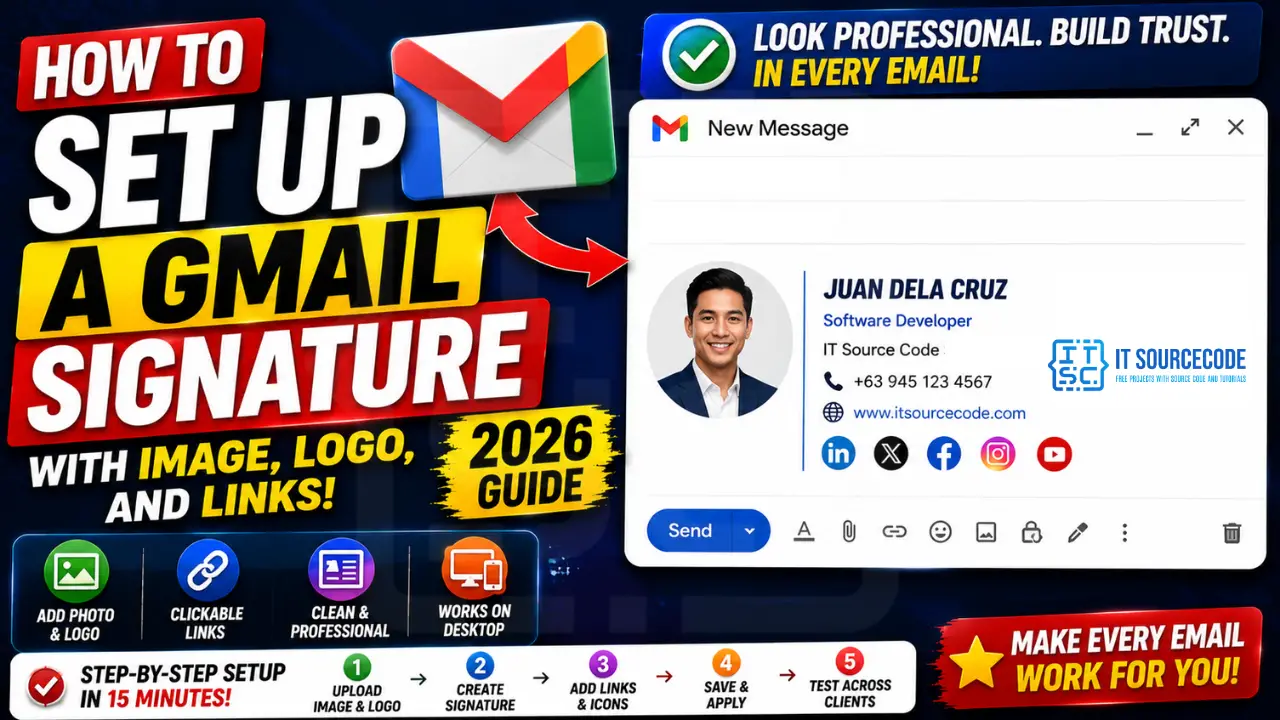
What a strong Gmail signature includes (and what to skip)
Before opening Gmail settings, decide which elements you actually need. Less is more in email signatures, more elements means more chance of rendering breaks in Outlook, Apple Mail, and mobile clients.
| Element | Keep? | Why |
|---|---|---|
| Full name | ✅ Always | Without it, your signature is generic |
| Title / role | ✅ Always | Sets expectation for response time and authority |
| Company name + logo | ✅ If freelance or small biz | Logo (under 200×60 px) builds brand recall |
| Profile photo | ✅ For sales / client work | Use square 120×120 px, headshot only |
| Phone | ✅ If client-facing | Format as +country: +63 945 123 4567 |
| Website / portfolio | ✅ Always | Hyperlink the URL, do not show full text |
| Social links (LinkedIn, X) | ⚠️ 2-3 max | Use icons not text, keep relevant only |
| Disclaimer / legal | ❌ Skip | Bloats the signature, ignored by recipients |
| Inspirational quote | ❌ Skip | Looks unprofessional in 2026 |
Step 1: Upload your profile photo and logo to Google Drive
Gmail signatures pull images by URL, so the images must live somewhere publicly accessible. Google Drive is the safest free option because it never expires and respects your account permissions.
- Open
drive.google.comand upload your headshot (square, 120×120 px, JPG under 50 KB). - Upload your company logo (rectangle, 200×60 px, PNG with transparent background, under 30 KB).
- Right-click each file > Share > change “Restricted” to “Anyone with the link” > Done.
- Right-click again > Get link > Copy the URL. The format looks like
drive.google.com/file/d/FILE_ID/view.
You do not need to convert the URL, Gmail’s signature editor accepts the direct Drive link.
Step 2: Create the signature in Gmail settings (desktop)
- Open Gmail on desktop.
- Click the gear icon (top right) > “See all settings.”
- Scroll down to the “Signature” section.
- Click “Create new” and give it a name (e.g., “Main”).
- In the editor on the right, type your name, then press Enter and type your title, company, phone, and website on separate lines.
- To add your photo: click the Insert image icon (mountain icon in the toolbar) > “Web address (URL)” tab > paste your Drive link > Select.
- Click the image once it appears, then choose “Small” size to constrain to 120×120 px.
- Repeat for the company logo.
- To hyperlink your website: highlight the URL text > click the link icon (chain) > paste the full URL > OK.
- To add social icons: download free icon PNGs from
icons8.comat 24×24 px, upload them to the same Drive folder, then insert each with a hyperlink to your profile. - At the bottom of the Signature section, set “For new emails use” and “On reply/forward use” to your new signature name.
- Scroll to the very bottom and click “Save Changes.”
Step 3: Add or sync the signature on mobile (iPhone + Android)
Mobile Gmail does not show images in signatures (this is a long-standing limitation). You have two options:
Option B: Always compose on desktop. If brand consistency matters, set a no-signature on mobile and only send important emails from desktop where the full image signature renders.
Step 4: Test rendering across email clients
Gmail signatures look different in Outlook, Apple Mail, Yahoo, and ProtonMail because each client renders HTML email differently. Before relying on your new signature, test by sending yourself one email to each major service.
- Send to your own secondary address on Outlook, Yahoo, ProtonMail, and iCloud.
- Open each in both desktop and mobile.
- Check that images load (some clients block images by default until you click “Show images”).
- Check that links remain clickable, not stripped to plain text.
- If images break, the most common cause is Drive permissions reverting. Re-verify “Anyone with the link” is still set.
Bonus: Use multiple signatures for different contexts
Gmail supports multiple signatures (up to 10,000 characters total). Create separate signatures for:
- Client work: full photo + logo + phone + social
- Internal team: name + role only, no images
- Cold outreach: minimal name + portfolio link only
- Auto-replies: short “I’ll be back on X date” template
To switch signatures inside an email, click the pen icon in the compose toolbar > “Signature” > pick the right one. This is faster than opening Settings each time you change tone.
Quick step-by-step summary (click to expand)
- Open Gmail Settings. Click the gear icon in the top-right and click “See all settings”.
- Scroll down to the Signature section. On the General tab, scroll down until you see the Signature settings.
- Click Create new. Click “Create new” to make a signature. Give it a name so you can reference it later.
- Add text, image, and links. Type your name and title. Click the image icon to upload a logo. Highlight text and click the link icon to add hyperlinks.
- Set signature defaults and save. Choose which signature to use for new emails and for replies. Scroll to the bottom of settings and click “Save Changes”.
Frequently Asked Questions
Official documentation
Why does my Gmail signature image not show on the recipient end?
Most often the Drive share setting reverted from “Anyone with the link” to “Restricted.” Re-open the file in Drive, click Share, and confirm the access is set correctly. Another common cause: the recipient’s email client blocks external images by default (Outlook, Yahoo), which is unrelated to your setup.
What is the best size for a Gmail signature logo?
Maximum 200 pixels wide by 60 pixels tall. PNG with transparent background renders best across all email clients. Keep file size under 30 KB to avoid slow load times, especially for recipients on mobile data.
How do I add social media icons to my Gmail signature?
Download free 24×24 px PNG icons from icons8.com or flaticon.com. Upload them to the same Google Drive folder as your photo. Insert each one in the signature editor (Web address tab), then hyperlink to your social profile URL. Keep it to 2-3 platforms maximum to avoid clutter.
Can I have different signatures for new emails versus replies?
Yes. In Settings > Signature, you can pick separate signatures for “For new emails use” and “On reply/forward use.” Many people use a full-image signature for new emails and a shorter text-only one for replies to keep email threads from getting visually bloated.
Why does Gmail mobile not show my signature images?
The Gmail mobile app has historically only supported plain-text mobile signatures, not full HTML signatures with images. Your desktop signature still renders correctly on the recipient side; it just does not appear when you compose from your phone. Workaround: set a short mobile-only text signature, or compose important emails on desktop.
Are HTML signature generators safe to use with Gmail?
Most reputable generators (HubSpot Signature Generator, WiseStamp, MySignature) are safe. Avoid free generators that demand login or inject tracking pixels into your signature. After generating, paste the HTML directly into Gmail’s signature editor (highlight all, copy, paste), then save. Test the result before relying on it.

Caren Bautista
Technical Writer at PIES IT Solution
Responsible for crafting clear, well-structured, and beginner-friendly content across the platform. Handles the writing, proofreading, and editorial review of tutorials, guides, and documentation to ensure every article is accurate, readable, and easy to follow.
Expertise: Technical Writing · Content Creation · Documentation · Editorial Writing · JavaScript · TypeScript · Python · Python Errors · HTTP Errors · MS Excel · View all posts by Caren Bautista →