
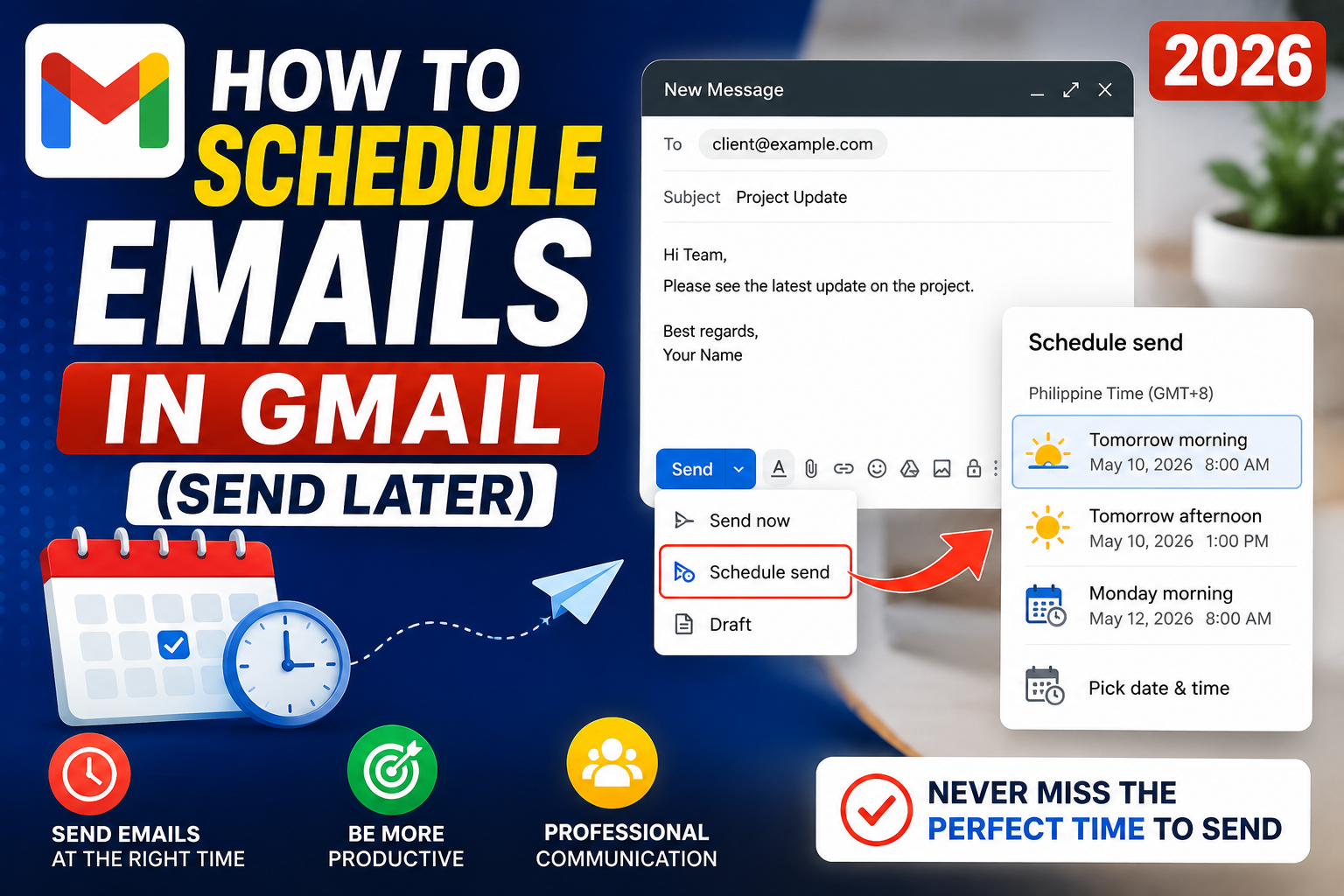
Scheduling emails in Gmail (built into both desktop and mobile since 2019) lets you write at 2 AM and have the email arrive at 9 AM on a weekday. It improves response rates (recipients open emails right when they arrive), respects time zones for international clients, and keeps you from looking like you work weekends. This guide walks you through the full Schedule send feature in 2026, including the under-used 100-email cap and how to edit or cancel scheduled messages.
Schedule an email on desktop (Chrome, Edge, Safari, Firefox)
- Open Gmail at
mail.google.com. - Click “Compose” and write your email as usual.
- Instead of clicking “Send,” click the small triangle (▼) next to the Send button.
- Select “Schedule send.”
- Gmail offers 3 quick presets (Tomorrow morning, Tomorrow afternoon, Monday morning) plus “Pick date & time.”
- Pick a preset or click “Pick date & time” to choose any future date and time.
- Click “Schedule send.”
- The email moves to the new “Scheduled” folder in the left sidebar.
Schedule an email on iPhone and Android
- Open the Gmail app.
- Tap the pencil icon (bottom-right) to compose.
- Write your email.
- Tap the three-dot menu in the top-right of the compose screen.
- Tap “Schedule send.”
- Pick a preset or “Pick date & time.”
- Tap “Schedule send.”
- The email appears in the Scheduled folder, accessible from the side menu.
Both desktop and mobile use the same Scheduled folder, so emails scheduled on your phone show up in the desktop sidebar and vice versa.
Edit or cancel a scheduled email
- Open Gmail > click “Scheduled” in the left sidebar.
- Find your scheduled email and click to open it.
- Click “Cancel send” (top of the email view).
- The email returns to your Drafts folder.
- Edit it as needed. To re-schedule, click Send dropdown > Schedule send again.
Best send times by recipient type
| Recipient type | Best schedule time | Why |
|---|---|---|
| Office worker / client | Tue-Thu, 9-10 AM their timezone | After they handle morning emails, before midday meetings |
| Executive / busy decision-maker | Tue-Thu, 7-8 AM their timezone | First wave of emails they read on phone before work |
| Cold outreach (sales) | Tue, 10-11 AM their timezone | Mid-morning, post-coffee, pre-lunch peak |
| Internal team | Mon, 8-9 AM their timezone | Sets the week’s tone before noise builds |
| Newsletter / consumer | Tue-Wed, 10 AM local OR Sun 5 PM | Personal email checking windows |
| International (Philippines to US) | PH 9 PM = US Pacific 6 AM | Lands at start of US business day |
| Avoid | Mon 9 AM, Fri 4 PM, Weekends | High inbox volume + low attention |
Time zone handling
Schedule send uses YOUR Gmail account’s time zone, not the recipient’s. To set Gmail’s time zone:
- Open Settings > gear > See all settings > General tab.
- Scroll to “Time zone.”
- Pick your zone (defaults to system OS time zone).
- Save Changes.
If you frequently email recipients in other time zones, do the math manually before scheduling. A quick reference for Philippine users: Manila is +8 UTC. New York is +12 hours behind in winter, +13 hours behind in summer (PH does not observe DST).
Limits and quirks of Schedule send
- 100 scheduled emails maximum: Gmail caps the Scheduled folder at 100 unsent messages. Past 100, you cannot schedule more until earlier ones send.
- No recurring schedules: Gmail does not have a “send every Monday at 9 AM” feature natively. For recurring emails, use Google Sheets + Google Apps Script (free), or a tool like Boomerang or Mailmeteor.
- Drafts get scheduled, not Sent items: if you reschedule, the original draft is reused, so any edits before send go through.
- Send fails after scheduling: if your account loses access to Gmail (suspended, password changed, network failure at send time), Schedule send retries for up to 24 hours. After that, the email moves back to Drafts.
- Drafts to multiple recipients still count as one scheduled email: the 100-cap is per scheduled item, not per recipient.
Use cases beyond polite working hours
- Birthday and anniversary reminders: draft once, schedule to land on the day, never forget again.
- Capstone milestone updates: queue your weekly adviser update to land every Monday 9 AM without having to remember.
- Pre-flight email blast: draft your “I’m offline this week, contact X” auto-response and schedule it for the morning of your trip start.
- Newsletter beat-the-rush: if you publish a blog post Saturday, schedule the announcement email for Tuesday 10 AM when open rates are 2x higher.
- Pay invoice reminders: draft once with placeholder dates, schedule send to land 30, 14, 7, and 1 day before due.
Common Google Meet mistakes to avoid
- Not testing camera and mic before the meeting. Meet has a preview page at meet.google.com/hangouts/preview where you can test devices before joining any meeting.
- Joining from mobile when you need to share screen. Screen sharing works on mobile but is limited. Use desktop when you need to share content in detail.
- Forgetting to mute when not speaking. Background noise disrupts everyone. Press Ctrl+D (Cmd+D on Mac) to toggle mute.
- Assuming recordings are automatic. Meet only records when the host clicks Record. Enable at the start; you cannot recover an unrecorded meeting.
- Ignoring the noise cancellation feature. Workspace tiers include background noise cancellation. Enable in Settings > Audio.
Power-user tips for Google Meet
- Use keyboard shortcuts. Ctrl+D to mute, Ctrl+E for camera, Ctrl+Alt+H to raise hand, Ctrl+Alt+M for the chat panel. All work on Windows and Mac (swap Ctrl for Cmd on Mac).
- Add captions. Turn on live captions at the bottom-right menu. Useful for accessibility and noisy environments.
- Enable Q&A for large meetings. Attendees can submit written questions without interrupting. Available on Workspace tiers.
- Use polls to gather feedback. Quick pulse checks during long meetings keep attention.
- Share a specific tab, not the whole desktop. Prevents accidentally sharing notifications or personal information.
When to use Meet vs alternatives
Meet works best when your organization is already on Google Workspace, calls are 3-10 participants, and simplicity matters more than advanced features. It integrates seamlessly with Calendar and Gmail, which is unbeatable for Google-first teams.
For large webinars (100+ attendees), Zoom or Webex offer better host controls. For persistent team chat with video, Slack Huddles or Microsoft Teams work better. For high-quality recorded content, tools like Riverside or Descript produce cleaner output.
For BSIT capstone defenses and student meetings, Meet is the right choice on any campus with Google Workspace for Education. Free tier supports up to 100 participants for 60 minutes.
Best practices summary
- Test devices 5 minutes before start. Camera, mic, network. Nothing worse than the “can you hear me?” opening.
- Share agenda in Calendar description. Attendees arrive knowing what to discuss.
- Assign a note-taker at start. Distributes cognitive load and produces action items.
- End on time or early. Respect people’s calendars. Reschedule if content overflows.
- Follow up with meeting notes within 24 hours. Consolidates decisions and prevents forgotten action items.
Official documentation
Quick step-by-step summary (click to expand)
- Compose your Gmail message. Click Compose in Gmail and write your email as usual: subject, recipient, body.
- Click the arrow next to Send. Instead of clicking Send, click the small down-arrow next to the Send button to open the schedule menu.
- Choose Schedule send. From the dropdown, click Schedule send. A dialog opens with quick-pick times.
- Pick a suggested time or set custom. Choose one of the preset times (tomorrow morning, Monday morning) or click Pick date and time for a custom slot.
- Confirm the schedule. Click Schedule send. The email now sits in your Scheduled folder until it sends automatically.
- Manage scheduled emails later. Open the Scheduled label in your Gmail sidebar to cancel or reschedule any pending message.
Frequently Asked Questions
Is the Schedule send feature free in Gmail?
Yes. Schedule send has been free for all Gmail users since 2019, on both personal and Workspace accounts. There is no monthly limit on how many emails you can schedule, only a 100-cap on how many can be PENDING in the Scheduled folder at any time.
Can I schedule recurring emails in Gmail?
Not natively. Gmail’s built-in Schedule send is one-time only. For recurring emails (every Monday 9 AM, every 30th of the month), use a free Google Apps Script (apps script with the GmailApp.sendEmail function and a time-based trigger) or paid tools like Boomerang for Gmail and Mailmeteor.
What happens if I lose internet at the scheduled send time?
Nothing on your end. Schedule send happens on Google’s servers, not your device. Even if your laptop is off or your phone is on airplane mode at the scheduled time, the email still sends. This is also why scheduled emails do not need your device to be reachable; they live in Google’s queue.
How many scheduled emails can I have at once?
100 maximum pending in the Scheduled folder. If you try to schedule the 101st, Gmail blocks it with an error message. As earlier scheduled emails send out, slots open up automatically. This is per account, not per device.
Can I tell if an email was scheduled when I receive it?
No. Scheduled emails arrive with the same headers and metadata as instantly sent ones. The recipient sees only the delivery time, not the time the sender clicked “schedule.” This is intentional, so scheduling looks natural to recipients.
Can I schedule an email reply directly in a thread?
Yes. The Send dropdown next to the Reply button works the same way as for new emails. Type your reply, click the small triangle next to Send, pick Schedule send, choose date and time. The reply lands in the thread at the scheduled moment.

Caren Bautista
Technical Writer at PIES IT Solution
Responsible for crafting clear, well-structured, and beginner-friendly content across the platform. Handles the writing, proofreading, and editorial review of tutorials, guides, and documentation to ensure every article is accurate, readable, and easy to follow.
Expertise: Technical Writing · Content Creation · Documentation · Editorial Writing · JavaScript · TypeScript · Python · Python Errors · HTTP Errors · MS Excel · View all posts by Caren Bautista →