
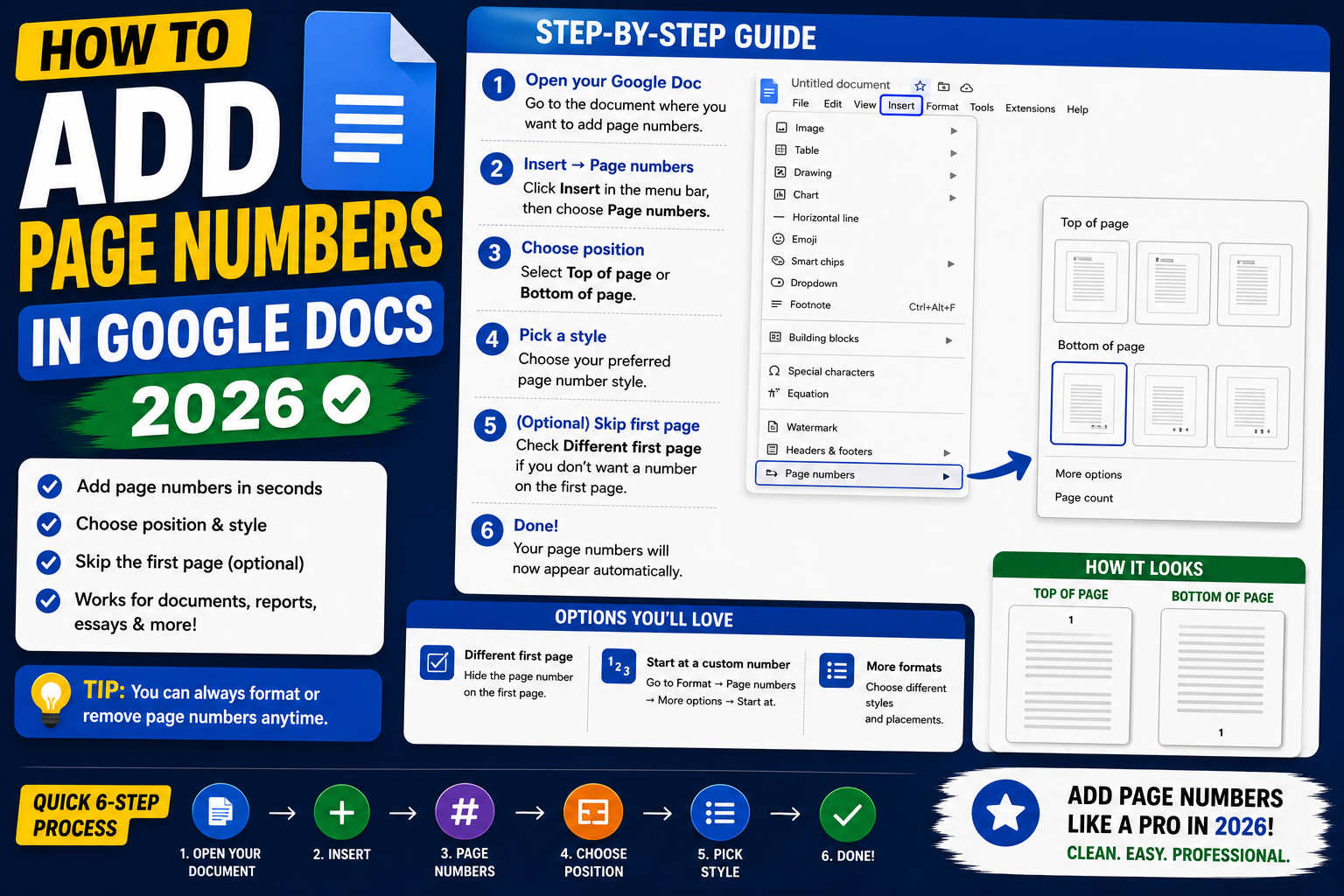
Page numbers in Google Docs are essential for essays, reports, and any multi-page document. Docs supports numbering at top or bottom, skipping the first page, roman numerals for intros, and restarting numbers at any point. This 2026 tutorial covers every page numbering pattern with step-by-step instructions.
How to add basic page numbers
- Open your Google Docs file.
- Click Insert in the top menu.
- Hover over Page numbers.
- Pick one of the four preset positions:
- Top-right of every page (most common for essays).
- Top-right, skip first page (for cover-page documents).
- Bottom-right of every page.
- Bottom-right, skip first page.
- Numbers appear automatically on every page.
Skip the first page (title page)
For documents with a cover page, you usually want the title page unnumbered:
- Insert > Page numbers > pick the option with the checkbox for “Show on first page” unchecked.
- Or, if numbers are already there: Insert > Page numbers > More options.
- Uncheck Show on first page.
- Numbering starts from page 2 (but shows as page 2, not page 1).
Start numbering at a specific number
For appendices or continuation of another document:
- Insert > Page numbers > More options.
- In “Start at” field, enter a starting number (e.g., 15).
- Click Apply.
The first numbered page displays your chosen number instead of 1.
Add page number to header/footer manually
For custom placement (like Name and Page X of Y):
- Insert > Headers & footers > Header (or Footer).
- Click inside the header area.
- Type text like “John Smith – Page “.
- Insert > Page numbers > choose position at cursor.
Add “Page X of Y” format
- Open the header or footer.
- Type “Page “.
- Insert > Page numbers > pick position (adds current page number).
- Type ” of “.
- Insert > Page numbers > Page count (adds total count).
Result: Page 3 of 15
Different numbering for different sections
Common academic pattern: roman numerals (i, ii, iii) for intro and TOC; arabic (1, 2, 3) for body. Google Docs supports this using section breaks:
- Place cursor where you want the numbering to change.
- Insert > Break > Section break (next page).
- Click into the header/footer of the new section.
- Turn OFF Link to previous for that section.
- Insert > Page numbers > More options > pick roman numerals or start at 1.
Remove page numbers
- Double-click a page number to open header/footer editing.
- Select the number.
- Press Delete.
- Or: Insert > Headers & footers > Remove header/footer if the whole header should go too.
Format page numbers (font, size, alignment)
- Double-click a page number to enter edit mode.
- Select the number.
- Change font, size, color, or alignment as normal text.
- Formatting applies to all page numbers in that section.
Common page number issues
- Numbers not showing: check the header/footer is not hidden. View > Show print layout.
- First page shows number when I don’t want it to: More options > uncheck “Show on first page.”
- Numbers restart on every page: someone inserted section breaks. Delete the section break or link the section to previous.
- Skip first page setting missing on mobile: use the desktop web version for advanced options.
- Page count wrong: refresh the doc. Very rarely a caching issue.
Official documentation
Recommended Google Docs resources
The links below are affiliate links. We may earn a commission at no extra cost to you when you buy or sign up. See our affiliate disclosure.
Common Google Docs page numbering problems (and quick fixes)
Page numbers in Google Docs can behave unexpectedly, especially when you have multiple sections, custom title pages, or long documents like capstone theses. Here are the five problems I see most often, plus the fix for each.
- Page numbers start on the wrong page. This happens when you insert page numbers without breaking the document into sections. Use Insert > Break > Section break (next page) before your first content page. Then in the second section, open the header, uncheck “Link to previous,” and set the page number where it should start.
- Page number 1 appears on the title page. This is the most common capstone issue. Fix it by checking the “Different first page” option in header settings. The title page becomes untitled, and page 1 begins on your table of contents or introduction.
- Roman numerals mixed with Arabic numbers. Google Docs supports both, but only when you use sections. Use Roman numerals (i, ii, iii) for the preliminary pages (title, abstract, acknowledgements, TOC), then Arabic (1, 2, 3) from Chapter 1 onwards. Insert a section break between them.
- Page numbers vanish after formatting. This often happens after changing paragraph spacing. Reinsert them from the Insert > Page numbers menu. Google Docs recreates the number and preserves the section settings you already have.
- Odd/even pages numbered differently. Print-ready documents often need this for two-sided printing. Enable “Different odd/even” in header settings. Then in each header (odd and even), place your page number in different positions if you want mirror-margin style.
Page numbering tips for capstone documents and long theses
If you are writing a BSIT capstone thesis, an academic paper, or any long structured document, standard page numbering will not follow the format your panel expects. Here is the pattern I recommend for capstone theses at Philippine universities.
Set up your document in three sections
Section 1 = Preliminary pages (title, approval sheet, abstract, TOC). Use lowercase Roman numerals: i, ii, iii, iv, v. Section 2 = Chapter body (Chapter 1 to Chapter 5). Use Arabic numerals starting from 1. Section 3 = References and appendices. Continue Arabic numeration from wherever chapter 5 ended.
Position: bottom center for capstone, top right for academic papers
Most Philippine universities require page numbers at the bottom center of the page for capstone theses. Academic papers (APA, MLA, Chicago) usually want them top right. Check your school’s format guide before finalizing. The wrong position can trigger a revision request during your panel defense.
Font consistency matters
Set your page number font to match your body text. Times New Roman 12pt is standard. Do not use bold or italic on page numbers, and do not use fancy fonts. Panelists notice inconsistencies, and formatting errors are one of the easiest ways to lose points on the technical documentation portion of your defense.
Save a Google Docs template with these settings once, and reuse it for every capstone chapter document. This saves hours of formatting work across a semester and keeps your entire thesis consistent from chapter 1 through the appendices.
Quick step-by-step summary (click to expand)
- Open your Google Docs document. Open the document where you want to add page numbers.
- Click the Insert menu. From the top menu bar, click Insert to open the dropdown.
- Select Page numbers. Click Page numbers in the Insert menu to see position options.
- Choose position and options. Pick top-right, top-left, bottom-right, or bottom-left. Check “Show on first page” or leave it unchecked to skip the title page.
- Format the numbering style. Click into the header or footer where the number appeared to change font, size, or alignment to match your document style.
Frequently Asked Questions
Can I use roman numerals for page numbers?
Yes with section breaks. Insert a section break, then More options > Numbering type > Roman numerals. Common for intro/preface pages of long documents.
Why don’t my page numbers show up?
Check View > Show print layout is enabled. Also ensure your document has more than one page (numbers only display after a page break).
How do I add page numbers on Google Docs mobile?
Open the app > tap the + icon (Insert) > Page number > pick position. Advanced options like Skip first page are limited on mobile; use the desktop web version.
Can I have different page numbers on different pages?
Yes with section breaks. Insert section break at the transition point, then customize numbering for each section (restart, change format, or hide).
Do page numbers transfer to PDF exports?
Yes. When you File > Download > PDF, page numbers appear exactly as they do in the Docs preview. Same applies to .docx exports for Word.

Adrian Mercurio
Full-Stack Developer at PIES IT Solution
Adrian Mercurio is a full-stack developer at PIES IT Solution. Specializes in building complete capstone projects with full documentation. Strong background in PHP/MySQL development and database design. Has personally built and tested over 30 capstone-ready projects with ER diagrams, DFDs, and chapter-by-chapter thesis documentation.
Expertise: PHP, Laravel, Database Design, Capstone Projects, C#, C, C++, Python, AI Projects · View all posts by Adrian Mercurio →