
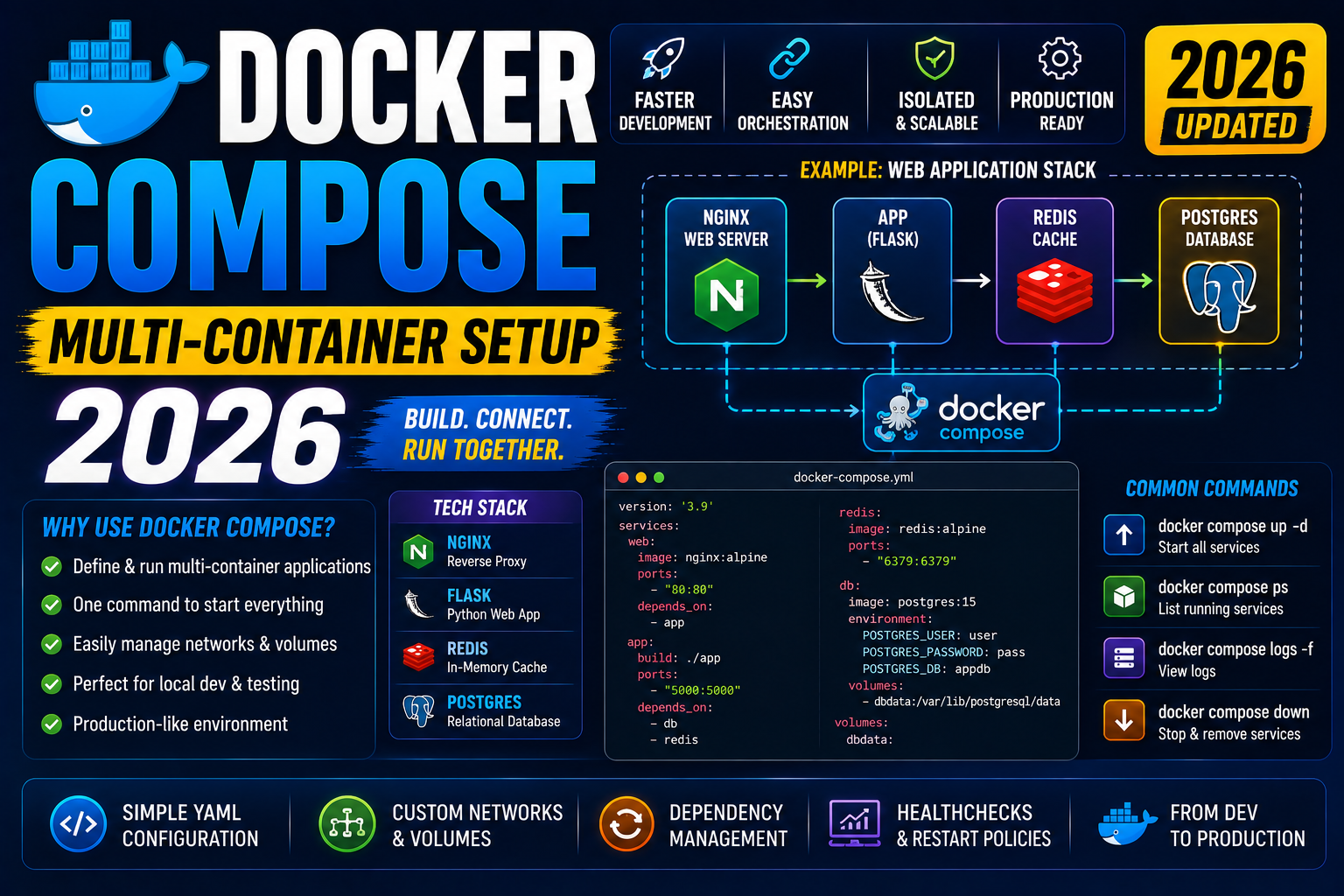
Real applications need more than one container. A typical web stack has a web app, a database, a cache, and sometimes a background worker + a reverse proxy. Running each with a separate docker run command works but breaks the moment you need to restart them in a specific order, wire them into the same network, or share persistent volumes. Docker Compose solves this with one YAML file that describes the whole stack. This 2026 guide builds a working Django + PostgreSQL + Redis stack in a single docker-compose.yml, then covers volumes, networks, healthchecks, and the production tips that separate hobby setups from real deploys.
Quick 2026 verdict
Install Docker Desktop (which bundles Compose). Write a single docker-compose.yml that lists your services. Run docker compose up to start everything, docker compose down to stop and remove containers, docker compose logs -f web to tail a service. Use named volumes for database persistence. Use healthchecks + depends_on with condition: service_healthy so your web app does not start before the database is ready. Ship the same docker-compose.yml to production with a separate docker-compose.prod.yml override for prod-specific settings.
Why Compose (over kubectl or bare Docker)
For a single-machine deployment or local development, Docker Compose is the right level of abstraction. Kubernetes handles multi-node clusters and rolling updates, which is overkill for one server. Bare docker run commands work for one container but become impossible to manage for four or five services.
Compose sweet spot: local development on your laptop, staging environments, single-server production deploys, CI test environments that spin up a real database + your app + fake external services.
When to graduate: multi-node clusters (Kubernetes), managed platform where you do not control the underlying VMs (ECS Fargate, Google Cloud Run), or when you need cross-region failover.
The Django + PostgreSQL + Redis stack in one file
This is the working docker-compose.yml I use as the starter for every new Django project. Save at the repo root:
services:
  db:
    image: postgres:16
    environment:
      POSTGRES_DB: myapp
      POSTGRES_USER: myapp
      POSTGRES_PASSWORD: dev-only-change-me
    volumes:
      - db_data:/var/lib/postgresql/data
    healthcheck:
      test: ["CMD-SHELL", "pg_isready -U myapp"]
      interval: 5s
      timeout: 3s
      retries: 5

  cache:
    image: redis:7-alpine
    healthcheck:
      test: ["CMD", "redis-cli", "ping"]
      interval: 5s

  web:
    build: .
    command: python manage.py runserver 0.0.0.0:8000
    volumes:
      - .:/app
    ports:
      - "8000:8000"
    environment:
      DATABASE_URL: postgres://myapp:dev-only-change-me@db:5432/myapp
      REDIS_URL: redis://cache:6379/0
    depends_on:
      db:
        condition: service_healthy
      cache:
        condition: service_healthy

volumes:
  db_data:
Start it: docker compose up. Postgres starts, Redis starts, Django waits for both to be healthy, then Django starts. Visit http://localhost:8000. Stop everything: Ctrl+C or docker compose down in another terminal.
Understanding named volumes (the concept that prevents data loss)
By default, everything inside a Docker container disappears when you remove the container. That is fine for the web service (code lives on your host filesystem), but disastrous for the database. Named volumes give containers persistent storage that survives container removal.
In the stack above, the db_data named volume is mounted at /var/lib/postgresql/data inside the postgres container. When you run docker compose down, the container is removed but the db_data volume stays on your host. When you run docker compose up again, Postgres re-mounts the same data. Your users, tables, and rows persist.
To completely wipe the database (rare, usually for a fresh dev setup): docker compose down -v. The -v flag deletes named volumes.
Networks and service discovery (free with Compose)
Compose creates a default bridge network for every project. Every service on the network can reach every other service by its service name. That is why the Django DATABASE_URL uses db as the hostname, not localhost or an IP: db is the service name in docker-compose.yml.
Same story for Redis: redis://cache:6379/0. Compose handles DNS resolution internally. No manual network config required for the 95 percent case.
For more complex setups (isolate the database from the web app for defense in depth), define named networks explicitly and put services on different networks with intentional connections. Rarely needed for a solo dev.
Healthchecks + condition: service_healthy (fixes the “database not ready” race)
Common bug: your web app starts before Postgres is ready to accept connections, crashes with OperationalError: could not connect to server, restarts, may or may not recover depending on your app’s restart policy. Fix: healthchecks + depends_on.condition: service_healthy.
The pg_isready -U myapp command exits 0 when Postgres is accepting connections. Compose polls this every 5 seconds. Once the healthcheck passes, Compose considers the db service healthy and starts the web service that depends on it. This alone eliminates 80 percent of “works after a restart” bugs in local dev.
Environment variables (dev vs prod)
Hardcoded credentials in docker-compose.yml are fine for local dev with fake passwords. Never for production. Two clean patterns:
Pattern 1: .env file at the repo root. Compose auto-loads .env and substitutes ${VAR} references. Add .env to .gitignore. Example .env:
POSTGRES_PASSWORD=strong-random-string-here
DJANGO_SECRET_KEY=another-long-random-string
Then reference in docker-compose.yml as ${POSTGRES_PASSWORD}.
Pattern 2: environment file per stage. docker-compose --env-file .env.prod up loads .env.prod instead of the default .env. Useful in CI/CD pipelines.
Common Docker Compose pitfalls in 2026
- docker-compose vs docker compose. Old syntax is
docker-compose(Python v1, deprecated). New syntax isdocker compose(Go v2, bundled with Docker Desktop). All modern tutorials use v2. If a command fails, drop the dash. - Bind mounts on Mac/Windows are slow.
volumes: [.:/app]can be 5-20x slower than native filesystem access. For Python/Node projects with largenode_modulesor virtualenv, this hurts. Fix: use named volumes for the dependency folders (leave source files as bind mount) OR use Docker Desktop’s virtiofs mode (Mac 2024+). - Container startup order is not enough.
depends_onalone waits for the container to START, not for the service inside to be READY. Always add a healthcheck. - Networking on Linux vs Docker Desktop. On Docker Desktop,
host.docker.internalresolves to the host from inside a container. On Linux, addextra_hosts: - "host.docker.internal:host-gateway"to the service. - Losing the ability to
attachto a shell. If your web command is a foreground server,docker compose exec web bashworks. If you need a one-off command,docker compose run --rm web python manage.py migrate.
Where Docker Compose fits in the 2026 stack
Compose is the right level for: local dev environments (mandatory for any team of 2+), staging on a single VM, single-server production deploys with 1-2 servers, CI/CD test environments where you spin up real services.
Graduate to Kubernetes when: you need multiple nodes, rolling updates without downtime, autoscaling based on CPU/memory/queue depth, or advanced service mesh features. Graduate to managed serverless (ECS Fargate, Cloud Run) when: you want the Compose model but do not want to manage the VM.
Docker Compose is not going anywhere. In 2026 it is arguably more important than ever because it is the standard “run my whole stack” file that every dev tool understands (VSCode devcontainers, GitHub Codespaces, Gitpod, Coder all consume Compose files).
Try these hosting + tool partners for your Docker Compose deploys
The links below are affiliate links. We may earn a commission at no extra cost to you when you sign up through them. See our affiliate disclosure for details.
- Cloudways, managed cloud hosting with 1-click Docker Compose deploys. Great for the Django + Postgres + Redis stack when you want managed servers.
- Kamatera, per-hour cloud VMs that let you spin up a Docker-Compose host to test workloads before committing to a monthly plan.
- Ultahost, VPS hosting with predictable monthly cost for a single-server Compose production deploy.
Official documentation
Quick step-by-step summary (click to expand)
- Install Docker Desktop (Compose is bundled). Download Docker Desktop from docker.com for Windows or Mac. On Linux install Docker Engine + the compose plugin.
- Create docker-compose.yml at your project root. Write a YAML file that lists 3 services: db (postgres:16), cache (redis:7-alpine), web (build: .). Add named volume db_data for the database.
- Add healthchecks + depends_on: service_healthy. On db add healthcheck: pg_isready -U myapp. On web add depends_on: db: condition: service_healthy. This makes web wait for db to accept connections.
- Start the stack. Run docker compose up. Postgres starts, Redis starts, web waits for both to be healthy, web starts. Visit http://localhost:8000.
- Stop cleanly + preserve data. Ctrl+C or docker compose down in another terminal. Containers stop and are removed but the db_data volume persists. Restart anytime with docker compose up.
Frequently Asked Questions
Is Docker Compose still free in 2026?
Yes. Compose CLI (docker compose v2) is bundled with Docker Engine and Docker Desktop, both free for personal use, education, non-commercial open source, and small businesses under 250 employees + 10 million USD annual revenue. Larger companies need Docker Business subscription. The Compose tool itself is open source (MIT license) and free forever regardless.
docker-compose vs docker compose: which do I use?
Use docker compose (no dash). The old docker-compose (Python v1) is deprecated and no longer receives updates. The new docker compose (Go v2) is a Docker CLI plugin bundled with Docker Desktop and installable on Linux. Both consume the same docker-compose.yml file format so migration is just dropping the dash from commands.
Can I run Docker Compose in production?
Yes, on a single server. Millions of small businesses run Docker Compose in production successfully. Limits: no rolling updates without downtime, no auto-scaling, no multi-node. Fine for single-server SaaS, internal tools, staging environments. If you need multi-node or zero-downtime deploys, move to Kubernetes or ECS. Production Compose recipe: use restart: always on every service, use named volumes for data, put Nginx in front, back it with monitoring (Prometheus + Grafana or Uptime Kuma).
How do I add a background worker (Celery, RQ, Sidekiq)?
Add another service to docker-compose.yml. For Celery: worker service that runs celery -A myapp worker -l info, same build: . as the web service, same environment variables, depends on the same cache (Redis) as the broker. Compose scales workers with docker compose up --scale worker=4 for 4 worker instances.
How do I share files between host and container?
Use bind mounts: volumes: [.:/app]. The current directory on your host maps to /app inside the container. Edits on your host appear inside the container instantly. Standard pattern for local dev. For production, do NOT bind-mount source code; build it into the image with COPY . /app in your Dockerfile.
Can I have different Compose files for dev vs prod?
Yes. Standard pattern: docker-compose.yml for shared settings, docker-compose.override.yml auto-loaded for dev (bind mounts, exposed ports), docker-compose.prod.yml for prod overrides. Run prod: docker compose -f docker-compose.yml -f docker-compose.prod.yml up -d. Compose merges the files (prod overrides dev).
Related Docker + DevOps tutorials
- Docker Complete Beginner Guide 2026 (First Container)
- Kubernetes for Beginners 2026 (Complete Practical Tutorial)
- Kubernetes on DigitalOcean vs Linode vs Vultr 2026 (coming this week)
- How to Install Docker on Windows 11 (Complete Setup 2026)
Official documentation
- Docker Compose: official documentation
- Compose file reference
- Docker Hub: image registry (postgres, redis, nginx, etc.)

Adones Evangelista
Programmer & Technical Writer at PIES IT Solution
Adones Evangelista is a programmer and writer at PIES IT Solution, author of over 900 tutorials and error-fix guides at itsourcecode.com. Specializes in JavaScript, Django, Laravel, and Python error debugging covering ValueError, TypeError, AttributeError, ModuleNotFoundError, and RuntimeError, plus C/C++ and PHP capstone projects for BSIT students.
Expertise: JavaScript · Python · Django · Laravel · Error Debugging · C/C++ · View all posts by Adones Evangelista →