
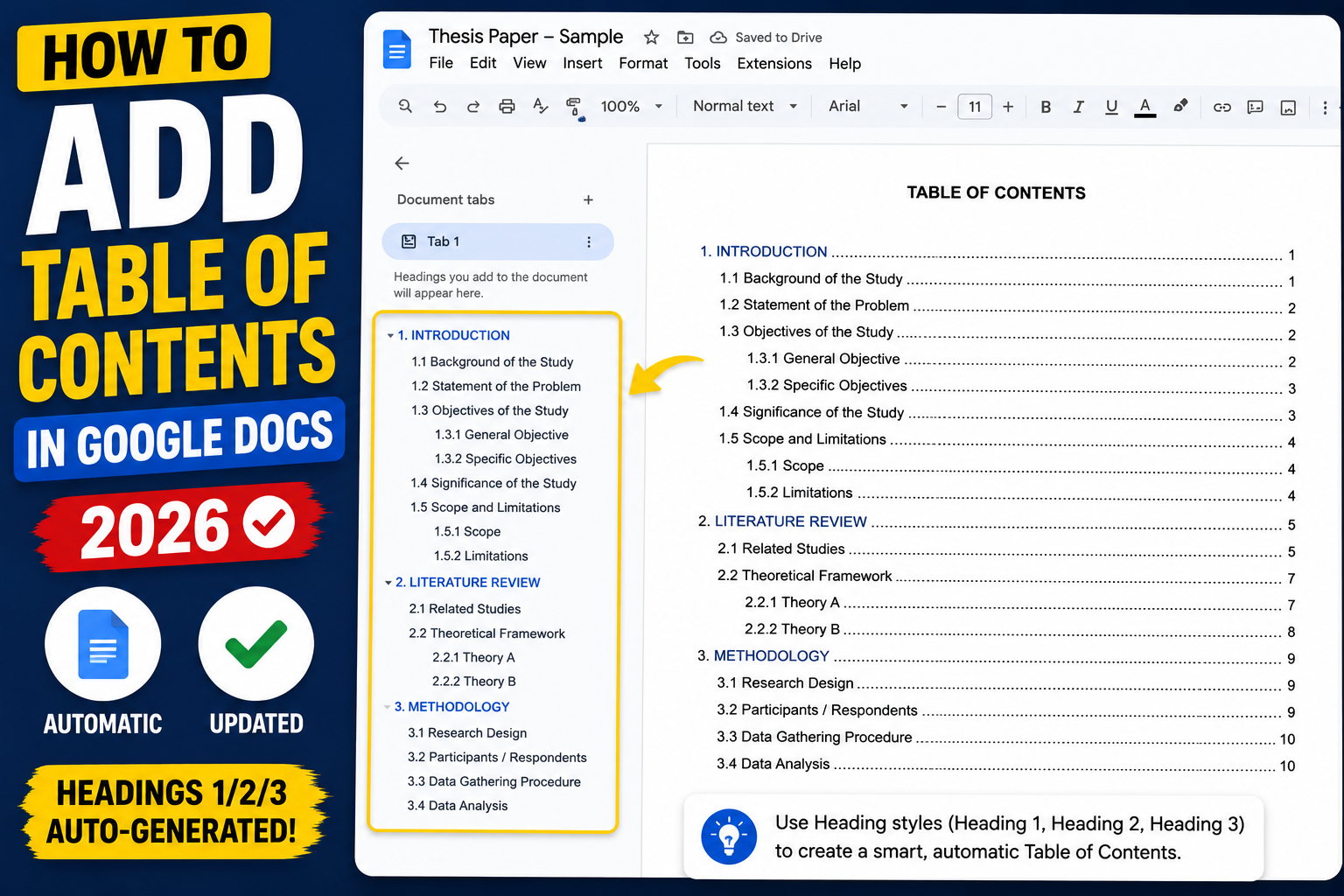
A table of contents (TOC) in Google Docs helps readers navigate long documents like reports, theses, ebooks, and manuals. Docs generates the TOC automatically from your document’s Heading styles (H1, H2, H3). This 2026 tutorial covers inserting, styling, updating, and troubleshooting your TOC.
Step 1: Format your text with headings first
The TOC pulls from your Heading styles. Before inserting, format each section title as a heading:
- Highlight a section title.
- Click the styles dropdown in the toolbar (shows “Normal text” by default).
- Pick Heading 1 for main sections, Heading 2 for subsections, Heading 3 for sub-subsections.
- Repeat for every title in the document.
Keyboard shortcuts: Ctrl+Alt+1 (H1), Ctrl+Alt+2 (H2), Ctrl+Alt+3 (H3) on Windows. Cmd+Alt on Mac.
Step 2: Insert the table of contents
- Click where you want the TOC (usually right after the title page).
- Go to Insert > Table of contents.
- Pick one of the three styles:
- Plain text with page numbers: classic style, numbers on right.
- Linked (with page numbers): same as plain but clickable.
- Linked (without page numbers): modern web-style, no numbers.
Update the table of contents
After editing headings, the TOC does not auto-refresh:
- Click on the TOC.
- A refresh icon appears at the top-left of the TOC block.
- Click the icon to refresh.
- Or: right-click TOC > Update table of contents.
Change TOC style (font, size, color)
- Click and drag to select the entire TOC.
- Use toolbar to change font, size, color as normal text.
- To apply site-wide: modify the Heading styles first (Format > Paragraph styles > Options > Save as default styles).
Advanced tip: use different colors for each heading level. Highlight H1 entries in your TOC, apply a color. Repeat for H2, H3.
Limit TOC depth (skip H3 or H4)
- Click the TOC.
- Click the three-dot menu > More options.
- In the sidebar, uncheck heading levels you want to exclude (e.g., uncheck H3 to hide subsections).
- Click Apply.
Delete the table of contents
- Right-click the TOC.
- Click Delete table of contents.
- Or: click the TOC > click the three-dot menu > Delete.
Deletion does not affect your headings or document content.
Link TOC to specific headings only
Sometimes you want a TOC covering only Chapter 3 headings (not the whole document). Workaround:
- Docs generates one TOC from ALL headings in the document.
- For a partial TOC, use bookmarks: Insert > Bookmark next to each heading you want.
- Manually type a mini-TOC and Insert > Link > Bookmark for each entry.
TOC formatting best practices
- Place TOC on its own page (Insert > Break > Page break before and after).
- Add a “Table of Contents” title above the TOC as an H1 (usually excluded via bookmark trick).
- Update TOC before every export/download (PDF, Word).
- For academic papers: use APA/MLA-style TOC (usually just H1 + H2, no H3+).
- Limit to 2 heading levels for most reports (H1 + H2). Adds H3 only for very long docs.
Common TOC issues
- TOC is empty: no headings in the document. Format section titles as H1/H2 first.
- Old headings still appearing: TOC didn’t refresh. Click TOC > refresh icon.
- Page numbers wrong: refresh the TOC after every edit.
- Some headings missing: check that they use official Heading styles, not just bold/large-font text.
- Text after TOC on same page: add a page break above and below TOC to isolate it.
Official documentation
Recommended Google Docs resources
The links below are affiliate links. We may earn a commission at no extra cost to you when you buy or sign up. See our affiliate disclosure.
Common Google Docs table of contents problems
The Google Docs TOC feature has a few quirks that trip up students and writers. Here are the five most common problems and how to fix each one.
- Headings do not show up in the TOC. The TOC only picks up text styled as Heading 1, Heading 2, or Heading 3. Plain bold text will not appear. Select each section title and apply the correct heading style from the paragraph style menu.
- Page numbers are missing or wrong. Click the refresh icon on the TOC (top right of the TOC block) to regenerate it. Google Docs does not update the TOC automatically when you add or remove content.
- TOC has extra unwanted entries. If your body text was accidentally styled as a heading, it will appear in the TOC. Find the entry, select the offending text in your document, and change it back to Normal text.
- Cannot delete the TOC. Click inside the TOC block. A small toolbar appears at the top with a trash can icon. Click it to remove the TOC. Do not just backspace over it because that only clears one line at a time.
- TOC is not clickable in the PDF export. Google Docs generates clickable TOCs by default. If yours is not clickable after export, choose the “with blue links” format instead of “with dot leaders” when inserting the TOC.
TOC formatting tips for capstone theses
For BSIT capstone theses at Philippine universities, the TOC has specific formatting rules. Follow these to avoid revision requests during your defense.
- Use dot leaders, not blue links, for print submission. Panelists reviewing a printed hard copy expect dot leaders (the row of dots between the section title and the page number). Blue link style is for digital-only submission.
- Match the font to your body text. Times New Roman 12pt is the standard for most Philippine universities. Do not use a fancy TOC font. Consistency is what panelists look for.
- Include only Chapters and major sections. Do not put every subsection in the TOC. Include Chapter titles, Chapter section headings (like 1.1, 1.2), and major appendices. Everything else clutters the TOC.
- Update the TOC before every draft submission. Every time you add or delete pages, refresh the TOC. Page numbers that are off by even one page tell your panel you did not check your work.
The TOC is often the first thing panelists look at when they open your thesis document. A clean, up-to-date TOC signals a careful writer. A messy or outdated TOC signals a careless one. Spend 2 minutes refreshing it before every submission and you save yourself hours of revisions later.
Quick step-by-step summary (click to expand)
- Style your section titles with heading styles. Select each section title and apply Heading 1, Heading 2, or Heading 3 from the paragraph style menu. Only styled headings appear in the TOC.
- Place your cursor where the TOC should appear. Click at the top of the document, typically after the title page or right before your first chapter.
- Open the Insert menu. Click Insert in the top menu bar.
- Click Table of contents. Choose either “With page numbers” (dot leaders) for print or “With blue links” for digital-only reading.
- Refresh the TOC when content changes. Click into the TOC and click the refresh icon at the top-left to update page numbers and titles.
Frequently Asked Questions
Does the TOC update automatically?
No. You must click the refresh icon on the TOC to update it after editing headings or adding pages. This prevents unwanted rewrites while you’re actively editing.
Can I have multiple TOCs in one document?
Yes. Insert multiple TOCs, each will show all document headings. To scope a mini-TOC to a section, use bookmarks and manually link them.
Why is my TOC missing some headings?
Those sections weren’t formatted with Heading styles. Bold + large font text is NOT a heading. Use Format > Paragraph styles > Heading 1/2/3.
Does TOC transfer to PDF/Word exports?
Yes. TOC appears in PDF exports as clickable links. In .docx exports for Word, it converts to a native Word TOC field that Word can refresh.
Can I add TOC on Google Docs mobile?
Yes. Tap + icon > Table of contents. Some formatting options limited on mobile; use desktop web for full styling.

Adrian Mercurio
Full-Stack Developer at PIES IT Solution
Adrian Mercurio is a full-stack developer at PIES IT Solution. Specializes in building complete capstone projects with full documentation. Strong background in PHP/MySQL development and database design. Has personally built and tested over 30 capstone-ready projects with ER diagrams, DFDs, and chapter-by-chapter thesis documentation.
Expertise: PHP, Laravel, Database Design, Capstone Projects, C#, C, C++, Python, AI Projects · View all posts by Adrian Mercurio →