
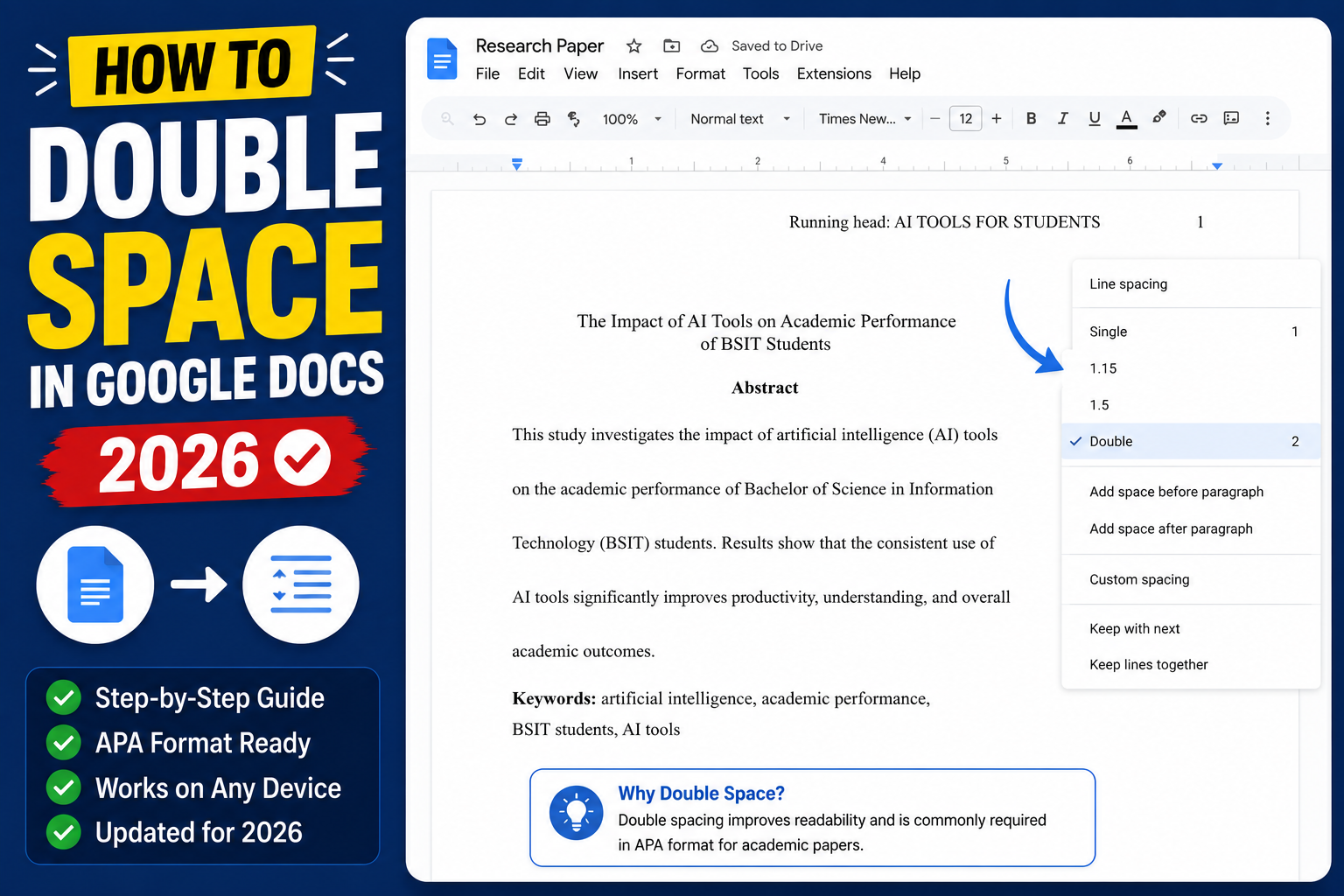
Double spacing is required for MLA, APA, and Chicago essays, drafts sent for editing, and any document that will get handwritten notes. Google Docs supports single, 1.15, 1.5, double, and custom line spacing. This 2026 tutorial shows every method with keyboard shortcuts and paragraph-level control.
Quick method: double space entire document
- Press Ctrl+A (Cmd+A on Mac) to select all text.
- Click Format in the top menu.
- Hover over Line & paragraph spacing.
- Click Double.
Or use the line spacing button in the toolbar (three horizontal lines with an up-down arrow).
Keyboard shortcut for double spacing
Windows: Ctrl+A (select all), then Ctrl+Shift+2 (double)
Mac: Cmd+A, then Cmd+Shift+2 (double)

Other spacing shortcuts:
- Ctrl+Shift+1 = single spacing
- Ctrl+Shift+2 = double spacing
- Ctrl+Shift+5 = 1.5 spacing
Double space only a selection
- Click and drag to highlight the text you want to change.
- Format > Line & paragraph spacing > Double.
Useful for making quoted material double-spaced while keeping the rest single-spaced.
Custom spacing (2.5, 1.75, or specific pixels)
- Select the text.
- Format > Line & paragraph spacing > Custom spacing.
- Enter a value like 2.5 for two-and-a-half spacing.
- Click Apply.
Space above/below paragraphs
Line spacing controls spacing between lines within a paragraph. Paragraph spacing controls the gap between paragraphs:
- Select text.
- Format > Line & paragraph spacing > Custom spacing.
- Set Before paragraph (space above) and After paragraph (space below).
MLA/APA typically use 0 before and 0 after (no extra gap between paragraphs).
Set double spacing as default for new documents
- Open a doc, select some text.
- Set it to Double spacing.
- Format > Paragraph styles > Options > Save as my default styles.
- Every new document you create now defaults to double spacing.
MLA-style setup (double space + Times New Roman 12)
For MLA essays, combine spacing with font:
- Ctrl+A to select all.
- Set font: Times New Roman.
- Set size: 12.
- Format > Line & paragraph spacing > Double.
- Set page margins: File > Page setup > 1 inch on all sides (this is default).
APA-style setup (double space + specific font)
- Font: Times New Roman 12 (or Arial 11, Calibri 11, Georgia 11 per APA 7th edition).
- Ctrl+A > Format > Line & paragraph spacing > Double.
- Set Custom spacing > Before: 0, After: 0 (no extra paragraph gap).
- Margins: 1 inch on all sides (default).
- Add running head via Insert > Headers.
Line spacing on Google Docs mobile
- Open the doc in the app.
- Select text.
- Tap the “A” formatting icon (top).
- Scroll to Line spacing section.
- Pick single, 1.15, 1.5, or double.
Common line spacing issues
- Some lines still single-spaced: didn’t select all text. Ctrl+A first.
- Extra big gaps between paragraphs: paragraph spacing (Before/After) is set. Reduce to 0.
- Different spacing in different sections: some sections have their own spacing rule. Select all, then reapply.
- Spacing off after paste from Word: pasted content brings its own spacing. Select the pasted section, reapply spacing.
- Bullet list has too much space: applies same rules; adjust line spacing while list is selected.
Official documentation
Recommended Google Docs resources
The links below are affiliate links. We may earn a commission at no extra cost to you when you buy or sign up. See our affiliate disclosure.
Common Google Docs line spacing issues
Line spacing should be simple, but Google Docs has quirks that trip up thesis writers and students. Here are the five most common problems.
- Line spacing menu is grayed out. Usually happens when your cursor is inside a table cell or list item. Click into regular paragraph text first.
- Double spacing does not affect the whole document. Line spacing applies only to selected text. Use Ctrl+A (Cmd+A on Mac) to select all before applying, or set default spacing in Format menu.
- Spacing looks single even after setting double. Some fonts have built-in tighter line height. Try changing to Times New Roman 12pt which is the university standard for capstone documents.
- Extra space between paragraphs on top of line spacing. Paragraph spacing is separate from line spacing. Check Format > Line spacing > Paragraph spacing to reduce the “before” and “after” values.
- Copied text keeps its original spacing. Google Docs preserves formatting from the source. Use Ctrl+Shift+V to paste without formatting, then apply your document spacing.
Standard line spacing for BSIT capstone documents
Philippine university capstone requirements typically specify double spacing for the body of the thesis and single spacing for the abstract, references, and captions. Match your school format guide exactly to avoid revision requests from your adviser.
Common spacing standards for BSIT capstones include: Body of Chapters 1-5 uses double spacing (2.0). Abstract uses single spacing. Table of contents uses 1.15 spacing. References list uses 1.15 spacing with hanging indent. Figure and table captions use single spacing.
Set up a Google Docs template with these spacings once and reuse it for every chapter. Include the spacing standards in your team meeting notes so all team members apply the same formatting. Consistent spacing across chapters is one of the first things panelists notice, and inconsistency signals a careless writer.
Save a Google Docs template with the exact spacing your school requires as the default. Reuse it for every capstone chapter document. This one habit saves hours of formatting time across a semester and keeps your entire thesis visually consistent from title page through references.
Quick step-by-step summary (click to expand)
- Select the text to change. Highlight the text you want to double-space, or use Ctrl+A to select the entire document.
- Open the Format menu. Click Format in the top menu bar.
- Hover over Line & paragraph spacing. A submenu opens with spacing options.
- Click Double. Choose Double for 2.0 spacing. Also available: Single, 1.15, 1.5, and Custom spacing.
- Verify the spacing changed. Look at your document text. The lines should now have visible gaps between them matching double spacing.
Frequently Asked Questions
What is the shortcut for double spacing in Google Docs?
Ctrl+Shift+2 (Windows) or Cmd+Shift+2 (Mac). Combine with Ctrl+A first to apply to the entire document.
How do I set 1.5 line spacing?
Select text > Format > Line & paragraph spacing > 1.5. Or use Ctrl+Shift+5 keyboard shortcut.
Why is spacing different in different parts of my document?
Different sections have different rules. Select all with Ctrl+A, then reapply double spacing to unify. Pasted content from Word or other sources often brings its own spacing.
How do I remove extra space between paragraphs?
Format > Line & paragraph spacing > Custom spacing. Set Before paragraph to 0 and After paragraph to 0. Line spacing stays the same, but no extra gap between paragraphs.
Is double spacing required for MLA and APA?
Yes for both. MLA 9th edition and APA 7th edition both mandate double spacing throughout the entire paper (including title page, body, references).

Adrian Mercurio
Full-Stack Developer at PIES IT Solution
Adrian Mercurio is a full-stack developer at PIES IT Solution. Specializes in building complete capstone projects with full documentation. Strong background in PHP/MySQL development and database design.
Expertise: PHP, Laravel, Database Design, Capstone Projects, C#, Python, AI Projects