
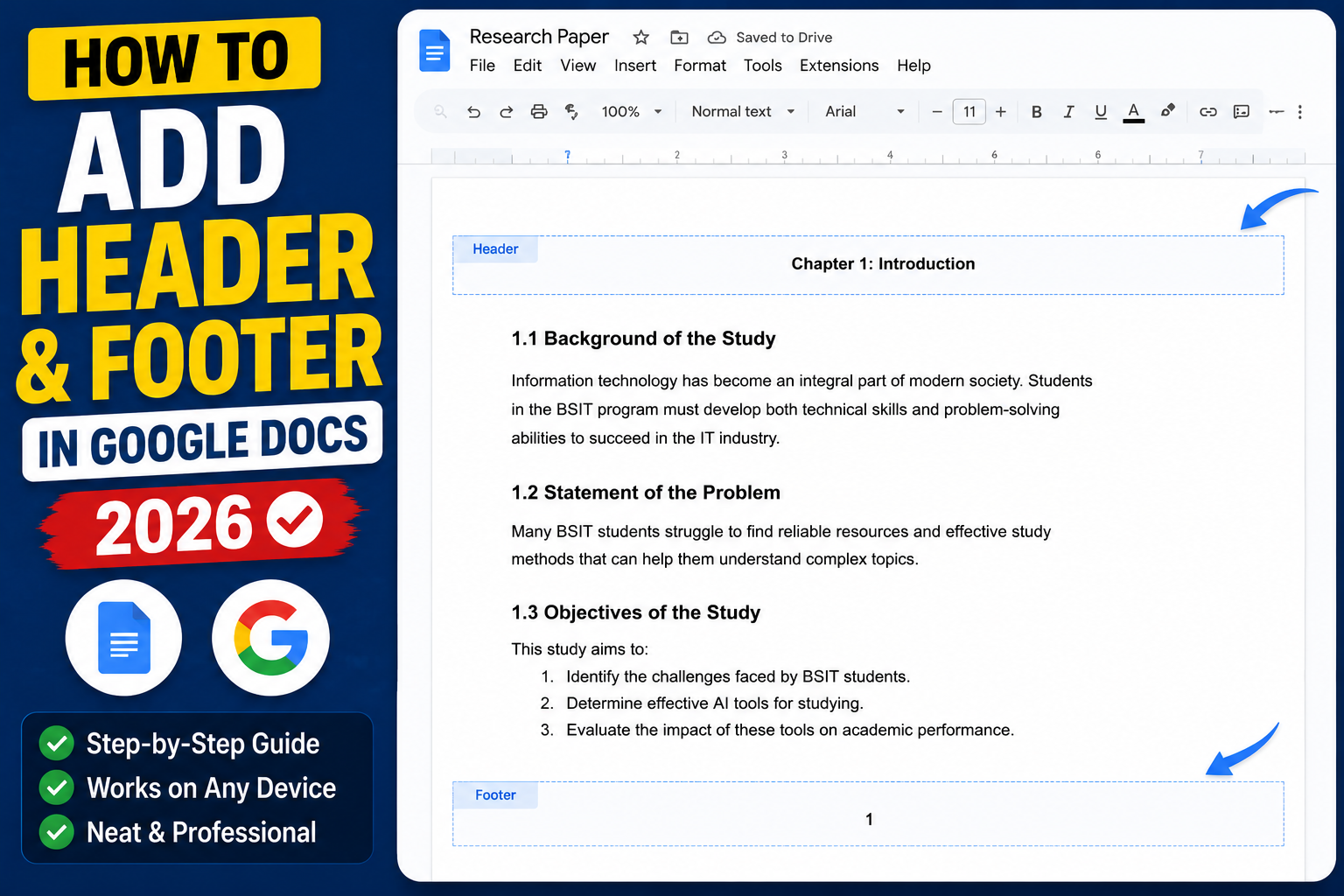
Headers and footers in Google Docs display consistent info at the top and bottom of every page, page numbers, document titles, author name, chapter titles, or company logos. This 2026 tutorial covers adding, customizing, using different headers per section, and troubleshooting.
How to add a header
- Open your Google Docs file.
- Go to Insert > Headers & footers > Header.
- The cursor jumps to the top of the page.
- Type your header text (author name, doc title, chapter).
- Click outside the header area (in the body) to close editing.
How to add a footer
- Insert > Headers & footers > Footer.
- Cursor jumps to the bottom of the page.
- Type footer text (copyright, contact info, page number).
- Click outside to close.
Add page numbers to header or footer
- Click into the header or footer.
- Insert > Page numbers > pick position (top or bottom).
- Or Insert > Page count for total pages.
Common footer formats:
- "Page 3 of 15"
- "Confidential - Do Not Distribute"
- "Company Name | Contact | Copyright 2026"
Different header on first page
For documents with a cover page, you usually want a blank first-page header:
- Open the header (Insert > Header).
- Click Options > Header format.
- Check Different first page.
- Delete the header content from page 1.
- Page 2 onward uses the standard header.
Different headers per section
Common academic/book pattern: chapter title in header, but each chapter has its own title. Use section breaks:
- Place cursor at chapter boundary.
- Insert > Break > Section break (next page).
- Click into the header of the new section.
- Uncheck Link to previous.
- Change the header text for this section.
Add image (logo) to header
- Click into the header.
- Insert > Image > Upload from computer.
- Pick your logo.
- Click the image > click Wrap text or In line as needed.
- Resize by dragging corners.
- Adjust position with the drag handles or alignment buttons.
Change header/footer size
- Click into the header (or footer).
- Click Options > Header format.
- Change Header top margin or Footer bottom margin.
Default is 0.5″. Reduce to 0.25″ to save space, or increase to 1″ for more breathing room.
Remove header or footer
- Click into the header or footer.
- Click Options > Remove header (or Remove footer).
- Or: select all header content and delete.
Header alignment (left, center, right)
- Click into the header.
- Use alignment toolbar buttons: left, center, right, justify.
- For multi-column headers (name on left, page on right): use Tab key to jump between positions, or Insert a 1×3 table.
Format footer text
- Click into the footer.
- Select the text.
- Change font, size, color, italic, bold as normal text.
- Common style: smaller (10pt), gray (#666666), italic.
Common header/footer issues
- Header not visible: enable View > Show print layout.
- Header appears on all pages, want only some: use section breaks and unlink from previous.
- Header text cut off: header top margin is too small. Options > increase margin.
- Different first page setting missing: click Options button first, then find Different first page checkbox in the menu.
- Cannot edit header on mobile: some header options are desktop-only. Switch to web version for advanced editing.
Official documentation
Recommended Google Docs resources
The links below are affiliate links. We may earn a commission at no extra cost to you when you buy or sign up. See our affiliate disclosure.
Common Google Docs header and footer problems
Headers and footers in Google Docs seem straightforward, but they have quirks that trip up thesis writers and report authors. Here are the five most common problems and their fixes.
- Cannot make the first page different. Enable “Different first page” from the Options menu inside the header. This lets your title page have no header while remaining pages do.
- Odd and even pages need different content. Enable “Different odd & even” from the same Options menu. This is required for two-sided print submissions where headers should alternate sides.
- Header shows on all pages when you only want it on some. Insert a section break before the pages that need a different header. Then in that new section, uncheck “Link to previous” so you can edit independently.
- Footer with page numbers keeps duplicating. This happens when you have multiple sections with different footer settings. Delete the extra footer content in the second section and re-link to previous.
- Cannot delete the header entirely. Click into the header, delete all content, then reduce the header height to zero from the Format menu. Alternatively, use “Different first page” and leave the first-page header empty.
Header and footer formatting for capstone theses
Philippine university capstone requirements have specific header and footer rules that panelists watch for. Follow these to avoid revision requests during your defense.
- No header on the title page. The title page is standalone. Use “Different first page” to leave its header blank.
- Chapter titles in the header from Chapter 1 onward. Typical format: “CHAPTER 1 – INTRODUCTION” on the left. Use section breaks between chapters so each chapter has its own header text.
- Page numbers in the footer, bottom center or bottom right. Bottom center is more common for Philippine universities. Match the format your program handbook specifies.
- Roman numerals for preliminary pages. Title page, abstract, TOC, list of figures all use lowercase roman (i, ii, iii). Use section breaks and set numbering format to roman for that section.
- Arabic numerals starting from Chapter 1. Restart numbering at 1 when Chapter 1 begins. This requires a section break between preliminary pages and chapters.
Setup takes 20 minutes once you know the pattern. Save your finished template as a Google Docs template and reuse it for every capstone chapter document. Consistent headers and footers across all your chapters signal a professional writer to panelists, which they notice during defense.
Quick step-by-step summary (click to expand)
- Open the Insert menu. Click Insert in the top menu bar of your Google Docs document.
- Choose Headers and footers. Hover over Headers and footers, then click Header or Footer depending on where you want the content.
- Type your header or footer text. The header or footer area becomes editable. Type your chapter title, author name, or document title.
- Enable Different first page if needed. Click Options in the header, then check “Different first page” to leave your title page blank.
- Add page numbers or date. Use Insert then Page numbers or type the current date if you want it in the header or footer.
Frequently Asked Questions
Can I have different headers on odd and even pages?
Not with a native setting. Workaround: use section breaks to isolate odd-numbered pages, then differentiate the header per section. Tedious. Word supports this natively.
How do I add a header only on first page?
Enable Different first page. Add header content only in the first-page area. Leave subsequent header blank.
Can I add a header on Google Docs mobile?
Yes, basic add/edit works. Tap + icon > Header & page number. Advanced options like Different first page require desktop web.
Do headers export to PDF?
Yes. Headers, footers, and page numbers export to PDF via File > Download > PDF. Also transfer to Word (.docx) format.
How do I remove header from just one page?
Insert a section break above and below the page. In that section, unlink from previous and delete the header content. Header stays intact on other sections.

Adrian Mercurio
Full-Stack Developer at PIES IT Solution
Adrian Mercurio is a full-stack developer at PIES IT Solution. Specializes in building complete capstone projects with full documentation. Strong background in PHP/MySQL development and database design. Has personally built and tested over 30 capstone-ready projects with ER diagrams, DFDs, and chapter-by-chapter thesis documentation.
Expertise: PHP, Laravel, Database Design, Capstone Projects, C#, C, C++, Python, AI Projects · View all posts by Adrian Mercurio →