
Open any Python project, run python main.py, and there it is: ModuleNotFoundError: No module named 'requests'. Or pandas. Or sklearn. Or the library you literally just installed five minutes ago.
This is one of the top three errors every BSIT student hits, and it’s almost always one of eight specific causes. The frustrating part is that “I already pip-installed it” is correct AND the error is correct. Both can be true at the same time, because Python has many environments, and the package is installed in one of them, just not the one your script is running in.
This guide walks through every cause, gives you the exact fix, and ends with a diagnostic command sequence that solves 95% of cases in under a minute. Updated June 2026, virtual environments are now standard practice, and the new uv package manager has changed how fast Python tooling can be.
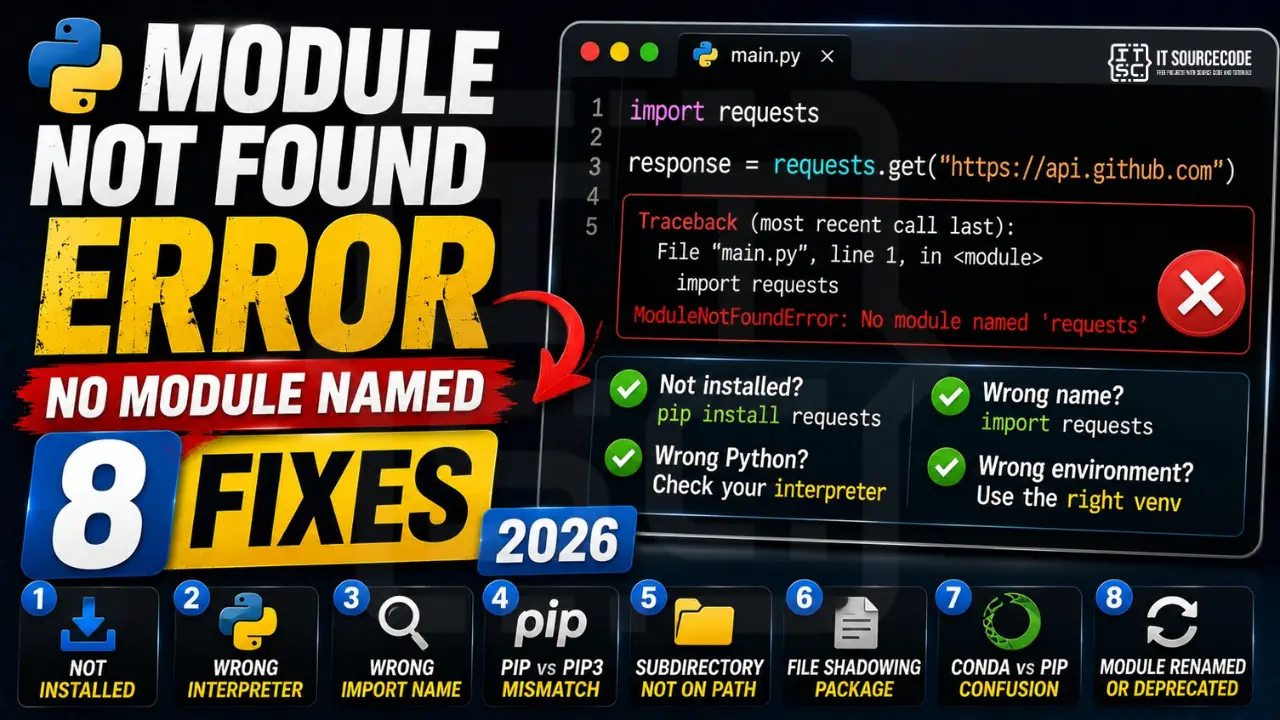
📌 Quick answer (TL;DR): ModuleNotFoundError: No module named 'X' means Python can’t find the package X on its import path. Step 1: install it with pip install X. Step 2: verify it’s there with pip list | grep X. Step 3: if it’s installed but still missing, your editor or terminal is using a different Python interpreter than the one where pip installed it. Run which python and which pip, they should point to the same environment. 90% of cases are interpreter mismatch, not a real install problem.
What ModuleNotFoundError Actually Means
When you write import requests, Python looks through every directory in sys.path for a folder or file named requests. If it can’t find one, it raises ModuleNotFoundError (a subclass of ImportError since Python 3.6).
The simplest example:
import requests # ❌ ModuleNotFoundError: No module named 'requests'
The fix usually starts with pip install requests, but as we’ll see, that’s only the first of eight possible causes. Let’s go through each.
Cause #1: Package Not Installed
The obvious one. You imported something you’ve never installed. Python ships with a large standard library (os, sys, json, datetime, etc.) but everything else, requests, pandas, numpy, flask, django, has to be installed manually.
# Terminal
pip install requests
# Or for Python 3 explicitly
pip3 install requests
# Or use the running Python directly (most reliable)
python -m pip install requests
The python -m pip install form is the safest, it guarantees pip installs into the exact Python interpreter you’re running, eliminating most environment confusion in one shot.
After installing, confirm:
pip list | grep requests
# requests   2.32.3
Cause #2: Wrong Python Interpreter (VS Code / PyCharm)
This is the #1 hidden cause and the most frustrating. You ran pip install pandas in your terminal, it succeeded, you can confirm with pip list, but VS Code or PyCharm still raises ModuleNotFoundError.
Why? Your IDE is configured to use a different Python interpreter than your terminal. Pandas is installed in interpreter A. Your script is running with interpreter B.
The fix in VS Code:
- Press
Ctrl+Shift+P(orCmd+Shift+Pon Mac) - Type “Python: Select Interpreter”
- Pick the interpreter that matches where you ran
pip install, typically the one with(venv)or.venvin the path if you have one
The fix in PyCharm:
- File → Settings → Project → Python Interpreter
- Click the gear icon → Add → choose your project’s venv (usually
./venv/bin/python)
To verify both match, run this inside your script:
import sys
print(sys.executable)   # /path/to/python being used
Then run which pip in your terminal. The directory should match. If not, that’s your bug.
Cause #3: Typo in Module Name (or Wrong Import Name)
Many packages have a different install name than their import name. This trips up beginners constantly:
# ❌ Wrong: these don't exist
import scikit_learn
import Pillow
import beautifulsoup4
import opencv

# ✅ Correct: actual import names
import sklearn          # installed via: pip install scikit-learn
from PIL import Image   # installed via: pip install Pillow
from bs4 import BeautifulSoup   # installed via: pip install beautifulsoup4
import cv2              # installed via: pip install opencv-python
The naming mismatch is historical and unfixable. Cheat sheet of common offenders:
- scikit-learn →
import sklearn - Pillow →
from PIL import … - beautifulsoup4 →
from bs4 import … - opencv-python →
import cv2 - PyYAML →
import yaml - python-dateutil →
from dateutil import … - MySQLdb →
import MySQLdb(capital case matters)
If you’re unsure of the correct import name, check the package’s PyPI page, every page lists the import statement near the top.
Cause #4: pip vs pip3 (Python 2 vs Python 3)
On older systems, and still on many Linux distros and macOS, python points to Python 2 and python3 points to Python 3. Same for pip and pip3. Mix them up and you’ll install packages into a Python you’re not actually using.
# Terminal: check what each points to
python --version    # might be Python 2.7.18
python3 --version   # Python 3.12.4

pip --version       # pip from Python 2.7 site-packages
pip3 --version      # pip from Python 3.12 site-packages

# ❌ Installs to Python 2: your Python 3 script can't see it
pip install pandas

# ✅ Correct: installs to Python 3
pip3 install pandas

# ✅ Even more correct: installs to whichever Python you're actually running
python3 -m pip install pandas
Permanent fix: always use python -m pip install (or python3 -m pip install) instead of bare pip install. This pattern is bulletproof, it uses the pip belonging to that exact Python.
Cause #5: Module in Subdirectory Not on sys.path
When you split your project into folders, Python doesn’t automatically know where to look. Given this structure:
myproject/
├── main.py
└── utils/
    └── helpers.py
Running python main.py with import helpers raises ModuleNotFoundError: No module named 'helpers', because utils/ isn’t on the import path.
Three fixes, best to worst:
# ✅ Best: use a relative import with __init__.py in utils/
# main.py
from utils.helpers import my_function

# (utils/__init__.py can be empty; just needs to exist)

# ✅ Decent: add the folder to sys.path before importing
import sys
sys.path.append("./utils")
import helpers

# ⚠️ Avoid: modifying PYTHONPATH env var (works but pollutes shell)
# export PYTHONPATH=$PYTHONPATH:/path/to/utils
Modern projects use a pyproject.toml with an editable install (pip install -e .) so the package structure works everywhere, see the uv section below.
Cause #6: Local File Shadowing a Package
Subtle and brutal. You create random.py in your project folder, then later try:
# File: random.py
import random   # ❌ This imports YOUR file, not the stdlib

print(random.randint(1, 10))   # AttributeError: module 'random' has no attribute 'randint'
Same trap if you name a file email.py, json.py, logging.py, queue.py, or tkinter.py, Python sees your local file first. Sometimes this manifests as ModuleNotFoundError from inside the standard library when one stdlib module tries to import another and gets your file by accident.
The fix: rename your file. random.py → my_random.py. Also delete any leftover __pycache__/ folders that might cache the bad import.
# Find and delete __pycache__ folders
find . -type d -name __pycache__ -exec rm -rf {} +
Prevention rule: never name a Python file after a stdlib module or a popular package you might install.
Cause #7: Conda vs pip Environment Confusion
If you use Anaconda or Miniconda, you have two parallel package managers, conda and pip, and they don’t always share the same environment view. Mix them carelessly and you’ll install pandas into the base conda environment, then run your script from a different conda env where pandas isn’t installed.
# Check active conda environment
conda info --envs
# * marks the active one

# Activate the env you want
conda activate myproject

# Install with conda first (preferred for scientific packages)
conda install pandas numpy scikit-learn

# Use pip ONLY for packages not on conda-forge
pip install requests
Rules of thumb:
- Always activate the correct conda env BEFORE installing anything
- Prefer
conda installoverpip installwhen the package is available on conda-forge - Inside a conda env,
pip installinstalls into that env (not the base), but only if pip is itself installed in that env - Run
which pythonandwhich pipafter activating to confirm both point inside the env folder
Cause #8: Module Renamed or Deprecated
Some packages get renamed between versions, or split into multiple packages. Old tutorials reference the old names, but pip install <old-name> no longer works.
Common examples:
Image(old PIL) → installPillowinstead →from PIL import Imagesklearnas install name is deprecated → usepip install scikit-learnpyspark.sql.functions.PandasUDFTyperemoved in Spark 4 → use plain pandas_udf decoratordistutilsremoved in Python 3.12 → usesetuptoolsorpackagingimpmodule removed in Python 3.12 → useimportlibcgi,asynchat,asyncoreremoved in Python 3.13 → check PEP 594
When you see ModuleNotFoundError on something that “used to work,” check the package’s changelog or search “is <module> deprecated in Python 3.X”, there’s usually a one-line migration to a replacement module.
Special: uv and Modern Python Package Management (2026)
If you’re starting a new Python project in 2026, skip pip and use uv. It’s a Rust-written package manager from Astral (the makers of Ruff) that replaces pip, pip-tools, virtualenv, pyenv, and pipx in a single tool, and it’s 10-100x faster than pip.
Install uv once:
# macOS / Linux
curl -LsSf https://astral.sh/uv/install.sh | sh

# Windows
powershell -c "irm https://astral.sh/uv/install.ps1 | iex"
Then for any project:
# Create a new project with isolated venv
uv init myproject
cd myproject

# Add dependencies (auto-creates pyproject.toml + .venv + uv.lock)
uv add requests pandas flask

# Run your script in the project venv (no manual activation)
uv run python main.py

# Add a dev-only dependency
uv add --dev pytest ruff
Three things uv fixes that pip can’t:
- No more interpreter mismatch:
uv runalways uses the project’s.venvregardless of your shell state - Reproducible installs:
uv.lockpins every transitive dependency so your team and CI get identical environments - Speed: installs that take 60 seconds with pip take 2-5 seconds with uv
If you’re still on pip+venv, that’s fine for existing projects. But for new work, especially capstone projects with multiple Python versions on one machine, uv eliminates 80% of ModuleNotFoundError headaches by removing the environment-mismatch class entirely.
Quick Diagnostic Command Sequence
When you hit ModuleNotFoundError and don’t know which of the 8 causes you’re hitting, run this sequence, it solves 95% of cases in under a minute:
# 1. Which Python is your shell using?
which python
python --version

# 2. Which pip is your shell using?
which pip
pip --version

# 3. Is the package actually installed?
pip list | grep -i <package-name>
# Or use python -m to be 100% sure you're checking the right interpreter
python -m pip list | grep -i <package-name>

# 4. Where is Python looking for imports?
python -c "import sys; print('\n'.join(sys.path))"

# 5. From inside your script, which Python is running it?
# Add this temporarily at the top of your .py file:
import sys
print("Python:", sys.executable)
print("Path:", sys.path)
How to interpret the output:
- If
which pythonandwhich pippoint to different folders → Cause #4 (pip/pip3 mismatch) - If
pip listshows the package but the script still fails → Cause #2 (wrong interpreter in IDE) - If
sys.pathdoesn’t include your project folder → Cause #5 (subdirectory not on path) - If
sys.pathshows your project folder FIRST and the import is for a stdlib module → Cause #6 (file shadowing) - If you’re inside a conda env but
which pythonpoints outside it → Cause #7 (conda not activated)
Quick Prevention Checklist
To stop hitting ModuleNotFoundError in future projects:
- Always use a virtual environment: never
pip installglobally. Usepython -m venv .venv+source .venv/bin/activate, oruv initfor new projects - Use
python -m pip installinstead of barepip install, guarantees correct interpreter - Pin dependencies with
requirements.txtorpyproject.toml, never rely on “I think I installed it” - Match VS Code/PyCharm interpreter to your venv on day one, the 30 seconds saves hours later
- Never name a file after a stdlib module: no
random.py, noemail.py, nologging.py - Check the PyPI page for any package, the correct import name is always listed
- Add
print(sys.executable)at the top of any script when debugging, instantly shows which Python is running
Quick step-by-step summary (click to expand)
- Confirm the exact module name. Read the error message carefully. Case matters: “PIL” is Pillow, “cv2” is opencv-python, “sklearn” is scikit-learn.
- Activate the correct virtual environment. Run which python (Linux/macOS) or where python (Windows) to confirm you are in the intended venv.
- Install the package. Run uv pip install PACKAGE (recommended) or pip install PACKAGE using the correct pip name from PyPI.
- Restart your Python session or Jupyter kernel. Python caches imports. After installing, restart the interpreter or kernel so the new package loads cleanly.
Official documentation
Frequently Asked Questions
What does “ModuleNotFoundError: No module named” mean?
sys.path). Either the package isn’t installed in the Python interpreter you’re running, the package name is misspelled, or your project structure means Python is looking in the wrong place. The fix usually starts with pip install <package>, but if that doesn’t work, you’re likely hitting an interpreter mismatch.I already installed it with pip, why is it still not found?
which python and which pip in your terminal; they should point to the same folder. In VS Code, run “Python: Select Interpreter” from the command palette and pick the matching one. The bulletproof install command is python -m pip install <package>, it uses the pip belonging to that exact Python.What’s the difference between pip and pip3?
pip installs into Python 2 and pip3 installs into Python 3. On modern macOS, Linux, and Windows installations with only Python 3, they typically point to the same place. To avoid confusion permanently, always use python -m pip install (or python3 -m pip install), this guarantees you’re installing into the Python you’re actually using.Why does “import sklearn” fail after “pip install sklearn”?
scikit-learn, not sklearn. Install it with pip install scikit-learn, then import sklearn works. Similar mismatches: Pillow is installed but imported as PIL; beautifulsoup4 is imported as bs4; opencv-python is imported as cv2; PyYAML is imported as yaml. The install name and import name are different for historical reasons, always check the package’s PyPI page if unsure.How do I fix ModuleNotFoundError in VS Code specifically?
Ctrl+Shift+P (or Cmd+Shift+P on Mac), type “Python: Select Interpreter,” and choose the interpreter that matches where you ran pip install. If you have a virtual environment in your project folder, pick the one labeled with (.venv) or (venv). After selecting, reload the window with Ctrl+Shift+P → “Developer: Reload Window.” VS Code stores this choice per-workspace, so do it once per project.What is a virtual environment and do I really need one?
python -m venv .venv, activate it with source .venv/bin/activate (Linux/Mac) or .venv\Scripts\activate (Windows), then pip install packages inside. Or skip the manual steps and use uv init which sets it all up automatically.Why does my own file cause ModuleNotFoundError in the standard library?
random.py, email.py, logging.py, or queue.py. Python looks in the current directory first when importing, so your file shadows the real module. Other stdlib modules that try to import the real one get your file instead and crash. Fix: rename your file (random.py → my_random.py) and delete any __pycache__/ folders with find . -type d -name __pycache__ -exec rm -rf {} +.What is uv and should I switch from pip?
uv is a Rust-written Python package manager from Astral that replaces pip, virtualenv, pyenv, and pipx in one tool, and it’s 10-100x faster than pip. For new projects in 2026, yes, switch, uv init myproject creates a venv, pyproject.toml, and lockfile in one command, and uv run python main.py always uses the project’s environment with no manual activation. For existing pip-based projects, no need to migrate urgently, but uv is becoming the default for new Python development.How is ModuleNotFoundError different from ImportError?
ModuleNotFoundError is a subclass of ImportError introduced in Python 3.6. It specifically means “the module doesn’t exist on the import path.” Plain ImportError covers a broader category, including cases where the module exists but importing it failed (circular imports, syntax errors in the module, missing names with from X import Y). If you see ImportError: cannot import name 'X' from 'Y', that’s not a missing module, it’s a missing attribute, often caused by a typo or version mismatch.📌 Beyond debugging, level up your Python
Once your imports are clean, see our best Python projects with source code, the best Python IDE 2026 comparison, our how to install Python on Windows guide, or browse our free Python tutorial series.
Final Recommendation
If you take only one habit from this guide, make it this: always use a virtual environment, and always install packages with python -m pip install (or uv add for new projects). These two rules eliminate the entire interpreter-mismatch class of ModuleNotFoundError, which is 80% of the cases this error covers.
For the remaining 20%, typo’d module names, file shadowing, deprecated modules, the diagnostic sequence above (which python, pip list, print(sys.executable)) will identify the cause in under a minute. Don’t guess. Run the commands. The output tells you exactly which environment is being used and what’s installed in it.
Related errors you’ll likely hit next: NameError: name is not defined (the import succeeded but you used the wrong name), AttributeError: ‘NoneType’ object has no attribute (the module loaded but a function returned None), and TypeError: object is not callable (the import worked but you’re calling something that isn’t a function).
🎯 Your next steps:
- Run
which python && which pip, confirm they point to the same folder - For any project without one, create a venv:
python -m venv .venv && source .venv/bin/activate - Switch new projects to
uv, install it once, never fight Python environments again - Browse more ModuleNotFoundError fixes, sibling ImportError guides, or our Python tutorials
Still stuck on a specific ModuleNotFoundError? Drop the exact error message, the output of which python, and the output of pip list | grep <package> in the comments, we’ll help you debug it.

Adrian Mercurio
Full-Stack Developer at PIES IT Solution
Specializes in building complete capstone projects with full documentation. Strong background in PHP/MySQL development and database design. Has personally built and tested over 30 capstone-ready projects with ER diagrams, DFDs, and chapter-by-chapter thesis documentation.
Expertise: PHP · Laravel · Database Design · Capstone Projects · C# · C · C++ · Python · AI Projects
· View all posts by Adrian Mercurio →