
Dark mode in Gmail is easier on your eyes after sunset, saves battery on phones with OLED screens, and (according to multiple studies) reduces eye strain during long email triage sessions. The setting takes 30 seconds to turn on, but the exact steps differ between desktop browser, iPhone, and Android.
This guide covers all three plus how to schedule dark mode to turn on automatically at night.
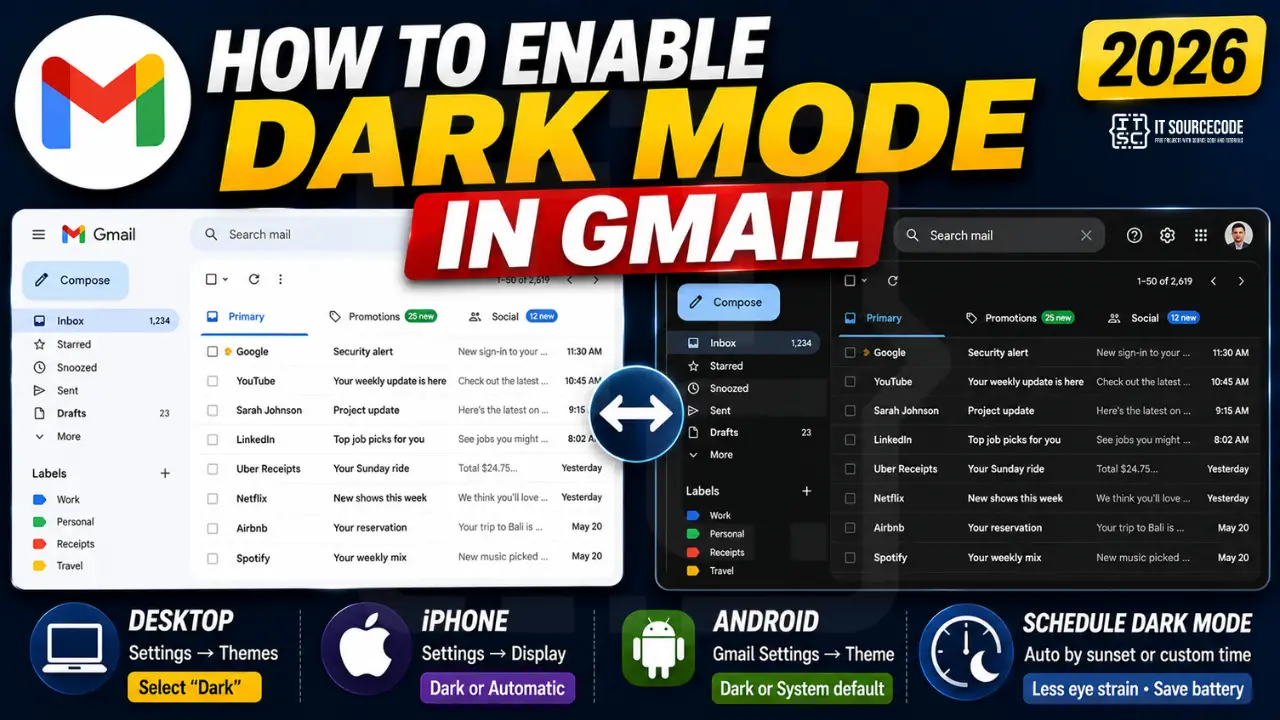
Enable Gmail dark mode on desktop (Chrome, Edge, Safari, Firefox)
- Open Gmail at
mail.google.com. - Click the gear icon (top-right corner).
- Click “See all settings.”
- Click the “Themes” tab (top of the settings page).
- Scroll down to the “Dark” theme thumbnail (it shows a dark inbox preview).
- Click it. The change applies instantly.
- Optionally click “Set background” if you want one of the lighter dark variants (Charcoal, Soft Gray) instead of pure black.
The theme syncs across all browsers on this account. Sign in to Gmail on another computer and it appears in dark mode automatically.
Enable Gmail dark mode on iPhone
iPhone Gmail follows your iOS system theme by default. You can also override it per app.
Follow system theme (recommended):
- Open iPhone Settings > Display & Brightness.
- Tap “Dark.” Gmail switches with the rest of iOS.
- Or tap “Automatic” to schedule dark mode by time (sunset to sunrise or custom hours).
Override just for Gmail:
- Open the Gmail app.
- Tap the Menu icon (three lines, top-left).
- Scroll down to Settings > tap your account.
- Tap “Theme.”
- Choose “Dark,” “Light,” or “System default.”
Enable Gmail dark mode on Android
- Open the Gmail app on Android.
- Tap the Menu icon (three lines, top-left).
- Scroll down to Settings > General settings.
- Tap “Theme.”
- Choose “Dark,” “Light,” or “System default.”
For “System default” to work properly, Android also needs to be in dark mode: Settings > Display > Dark theme > on (or scheduled).
Schedule dark mode to turn on automatically at night
Automatic dark mode by time of day is set at the OS level, not in Gmail itself. Once configured, Gmail follows along.
iPhone: Settings > Display & Brightness > Automatic > Options > “Sunset to Sunrise” (uses location) or “Custom Schedule.”
Android: Settings > Display > Dark theme > toggle “Schedule” > “Turns on at sunset” or “Turns on at custom time.”
Windows 11: Settings > Personalization > Colors > “Choose your mode” > “Custom” > set “Default Windows mode” to whatever and “Default app mode” to “Dark.” Then in your browser (Chrome / Edge), enable “Follow system theme” so Gmail picks it up.
macOS: System Settings > Appearance > “Auto” mode follows daylight automatically.
Why Gmail dark mode keeps switching back to light
Common causes if your dark mode setting does not stick:
- You changed theme on a different device: the most recent change syncs everywhere. Re-set dark mode on your main device.
- You are using Incognito or Private browsing: theme settings do not persist outside the session. Use a normal window.
- Browser extension is interfering: some “force dark” extensions (Dark Reader, Stylus themes) override Gmail’s own dark mode. Disable them or whitelist mail.google.com.
- System theme is set to “Auto”: if you picked “System default” in Gmail and the OS is on auto schedule, Gmail follows the OS.
Bonus: Pick a custom dark theme
Beyond pure dark, Gmail offers several darker variants under Themes:
- Dark: high-contrast solid black, best for OLED battery savings.
- Soft Gray: dark but less aggressive, easier on bright daylight.
- Charcoal: mid-tone gray with subtle blue tint.
- High Contrast: accessibility-focused, larger text contrast on dark background.
To preview without committing: hover over each theme thumbnail in Settings > Themes. Click to apply.
Official documentation
Frequently Asked Questions
Does Gmail dark mode save battery?
Yes, on devices with OLED screens (iPhone 12+, most flagship Android phones, M-series MacBooks). OLED pixels turn off entirely on black, saving roughly 15-30% battery during email use. On LCD screens (older iPhones, most laptops, desktop monitors), dark mode saves no battery; the savings are visual comfort only.
Why is dark mode not available in my Gmail settings?
Two common reasons: your account is on a very old Workspace tier where admins restricted theme changes (contact admin), or your browser is outdated and does not support the dark theme assets. Update Chrome/Edge/Firefox/Safari to the latest version. Also confirm you are on mail.google.com, not the old Inbox by Gmail interface (deprecated since 2019).
Does Gmail dark mode apply to email content too?
The Gmail interface (sidebar, list view, compose) goes dark. Email body content keeps its original styling, so newsletters with white backgrounds still appear bright when you open them. This is intentional because forcing dark on email bodies often breaks formatting (text becomes invisible, images get inverted).
Can I make Gmail dark mode permanent on my work account?
Yes. The theme setting is per-account, not per-device, so set it once on your work Gmail and it persists across all browsers and devices where you log in to that account. If your IT admin has locked theme settings, ask them to enable user-customizable themes in the Workspace admin console.
How do I make Gmail follow my system dark mode automatically?
On mobile (iPhone and Android), open Gmail Settings > tap your account > Theme > “System default.” On desktop, Gmail does not have a “follow system” option; you must manually set Light or Dark in Themes. For automatic by time, use OS-level dark mode scheduling and select a neutral Gmail theme that works in both modes (such as the default “Light” theme, which respects high-contrast OS settings).
Does Gmail dark mode work in offline mode?
Yes. Your selected theme is cached locally, so Gmail keeps dark mode even when offline (Gmail Offline mode is enabled at Settings > Offline tab). The theme is one of the assets that gets pre-cached when you first enable offline mode.

Caren Bautista
Technical Writer at PIES IT Solution
Responsible for crafting clear, well-structured, and beginner-friendly content across the platform. Handles the writing, proofreading, and editorial review of tutorials, guides, and documentation to ensure every article is accurate, readable, and easy to follow.
Expertise: Technical Writing · Content Creation · Documentation · Editorial Writing · JavaScript · TypeScript · Python · Python Errors · HTTP Errors · MS Excel · View all posts by Caren Bautista →