
Notion Calendar is a standalone desktop and mobile app that replaces your default calendar. It syncs Google Calendar and Outlook, connects to your Notion databases so tasks show up alongside meetings, and adds keyboard-first shortcuts for fast time blocking. This is different from Notion’s built-in database calendar view. Notion Calendar is a full calendar app that happens to talk to Notion, not a calendar view inside a Notion page.
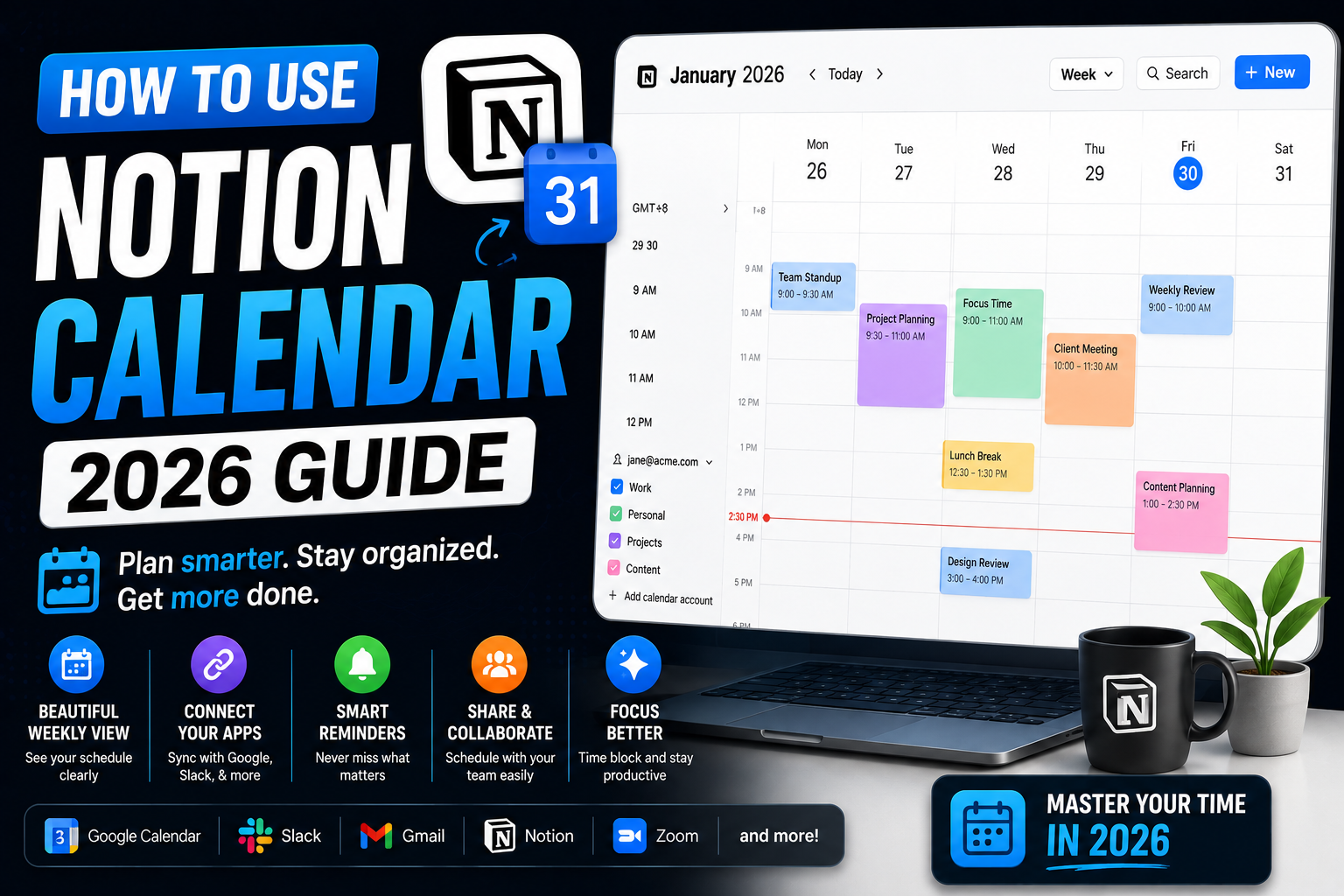
If you have already tried it and found the setup confusing, this guide walks through the full flow: installing the app, connecting your existing calendar, syncing Notion databases, using the time-blocking features, and troubleshooting the sync issues that come up in the first week.
Quick step-by-step summary (click to expand)
- Download Notion Calendar. Get it from notion.com/product/calendar for Mac, Windows, iPhone, or Android. Free for all Notion users.
- Sign in with your Notion account. Use the same email you use for your main Notion workspace.
- Connect Google Calendar or Outlook. Grant calendar access when prompted. Read-write access is required for full functionality.
- Add your Notion databases. In Notion Calendar settings, connect any Notion database with a Date property so tasks appear on the calendar.
- Learn the keyboard shortcuts. C to create an event, T to jump to today, W for week view. These make Notion Calendar much faster than the mouse-driven default calendar apps.
- Set up your first time block. Drag a Notion task from the sidebar onto the calendar, or use Command+K to create an event with a linked Notion page.
Why Notion Calendar exists
Notion Calendar started as a separate product called Cron before Notion acquired it in 2022. Cron was known for being the fastest keyboard-friendly calendar available. Notion kept those speed features and added deep integration with Notion pages and databases, then relaunched it as Notion Calendar.
What makes it different from Google Calendar or Outlook:
- Every event can be linked to a Notion page (meeting agenda, project doc, task with subtasks)
- Any Notion database with a Date property shows up alongside your meetings
- Keyboard shortcuts for everything (no mouse required for daily use)
- Time blocking is a first-class feature, not an afterthought
- Multiple accounts (personal Gmail + work Outlook) show up in one view
Free for everyone. You do not need Notion Pro or Business to use Notion Calendar. Even Free Notion accounts get the full app.
Install Notion Calendar on desktop
- Go to notion.com/product/calendar in your browser.
- Click Download for Mac or Windows depending on your system.
- Open the downloaded installer and follow the prompts.
- Launch Notion Calendar. Sign in with the same email you use for Notion.
- On the first launch, you will be asked to connect a calendar account. Choose Google or Microsoft (Outlook).
- Grant the permissions the OAuth flow asks for. Read-only sync limits functionality; grant full read-write for the best experience.
Once connected, your existing calendar events populate within a few seconds. You can add more calendar accounts later by opening Settings and clicking Add Account.
Install on iPhone or Android
The mobile flow is nearly identical:
- Search “Notion Calendar” in the App Store or Google Play Store.
- Install and open. Sign in with your Notion email.
- Connect Google or Outlook when prompted. Grant calendar permissions.
- The mobile app syncs all the same calendars and Notion databases as your desktop version. Any change you make on one shows up on the other within seconds.
Push notifications: enable them for event reminders. The default reminder time is 10 minutes before each event. You can change per-event or set a global default in Settings.
Connect your Notion databases
This is the feature that makes Notion Calendar different from other calendars. Any Notion database with a Date property can show up alongside your events.
- Open Notion Calendar Settings (gear icon, top right of desktop app).
- Click Notion Databases in the left sidebar.
- Click Add Database.
- Select the Notion database you want to sync. Common picks: Tasks, Projects, Content Calendar, Habits.
- Choose which Date property to use if the database has multiple date fields (Due date vs Start date vs Publish date).
- Pick a color for that database so it stands out on the calendar view.
Once connected, every entry in that Notion database with a date shows up as a calendar item. Drag it to a new time to update the Notion page. Click it to open the full Notion page in a side panel without leaving the calendar.
Essential keyboard shortcuts
Notion Calendar was designed keyboard-first. Learning 6-8 shortcuts changes how fast you can plan a week:
- C: create a new event at your currently-selected time slot
- T: jump to today
- W: switch to week view
- D: switch to day view
- M: switch to month view
- Command+K (Mac) or Ctrl+K (Windows): open command palette to search or create anything
- Arrow keys: navigate between days or weeks
- Escape: close any open event or panel
Command+K is the most useful of all. You can create events, jump to specific dates, search Notion pages, and toggle calendars all from one search bar.
Time blocking workflow
Time blocking means putting your tasks directly on the calendar, not just in a to-do list. Notion Calendar makes this easy because your Notion tasks are already visible in the sidebar.
The workflow that works for most people:
- At the start of each week, open Week view (press W).
- Look at the incoming meetings already on your calendar.
- From the Tasks sidebar (your synced Notion database), drag the tasks you want to complete this week onto specific time slots.
- Each dragged task becomes a calendar event AND updates the linked Notion page with the scheduled time.
- During the week, if a task slips, drag it to a new slot. The Notion page updates automatically.
This keeps your Notion project tracker and your calendar in sync without any manual double-entry. The calendar view shows realistic capacity (you can see what will not fit) and the Notion database stays the source of truth for task metadata.
Common issues in the first week
Events from one calendar not appearing: open Settings, check that each calendar is toggled Visible. Newly-added calendars are sometimes hidden by default.
Notion database changes not syncing to calendar: the sync runs every 5 minutes. If you need immediate updates, click the refresh icon at the top of the sidebar. Full sync takes up to 30 seconds after that.
Duplicate events: usually means you connected the same calendar account twice (Google Workspace + personal Gmail with the same address). Remove one in Settings.
Reminders not firing: check your OS notification permissions (System Settings on Mac, Notification permissions on Windows). Notion Calendar sends reminders through your OS, not through email.
Cannot edit events from a shared calendar: the calendar owner may have granted you read-only access. Ask them to change your permission level on Google Calendar or Outlook directly.
Official documentation
Frequently asked questions
Is Notion Calendar free?
Yes, completely free for all Notion users including Free plan accounts. You do not need Notion Pro, Team, or Business to use Notion Calendar. All features (Google or Outlook sync, Notion database sync, mobile apps, keyboard shortcuts) are included at no cost.
Does Notion Calendar work with Apple Calendar or iCloud?
Read-only sync from iCloud is supported through a workaround (share your iCloud calendar as a public feed, then subscribe to it in Google Calendar, then sync Google to Notion Calendar). Native two-way iCloud sync is on the roadmap but not shipped as of mid 2026.
Can I use Notion Calendar without connecting a Notion database?
Yes. If you just want a fast keyboard-friendly calendar for your Google or Outlook events without Notion database integration, that works perfectly. Notion Calendar is a great replacement for Google Calendar’s web interface even if you never connect a database.
How is Notion Calendar different from the calendar view inside Notion?
The calendar view inside a Notion database only shows entries from that one database. It does not sync with Google Calendar or Outlook. Notion Calendar is a full standalone app that pulls in your external calendars AND your Notion databases in one unified view. Different tools for different jobs.
Can I use Notion Calendar offline?
Partially. Events already synced to your device are visible offline. You can create new events and they queue up to sync when you reconnect. Full functionality (Notion database sync, real-time meeting links) requires an internet connection.
Does Notion Calendar have AI features?
As of mid 2026, Notion Calendar itself does not have built-in AI. However, if you enable Notion AI on your workspace, you can ask Notion AI to schedule tasks and Notion Calendar picks up the scheduled dates automatically. AI Meeting Notes (covered in a separate guide) also integrates with Notion Calendar for meeting recording.
We are hoping this got your Notion Calendar setup dialed in on the first try. If you hit a sync issue we did not cover, drop a comment with the specific error message and we will fold the fix into the next update.

Caren Bautista
Technical Writer at PIES IT Solution
Responsible for crafting clear, well-structured, and beginner-friendly content across the platform.
Expertise: Technical Writing · Content Creation · Documentation · Editorial Writing · JavaScript · TypeScript · Python · Python Errors · HTTP Errors · MS Excel · View all posts by Caren Bautista →