
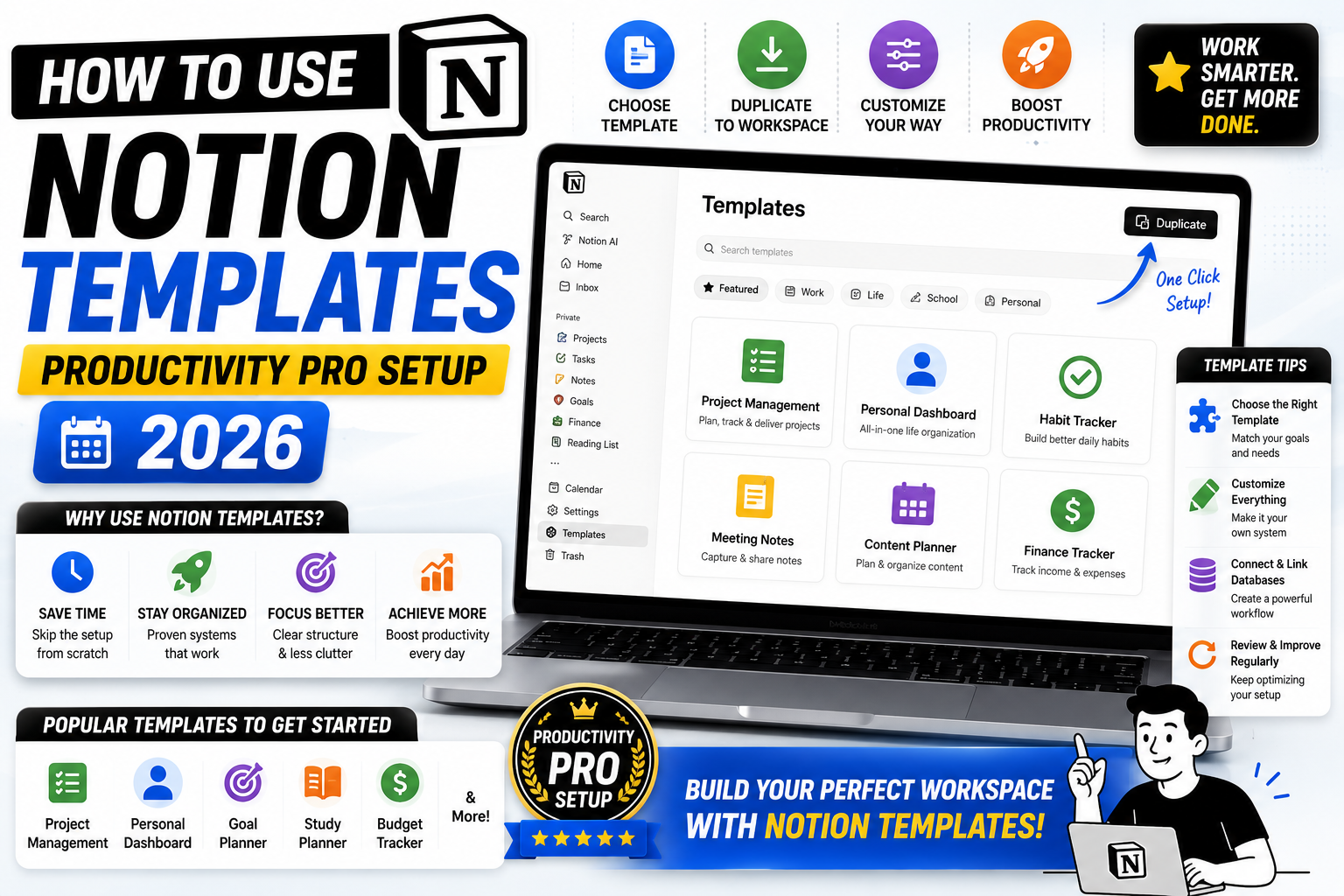
Notion templates are the fastest way to build a useful workspace without designing everything from scratch. Whether you use official Notion templates, community-created ones, or build your own reusable templates for database entries, they save hours of setup time. This 2026 guide covers finding templates, importing them, and creating your own template patterns that scale across projects.
Three types of Notion templates
Understanding the distinction saves confusion:
- Page templates: Pre-built pages you duplicate into your workspace (like a “Weekly Review” template or a “Product Brief” template).
- Database templates: Templates for new entries inside a database (like a “Meeting Notes” template that populates a Notes database with the right headings each time).
- Full workspace templates: Bundles of many pages, databases, and views (like a “Startup OS” or “PARA Method” workspace).
Find official Notion templates
- In Notion’s sidebar, click “Templates”.
- Browse categories: Personal, Work, Team, Startup, Design, Content, and more.
- Preview a template by clicking it. See what pages and databases it includes.
- Click “Get template” or “Add to your workspace” to copy it.
Official templates are polished and well-designed but often generic. Great starting points but expect to customize.
Find community Notion templates
Third-party creators offer often-better templates for specific use cases:
- Notion.so/templates: Notion’s official directory of both first-party and vetted community templates. Free and paid.
- Gumroad: Many creators sell premium Notion templates (USD 10-50 range). Higher quality than free options for specialized use cases.
- Notionpages.com: Curated community gallery. Free.
- Prototion.com: Free and paid Notion template library.
- Reddit r/Notion: Users share free templates weekly. Great for finding niche solutions.
Popular templates worth checking: PARA Method system, GTD (Getting Things Done) implementation, Ali Abdaal’s productivity setup, and Thomas Frank’s Ultimate Brain.
Import a shared Notion template
When someone shares a template with you (via a URL like notion.so/templates/xyz):
- Click the shared template URL.
- The template opens in a preview mode in your Notion.
- Click “Duplicate” at the top right.
- Choose where to add it in your workspace (usually My Workspace root).
- Notion copies the entire template, including all sub-pages and databases, to your workspace.
All content becomes yours to edit. Original creator has no access to your version.
Create your own database entry templates
Database templates auto-populate a specific structure whenever you create a new entry. Perfect for meeting notes, project pages, or blog drafts.
- Open your database.
- Click the down arrow next to the “New” button (top right of the database).
- Click “+ New template”.
- Design the template: add headings, checklists, callouts, subheadings, embedded databases, etc.
- Give the template a name (like “Weekly 1-on-1 Notes”).
- Save.
Now when you create a new database entry, you can pick this template from the dropdown. Notion pre-fills the page with your designed structure.
Example templates for a Meetings database:
- “Weekly 1-on-1”: Agenda, Discussion Points, Action Items, Follow-ups.
- “Sprint Planning”: Sprint Goals, Committed Stories, Risks, Team Notes.
- “Retrospective”: What Went Well, What Didn’t, Action Items.
Create a page template (not tied to a database)
For standalone pages you re-use often (like a Weekly Review or Project Kickoff):
- Design the template as a normal page.
- Give it a clear name (like “Template: Weekly Review”).
- Right-click the page in the sidebar > “Duplicate” whenever you need a new one.
- Rename the duplicate to the current use (like “Weekly Review 2026-07-24”).
Alternative: put all your templates in a “Templates” sub-page in your sidebar. Duplicate from there whenever needed. Cleaner organization for personal workspaces.
Template patterns that work well
- Daily Journal: Date, Highlights, Wins, Challenges, Tomorrow’s Focus. Duplicate each day.
- Weekly Review: Wins, Progress against goals, Lessons learned, Next week’s priorities.
- Monthly Review: Same as weekly but with revenue/output tracking.
- Meeting Notes: Agenda, Attendees, Discussion, Decisions, Action Items.
- Book Notes: Title, Author, Rating, Key Takeaways, Notable Quotes.
- Article Draft: Working title, Angle, Outline, Draft, Distribution plan.
- 1-on-1 Prep: Recent wins, Blockers, Feedback for me, Feedback for them, Career discussion.
Advanced: automated template application with Notion API
For power users, the Notion API lets you create pages from templates programmatically:
- Trigger a template when a Zapier webhook fires (like “new HubSpot deal creates a new Notion project page from template”).
- Auto-generate weekly review pages every Sunday via a cron job.
- Sync a Google Calendar event to a new Notion meeting notes page using its template.
Requires a Notion integration token and moderate scripting knowledge. Well documented in Notion’s developer docs.
Manage template versions
Templates evolve. Best practice:
- Keep template pages in a dedicated “Templates” folder in your workspace.
- Version by naming: “Template: Weekly Review v1”, “v2” as you improve them.
- Don’t delete old versions until the new one is proven. Rollback is easier when you keep versions.
- For team workspaces, designate one owner per template. Only they update it.
- Announce template changes in your team channel so users know what’s different.
Common mistakes with Notion templates
- Over-designing before use. Start with a basic template. Add sections only when you actually miss them. Template creep leads to abandoned templates.
- Copying too many workspace templates. Your sidebar becomes bloated. Copy one, use it for a week, then decide whether to keep or delete.
- Using shared templates without understanding them. Some templates have complex relations and rollups. If you break them accidentally, they’re hard to fix. Read the creator’s docs first.
- Never customizing. Templates are starting points. Rename fields, remove irrelevant sections, add your own. The 80/20 rule: 80% template + 20% customization.
- Not backing up before major template changes. Duplicate the workspace first. Notion has version history but only for 30 days on free plans.
Free vs paid templates: when to pay
Free templates from notion.so/templates or Reddit r/Notion cover 80% of common needs. Pay for premium templates when:
- The template is genuinely more polished (better design, better organization, edge cases handled).
- The creator provides ongoing updates and support.
- The template solves a specific problem no free alternative addresses (specialized workflows like Airbnb hosting or podcast production).
- Your time is worth more than the price (USD 30 template that saves 5 hours of setup = worth it if your hourly rate is above USD 6).
Never pay more than USD 50 for a Notion template. Anything above is either enterprise-tier or overpriced.
Official documentation
Frequently asked questions
Are Notion templates free?
Most official Notion templates in the Templates gallery are free. Community creators often offer premium versions on Gumroad or their own sites (USD 10-50 range). Reddit r/Notion has abundant free options for almost every use case.
Can I share my own Notion templates with others?
Yes. Enable public sharing on the template page, then share the URL. Recipients can duplicate it to their own workspace. You can also submit templates to notion.so/templates for wider distribution or sell on Gumroad.
Do database templates work on the Notion mobile app?
Yes. When you create a new entry in a database on mobile, the app shows template options in a dropdown. Pick one and the new entry pre-fills. You cannot design new templates on mobile though; do that on desktop web.
Can I edit a template after creating entries from it?
Yes. Editing the template only affects new entries created after the edit. Existing entries stay as they were. This means you can improve templates over time without breaking historical data.
What happens if I delete a template?
Existing entries created from that template stay intact. Only the ability to create new entries from that specific template goes away. To restore, recreate a similar template or check your workspace’s Trash for the deleted template within 30 days.
Which is better for a startup: Ali Abdaal’s setup or Thomas Frank’s Ultimate Brain?
Both are excellent for personal productivity. Ali Abdaal’s is simpler and beginner-friendly. Thomas Frank’s Ultimate Brain is deeper and better for people who want a lifetime OS. Neither is startup-specific; for team startup use, look at “Startup Notion OS” or similar dedicated templates.