
Notion AI Meeting Notes is one of the more useful additions to Notion in 2026. You start a meeting, Notion listens in, and by the end you get a full transcript, a summary, action items with owners, and next-step suggestions, all saved as a page inside your workspace. No more scrambling to write things down while trying to actually follow the conversation.
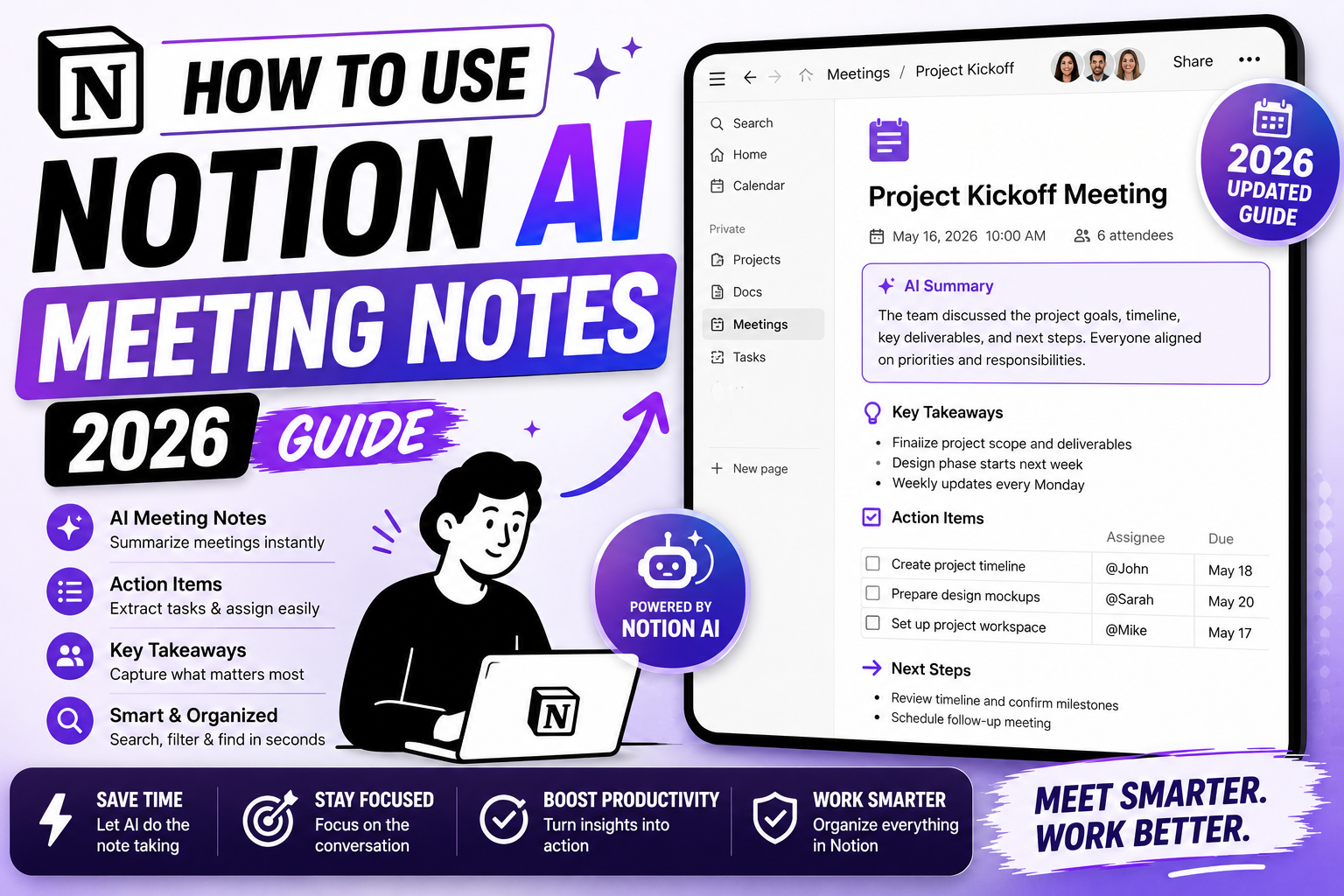
This guide walks through the full setup for individuals and teams, including which Notion plan you need, how to enable AI Meeting Notes, how it handles video calls versus in-person meetings, and how to fix the most common problems people hit in the first week.
Quick step-by-step summary (click to expand)
- Confirm your plan. Notion AI Meeting Notes requires the Notion AI add-on, which is billed per user per month on top of your workspace plan.
- Install the Notion Calendar app. Download it on Mac, Windows, iPhone, or Android, and connect it to your Google or Outlook calendar.
- Turn on AI Meeting Notes for a meeting. Open the meeting in Notion Calendar and toggle the AI Meeting Notes switch before or during the call.
- Let Notion record and transcribe. Notion joins the call, records audio, and generates a live transcript in the meeting page.
- Review the auto-generated summary and action items. After the meeting, Notion writes a summary and lists action items. Assign owners and dates directly in the page.
What Notion AI Meeting Notes actually does
Notion AI Meeting Notes joins your meeting as a virtual participant, records the audio, and turns the recording into three linked outputs on one Notion page:
- Full transcript with speaker labels and timestamps
- Summary written in plain English, usually 200 to 400 words
- Action items in a checklist block, with suggested owners pulled from who spoke about which task
Because the output lives in Notion, you can drop the meeting page into any project database, tag it, link to related docs, and hand it off to teammates who missed the call. This is the part traditional standalone tools like Otter and Fireflies do not offer, since their notes live in their own silo.
Which Notion plan you need
AI Meeting Notes is part of the Notion AI add-on. It is not included in the Free, Plus, or Business plans by default. You need to add Notion AI as a separate paid add-on, billed per user per month.
To check if your account already has it, open Notion, tap Settings, then Notion AI. If you see options for meeting recording and AI writing, you are set. If the section shows an Upgrade button, you still need to add the AI plan.
The AI add-on also unlocks features like Q&A across your workspace, autofill for databases, and the AI writing assistant inside pages, so it is not just a meeting notes upgrade. Teams that use Notion as their main docs tool tend to get value out of the bundle.
Install Notion Calendar and connect your calendar
Notion AI Meeting Notes runs through the Notion Calendar app, which is separate from the main Notion app. You need both installed for the feature to work.
Steps:
- Visit notion.com/product/calendar and download Notion Calendar for your OS. It is available on Mac, Windows, iPhone, and Android.
- Open the app and sign in with the same email you use for Notion.
- Grant calendar access when prompted. Notion Calendar supports Google Calendar and Microsoft Outlook. Apple Calendar sync is read-only.
- Once connected, your upcoming meetings appear in Notion Calendar with a small Notion icon next to each event.
Meetings created in Google Meet, Zoom, Microsoft Teams, and Webex are all supported. In-person meetings without a video link are also supported through phone microphone recording, covered further down.
Turn on AI Meeting Notes for a specific meeting
You can enable AI Meeting Notes per meeting or by default for every meeting on your calendar.
Per meeting: open Notion Calendar, click the meeting on your schedule, and toggle AI Meeting Notes on inside the event details panel. You can toggle it before or during the call. If you toggle mid-call, Notion catches up from that point and does not fabricate earlier content.
Default on: open Notion Calendar Settings, tap Meeting Notes, and switch on Auto-record all meetings. From that point, every meeting on your calendar gets a Notion notes page created automatically. If you want to skip a specific meeting (for example, a sensitive HR call), open that meeting and toggle AI Meeting Notes off before it starts.
What the meeting page looks like during and after the call
Once AI Meeting Notes is running, Notion creates a page named after the meeting. During the call, the page updates live with the transcript. You can open it in a second tab and see text scrolling as people speak, useful if you want to grab a quote in real time.
Once the meeting ends, the page reorganizes into four sections:
- Meeting metadata (date, attendees, duration, meeting link)
- Summary paragraph
- Action items checklist with suggested owners
- Full transcript at the bottom, collapsible
Every section is editable. If Notion assigned an action item to the wrong person, you can reassign in one click. If the summary missed a decision, you can add it manually and it stays in the page.
Record in-person meetings without a video link
For meetings that happen in a room (no Zoom, no Meet), open the Notion Calendar mobile app on your phone, tap the calendar event, and choose Start Recording. Your phone microphone captures the audio, and after the meeting ends, Notion uploads it, transcribes it, and creates the same style of meeting page.
Battery tip: keep your phone plugged in for meetings longer than 30 minutes. Live recording plus background sync drains battery faster than a regular call.
Privacy and who can see your meeting notes
By default, meeting notes are private to you. Nobody else on your team sees them unless you share the page. If you want your team to see them automatically, drop the page into a shared Notion database, and access follows the database permissions.
Notion also plays an audible notification and shows a visual indicator when recording starts, so other meeting participants know a bot is listening. In several regions, notifying participants of recording is a legal requirement. Notion handles this by default, but if you record in-person meetings on your phone, you are responsible for telling everyone in the room.
Fix the most common Notion AI Meeting Notes problems
Notion did not join the meeting: the meeting link was in a plain text field, not the calendar event’s video conferencing field. Recreate the calendar event and use the Google Meet or Zoom integration button so the video link is properly attached.
Transcript is empty: Notion may have been blocked by the meeting host’s waiting room. Ask the host to admit the “Notion AI Notes” participant. On repeat calls with the same host, they can allow it once and Notion remembers.
Action items list the wrong owner: Notion guesses ownership from who spoke about the task. If someone else volunteered mid-sentence, the tag may be off. Click the owner name and pick the correct person from the dropdown.
Summary skips a topic that was discussed: the AI weights the summary toward sections with more talk time. Short but important topics can slip through. Open the transcript, find the exchange, and paste it into the summary manually. Notion learns from these edits over time.
Official documentation
Frequently asked questions
Do I need to be a paying Notion user to use AI Meeting Notes?
Yes. AI Meeting Notes is part of the Notion AI add-on, which is billed per user per month on top of your workspace plan. Free, Plus, and Business plans without the AI add-on do not include it. You can add the AI plan from Settings, then Notion AI, then Upgrade.
Does Notion AI Meeting Notes work with Zoom and Google Meet?
Yes, both Zoom and Google Meet are supported, along with Microsoft Teams and Webex. Notion joins the meeting as a virtual participant using the video link from your calendar event, so the link must be attached to the event through the calendar’s video conferencing field.
Can I record in-person meetings that have no video link?
Yes. Open the Notion Calendar mobile app, tap the calendar event, and choose Start Recording. Your phone microphone captures the audio and Notion transcribes it after the meeting. Keep the phone plugged in for meetings longer than 30 minutes.
Who can see my Notion meeting notes?
By default only you can see them. Meeting note pages are created in your private workspace unless you actively move them into a shared database or share the page with specific people. Move the page into a team database if you want automatic sharing based on database permissions.
Does Notion notify other participants that the meeting is being recorded?
Yes. When AI Meeting Notes joins a video call, participants see a “Notion AI Notes” attendee and hear an audio notification. This satisfies recording notification requirements in many regions. For in-person recording on your phone, you are responsible for telling everyone in the room that recording is on.
How accurate is the AI summary and action items list?
Summaries are usually accurate on decisions and action items, though they weight toward topics with more talk time. Short but important asides can be missed. Action item ownership is a best guess based on who spoke about each task, so review and correct the owners before sending the notes to the team.
We are hoping this walkthrough gets your first Notion AI Meeting Notes session up and running without the usual setup friction. If you hit a problem this guide did not cover, feel free to comment below and we will fold the answer into the next update.

Caren Bautista
Technical Writer at PIES IT Solution
Responsible for crafting clear, well-structured, and beginner-friendly content across the platform. Handles the writing, proofreading, and editorial review of tutorials, guides, and documentation.
Expertise: Technical Writing · Content Creation · Documentation · Editorial Writing · JavaScript · TypeScript · Python · Python Errors · HTTP Errors · MS Excel · View all posts by Caren Bautista →