
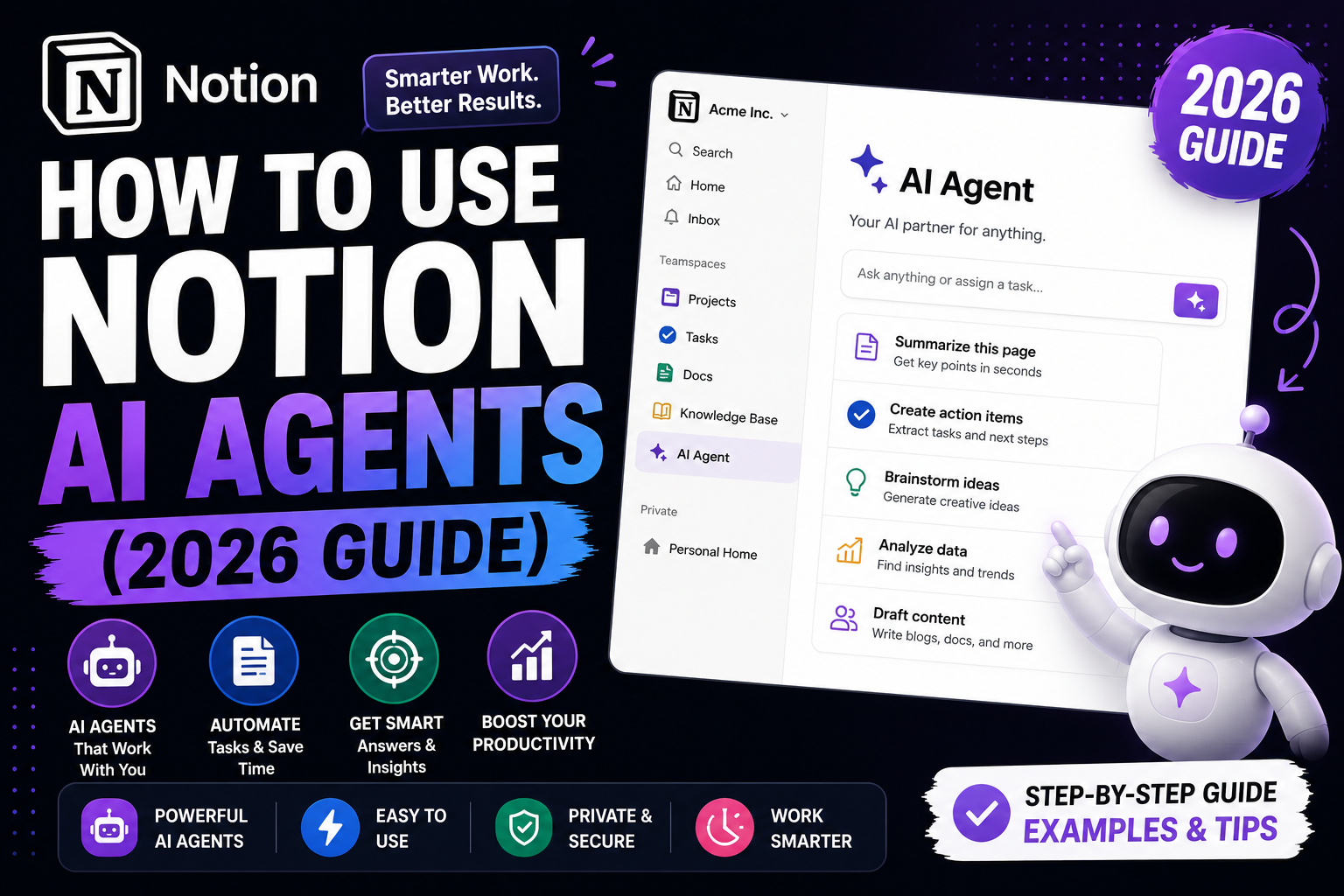
Notion AI Agents shipped in September 2025 and got Custom Agents (Notion 3.3) in February 2026, plus calendar-integrated tools in July 2026. Unlike a chatbot that just answers questions, an Agent can execute multi-step tasks inside your workspace: search across pages, update databases, draft content, and schedule follow-ups. This guide walks you through how to actually use them for real work.
Quick step-by-step summary (click to expand)
- Open Notion. Web or desktop app, updated to the latest version.
- Access AI Agents. Click the AI icon in the top-right of any page, or press Space to open the AI menu.
- Try a built-in Agent. Choose from Meeting Notes, Research, or Task Manager to see how Agents work.
- Give the Agent a task. Type a natural-language instruction like “Summarize my meeting notes from this week.”
- Approve actions. The Agent proposes each step. Click Approve or Adjust before it acts.
- Create a Custom Agent. Settings > AI > Custom Agents > New Agent, then define its role, tools, and knowledge scope.
- Trigger via @agent in any page. Type @ followed by the Agent name in any page to invoke it inline.
What Notion AI Agents actually are
An Agent in Notion is an AI worker that can perform multi-step tasks in your workspace. Where regular Notion AI (Q&A style) just returns text, an Agent can:
- Search across all your pages and databases for information
- Update database entries (change status, add tags, edit properties)
- Create new pages from templates and fill them in
- Draft content based on your workspace’s context
- Schedule follow-ups on your Notion Calendar (July 2026 feature)
- Chain multiple actions together in one instruction
Notion ships several built-in Agents (Meeting Notes, Research, Task Manager, Writing Coach). You can also build Custom Agents with specific roles, permissions, and knowledge scopes. Custom Agents are the productivity multiplier that make Notion 3.x fundamentally different from earlier versions.
Availability: which plan gets Agents
- Free plan: Limited AI credits. Agents work but you hit monthly cap fast.
- Plus plan (USD 8/user/month): Higher AI credits, all built-in Agents.
- Business plan (USD 15/user/month): Unlimited Notion AI, Custom Agents access, extended context windows.
- Enterprise plan: Everything above + admin controls, audit logs, SAML SSO.
Custom Agents require Business or Enterprise. Solo users on Plus can use built-in Agents but not build custom ones.
Try a built-in Agent (Meeting Notes example)
- Open Notion.
- Create or open a page.
- Click the AI icon at the top-right of the page (or press Space in an empty line).
- From the menu, choose “Ask Meeting Notes Agent” (or similar name).
- Give it a task in natural language, e.g., “Draft a meeting agenda for tomorrow’s design review based on the last 3 design review notes in this workspace.”
- The Agent shows you what it plans to do: search past design reviews, extract common agenda items, propose a new agenda. Review the plan.
- Click “Approve” to let it execute, or “Adjust” to tweak the plan first.
- The Agent creates the agenda page. You review the result and edit anything that needs correction.
Create a Custom Agent (Business plan required)
Custom Agents are your team’s AI workers with specific responsibilities. Set one up:
- Go to Settings & members > AI > Custom Agents.
- Click “New Agent”.
- Give it a name (like “Sprint Reporter” or “Content Editor”).
- Write a role description in plain English: “You are a sprint reporter who monitors our Sprint Backlog database, drafts weekly summaries for our engineering leadership, and posts to our Slack #eng-updates channel.”
- Set knowledge scope: which databases and pages the Agent can access.
- Configure tools: search, database read/write, create pages, external integrations (Slack, Calendar).
- Set trigger: manual (@-mention only) or scheduled (runs at set times).
- Save.
The Agent now exists as a first-class member of your workspace. Anyone with permission can @-mention it or call it from a page.
Real-world Custom Agent examples
1. Sprint Reporter. Every Monday at 9 AM, reads the sprint backlog, tallies completed vs planned items, drafts a summary, and posts to the team channel. Saves the eng manager ~30 minutes weekly.
2. Meeting Follow-up Agent. After each meeting, reads the auto-generated Notion AI meeting notes, extracts action items, and creates tasks in your Team Task database assigned to the right people. Optional: schedules a 15-min follow-up on the assignee’s Notion Calendar.
3. Onboarding Buddy. New hire’s first week: Agent walks them through the onboarding wiki, quizzes them on key policies, tracks completion, and reports progress to their manager. Reduces manager onboarding overhead.
4. Content Editor. Reviews draft blog posts against a style guide database, flags weak spots (passive voice, missing citations, unclear intro), and proposes edits. You approve or override each suggestion.
5. Research Agent. Watches a “Research Queue” database. When a new topic is added, searches your existing workspace for related notes, drafts a research brief, and links relevant existing pages.
Trigger an Agent from anywhere with @mention
Once created, an Agent works like a team member:
- Open any Notion page.
- Type @ followed by the Agent name: “@Sprint Reporter give me this week’s summary now”.
- The Agent responds inline with its work, or opens a side panel showing its plan.
- Approve or adjust before it acts on your workspace.
This is a huge shift from earlier Notion AI. You do not have to remember which button to click; just call the Agent by name.
The Calendar tools (July 2026 update)
The July 16, 2026 release added calendar integrations for Agents. Now they can:
- Read your Notion Calendar to check availability before scheduling.
- Create calendar events with attendees and video-conference links.
- Move existing events based on conflicts (with approval).
- Draft meeting agendas linked to the calendar event.
- Send follow-up reminders on the day of the event.
Example: “@Meeting Follow-up Agent create a 30-min sync with @Ana and @Bea for Wed 2 PM about the Q4 planning doc, and prepare an agenda.” The Agent checks all three calendars, proposes the time, creates the event, links the doc, and drafts a 5-item agenda based on the doc’s contents.
Permissions and safety
By default, Agents can only ACT on databases and pages you explicitly grant access to. Never give an Agent workspace-wide edit permission unless you fully trust its role definition and have tested it thoroughly.
Standard safety setup:
- Grant read-only access to most content
- Grant write access only to specific databases the Agent owns (its own output database)
- Require approval for any external tool actions (Slack posts, calendar events, email drafts)
- Review the Agent’s action log weekly (Settings > AI > Agent activity)
The Notion Business tier includes audit logs. Enterprise adds fine-grained permission controls and SSO tie-in for shared Agent access.
Common mistakes when setting up Agents
- Vague role descriptions. “Help with tasks” produces vague behavior. Write role descriptions like a job description: specific responsibilities, boundaries, and success criteria.
- Over-broad permissions. Grant only the databases and pages the Agent actually needs. If it “should” access everything, it “will” mess up something.
- No approval workflow. For anything that writes to the workspace, require approval first until you trust the Agent. Turn on auto-execute only after 20-30 successful supervised runs.
- Ignoring the action log. Check what the Agent has been doing weekly. Catch drift early.
- Building too many Agents at once. Start with one Custom Agent. Refine it for a month. Then add another. Ten half-configured Agents create more noise than value.
When Agents are NOT the right tool
- Extremely time-sensitive workflows (Agents can be slow, 10-30 seconds per response).
- Highly sensitive data where you cannot risk AI hallucination (legal contracts, medical records, financial reports).
- Simple one-off tasks (just use regular Notion AI Q&A style, no need to build an Agent).
- Tasks that already have great non-AI tooling (project management is often better handled by Linear or Jira for engineering teams).
Official documentation
Frequently asked questions
Do I need Notion Business to use AI Agents?
Built-in Agents (Meeting Notes, Research, Task Manager) work on Plus and higher. Custom Agents require Business (USD 15/user/month) or Enterprise. Free plan users can try Agents but hit AI credit limits fast.
Can Notion Agents access my private pages?
Only if you grant permission. By default, Agents only see the databases and pages you explicitly share with them. Best practice: grant read-only access broadly and write access to specific databases the Agent owns.
Do Agents work with Notion Calendar?
Yes, since the July 16, 2026 release. Agents can read availability, create events, invite attendees, add video-conference links, and draft agendas from page content. This works with Notion Calendar and connected Google Calendar accounts.
How do I stop an Agent that is misbehaving?
Go to Settings > AI > Custom Agents > find the Agent > toggle it Off. All pending actions cancel. Review the action log to see what it did, revert unwanted changes manually, then adjust the role description before re-enabling.
Are Notion Agents better than Zapier or Make automations?
Different tools. Zapier/Make are best for deterministic triggers (X happens, do Y). Notion Agents are best for tasks that require judgment (summarize, decide, draft, plan). Use both: Zapier for hard-wired workflows, Notion Agents for AI-native work.
Can I share a Custom Agent with my team?
Yes. Custom Agents are workspace-scoped, so every workspace member can @-mention them. Access to specific Agent capabilities can be role-based on Enterprise plan. On Business plan, all users see and can trigger all Custom Agents.

Angel Jude Suarez
Full-Stack Developer at PIES IT Solution
Focuses on Python development, machine learning, and AI integration. Has built production AI systems including OpenAI Whisper integration for medical transcription and GPT-4o-powered diagnosis assistance. Strong background in pandas, scikit-learn, and TensorFlow.
Expertise: Python · PHP · Java · VB.NET · ASP.NET · Machine Learning · AI Integration · OpenCV · Django · CodeIgniter · View all posts by Angel Jude Suarez →