
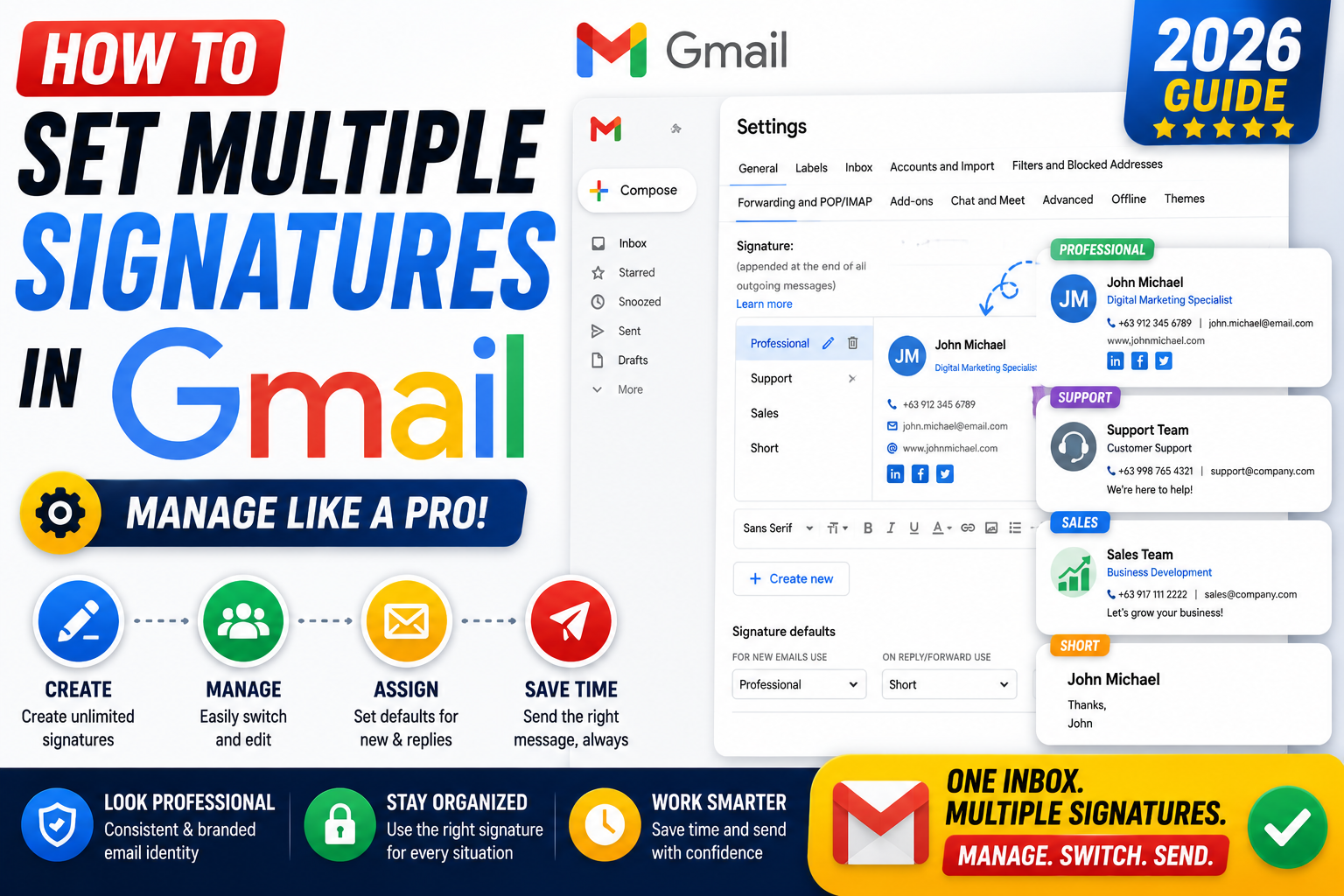
Quick step-by-step summary (click to expand)
- Open Gmail settings. Click the gear icon at the top right of Gmail on desktop, then click “See all settings”.
- Scroll to the Signature section. Under the General tab, find the Signature panel.
- Create your first signature. Click “Create new”, give it a name, and enter the signature text.
- Add more signatures. Click “Create new” again for each additional signature. Give each a clear name like “Work” or “Personal”.
- Set your defaults. Under “Signature defaults”, pick which signature Gmail uses for new emails and for replies.
- Save changes. Scroll to the bottom of the settings page and click “Save Changes”.
- Switch signatures per email. When composing, click the pen icon in the toolbar and choose the signature you want for that message.
Why bother with multiple signatures
One signature works if you use Gmail for one purpose. But most people use their inbox for multiple things: a full-title corporate signature for external clients, a shorter signature for internal team replies, a personal signature for friends, and maybe a project-specific signature with a phone number for on-call rotations. Switching manually is error-prone. Gmail’s multiple-signature feature lets you save each one and switch with two clicks.
Create multiple signatures on Gmail Web
The full editor is only on the web version. Set your signatures here first, then they sync to mobile automatically.
- Open mail.google.com on desktop.
- Click the gear icon at the top right, then click “See all settings”.
- Under the General tab, scroll down to the Signature section.
- Click “Create new”. A dialog asks for a signature name. Type something clear like “Work full”, “Work short”, or “Personal”.
- Type your signature in the editor. You can format it (bold, italic, colors), add a hyperlink, or insert an image (Google Drive image, uploaded image, or a URL).
- Click “Create new” again to add another. Repeat for as many signatures as you need. Gmail allows up to 10,000 characters per signature and no hard limit on how many signatures you save.
- Scroll to the bottom and click “Save Changes”.
Common signature elements that work well: full name, job title, company name, direct phone (if you want it public), and one link. Keep it under 5 lines to look professional.
Set default signatures for new emails and replies
Under the Signature section, right below your saved signatures, you will see “Signature defaults”. Two dropdown menus:
- FOR NEW EMAILS USE: Pick the signature Gmail applies when you compose a new message.
- ON REPLY/FORWARD USE: Pick a different signature for replies. Many people use a shorter one here to avoid signature stacking in long threads.
Set both, then click “Save Changes” at the bottom of the page.
Switch signatures per email
Sometimes you want a different signature for a specific email regardless of the default. When composing:
- Click the pen icon in the compose window toolbar (at the bottom of the compose box, labeled “Insert signature”).
- Pick the signature you want from the dropdown. It replaces the current one in the message.
- Send as usual. Your default stays unchanged for future emails.
This is the fastest way to switch tone mid-conversation, for example switching from “Work full” to “Work short” once you have already introduced yourself.
Manage signatures on the Gmail Android app
The Android app has a simpler signature editor. It does not support multiple signatures per account, but any signatures you set on the web will sync and be selectable when composing.
- Open the Gmail app on Android.
- Tap the menu icon (three lines) at the top left, then tap “Settings”.
- Tap your account name.
- Tap “Mobile Signature” for a mobile-only signature, or leave blank to use the web signature.
- When composing on Android, tap the compose menu and pick the signature from the list synced from the web.
Manage signatures on the Gmail iPhone app
The iPhone app works similarly. Multi-signature switching from the web syncs down. To set a mobile-specific signature:
- Open the Gmail app on iPhone.
- Tap the menu icon at the top left, then scroll down and tap “Settings”.
- Tap your account.
- Tap “Signature settings”, then toggle “Mobile Signature” on and type your signature.
- Tap the back arrow to save. When composing, tap the compose menu to pick from your saved signatures.
Troubleshooting: signatures not showing up
- Signature is blank in the recipient’s email. Some email clients block inline images. If your signature uses an image, add a text-only fallback line.
- Signature appears twice. This happens when both the web default and a mobile signature are set. Turn off the mobile signature or set it identical to your web signature.
- Signature does not save on mobile. Force-quit the Gmail app and reopen. If that fails, sign out and back in on the mobile app.
- Switching does not work in Gmail on Android. Multi-signature switching requires the latest Gmail app version. Update from Google Play Store.
- Corporate account has grayed-out options. Your Google Workspace admin may have locked signature settings. Ask your IT admin to unlock the Signature panel.
Best practices for professional signatures
Keep signatures short. Recipients ignore anything longer than 5 lines. Use plain text or minimal formatting so the signature renders correctly in any email client (Outlook, Apple Mail, Thunderbird all display signatures differently).
Do not include large images or GIFs. They inflate email size and trigger spam filters. If you need a logo, upload it to Google Drive first and link to it, or use a small (under 20 KB) hosted image.
Do not include your full mailing address unless you legally need to (GDPR, some finance industries). Address information in a signature can be scraped by data brokers.
Official documentation
Frequently asked questions
How many signatures can I save in Gmail?
Gmail does not publish a hard limit but most users can save 20 or more signatures per account without issue. Each signature can be up to 10,000 characters. If you need more, consider a third-party signature tool that stores templates outside of Gmail.
Can I use different signatures for different Gmail accounts in one inbox?
Yes. Each account (personal Gmail, Google Workspace, additional Send Mail As addresses) has its own signature settings. Add the second account, then set signatures independently under Settings > Accounts and Import > Send mail as.
Why does Gmail add a line above my signature?
Gmail inserts a “signature marker” line (two hyphens) above signatures by default. This helps some email clients hide signatures in replies. To turn it off, uncheck the “Insert signature before quoted text in replies” checkbox in the signature settings.
Can I include a company logo in my Gmail signature?
Yes. Click the image icon in the signature editor and either upload a small image (under 20 KB) or insert one from Google Drive. Larger images inflate email size and may be blocked by strict email clients. Keep logos small and always add ALT text.
Do my signatures sync across all my devices?
Yes. Signatures created on the Gmail web app automatically sync to Android and iPhone apps. Mobile-specific signatures set in the app only apply on that device. Web signatures always take priority when both are set.
Can I schedule different signatures for different times of day?
Not natively. Gmail signatures do not have time-of-day rules. If you need this, use a third-party tool like WiseStamp or set it up manually by switching your default signature at the start of the day and end of day.
What is new for Gmail signatures in 2026
The Aug 2026 Gmail update added Gemini-suggested signatures. Open the Gemini side panel and type Suggest a professional signature for my role at [Company]. Gemini analyzes your recent thread patterns and generates 2-3 signature options with proper contact hierarchy, social links, and disclaimer text if your industry requires one. Click Insert to save any suggestion as a new signature template.
Google also improved per-address defaults in the same update. If you have Send As aliases (like joken@ and personal@ both routing to one inbox), each alias can now have its own default signature, so replies auto-match the right identity.
Common signature pitfalls
- Signature not appearing in replies. Check Settings, General, Signature defaults. If Signature for reply is set to No signature, replies show blank. Set to your preferred signature.
- Image in signature broken for recipients. Gmail signatures embed images by URL. If your image is hosted on a private drive or expired link, recipients see a broken image icon. Host on a stable public URL or use inline base64.
- Signature getting duplicated in threads. Long email threads accumulate signature copies. Check if your signature has the two-dash separator (–) at the top. Gmail uses this marker to detect and collapse repeated signatures.
- Signature not syncing to mobile. Desktop and mobile Gmail have separate signature storage. Set mobile signature separately at Gmail app, Settings, Account, Mobile signature.
Canned Responses as a signature alternative
If you need more than 3-4 signature variations (for example, different pitch templates for different client industries), use Canned Responses (Templates) instead. Enable via Settings, Advanced, Templates on. Then in Compose, click the 3-dot menu, Templates, Save draft as template. Each template can carry its own signature + boilerplate body copy, and you can have unlimited templates versus 3-4 signature slots.
Official documentation
Quick step-by-step summary (click to expand)
- Open Gmail Settings Click the gear icon in the top-right corner of Gmail, then click See all settings.
- Go to Signature section In the General tab, scroll to Signature. Click Create new to add your first signature.
- Add signature name + content Give each signature a memorable name (like Work or Personal), then compose the signature text with formatting, links, and image.
- Set signature defaults Choose which signature to use by default: one for new emails, another for replies/forwards. Set separately per Send As address if you have aliases.
- Switch on the fly when composing Click the pen icon at the bottom of the compose window to switch to any of your saved signatures for this specific email.
Frequently Asked Questions
How many signatures can I have in Gmail?
Gmail supports up to 15 signatures per account. Practical limit is 3-5 for context switching; use Canned Responses (Templates) if you need more variation.
Why does my Gmail signature not appear in replies?
Check Settings, General, Signature defaults. If Signature for reply is set to No signature, replies show blank. Change it to your preferred signature.
Can I have different signatures for different email aliases?
Yes. In the Signature defaults section, use the dropdown to select each Send As address separately and assign its own default signature.
How do I switch signatures on the fly in a single email?
Click the pen icon in the compose window bottom toolbar. Pick any saved signature to swap for just that email.
Does mobile Gmail use my desktop signatures?
No. Mobile and desktop signatures are stored separately. Set mobile signature in the Gmail app: Settings, your account, Mobile signature.
Can Gemini suggest a Gmail signature for me?
Yes as of the Aug 2026 update. Open the Gemini side panel and type Suggest a professional signature. Gemini generates 2-3 options based on your thread patterns.