
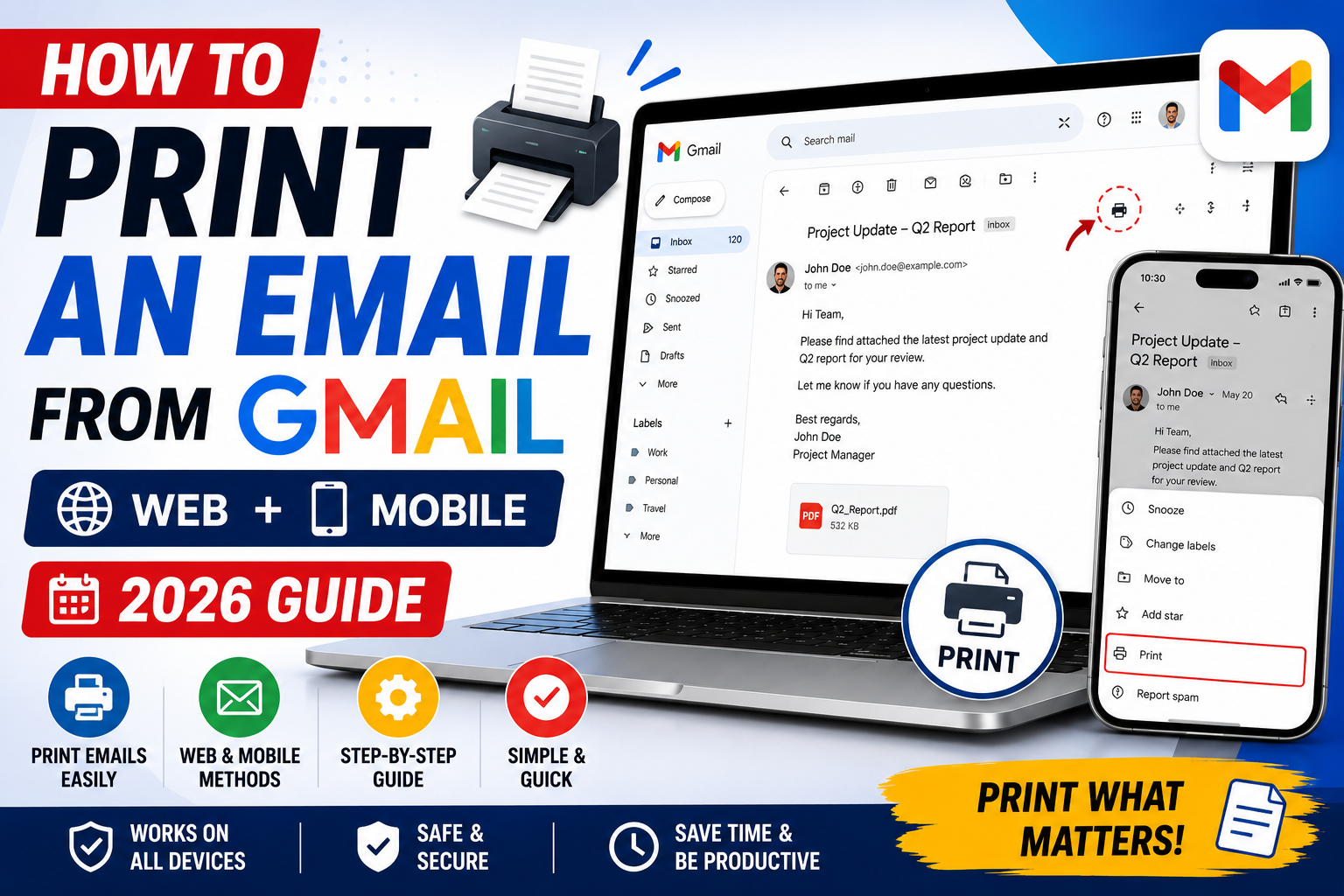
Quick step-by-step summary (click to expand)
- Open the email in Gmail. Click the email you want to print.
- Click the printer icon. Top-right corner of the email, next to the reply button.
- Choose “Print all”. If it is a conversation with multiple messages and you want the full thread.
- The print dialog opens. Your browser’s or system’s print dialog appears.
- Pick your printer. Or choose “Save as PDF” as the destination.
- Adjust settings. Optional: change orientation, margins, or page range.
- Click Print. The email prints or saves to PDF.
Print a single email on Gmail Web
- Open Gmail on desktop.
- Click the email you want to print. It opens in full view.
- Look at the top-right corner of the email (not the whole browser window, just the email). Click the printer icon. It looks like a small printer with a page coming out.
- A new browser tab opens showing a print-friendly version of the email.
- Your system’s print dialog appears automatically. Pick your printer or choose “Save as PDF”.
- Adjust orientation (portrait or landscape) and margins if needed.
- Click “Print” or “Save”.
The print-friendly version strips Gmail’s sidebar, ads, and interface chrome. It shows only the email header (from, to, date, subject) and body.
Print an entire email thread (conversation)
When you print an email that is part of a conversation, Gmail asks whether you want just that message or the whole thread:
- Open the conversation.
- Click the “Print all” icon at the top-right of the conversation (three-dot menu, then Print, or the dedicated printer icon at the top of the conversation view).
- Gmail opens a print-friendly page showing every message in the thread, oldest first.
- The system print dialog opens. Proceed as normal.
If you only want one specific message in the thread, expand it first, then click the printer icon inside that message’s header area. Gmail will print only that message, not the whole thread.
Print an email on Android
Android supports printing to any printer connected via Google Cloud Print, Mopria, or your printer manufacturer’s app:
- Open the Gmail app on Android.
- Open the email you want to print.
- Tap the three-dot menu (top-right of the email).
- Tap “Print”.
- The Android print preview appears. Tap the printer dropdown at the top and choose your printer, or choose “Save as PDF” to export instead.
- Tap the print button (yellow icon).
If your printer does not show up, install its manufacturer’s plugin from Google Play (HP Print Service, Canon Print Service, Brother Print Service, etc.). Most modern Wi-Fi printers work with Android’s built-in Mopria service.
Print an email on iPhone
iPhone printing uses AirPrint, which works with most modern printers automatically:
- Open the Gmail app on iPhone.
- Open the email.
- Tap the three-dot menu (top-right).
- Tap “Print”.
- The AirPrint dialog appears. Tap “Select Printer” and choose from the list of AirPrint printers on your network.
- Adjust the number of copies and page range if needed.
- Tap “Print” at the top-right.
If no printers show up, your printer either does not support AirPrint or is not on the same Wi-Fi network as your iPhone. Check both.
Save Gmail email as PDF
Every method above supports “Save as PDF” as the destination instead of a physical printer:
- On Web: In the print dialog, click the destination dropdown and choose “Save as PDF” or “Microsoft Print to PDF”. Click Save.
- On Android: In the print preview, tap the printer dropdown and choose “Save as PDF”. Tap the PDF button, then pick a folder.
- On iPhone: In the print preview, pinch out on the thumbnail to open the full PDF, then tap the share button (up arrow) and pick “Save to Files” or share to another app.
This is often more useful than a physical print because PDFs are searchable and archivable.
Print multiple emails at once
Gmail does not offer bulk-print natively. To print several emails together, use one of these workarounds:
- Select emails as a label, then print via a browser extension. Tools like “Save Emails to PDF” (Chrome extension) let you select a label or search result and export all matching emails as a single PDF file.
- Use Google Takeout for bulk archives. If you need many emails saved but not printed, Google Takeout exports your entire mailbox as .mbox files. Import into Thunderbird for bulk printing.
- Forward emails to yourself in one thread, then print the thread. Awkward but works for 5-10 emails without extensions.
- Print emails one at a time. For under 5 emails, this is the fastest option since no setup is needed.
Troubleshooting print issues
- Printer icon does not appear. Your browser might be blocking the pop-up. Enable pop-ups for mail.google.com in the browser settings and refresh.
- Print output missing the header. Uncheck “Headers and footers” in the print dialog if you do not want those, or check it if you want the URL and date on the printout.
- Email body is cut off. Reduce the margins in the print dialog. Some emails use wide inline styles that overflow the default margin.
- Attachments do not print. Gmail’s print flow only prints the email body, not attachments. Download each attachment separately and print them individually.
- Images do not appear. Some browsers block remote images in print previews. In the print dialog, check “Background graphics” or the equivalent option to include them.
- PDF save creates blank pages. An email with too many nested quoted replies can create pagination bugs. Try “Print all” and skip specific pages in the print dialog, or open the email in a different browser.
Official documentation
Frequently asked questions
Why is the printer icon missing in Gmail?
Your browser is likely blocking pop-ups. Add mail.google.com to the pop-up allow list in your browser settings, refresh Gmail, and try again. On some enterprise Chromebooks, IT admins also disable printing.
Can I print an email without opening it first?
Not directly. Gmail requires the email to be open before you can access the print icon. If you need bulk printing, use a browser extension like “Save Emails to PDF” that operates on selected emails from the inbox view.
How do I print an email with all attachments?
Gmail’s print flow prints only the email body. Download attachments to your computer separately, then print each one from its native app (Word, Excel, PDF viewer). There is no one-click “print email + all attachments” feature.
Can I save Gmail emails as PDF in bulk?
Not natively, but browser extensions like “Save Emails to PDF” (Chrome) or “cloudHQ Save Emails to PDF” let you select a label or search result and export all matching emails as one combined PDF. Both are free for small volumes.
Does printing include the sender’s photo or logo?
By default, Gmail’s print view includes profile photos and inline images. If they are missing, check the “Background graphics” option in your print dialog. Some browsers strip images by default to save ink.
Can I print Gmail from the mobile app without opening the email?
No. Both Android and iPhone Gmail apps require the email to be open. Tap the email, then tap the three-dot menu, then Print. If you need to print many emails from mobile, save them to PDF one at a time and combine on desktop later.
What is new for Gmail printing in 2026
The Aug 2026 Gmail update added Print with attachments. When you print an email that has PDF, image, or Docs attachments, Gmail now combines the email body + all attachments into ONE continuous PDF export. Previously, each attachment had to be downloaded and printed separately.
The Aug 2026 Gemini side panel added a Reformat for print action. If the email has awkward formatting (huge images, dark background, tiny font), open Gemini and type Make this print-friendly. Gemini strips backgrounds, resizes images to 80 percent width, and reformats for A4 or Letter page size before you send to printer.
Common printing pitfalls
- Only one page prints out of a long email. Your browser default paper size may be Letter (US) but the email is formatted for A4 (Europe). Change paper size in the print dialog to match your email design.
- Background colors do not print. Browsers hide background graphics by default to save ink. Enable Background graphics or More settings, Print backgrounds in the browser print dialog.
- Attachments do not appear. Older Gmail versions require you to download attachments separately then print each. Use the Aug 2026 Print with attachments option (if available) to include them in one PDF.
- Headers cut off at the top. Some browser Print margins are set too tight. Change to Default or Custom (0.5in top margin) to avoid clipping the From/To/Subject line.
Printing from Gmail mobile
On iPhone: open the email, tap the 3-dot menu, then Print. Use your Apple AirPrint-capable printer or tap Save to Files to export as PDF. On Android: open the email, tap the 3-dot menu, Print. Google Cloud Print discontinued in 2020, so you need a modern printer with Wi-Fi Direct or route through your desktop for older non-network printers.
Official documentation
Quick step-by-step summary (click to expand)
- Open the email in Gmail Click the email you want to print in your Inbox or search results.
- Click the print icon In the top-right corner of the open email, click the printer icon. If you do not see it, click the 3-dot menu and choose Print.
- Open the print dialog Gmail opens a print-friendly view + your browser print dialog appears automatically. On desktop it shows Ctrl P behavior.
- Configure print settings Choose the printer, page size, and orientation. Toggle Background graphics if your email has images or colored backgrounds you want printed.
- Print or save as PDF Click Print to send to printer, or change the destination to Save as PDF for a digital copy.
Frequently Asked Questions
How do I print an email from Gmail?
Open the email, click the printer icon in the top-right corner, and use your browser print dialog to select printer or Save as PDF.
Can I print an email with all its attachments in one PDF?
Yes as of the Aug 2026 update. Use Print with attachments. Gmail combines email body plus all attachments into one continuous PDF export.
Why does only the first page of my email print?
Paper size mismatch. Your printer is set to Letter but the email is A4 (or vice versa). Change paper size in the print dialog.
How do I print an email background color?
Enable Background graphics in the browser print dialog (usually under More settings). Browsers hide backgrounds by default to save ink.
Can I print Gmail emails on iPhone?
Yes. Open the email, tap 3-dot menu, Print. Use AirPrint for wireless printers or Save to Files for PDF export.
Does Gmail print with full email headers (From, To, Date)?
Yes. Gmail print view includes From, To, Cc, Date, Subject, and body by default. Adjust browser margin settings if the header is being cut off.