
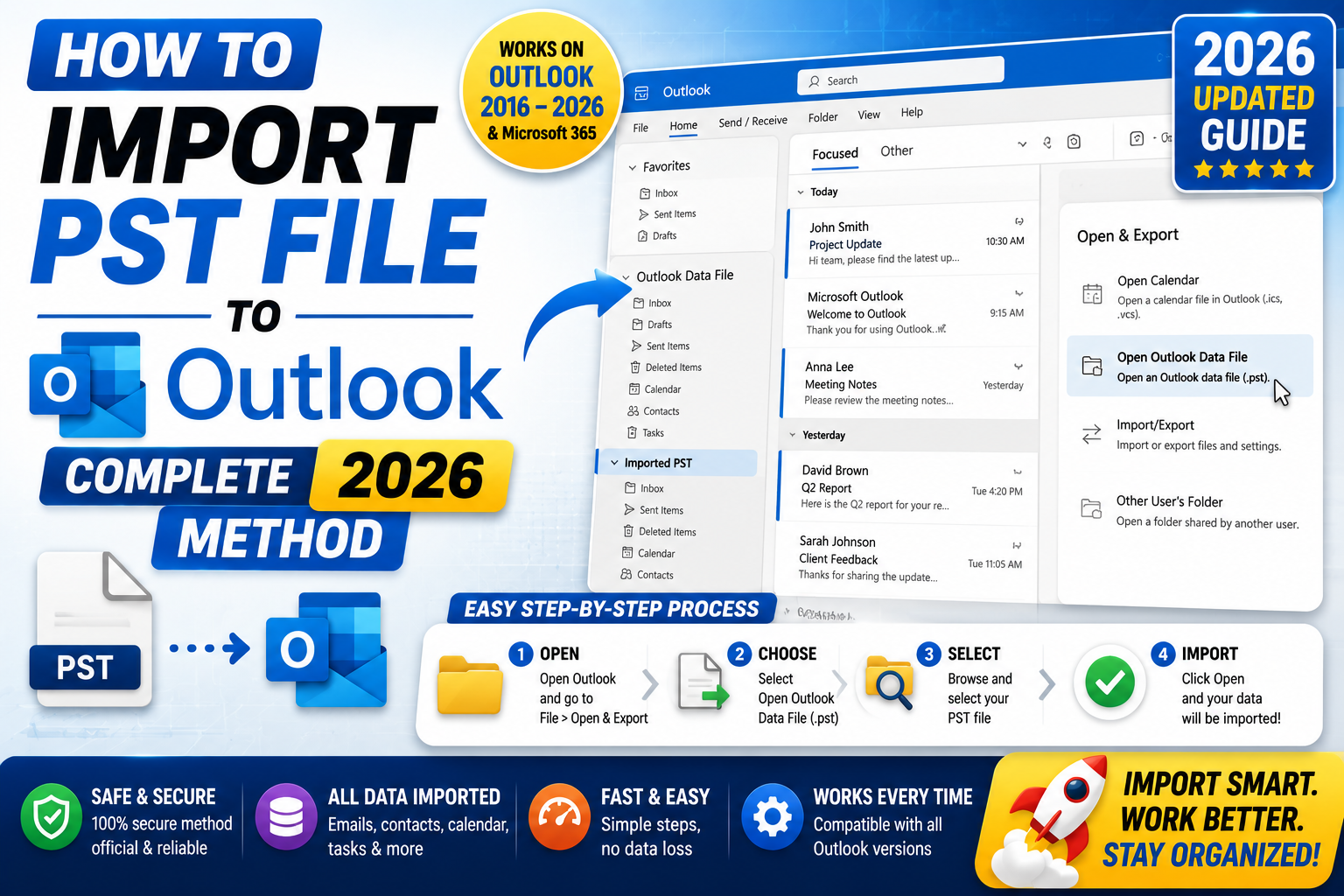
Quick step-by-step summary (click to expand)
- Open Outlook Desktop (classic). The New Outlook cannot import PST files directly. If you have the New Outlook, toggle back to classic first.
- Click File. Go to the File menu in the top-left corner.
- Click Open & Export. Then choose Import/Export from the sub-panel.
- Choose Import from another program or file. Then click Next.
- Pick Outlook Data File (.pst). Click Next.
- Browse to your PST file. Set the duplicate-handling option (usually “Do not import duplicates”) and click Next.
- Choose the destination folder. Pick your current mailbox or a subfolder, then click Finish. Outlook shows a progress bar until the import completes.
Classic Outlook vs New Outlook: which one imports PST?
Only classic Outlook Desktop can import PST files natively. The New Outlook app (introduced in 2024, now default on Windows 11) does not include PST import. If you are on New Outlook, you have two options: switch back to classic Outlook temporarily to do the import, or use a third-party PST-to-cloud tool.
To check which one you have, open Outlook and look at the top-right corner. If you see a “Try the new Outlook” toggle, you are on classic. If you see “Coming soon” or a different look, you are on New Outlook.
Switch to classic Outlook temporarily
If you are on New Outlook and need to import a PST:
- Open Outlook.
- Click the toggle in the top-right corner (labeled “New Outlook” with an on/off switch).
- Toggle it OFF. Outlook closes and reopens as classic Outlook.
- Do the PST import (steps below).
- When finished, toggle back to New Outlook if you prefer that interface. Imported emails will be available in either version because they sync to your account.
Import PST in classic Outlook Desktop
- Open classic Outlook Desktop.
- Click “File” in the top-left corner. This opens the backstage view.
- Click “Open & Export” in the left sidebar.
- Click the “Import/Export” button. The Import and Export Wizard opens.
- Select “Import from another program or file” and click “Next”.
- Select “Outlook Data File (.pst)” and click “Next”.
- Click “Browse” and navigate to your PST file. Select it, then click “Open”.
- Under Options, choose how Outlook handles duplicates. Recommended: “Do not import duplicates”. Click “Next”.
- Select the destination folder. To import into your current inbox, pick your account’s Inbox. To keep it separate, create a new folder first (right-click any folder, choose New Folder) and select it here.
- Check “Include subfolders” if you want the full folder structure preserved.
- Click “Finish”. Outlook starts importing. A progress bar shows how many items are left. Large PST files (over 2 GB) can take 30 minutes or more.
Import a password-protected PST
If the PST was created with a password, Outlook prompts you for it during import. Enter the password and click OK. If you forgot the password, you have three options:
- Try common passwords you have used before (birthday, spouse name, old-standby).
- Use a third-party PST password recovery tool like SysTools or Recovery Toolbox. These are paid tools but can recover forgotten passwords for standard PST files.
- If the PST was created before Outlook 2003, the password is compatibility-mode-only and can be stripped without a tool. Newer PSTs use real AES encryption and cannot be broken without the password.
Handle large PST files (over 2 GB)
PST files were originally limited to 2 GB. Modern Outlook supports up to 50 GB per PST, but the import performance drops as size grows. For PST files over 5 GB, the import can take 1 to 3 hours and may occasionally hang.
To speed up a large PST import:
- Close all other Outlook add-ins and third-party tools during the import.
- Disable antivirus real-time scanning temporarily (Outlook writes millions of small operations that antivirus inspects one by one).
- If Outlook hangs, do not force-quit. Wait 15 minutes with no activity before assuming it crashed. Import operations can look frozen while writing large batches to disk.
- Consider splitting the PST first with a tool like SysTools PST Splitter, then importing each smaller chunk.
Verify the import worked
After the import completes:
- Look in the folder pane on the left. If you imported into a new folder, it should be visible with a message count next to it.
- Click through some folders and open a few emails to confirm they display correctly.
- Check the sent items and drafts folders (these are common places imports drop items silently if the folder mapping was wrong).
- If any emails look garbled, the PST may have been corrupted. Run scanpst.exe (Microsoft’s free tool, found in your Office install folder) on the source PST before re-importing.
Troubleshooting common PST import errors
- “The file is not a personal folders file.” The PST is corrupted or incomplete. Run scanpst.exe on it before retrying.
- “An unexpected error has occurred.” Restart Outlook and try again. If it fails a second time, the PST may be locked by another program. Close all instances of Outlook (check Task Manager) and retry.
- “The file has reached its maximum size.” Rare but happens with older PSTs at the 2 GB legacy limit. Convert the PST to Unicode format first using an older Outlook or a third-party tool.
- Import hangs at a specific percentage. One email in the PST may be corrupted. Cancel the import, run scanpst.exe to repair the PST, and try again.
- Duplicates appear after import. You picked “Allow duplicates” instead of “Do not import duplicates”. Delete the imported folder and re-import with the correct duplicate-handling option.
Alternative: import to Outlook.com or a Microsoft 365 account
If you want the imported emails to sync across all your devices, import into your Outlook.com or Microsoft 365 mailbox (not a local PST-only account). During the destination folder selection step, choose a folder under your Outlook.com or Microsoft 365 account. The import uploads everything to the cloud, and the emails become available on Outlook Web, mobile, and any other device signed in to that account.
Official documentation
Frequently asked questions
Can I import PST into New Outlook without switching to classic?
Not directly. Microsoft has said PST import for New Outlook is planned but not shipped as of 2026. For now, toggle back to classic Outlook, do the import, then switch to New Outlook if you prefer that interface. The imported emails sync to both versions.
How large can a PST file be in 2026?
Modern Outlook supports PST files up to 50 GB (Unicode format). Legacy PST files created before Outlook 2003 are capped at 2 GB. For anything over 20 GB, expect slower import times and consider splitting the PST first.
Can I import a PST from Outlook Mac?
Outlook Mac exports OLM files, not PST. To move from Mac to Windows, either export from Mac as PST via a third-party tool (like Klammer or O2M Converter) or set up an IMAP account on both sides and let it sync everything server-side.
Does PST import work on Outlook Web (browser version)?
No. Outlook Web (outlook.office.com or outlook.live.com) does not support PST import. You must use the desktop app. As a workaround, import to a local Outlook Desktop first, then let the emails sync up to your Outlook.com or Microsoft 365 account.
Why does the PST import take so long?
Each email in the PST is written as a separate operation to the mailbox. Antivirus real-time scanning inspects every write, which multiplies the total time. Disable antivirus temporarily during the import (turn it back on immediately after) to speed things up 3-5x.
Where does scanpst.exe live on my computer?
For 64-bit Outlook 365, the path is usually C:\Program Files\Microsoft Office\root\Office16\SCANPST.EXE. For 32-bit Outlook, use C:\Program Files (x86)\Microsoft Office\root\Office16\SCANPST.EXE. Search for scanpst.exe in the Windows Start menu if the path differs on your install.