
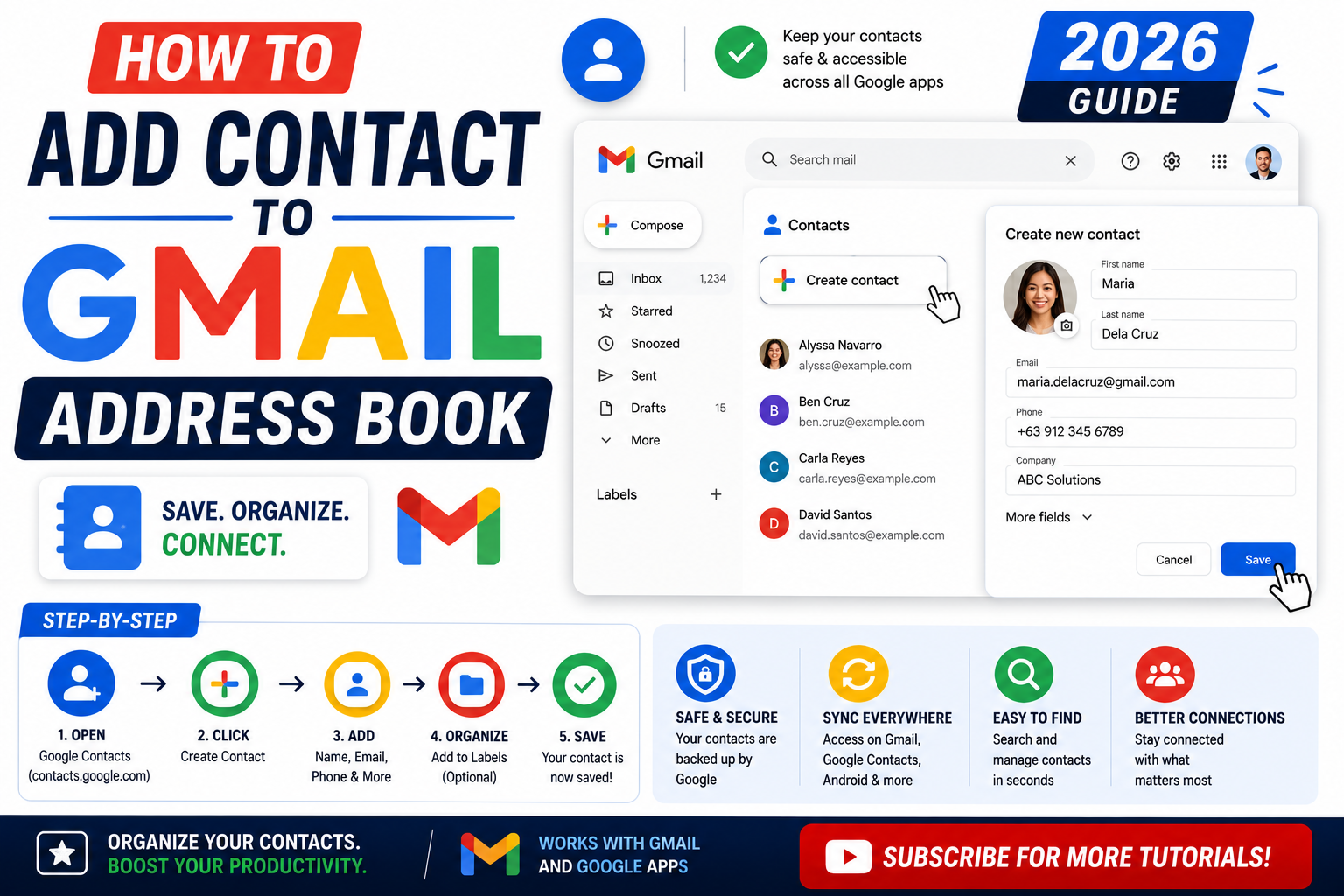
Quick step-by-step summary (click to expand)
- Open Google Contacts. Go to contacts.google.com or click the Contacts icon from the Google apps menu.
- Click “Create contact”. Top left of the page.
- Fill in the details. First name, last name, email, phone, and any other fields you need.
- Click Save. The contact is added and available immediately in Gmail.
- Add a label (optional). Click Labels and assign the contact to a group like “Family” or “Work”.
- Verify in Gmail. Start composing an email and type the contact’s name to confirm they appear in autocomplete.
Add a contact from Google Contacts (web)
- Open contacts.google.com or click the Google Apps grid icon (top-right of Gmail) and select “Contacts”.
- Click the “Create contact” button in the top-left.
- Choose “Create a contact” (single person) or “Create multiple contacts” (if you have several people to add).
- Fill in the contact’s first name, last name, email address, phone number, and any optional fields (company, job title, notes).
- Add a photo by clicking the camera icon. You can upload from your computer or take one with a webcam.
- Click “Save”.
The contact is instantly available in Gmail’s autocomplete and Google Calendar’s guest picker.
Add a contact directly from an email in Gmail
This is the fastest way when someone new emails you and you want to save them without switching to Google Contacts:
- Open the email from the person you want to add.
- Hover over their name in the email header.
- A small pop-up appears with their photo and email. Click the “Add to contacts” icon (a person with a plus sign).
- Google Contacts adds them with just name and email. You can enhance the entry later by opening Google Contacts and adding phone, company, and other fields.
This is useful for one-off adds. For anything requiring notes, phone number, or labels, use the full Google Contacts interface.
Add contacts on Android
The Contacts app on Android syncs with Google Contacts automatically:
- Open the Contacts app (called “Contacts” on stock Android, “People” on some Samsung phones).
- Tap the plus icon at the bottom right.
- Choose the Google account to save to (if you have multiple accounts).
- Fill in the name, phone, email, and other fields.
- Tap “Save”.
Any contact added on Android syncs to Google Contacts within seconds, so it appears in Gmail on all your devices.
Add contacts on iPhone
iPhone contacts sync to Google Contacts if you have your Google account added to iOS Mail/Contacts:
- First, verify sync is on: iPhone Settings > Contacts > Accounts > Gmail > toggle “Contacts” ON.
- Open the Contacts app on iPhone (or the Phone app > Contacts tab).
- Tap the plus icon.
- Fill in the name, phone, email.
- Tap the group name at the top (if you have multiple accounts) and choose “Gmail” so the contact saves to Google Contacts, not iCloud.
- Tap “Done”.
Note: if you save to iCloud instead of Gmail, the contact will not sync to Google Contacts and will not appear in Gmail on other devices.
Organize contacts with labels
Labels (formerly called “groups”) let you organize contacts into categories like Family, Work, Book Club, or Vendors. One contact can have multiple labels.
- Open Google Contacts.
- In the left sidebar, click “Create label”.
- Name the label and click Save.
- Select contacts (check the box next to each) and click the Labels icon at the top.
- Choose the label to apply. Click Apply.
Labels are useful for group emails: in Gmail’s compose window, type the label name and Gmail expands it to all contacts in that label. Perfect for weekly team updates or family newsletters.
Import contacts from a CSV file
If you have contacts in another system (Excel, Outlook, another Gmail account, a CRM), export them as CSV and import into Google Contacts:
- Prepare your CSV. The safest format is Google’s own CSV template: name, email, phone, in exactly those columns.
- Open Google Contacts.
- In the left sidebar, click “Import”.
- Click “Select file” and choose your CSV.
- Click “Import”. Google Contacts adds all rows as new contacts.
If the import creates duplicates, use the “Merge and fix” tool in Google Contacts (left sidebar > Merge and fix) to consolidate them.
Import contacts from Outlook or Apple Contacts
Both export to a compatible CSV format:
- Outlook: File > Open & Export > Import/Export > Export to a file > Comma Separated Values. Save the .csv file and import into Google Contacts as above.
- Apple Contacts (Mac): Open Contacts, select all (Cmd+A), then File > Export > Export vCard. Google Contacts can import vCard directly (choose vCard instead of CSV in the import dialog).
- iPhone (iCloud): Go to iCloud.com > Contacts > select all > gear icon > Export vCard. Import into Google Contacts.
Troubleshooting
- Contact does not appear in Gmail autocomplete. Wait 5 minutes for sync. If it still does not appear, refresh Gmail (Ctrl+F5 or Cmd+Shift+R).
- Duplicates showing up. Use Google Contacts’ “Merge and fix” tool to consolidate. It detects and merges by email match.
- Contact saved to wrong account. Open Google Contacts, find the contact, click the three-dot menu, and choose “Move to”. You can also transfer contacts between Google accounts using the export/import CSV method.
- iPhone contacts not syncing to Gmail. Check iPhone Settings > Contacts > Accounts > Gmail > Contacts toggle. If off, turn on. Also verify the contact was saved to the Gmail group, not iCloud.
- Photo does not upload. Google Contacts accepts JPG and PNG under 5 MB. Larger files or HEIC (iPhone default) may fail. Convert to JPG first.
- Field missing from contact form. Click “More fields” at the bottom of the create-contact form to expose optional fields like nickname, birthday, and address.
Official documentation
Frequently asked questions
Does Gmail add contacts automatically when I email someone?
Yes, if you leave the setting on. Gmail creates entries in the “Other contacts” section for anyone you email or receive email from. These are separate from your saved contacts but still appear in autocomplete. Turn it off in Google Contacts Settings if you prefer to add contacts manually.
What is the difference between Contacts and Other contacts?
Contacts are people you have deliberately saved with a name, email, and optional details. Other contacts are auto-collected from Gmail interactions. Both appear in autocomplete but only Contacts sync fully across all Google services.
How many contacts can I have in Google Contacts?
The current limit is 25,000 contacts per account, with a total storage cap of 20 MB for all contact data. This is plenty for personal use and most professionals. Above 25,000, consider a dedicated CRM.
Can I send an email to a whole label at once?
Yes. In Gmail’s compose window, start typing the label name in the To field. Gmail will show the label as a suggestion. Click it and every contact in the label is added as a recipient. This is faster than adding people one by one for regular group emails.
Do Google Contacts sync with Outlook?
Not directly, but you can add your Google account to Outlook via IMAP + CardDAV. Alternatively, export from Google Contacts as CSV and import into Outlook. For real-time two-way sync, use a paid tool like Sync2 Cloud.
Are my Google Contacts private?
Yes. Only you (and anyone signed into your Google account) can see them. Google does not share your contacts with third parties. If a Chrome extension or app requests contact access, review carefully and grant only if you trust the source.
What is new for Gmail contacts in 2026
The Aug 2026 Gmail update added a Gemini-powered Suggested contacts action. Open the Gemini side panel and type Suggest new contacts to add. Gemini analyzes your inbox for frequently-emailed people who are NOT yet in your Contacts and offers to bulk-add them. You can review the list, deselect anyone, and add the rest in one click.
Gmail also improved auto-detection from email signatures. When you receive an email from a new sender whose signature includes name + title + company, Gmail extracts those details and offers a pre-filled Add to contacts form. You just click Save. Previously you had to type all details manually.
Common contact pitfalls
- Duplicate contacts. Same person entered from different sources (Gmail sync, mobile sync, manual add) creates duplicates. Use Google Contacts, Merge and fix, to find and merge automatically.
- Auto-suggested emails not showing new contact. Gmail caches auto-suggest for 24-48 hours. Newly added contacts may not appear immediately in Compose auto-complete. Wait, or type the full address for the first send.
- Contact not syncing to mobile. Check Settings, Accounts, your Google account, Sync options, and ensure Contacts is toggled on. Some phones disable Google Contacts sync when using the device manufacturer address book (Samsung, Huawei).
- Bulk import CSV fails. Google Contacts requires specific column headers (Name, Given Name, Family Name, E-mail 1 – Value, etc). Export a sample CSV first to see the format, then reformat your source data to match.
Organizing contacts with Labels
Google Contacts uses Labels (equivalent of Groups in old Contacts). Create labels for context: Clients, Suppliers, BSIT Students, Family. Assign one or more labels to each contact for filtering. In Gmail Compose, type the label name (like Clients) in the To field and Gmail expands it to all label members. Ideal for group emails without maintaining a separate distribution list.
Official documentation
Quick step-by-step summary (click to expand)
- Open Google Contacts In Gmail, click the Google Apps grid (top-right) and click Contacts. Or go to contacts.google.com directly.
- Add contact manually Click the Create contact button in the top-left. Choose Create a contact for a single person or Create multiple contacts for bulk entry.
- Fill in details Enter first name, last name, email, phone, company, and any notes. Only email or phone is required; other fields are optional.
- Save contact Click Save. The contact appears in your Contacts and syncs to Gmail auto-suggestions within a few minutes.
- Add from a Gmail email directly Alternative method: open any email from that sender, hover the sender name at top, click Add to contacts in the popup card.
Frequently Asked Questions
How do I add a contact to Gmail from an email?
Open the email, hover the sender name at the top, and click Add to contacts in the popup card. The contact saves to Google Contacts.
Where does my Gmail contact list actually live?
In Google Contacts (contacts.google.com), which syncs across Gmail, Android, iOS Google Contacts app, and any Google service. Gmail auto-suggests from this list.
Why is my new contact not showing in Gmail auto-suggest?
Gmail caches auto-suggest for 24-48 hours. Newly added contacts appear in the cache after that window. In the meantime, type the full address once and Gmail learns it.
Can I bulk-add contacts from a spreadsheet?
Yes. Export a sample CSV from Google Contacts to see the exact column headers required, format your source spreadsheet to match, then Import at contacts.google.com.
How do I merge duplicate contacts?
In Google Contacts, click Merge and fix in the left sidebar. Google identifies duplicates automatically. Review each pair, then click Merge.
Can Gemini help add new contacts?
Yes as of the Aug 2026 update. Open the Gemini side panel and type Suggest new contacts to add. Gemini identifies frequently-emailed people not yet in Contacts and offers bulk-add.