
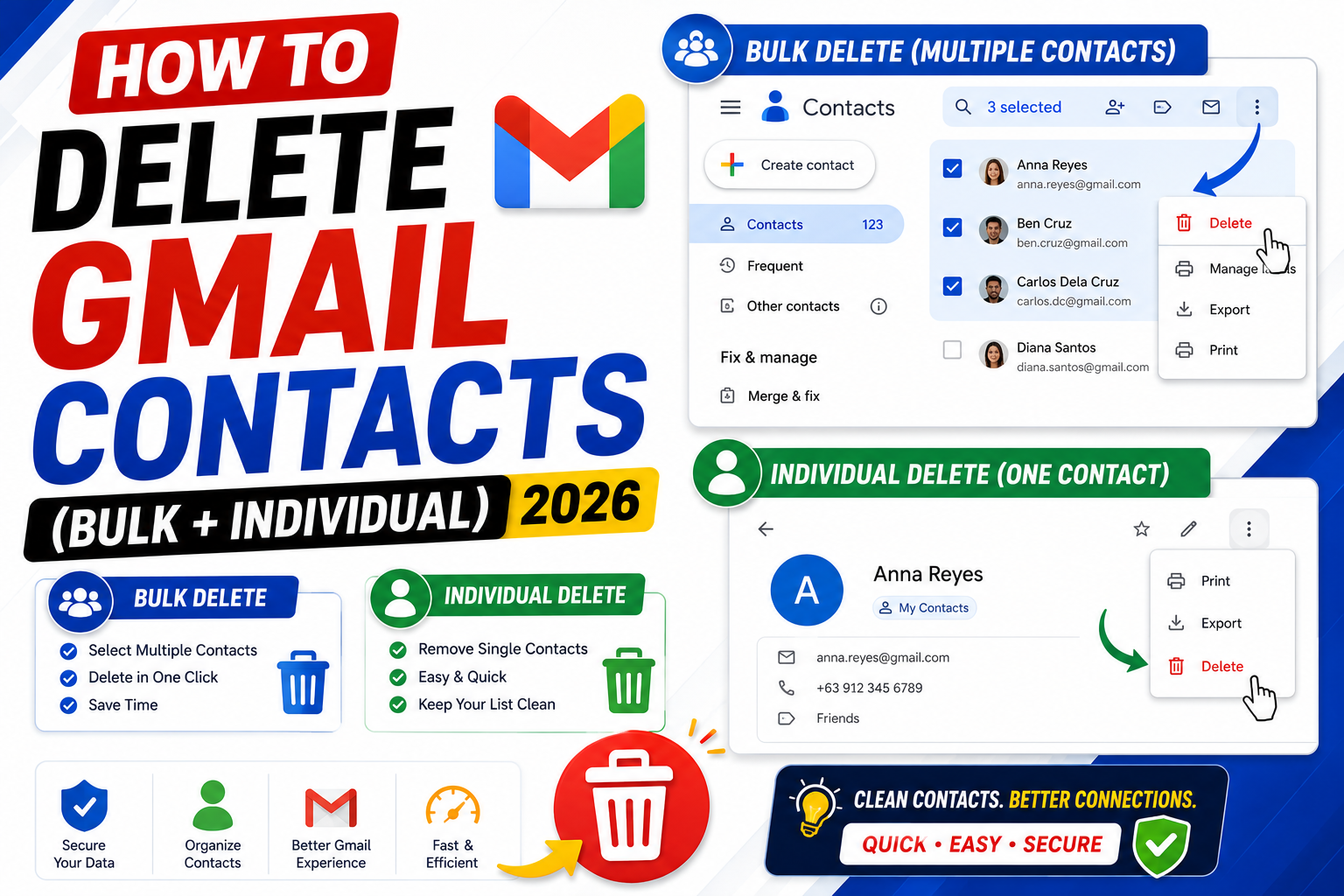
Quick step-by-step summary (click to expand)
- Open Google Contacts. Go to contacts.google.com or click the Contacts icon from the Google apps menu.
- Find the contact to delete. Use the search bar or browse.
- Select the contact. Hover over the contact and click the checkbox that appears.
- Click the three-dot menu. Top-right, then click Delete.
- Confirm deletion. Click Delete in the confirmation dialog.
- Verify. The contact is moved to Trash and permanently removed after 30 days.
- For bulk delete, select multiple. Check multiple contacts before hitting Delete.
Delete a single Gmail contact
- Open contacts.google.com.
- Find the contact you want to delete (use the search bar or scroll).
- Hover over the contact’s row. Click the checkbox that appears at the left of the row.
- At the top of the page, click the three-dot menu.
- Click “Delete”.
- Confirm the deletion in the pop-up dialog.
The contact is moved to Trash and stays there for 30 days. Within that window you can restore it. After 30 days, deletion is permanent.
Delete multiple contacts at once (bulk delete)
For cleaning up many contacts at once:
- Open Google Contacts.
- Hover over the first contact you want to delete. Click the checkbox.
- Repeat for each additional contact. Or click the checkbox at the top left of the page to select ALL contacts on the current page.
- Click the three-dot menu at the top.
- Click “Delete”.
- Confirm.
To delete every single contact in your account, click the top-left checkbox to select all on the visible page, then click “Select all” in the banner that appears at the top. This confirms you want the operation to include every contact matching the current filter.
Delete “Other contacts” (the auto-collected ones)
“Other contacts” are people you have emailed or received email from but not deliberately saved. They fill up quickly and clutter autocomplete.
- Open Google Contacts.
- In the left sidebar, click “Other contacts”.
- The right side shows every auto-collected entry.
- Select individual entries or use the top-left checkbox to select all.
- Click the three-dot menu, then “Delete”.
To stop Gmail from auto-adding new “Other contacts” in the future:
- Open Google Contacts.
- Click the gear icon (top-right).
- Toggle “Create contacts automatically” OFF.
Now Gmail only remembers contacts you explicitly save.
Delete contacts on Android
- Open the Contacts app on your Android phone.
- Tap the contact you want to delete.
- Tap the three-dot menu at the top-right.
- Tap “Delete”.
- Confirm.
For multiple contacts on Android: long-press the first contact to enter selection mode, then tap each additional contact you want to include. Tap the trash icon at the top and confirm.
Delete contacts on iPhone
If your Google account is set up on iPhone with Contacts sync enabled:
- Open the iPhone Contacts app.
- Tap the contact to open it.
- Scroll down and tap “Delete Contact”.
- Confirm.
The deletion syncs back to Google Contacts within a minute. Note: iPhone does not have a native bulk-delete for contacts. To delete many at once, use Google Contacts on the web instead.
Recover a deleted contact
Deleted contacts sit in Trash for 30 days. To restore:
- Open Google Contacts.
- In the left sidebar, click “Trash”.
- Find the deleted contact.
- Select it and click “Recover” at the top.
The contact returns to your main contacts list with all its original details.
For deletion older than 30 days, use “Undo changes” (a lesser-known feature that restores your entire contacts list to a prior state):
- Open Google Contacts.
- Click the gear icon > “Undo changes”.
- Choose a time range (10 minutes ago, 1 hour, 1 day, 1 week, or custom up to 30 days).
- Click Confirm.
Your entire contacts list rolls back to that point in time. This restores deleted contacts but also undoes any additions or edits made after that time.
Merge duplicates instead of deleting them
Sometimes what looks like “duplicate contacts to delete” is actually the same person entered twice under different email addresses. Google Contacts has a merge tool:
- Open Google Contacts.
- In the left sidebar, click “Merge and fix”.
- Google shows suggested merges (based on name similarity, matching email, matching phone).
- Review each suggestion. Click “Merge” to combine, or “Dismiss” to keep separate.
This is often better than deleting because you preserve every phone, email, and address associated with the person.
Stop a specific contact from appearing in autocomplete
If Gmail keeps suggesting an old email address that you cannot find in Contacts:
- Start composing an email.
- Type a few letters of the unwanted email. It appears in the autocomplete dropdown.
- Hover over the suggestion. An X appears on the right.
- Click the X. Gmail removes it from future autocomplete.
This works for “Other contacts” that keep re-appearing. For contacts in your main list, you have to delete them from Google Contacts instead.
Troubleshooting
- Deleted contact keeps re-appearing. Someone in your Google account (delegate) may have added them again. Check delegates in Google Contacts settings. Or the contact was created by an integration (Zoom, CRM). Disconnect the integration if you no longer use it.
- Cannot delete on iPhone. The contact may be saved to iCloud, not Gmail. Delete it from iCloud.com Contacts, or unlink your Google Contacts from iPhone temporarily and delete.
- Bulk delete times out. If you have 5000+ contacts, delete in batches of 500 to avoid Google’s rate limits. Wait 30 seconds between batches.
- Trash is empty but I want to recover. If the contact was deleted more than 30 days ago, use “Undo changes” (see above). If more than 30 days but you have a Google Takeout backup, restore from that.
- Deleting contact does not remove them from Gmail chats/history. Correct contacts are separate from your Gmail message history. Delete the contact removes them from autocomplete but does not delete their messages.
Official documentation
Frequently asked questions
Are deleted Gmail contacts recoverable?
Yes, for 30 days after deletion. They sit in the Trash section of Google Contacts. Select them and click Recover. After 30 days, the deletion is permanent unless you use the “Undo changes” rollback (also within 30 days).
Does deleting a contact remove their emails from Gmail?
No. Contacts and emails are separate. Deleting a contact only removes them from your address book and autocomplete. Their previous emails to and from you stay in your inbox and Sent folder until you delete them individually.
How do I stop Gmail from auto-adding contacts?
Open Google Contacts, click the gear icon, and toggle OFF “Create contacts automatically”. Gmail will no longer save people you email or receive email from. You can still manually add contacts, and existing ones are untouched.
Why does a deleted contact still appear in autocomplete?
The contact was deleted from your main Contacts but still exists in “Other contacts” (auto-collected). Delete it from Other contacts too, or use the X button next to the autocomplete suggestion when it appears in compose.
Can I delete all my Google Contacts at once?
Yes, but be careful. In Google Contacts, click the top checkbox to select all on the visible page, then click “Select all” in the banner. Delete from the menu. This wipes your entire contact list. Only do this if you have a backup (Google Takeout export) in case you change your mind.
Does deleting a Google Contact remove them from Google Chat and Meet?
No. Google Chat and Meet keep their own history separately. Deleting a contact from Google Contacts only affects Gmail autocomplete and your address book. Past Chat conversations and Meet participation history remain intact.
What is new for deleting Gmail contacts in 2026
The Aug 2026 Google Contacts update added a bulk delete safeguard. When deleting 50 or more contacts at once, Google now shows a confirmation dialog with the exact count, plus a preview of the first 5 contact names. This helps prevent accidental mass wipes when you clicked Select All by mistake.
The Aug 2026 Gemini side panel also added a Suggest duplicates for cleanup action. Open Contacts, launch Gemini, and type Show duplicate contacts I should merge or delete. Gemini analyzes email + phone number patterns and lists duplicates for one-click bulk cleanup.
Common deletion pitfalls
- Deleted contacts still appear on your phone. Android and iOS cache contacts separately. Force sync via Settings, your Google account, Sync now. Or wait up to 24 hours for auto-sync.
- Trash retention is 30 days. Deleted contacts stay in the Trash folder for 30 days. Go to Contacts, Trash, to restore any deletion within that window.
- Contact still shows in Gmail auto-suggest. Gmail caches auto-suggest for 24-48 hours. Deleted contacts may still appear in Compose auto-complete during that window.
- Third-party app synced contacts back. If you use apps like WhatsApp, Truecaller, or Skype that sync contacts to Google, deleted contacts may re-sync from those apps. Remove access via account permissions if unwanted.
Bulk delete via CSV re-import
For massive cleanups (500+ contacts), the fastest path is Export current contacts, edit the CSV, delete unwanted rows, then wipe + reimport:
- Contacts, Export, select Google CSV format, download
- Open the CSV in a spreadsheet, sort by any column (name, company, label)
- Delete rows for contacts you want gone
- Save as UTF-8 CSV
- In Contacts: Select All, Delete (wipes everything)
- Contacts, Import, upload your cleaned CSV
Backup the original CSV before wiping. Google keeps deletions in Trash for 30 days as insurance, but a local CSV backup is faster to restore from if something goes wrong.
Official documentation
Quick step-by-step summary (click to expand)
- Open Google Contacts Go to contacts.google.com in a browser. Or click the Google apps grid in Gmail and select Contacts.
- Select the contacts to delete Hover over each contact and click the checkbox that appears. Or use Select All for the entire visible list.
- Click the trash icon At the top of the contacts list, click the trash icon (Delete). A confirmation dialog appears showing how many contacts will be deleted.
- Confirm the deletion Click Move to trash. Contacts are moved to Trash for 30 days before permanent deletion.
- Undo if needed Immediately after delete, a Snackbar appears at the bottom with an Undo button. Click within 10 seconds to restore.
Frequently Asked Questions
How do I delete multiple Gmail contacts at once?
Open contacts.google.com, hover each contact to select via checkbox (or Select All), then click the trash icon at top. Confirm the deletion in the dialog.
Can I recover a deleted Gmail contact?
Yes. Deleted contacts stay in Trash for 30 days. Go to Contacts, Trash, find the contact, and click Restore. After 30 days deletion is permanent.
Why does a deleted contact still appear in Gmail Compose?
Gmail caches auto-suggest for 24-48 hours. Wait for the cache to refresh, or type the full address to override the suggestion.
Does deleting a Gmail contact remove them from my phone?
Only if your phone syncs Google Contacts. Third-party contact managers (Samsung Contacts, iOS local contacts) may keep the entry. Delete separately in each app if needed.
How do I delete all Gmail contacts at once?
Contacts, click any contact to activate the checkbox, then click the down arrow next to the top checkbox and choose All. Then trash icon to bulk delete.
Can Gemini help me find contacts to delete?
Yes. Open the Gemini side panel and type Show duplicate contacts I should merge or delete. Gemini identifies redundant contacts and offers one-click cleanup.