
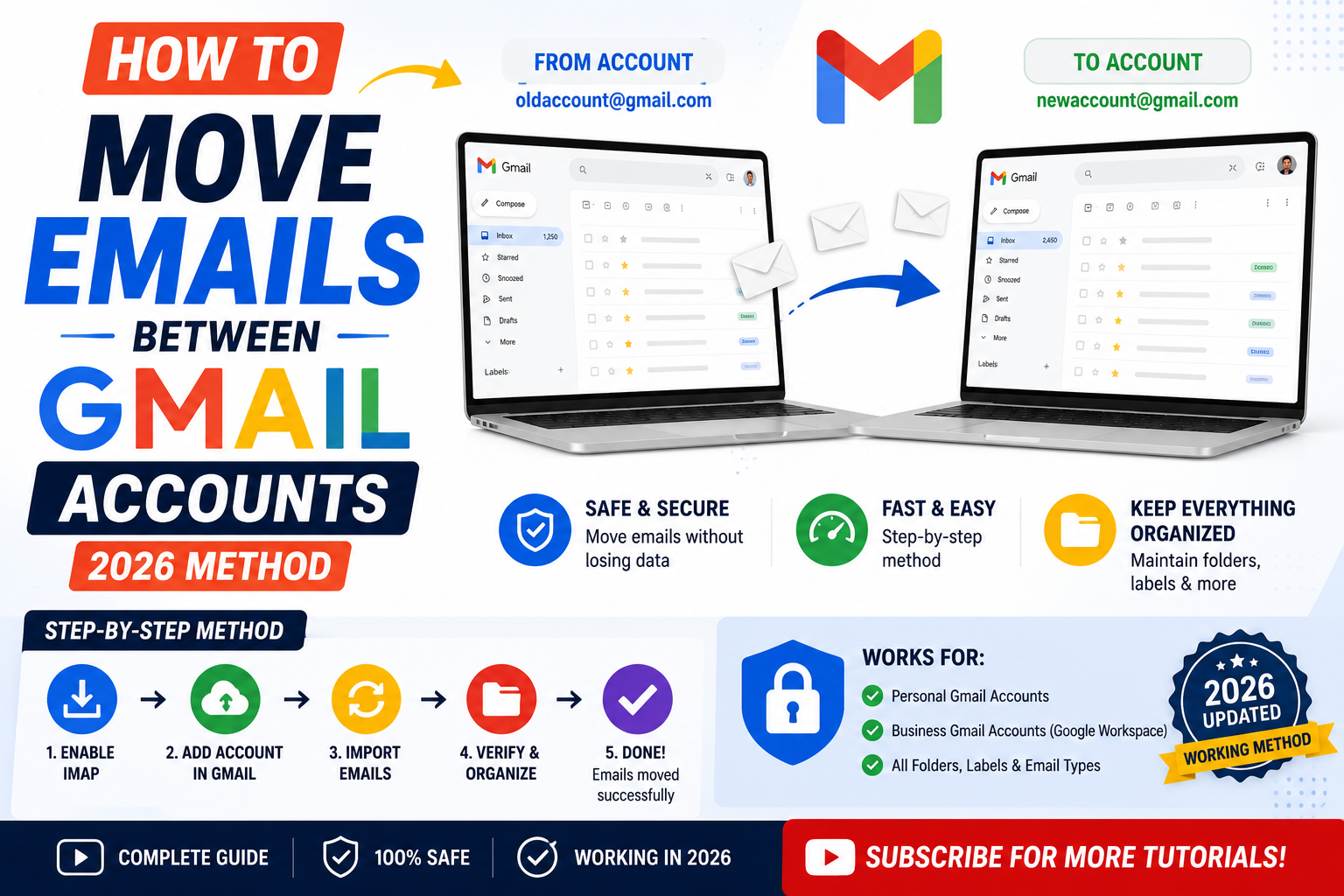
Quick step-by-step summary (click to expand)
- Sign in to your destination Gmail account. This is the account you want emails moved INTO.
- Open Settings. Click the gear icon, then click “See all settings”.
- Go to Accounts and Import tab. Click the “Accounts and Import” tab at the top.
- Click Import mail and contacts. A pop-up window opens.
- Enter your source account. Sign in to the account you want to import FROM.
- Choose what to import. Contacts, mail, and/or new mail for the next 30 days.
- Click Start import. The transfer runs in the background and can take several days for large mailboxes.
Method 1: Gmail’s built-in Import Mail (easiest for most cases)
Gmail’s Import Mail tool copies all your emails from an old account into a new one without requiring you to touch each email. It works for both Gmail-to-Gmail and other-provider-to-Gmail migrations.
- Sign in to your destination Gmail account.
- Click the gear icon at the top right, then “See all settings”.
- Click the “Accounts and Import” tab.
- Find the row labeled “Import mail and contacts”. Click “Import mail and contacts”.
- A pop-up window opens. Enter the email address of the source account. Click Continue.
- Sign in to the source account when prompted. If the source account uses two-factor authentication, you may need to generate an app password from that account’s settings first.
- Choose what to import: contacts, all mail, and/or new mail for the next 30 days. Most people select all three.
- Click “Start import”. Gmail begins transferring emails in the background.
The transfer takes 1 to 2 days for small mailboxes (under 5,000 emails) and up to 2 weeks for large mailboxes (over 50,000 emails). You can use your destination account normally during the import.
Method 2: Forward all emails from old to new
If you do not need historical emails but just want new mail from the old account to arrive in the new one, set up auto-forwarding:
- Sign in to the source (old) Gmail account.
- Go to Settings > “See all settings” > “Forwarding and POP/IMAP” tab.
- Click “Add a forwarding address”.
- Enter your new email address. Click Next.
- Gmail sends a verification link to the new address. Click it.
- Back in the source account, choose “Forward a copy of incoming mail to [new email]”.
- Decide what happens to the original: keep in Gmail’s inbox, mark as read, archive, or delete.
- Click “Save Changes”.
Now every new email that arrives in the old account also lands in the new one. This is not the same as moving old emails it only handles future messages.
Method 3: IMAP transfer via Thunderbird (best for large migrations)
For very large mailboxes (over 50,000 emails) or when Import Mail fails, IMAP transfer via Thunderbird is the most reliable option. This method connects both accounts to Thunderbird and drags emails from one to the other.
- Enable IMAP on both accounts: in Gmail, go to Settings > Forwarding and POP/IMAP > enable IMAP access.
- Install Thunderbird (free from thunderbird.net) on your desktop.
- Add the source account: open Thunderbird, click Get a new account, enter the source Gmail address. Thunderbird auto-configures.
- Add the destination account the same way.
- Wait for both accounts to fully download their folder structure (can take a while).
- In the source account’s folder pane, select the messages you want to move.
- Right-click and choose “Move To” > destination account > destination folder.
- Thunderbird moves emails via IMAP, updating both Gmail accounts as it goes.
Thunderbird handles retries and reconnection automatically. If your internet drops mid-transfer, it resumes when the connection returns. For a 100 GB mailbox, plan a full weekend.
Method 4: Third-party migration tools
Third-party services like Google Workspace Migration for Google Workspace (GWMGW), MigrationWiz, or ShuttleCloud handle enterprise-scale mailbox migrations. They cost money but include:
- Automatic scheduling and pause/resume
- Deduplication (skip emails that already exist in the destination)
- Label preservation
- Contact and calendar migration alongside email
- Progress reports and error logs
Use these if you are moving 10+ mailboxes at once (company-wide migration) or if the source mailbox has legal-hold or compliance requirements that need audit trails. For personal or single-account moves, Gmail’s Import Mail is enough.
What each method preserves
- Import Mail: Emails, dates, sender, attachments. Labels come across but with the prefix “Imported/”. Filters and rules are NOT transferred.
- Forwarding: Only new emails. Nothing historical.
- IMAP transfer: Emails, dates, folders, and labels (if you drag folder-by-folder). Very reliable but slow.
- Third-party tools: Everything above plus filters, rules, and contact/calendar data. Some tools also preserve read/unread status.
Common issues during Gmail-to-Gmail migration
- Import Mail hangs at a certain percentage. Restart the import from the destination account’s Settings > Accounts and Import > “Check mail from other accounts”. Sometimes Gmail throttles the connection.
- Two-factor authentication blocks sign-in. Generate an app password in the source account’s security settings (Google Account > Security > 2-Step Verification > App passwords). Use the app password instead of your real password during Import Mail.
- Some emails are missing after import. Gmail skips emails in Spam and Trash by default. Move them to the Inbox in the source account first if you want them included.
- Labels not preserved correctly. Gmail’s Import Mail creates labels with an “Imported” prefix. Rename them in the destination if you prefer clean names.
- Google Workspace source blocks external import. Some corporate admins disable “Import mail and contacts” for outbound migration. Ask your admin to allow it, or use IMAP transfer as a workaround.
- Duplicate emails after re-running import. Import Mail does NOT deduplicate on re-run. Only run once, or use a third-party tool that supports deduplication.
Which method should you pick?
- Personal Gmail to personal Gmail, under 20,000 emails: Import Mail.
- You only need future mail forwarded: Forwarding.
- Very large mailbox (50,000+ emails) or Import Mail keeps failing: IMAP transfer via Thunderbird.
- Migrating multiple mailboxes for a company or with compliance requirements: Third-party tool.
Verify the migration succeeded
After the transfer:
- Compare inbox counts. In each account, click the account image icon and check the “Storage” number for a rough size comparison.
- Spot-check by searching for known old emails in the destination.
- Check the Sent folder specifically. Some methods (like forwarding-only) do not transfer Sent items.
- Verify attachments open correctly (attachment sync is where migrations most often silently fail).
Official documentation
Frequently asked questions
How long does Gmail Import Mail take?
1 to 2 days for under 5,000 emails, up to 2 weeks for over 50,000 emails. Gmail does not commit to a specific timeline. The import continues in the background even if you close your browser.
Does moving emails delete them from the source account?
No. Both Import Mail and IMAP transfer are COPY operations by default. Emails remain in the source account until you delete them manually. This is intentional so you have a fallback if the migration fails partway through.
Can I move emails from a Google Workspace account to a personal Gmail?
Yes, using Import Mail from the personal account. Note: your Workspace admin may have disabled outbound import. If so, use IMAP transfer via Thunderbird as a workaround, or ask your admin to enable Data Export.
Will my Gmail labels transfer during the move?
Import Mail creates labels with the prefix “Imported/OriginalLabelName” in the destination. IMAP transfer via Thunderbird preserves labels if you move folder-by-folder. Neither method transfers Gmail filters, rules, or vacation responder settings.
Can I run multiple Gmail imports at the same time?
Gmail allows one active import per destination account at a time. To pull from multiple source accounts, do them one at a time. Wait for each to complete (check Settings > Accounts and Import > Check mail from other accounts for status) before starting the next.
Do attachments transfer during Gmail migration?
Yes for all methods above. Attachments are treated as part of the email. IMAP transfer is the most reliable for very large attachments (over 25 MB). Import Mail sometimes skips oversized attachments silently, so verify a few known-good large emails after import.
What is new for Gmail account migration in 2026
The Aug 2026 Google Workspace update expanded the Data Migration Service to personal Gmail accounts (previously Workspace-only). This service imports messages faster than POP fetch (parallel batches vs sequential polling) and preserves labels + timestamps accurately. Access at admin.google.com if you have a Workspace subscription, OR use the third-party open-source imapsync tool for personal Gmail accounts.
The Gemini side panel also gained a Migration status tracker that shows real-time progress of any active import. Open the panel and type Show my email migration status. Gemini displays messages transferred, remaining count, and estimated completion time.
Common migration pitfalls
- Labels not preserved. Gmail POP fetch does NOT transfer labels. Only messages themselves move. If preserving labels matters, use IMAP-based migration tools like imapsync or Google Data Migration Service.
- Attachments over 25MB dropped. Gmail SMTP has a 25MB attachment limit. Very large attached files may fail to migrate. Download and re-upload manually if you notice missing attachments.
- Duplicate messages in destination. If you run the migration twice or the source has spam that already forwarded once, destination gets duplicates. Use Gmail search operator like has:attachment plus size:larger_than:5m to find and clean duplicates.
- 2FA blocks POP login. Google requires App Password (not your regular password) when 2FA is enabled. Generate at Google Account, Security, App passwords, then use that 16-char password instead of your Gmail password.
Alternative: Google Takeout for full backup
If you want a one-time backup instead of ongoing sync, use Google Takeout at takeout.google.com. Select Gmail, choose format (.mbox), download as a ZIP. Import the .mbox file into another Gmail account via IMAP-import tools, or use Thunderbird ImportExportTools NG add-on to move it into any IMAP mailbox. Takeout is the most complete transfer method but requires a manual import step at the destination.
Official documentation
Quick step-by-step summary (click to expand)
- Enable IMAP on source account In the source Gmail, go to Settings, See all settings, Forwarding and POP/IMAP tab. Enable IMAP and Save changes.
- Add source account to destination In destination Gmail: Settings, Accounts and Import tab, click Add a mail account. Enter the source email address.
- Enter source credentials Enter the source Gmail password. If 2FA is on, use an App Password (Google Account, Security, App passwords). Leave POP settings default.
- Configure retrieval settings Choose Leave a copy of retrieved messages on the server if you want to keep originals in source. Tick Archive incoming messages to keep destination inbox clean.
- Wait for the transfer Gmail pulls messages in batches every 30-60 minutes. Full inbox transfer of 5,000-10,000 messages typically completes within 4-24 hours.
Frequently Asked Questions
How do I move all emails from one Gmail to another?
Set up POP fetch in the destination Gmail (Settings, Accounts, Add a mail account), enter source credentials, and wait 4-24 hours for full transfer.
Do labels transfer when moving Gmail emails?
No, POP fetch does not preserve labels. Use IMAP-based tools like Google Data Migration Service (Workspace) or imapsync (open-source) to preserve labels.
Why does POP login fail with my Gmail password?
If 2FA is enabled, you must use an App Password (16-char). Generate at Google Account, Security, App passwords, and use that instead of your regular password.
How long does a Gmail-to-Gmail transfer take?
4-24 hours for typical inboxes (5,000-10,000 messages). Larger inboxes may take 1-3 days. Gmail fetches in batches every 30-60 minutes.
Can I move Gmail messages without downloading them locally?
Yes. POP fetch, Google Data Migration Service, and IMAP-import tools all run server-to-server. No local download required. Google Takeout is the exception (requires local .mbox file).
Does Gemini help with email migration?
The Aug 2026 update added a migration status tracker in the Gemini side panel. Type Show my email migration status to see progress + estimated completion.