
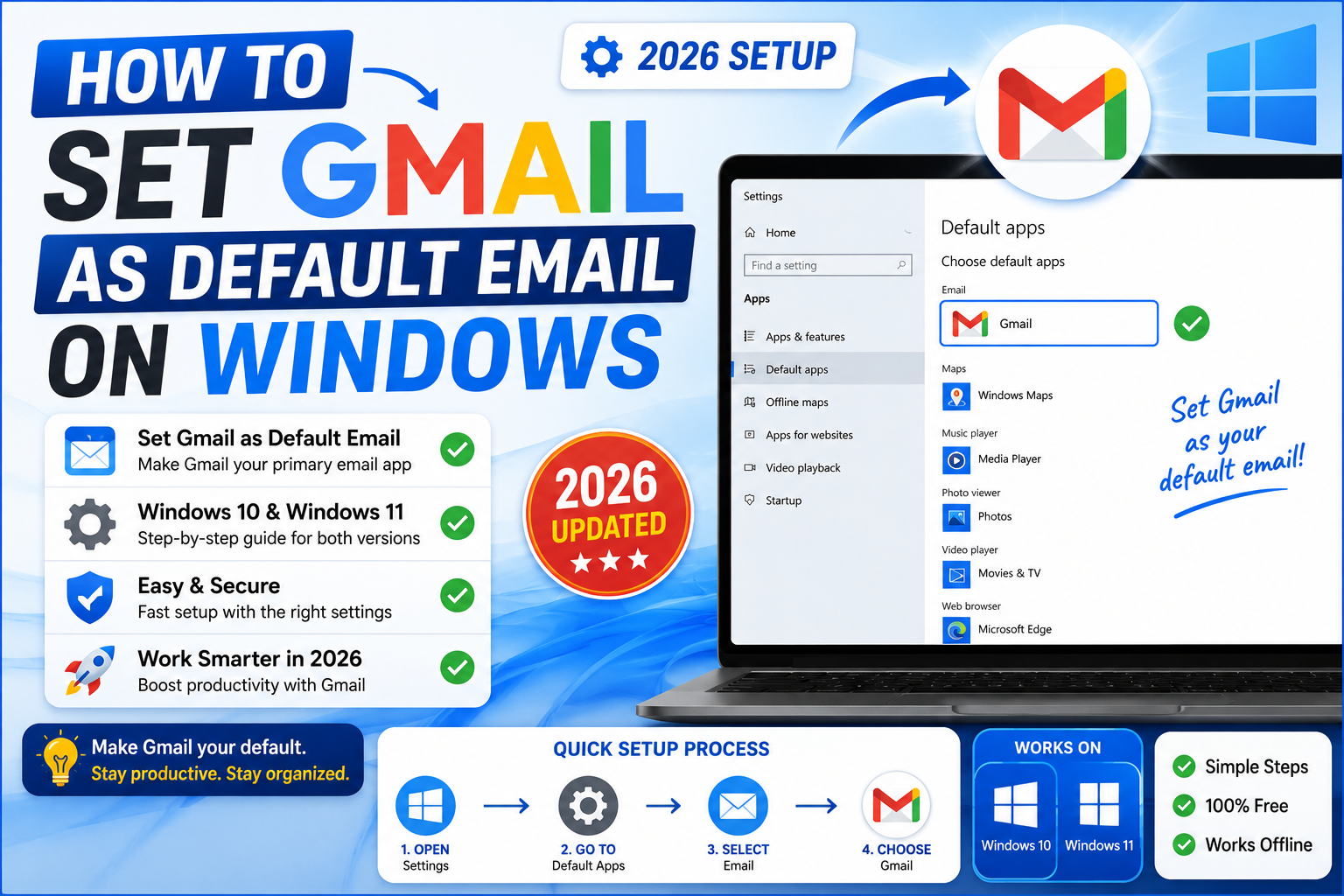
Quick step-by-step summary (click to expand)
- Open Chrome and go to Gmail. Sign in if you are not already.
- Look for the protocol handler icon. Two overlapping diamonds appear at the right end of the address bar.
- Click the icon. If you do not see it, refresh the page.
- Choose “Allow”. This lets Gmail handle mailto links inside Chrome.
- Open Windows Settings. Press Windows + I.
- Go to Apps > Default apps. Search for “mailto” or scroll to Email.
- Set Chrome as the default for mailto links. Now every mailto link opens Gmail via Chrome.
Why this takes more than one step
Gmail is a web app, not a Windows desktop program. Windows can only assign default apps that are installed on the system. To make Gmail the default email, you actually make your browser (Chrome or Edge) the default email app, and configure the browser to open Gmail whenever a mailto link fires.
Step 1: Make Gmail handle mailto in Chrome
- Open Chrome.
- Go to mail.google.com and sign in to Gmail.
- Look at the right end of the Chrome address bar. You should see a small icon of two overlapping gray diamonds (Chrome’s protocol handler indicator).
- Click that icon. Chrome asks: “Allow mail.google.com to open all email links?”
- Select “Allow” and click Done.
If you do not see the icon: Chrome may have already asked and remembered your answer. Reset the choice at chrome://settings/handlers and remove any existing mailto handler, then reload Gmail to trigger the prompt again.
Step 2: Set Chrome as default email app on Windows 11
- Press Windows + I to open Settings.
- Click “Apps” in the left sidebar.
- Click “Default apps”.
- Search for “Chrome” in the search box at the top. Click on Google Chrome in the results.
- Scroll down until you see “MAILTO” in the file/link-type list.
- Click on whatever is currently set (usually “Mail” for the Windows Mail app).
- A dialog appears asking which app to use. Select “Google Chrome”.
- Click Set default.
Now every mailto link in any Windows app (Outlook, Slack, Notepad, PDF readers) opens Gmail in Chrome.
Step 2 alternative: Windows 10 default apps
Windows 10’s Default apps page is organized differently:
- Press Windows + I to open Settings.
- Click “Apps”.
- Click “Default apps” in the left sidebar.
- Find “Email” in the list.
- Click the current default (probably “Mail”).
- Select “Google Chrome” from the picker.
Set Gmail as default using Microsoft Edge instead of Chrome
If Edge is your primary browser, the process is nearly identical:
- Open Edge and go to mail.google.com.
- Sign in to Gmail.
- Look at the right end of the Edge address bar for a small icon (looks like a chain link).
- Click it and choose “Allow” to let Gmail handle mailto links.
- Open Windows Settings > Apps > Default apps.
- Search for Edge, find the MAILTO entry, and set Edge as the default.
Edge does the same thing Chrome does. Pick whichever browser you use daily to make the workflow seamless.
Verify the setup worked
Test with a sample mailto link:
- Open Notepad and type:
<a href="mailto:test@example.com">Click here</a> - Actually, easier test: open a browser and go to any website with a “Contact us” or “Email us” link.
- Click the email link.
- Gmail should open in a new tab with the compose window pre-filled with the recipient address.
If Windows Mail app opens instead, your default is still set to Mail. Repeat Step 2. If Gmail opens but the compose window is empty, the browser’s protocol handler is not working. Repeat Step 1.
Handle multiple Gmail accounts
If you have several Gmail accounts and want a specific one to open mailto links (not just the default first account):
- Sign in to Gmail with the specific account you want as default.
- Make sure that is the primary sign-in in Chrome (the top account when you click the profile icon).
- Follow Step 1 above to register the mailto handler with that account.
Chrome’s protocol handler always opens the currently signed-in default Gmail account. Switch primary accounts if you want a different one to handle mailto.
Undo the setting if you change your mind
To go back to Windows Mail or a different email client:
- Open Windows Settings > Apps > Default apps.
- Search for the current default (Chrome or Edge).
- Click the MAILTO entry.
- Choose Mail (or Outlook, Thunderbird, or another app).
- Click Set default.
You can also disable Chrome’s Gmail protocol handler at chrome://settings/handlers if you want mailto links to work with a different browser.
Troubleshooting
- Protocol handler icon does not appear in Chrome. Chrome has already asked and remembered your answer. Go to chrome://settings/handlers, delete any existing mail.google.com entry, then reload Gmail to trigger the prompt again.
- Mailto links still open Windows Mail after changing defaults. Restart your browser. Windows sometimes needs a few seconds to update the file association cache.
- Gmail compose opens but recipient is missing. Some websites use JavaScript instead of standard mailto links. These do not use the Windows default email handler. Copy-paste is your only option there.
- Chrome protocol handler not honored on corporate machine. Your organization may have locked the default apps via Group Policy. Contact IT if you cannot change the setting.
- Multiple Chrome profiles create confusion. Only the default Chrome profile can register as the mailto handler. If you use multiple profiles, sign in to the correct Gmail in the default profile.
Official documentation
Frequently asked questions
Can I set Gmail as the default email without using Chrome?
You can, using Edge or Firefox. Both support protocol handlers similar to Chrome. Safari (Mac only) does too. For Chrome specifically the flow is easiest because the protocol handler prompt is more discoverable.
Why does the protocol handler icon not appear in Chrome?
Chrome only shows it once. If you already clicked “Ignore” or “Block”, Chrome remembers and hides the icon. Reset by going to chrome://settings/handlers, deleting any mail.google.com entry, then reloading Gmail. The prompt appears again.
Do I need to keep Chrome open for mailto links to work?
No. When you click a mailto link, Windows launches Chrome if it is not open. Chrome then opens Gmail and pre-fills the compose window. You just need to be signed in to Gmail already (cookie-based sessions stay for days or weeks depending on your settings).
Can I set Gmail as default on a Chromebook?
Yes, and it is easier. Chromebooks default to Gmail for mailto links automatically since Gmail and Chrome OS are both Google products. If it does not work, go to chrome://settings/handlers and confirm mail.google.com is set as the default handler for mailto.
Will this change my email app in Outlook or Word?
It changes what happens when you click a mailto link INSIDE Outlook or Word (the link opens Gmail in Chrome). It does not replace Outlook itself as an email client. Outlook and Gmail can coexist.
What if I use multiple Chrome profiles?
Only the DEFAULT Chrome profile can register as the mailto handler. Windows launches whichever profile is set as default. If you want a specific work Gmail profile to handle mailto, make it the default profile in Chrome settings.
What changed on Windows 11 24H2 for Gmail as default
The Aug 2026 Windows 11 24H2 update made setting Gmail as the default email handler more strict. You now need to configure the protocol handler in BOTH the browser (Chrome) AND the Windows Default Apps settings. Previously, changing Windows was enough. Now the browser must also register itself as the mailto handler first.
Edge users can use the same steps but with Edge as the browser. Edge does not natively support Gmail as protocol handler until you install the Google Gmail or Send from Gmail extension from the Chrome Web Store (compatible with Edge).
Common Gmail-default pitfalls on Windows
- Mailto links still open Outlook. Microsoft 365 pre-installed Outlook grabs the mailto handler automatically. Even after changing default, some system links (Windows Start menu, taskbar) may still route to Outlook. Uninstall the Outlook app if you never use it, or configure per-app defaults.
- Chrome does not show the protocol handler icon. The icon only appears when you visit gmail.com fresh. Sign out and sign back in to trigger the prompt. Or manually enable via Chrome Settings, Privacy and security, Site Settings, Additional permissions, Protocol handlers.
- Multiple Google accounts confusion. If you are signed into 2+ Google accounts in Chrome, mailto links open the DEFAULT account, not your work account. Set the intended default at accounts.google.com or use separate Chrome profiles.
- Corporate laptop locked settings. If Windows Settings shows the default email as locked or greyed out, your IT admin has enforced a group policy. Contact IT to override.
Alternative: Send from Gmail Chrome extension
The Google-published Send from Gmail (by Google) Chrome extension is the most reliable path. Install from Chrome Web Store, and every mailto link on any webpage opens in a Gmail compose window with the address pre-filled. Works in Chrome, Edge (Chromium), and Brave. Bypasses Windows Default Apps entirely.
Official documentation
Quick step-by-step summary (click to expand)
- Install Google Chrome (if not already) Gmail default requires Chrome as the mailto handler on Windows. Download from google.com/chrome if needed.
- Enable Gmail as mailto handler in Chrome In Chrome, open Gmail. Look for a small protocol handler icon in the address bar (near the star). Click it and select Allow.
- Open Windows Default Apps Windows Settings, Apps, Default apps. Or search for Default apps in Start menu.
- Change email default Under Choose default apps by protocol, scroll to MAILTO. Click the current default (usually Outlook or Mail app), and choose Google Chrome.
- Test with a mailto link Open any webpage with a mailto: link (like a Contact Us email). Click it. Gmail should open in Chrome with the address pre-filled.
Frequently Asked Questions
Why do mailto links still open Outlook after I set Gmail as default?
Microsoft 365 Outlook grabs the mailto handler at system startup. Uninstall Outlook if unused, or configure Windows Default Apps by protocol specifically for MAILTO.
How do I make Gmail the default in Windows 11?
Chrome must first register Gmail as a mailto handler. Then Windows Settings, Apps, Default apps, scroll to MAILTO, and choose Google Chrome.
Can I set Gmail as default without Chrome?
Edge (Chromium) works with the Send from Gmail extension. Firefox requires manual protocol handler configuration in about:config. Native support is Chrome-only.
Why does Chrome not offer to set Gmail as default?
The protocol handler prompt only appears when you visit gmail.com fresh. Sign out, sign in, and look for the small handler icon in the address bar. Or enable manually via Chrome Site Settings, Protocol handlers.
Does the mailto default apply to system apps like Word?
Yes. Once set in Windows Default Apps, any app that opens a mailto: link uses your chosen default. Applies to Office apps, PDF viewers, and browser links.
What is the easiest way to make Gmail default?
Install the Google-published Send from Gmail Chrome extension from the Chrome Web Store. It handles mailto links directly without touching Windows settings.