
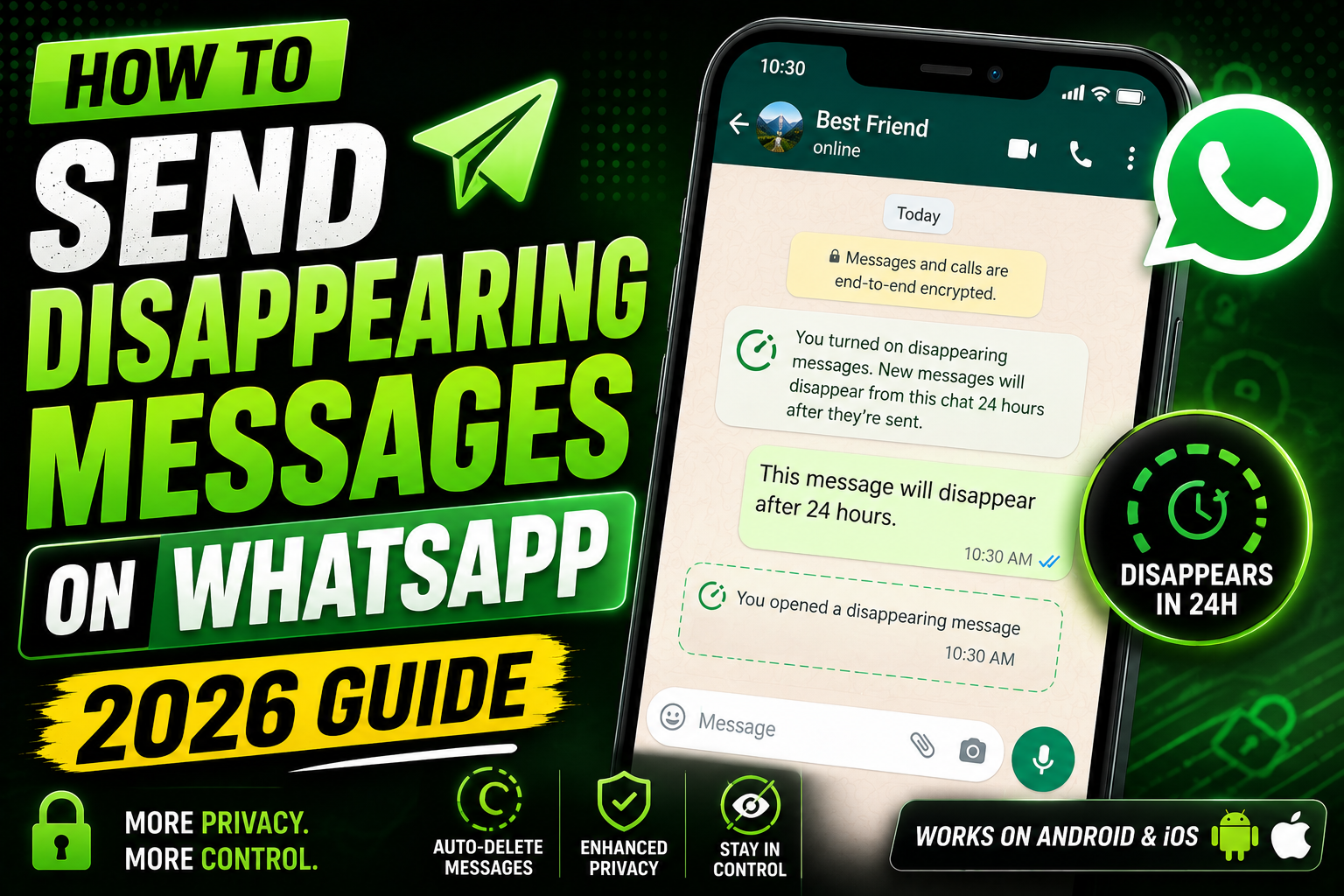
Disappearing messages on WhatsApp automatically delete after a set time (24 hours, 7 days, or 90 days), leaving no permanent record. “View Once” media disappears after being viewed once. Both features protect privacy for sensitive conversations. This 2026 tutorial covers every method.
Turn on disappearing messages for a specific chat
- Open the chat.
- Tap the contact’s name at the top.
- Tap Disappearing messages.
- Choose duration:
- 24 hours: messages delete after 24 hours.
- 7 days: delete after 1 week.
- 90 days: delete after 3 months.
- Off: normal messages that stay forever.
- Save.
Applies only to new messages from now on. Old messages in the chat stay.
Set disappearing messages as default for ALL chats
- WhatsApp Settings > Privacy.
- Tap Default message timer.
- Choose 24 hours, 7 days, 90 days, or Off.
- All new chats you start now use this timer by default.
- Existing chats keep their current setting.
How to identify disappearing messages
- Chat header shows a stopwatch icon.
- New messages in the chat include a small stopwatch icon.
- Timer countdown appears next to the message once it’s about to expire.
Turn on disappearing messages in a group
- Only group admins can toggle.
- Open group chat > tap group name.
- Tap Disappearing messages.
- Choose duration.
- Save.
All group members’ messages disappear based on the timer.
“View Once” for photos and videos
Photo/video that disappears after being viewed ONCE, even if disappearing messages isn’t on:
- Open chat.
- Tap paperclip or camera icon.
- Choose photo or video.
- Before sending, tap the “1” circle icon on the media.
- Send.
- Recipient can view once, then media disappears.
Can recipients screenshot?
- Regular disappearing messages: yes, they can screenshot before expiration.
- View Once media: WhatsApp warns sender if recipient screenshots.
- Nothing prevents someone from photographing the screen with another device.
- Assume: disappearing messages ARE recoverable by determined recipients.
When to use disappearing messages
- Sensitive personal conversations.
- Business quotes/prices you don’t want archived.
- Temporary information (event details, one-time codes).
- Reducing “chat history clutter” for casual chat groups.
- Comply with retention policies.
What disappears vs stays
| Disappears | Stays |
|---|---|
| New text messages | Old messages before timer was on |
| New photos/videos | Manually saved media (Save to Photos) |
| Voice notes | Screenshots taken by users |
| Documents | Cloud backup (if backup was on before) |
Prevent recipients from saving media
Beyond View Once and disappearing timers:
- Send media with disappearing timer 24 hours or less.
- Use View Once feature.
- Instruct recipient to enable “Media auto-download” off in their settings.
- Do NOT include media that could be misused.
Nothing is truly unrecoverable. Screenshots always possible.
Common disappearing messages issues
- Message disappeared but I need to reference it: gone. WhatsApp doesn’t provide undelete. Screenshots before expiration are the only option.
- Timer disappeared unexpectedly: someone in the chat turned it off. Ask them to re-enable.
- Backup includes disappearing messages: yes, they’re backed up with the rest. Restoring may bring back messages that appear to have disappeared.
- Group admin removed disappearing but I still see stopwatch: sync issue. Restart WhatsApp.
- Sender enabled but I didn’t: chat-level timer is shared. Anyone in chat sees the timer.
Common WhatsApp mistakes to avoid
- Not backing up chats before switching phones. Chat history disappears if you skip the backup step. Always back up to Google Drive (Android) or iCloud (iPhone) before the switch.
- Sharing large videos without compression. Original quality uses your phone data quota and takes longer to send. WhatsApp’s default compression is usually fine.
- Trusting “last seen” as availability. People turn it off. Do not judge responsiveness by last seen visibility.
- Forgetting about disappearing messages. Sensitive info shared in a chat with disappearing messages goes away. Do not use for shared reference material.
- Publishing personal number for business. Use WhatsApp Business for business contacts. Keeps personal separate.
Power-user tips for WhatsApp
- Use WhatsApp Web on desktop. Type faster on a real keyboard. Sync happens instantly.
- Star important messages. Long-press > Star. Access the Starred section from the Chats menu to jump back later.
- Reply privately in group chats. Long-press a message > Reply Privately. Removes the person from group awareness of your reply.
- Enable Two-Step Verification. Prevents SIM-swap account theft. Settings > Account > Two-step verification.
- Mute noisy groups. Chat info > Mute notifications > Always. Message you when directly @-mentioned only.
WhatsApp vs Telegram vs Signal
WhatsApp is the largest user base worldwide. Best if everyone you know already uses it. End-to-end encryption by default.
Telegram offers larger group sizes (200,000 members), file sharing up to 2 GB, and bot API. Not encrypted by default (secret chats are).
Signal is the privacy champion. Best encryption, minimal metadata, non-profit funded. Smaller user base means fewer contacts already on it.
Most Philippines and Southeast Asia users lean WhatsApp for personal, Telegram for larger groups and file sharing. Signal picks up as privacy consciousness grows.
Best practices summary
- Enable 2-factor authentication. Blocks SIM-swap attacks that hijack WhatsApp accounts.
- Regular backups. Weekly automatic backup to Drive or iCloud. You will thank yourself when you lose the phone.
- Use Voice Messages sparingly. Text respects the recipient’s time. Voice for tone-heavy conversations only.
- Mute non-essential groups. Family groups do not need to buzz every 10 seconds.
- Separate personal and business. WhatsApp Business or dedicated phone for work contacts.
WhatsApp Business vs personal WhatsApp
WhatsApp offers two apps: WhatsApp Messenger for personal use and WhatsApp Business for small businesses. Both are free but serve different purposes.
- Business profile. Display business name, address, hours, and website. Personal WhatsApp lacks these fields.
- Automated messages. Set up greeting messages, away messages, and quick replies. Personal WhatsApp requires manual typing every time.
- Product catalog. Showcase up to 500 products directly in the chat. Great for small stores.
- Labels for organization. Tag customers as “New”, “Paid”, “Follow up”. Personal WhatsApp only has starred messages.
- Broadcast lists. Send announcements to up to 256 contacts at once. Both apps support this but Business has better tracking.
WhatsApp Web and desktop workflow
Once you connect WhatsApp Web to your phone, you can type on your desktop keyboard which is dramatically faster than mobile typing. A few tips:
- Keep phone connected to internet. WhatsApp Web relays through your phone. Phone offline = Web disconnects.
- Use keyboard shortcuts. Ctrl+N new chat, Ctrl+Shift+M mute, Ctrl+F search. Full list in Menu > Keyboard shortcuts.
- Log out from Web when done on shared computer. Menu > Log out. Prevents others from reading your chats.
- Download the desktop app. Faster than the web version, works even when browser is closed.
- Emoji shortcuts. Type
:smile:or:heart:for quick emoji. Works in both mobile and desktop.
Privacy best practices for WhatsApp
- Review privacy settings. Settings > Privacy. Control who sees your Last Seen, Profile Photo, About, and Status.
- Turn on Read Receipts thoughtfully. Disabling them hides your read status from others but also hides theirs from you.
- Use Disappearing Messages for sensitive info. Auto-delete after 24 hours, 7 days, or 90 days.
- Enable Two-Step Verification. Settings > Account > Two-step verification. Prevents SIM-swap account takeover.
- Verify group invites. Settings > Privacy > Groups > “My Contacts” prevents strangers from adding you to random groups.
Official documentation
Recommended privacy resources
The links below are affiliate links. We may earn a commission at no extra cost to you when you buy or sign up. See our affiliate disclosure.
Quick step-by-step summary (click to expand)
- Open the chat. Tap any WhatsApp chat or group.
- Tap the contact name. Opens the contact info page.
- Tap Disappearing messages. Choose 24 hours, 7 days, or 90 days.
- Confirm. Both sides now see messages auto-delete after the chosen period.
- To disable. Repeat and choose Off. Old disappeared messages cannot be recovered.
Frequently Asked Questions
Are disappearing messages really deleted?
From WhatsApp’s servers and both users’ devices, yes. Screenshots taken before expiration remain. Cloud backups made before deletion retain them too.
Does the sender or receiver enable disappearing?
Either can. Once enabled, applies to all messages from both parties in that chat. Chat-level setting, not per-message.
Can I recover disappeared messages?
No. That’s the point. If you had a cloud backup made before deletion, restoring may bring them back. Otherwise gone.
Does View Once notify sender if screenshotted?
Yes. WhatsApp attempts to detect screenshots and notify the sender. Recipient can workaround with a second device photographing screen, no perfect protection.
Can I use disappearing messages for business?
Depends on regulatory requirements. Some industries (finance, healthcare) have retention requirements that make disappearing messages incompliant. Check your industry rules.

Caren Bautista
Technical Writer at PIES IT Solution
Responsible for crafting clear, well-structured, and beginner-friendly content across the platform.
Expertise: Technical Writing · Content Creation · Documentation · Editorial Writing · JavaScript · TypeScript · View all posts by Caren Bautista →