
Scheduling emails in Gmail (built into both desktop and mobile since 2019) lets you write at 2 AM and have the email arrive at 9 AM on a weekday. It improves response rates (recipients open emails right when they arrive), respects time zones for international clients, and keeps you from looking like you work weekends.
This guide walks you through the full Schedule send feature in 2026, including the under-used 100-email cap and how to edit or cancel scheduled messages.
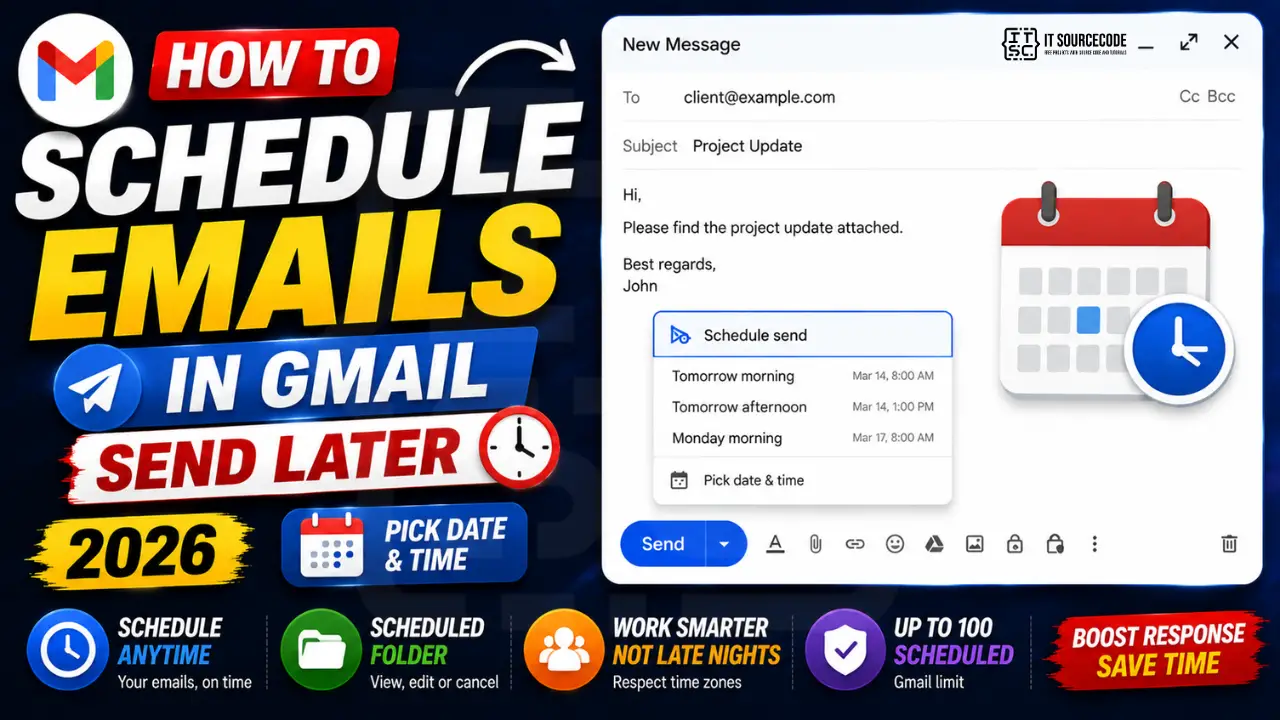
Schedule an email on desktop (Chrome, Edge, Safari, Firefox)
- Open Gmail at
mail.google.com. - Click “Compose” and write your email as usual.
- Instead of clicking “Send,” click the small triangle (▼) next to the Send button.
- Select “Schedule send.”
- Gmail offers 3 quick presets (Tomorrow morning, Tomorrow afternoon, Monday morning) plus “Pick date & time.”
- Pick a preset or click “Pick date & time” to choose any future date and time.
- Click “Schedule send.”
- The email moves to the new “Scheduled” folder in the left sidebar.
Schedule an email on iPhone and Android
- Open the Gmail app.
- Tap the pencil icon (bottom-right) to compose.
- Write your email.
- Tap the three-dot menu in the top-right of the compose screen.
- Tap “Schedule send.”
- Pick a preset or “Pick date & time.”
- Tap “Schedule send.”
- The email appears in the Scheduled folder, accessible from the side menu.
Both desktop and mobile use the same Scheduled folder, so emails scheduled on your phone show up in the desktop sidebar and vice versa.
Edit or cancel a scheduled email
- Open Gmail > click “Scheduled” in the left sidebar.
- Find your scheduled email and click to open it.
- Click “Cancel send” (top of the email view).
- The email returns to your Drafts folder.
- Edit it as needed. To re-schedule, click Send dropdown > Schedule send again.
Best send times by recipient type
| Recipient type | Best schedule time | Why |
|---|---|---|
| Office worker / client | Tue-Thu, 9-10 AM their timezone | After they handle morning emails, before midday meetings |
| Executive / busy decision-maker | Tue-Thu, 7-8 AM their timezone | First wave of emails they read on phone before work |
| Cold outreach (sales) | Tue, 10-11 AM their timezone | Mid-morning, post-coffee, pre-lunch peak |
| Internal team | Mon, 8-9 AM their timezone | Sets the week’s tone before noise builds |
| Newsletter / consumer | Tue-Wed, 10 AM local OR Sun 5 PM | Personal email checking windows |
| International (Philippines to US) | PH 9 PM = US Pacific 6 AM | Lands at start of US business day |
| Avoid | Mon 9 AM, Fri 4 PM, Weekends | High inbox volume + low attention |
Time zone handling
Schedule send uses YOUR Gmail account’s time zone, not the recipient’s. To set Gmail’s time zone:
- Open Settings > gear > See all settings > General tab.
- Scroll to “Time zone.”
- Pick your zone (defaults to system OS time zone).
- Save Changes.
If you frequently email recipients in other time zones, do the math manually before scheduling. A quick reference for Philippine users: Manila is +8 UTC. New York is +12 hours behind in winter, +13 hours behind in summer (PH does not observe DST).
Limits and quirks of Schedule send
- 100 scheduled emails maximum: Gmail caps the Scheduled folder at 100 unsent messages. Past 100, you cannot schedule more until earlier ones send.
- No recurring schedules: Gmail does not have a “send every Monday at 9 AM” feature natively. For recurring emails, use Google Sheets + Google Apps Script (free), or a tool like Boomerang or Mailmeteor.
- Drafts get scheduled, not Sent items: if you reschedule, the original draft is reused, so any edits before send go through.
- Send fails after scheduling: if your account loses access to Gmail (suspended, password changed, network failure at send time), Schedule send retries for up to 24 hours. After that, the email moves back to Drafts.
- Drafts to multiple recipients still count as one scheduled email: the 100-cap is per scheduled item, not per recipient.
Use cases beyond polite working hours
- Birthday and anniversary reminders: draft once, schedule to land on the day, never forget again.
- Capstone milestone updates: queue your weekly adviser update to land every Monday 9 AM without having to remember.
- Pre-flight email blast: draft your “I’m offline this week, contact X” auto-response and schedule it for the morning of your trip start.
- Newsletter beat-the-rush: if you publish a blog post Saturday, schedule the announcement email for Tuesday 10 AM when open rates are 2x higher.
- Pay invoice reminders: draft once with placeholder dates, schedule send to land 30, 14, 7, and 1 day before due.
Official documentation
Quick step-by-step summary (click to expand)
- Compose your email. Click Compose in Gmail and write your email message as normal.
- Click the arrow next to the Send button. Instead of clicking Send directly, click the small arrow next to it to open the Schedule send option.
- Click Schedule send. A menu appears with quick options like “Tomorrow morning” or “Next Monday afternoon”.
- Pick a preset time or choose custom. Click one of the presets or click “Pick date and time” to set an exact time.
- Confirm the schedule. Gmail confirms the email is scheduled. Find it later in the Scheduled folder in your left sidebar.
2026 Q4 update: new Gmail scheduling features worth knowing
Google shipped three noticeable upgrades to the Gmail send-later feature during the 2026 release cycle. If you set up scheduled sends last year or earlier, these additions make the flow faster and more reliable.
AI-suggested send times. On both the Gmail web interface and the mobile app, clicking the schedule arrow now shows a “Suggested time” option at the top of the picker. Gmail reads the recipient’s past response patterns (if they are also a Gmail user) and picks a time they are statistically more likely to open your message. This feature rolled out broadly in August 2026. It respects the recipient’s “Do not disturb” schedule and timezone.
Longer scheduling horizon. The old 49-year hard cap on scheduled send dates was removed in 2026. You can now schedule messages decades out without hitting the previous ceiling. Practically useful for date-reminders tied to anniversaries, lease renewals, or future-year birthdays. The underlying constraint is now your account staying active, which per Google’s two-year inactivity rule means the account must have activity within 24 months before the send date.
Scheduled drafts now sync bidirectionally with mobile. A scheduled email created on gmail.com shows in the “Scheduled” label on your Android 16 or iOS 19 Gmail app within seconds. Cancel or edit from either side. Before mid-2026, mobile Gmail would show the schedule but editing required going back to web.
Workspace admin reminder. For Google Workspace users on Business Standard or above, admins can enforce a maximum scheduled-send window at the tenant level under admin.google.com. The default is unlimited; some regulated-industry tenants cap it at 30 days.
Cancel-scheduled shortcut. Hit g then b on web Gmail with keyboard shortcuts enabled, and you jump straight to the Scheduled label. Click any message and the Cancel send button sits at the top. Fastest way to pull a scheduled message back before it fires.
Frequently Asked Questions
Is the Schedule send feature free in Gmail?
Yes. Schedule send has been free for all Gmail users since 2019, on both personal and Workspace accounts. There is no monthly limit on how many emails you can schedule, only a 100-cap on how many can be PENDING in the Scheduled folder at any time.
Can I schedule recurring emails in Gmail?
Not natively. Gmail’s built-in Schedule send is one-time only. For recurring emails (every Monday 9 AM, every 30th of the month), use a free Google Apps Script (apps script with the GmailApp.sendEmail function and a time-based trigger) or paid tools like Boomerang for Gmail and Mailmeteor.
What happens if I lose internet at the scheduled send time?
Nothing on your end. Schedule send happens on Google’s servers, not your device. Even if your laptop is off or your phone is on airplane mode at the scheduled time, the email still sends. This is also why scheduled emails do not need your device to be reachable; they live in Google’s queue.
How many scheduled emails can I have at once?
100 maximum pending in the Scheduled folder. If you try to schedule the 101st, Gmail blocks it with an error message. As earlier scheduled emails send out, slots open up automatically. This is per account, not per device.
Can I tell if an email was scheduled when I receive it?
No. Scheduled emails arrive with the same headers and metadata as instantly sent ones. The recipient sees only the delivery time, not the time the sender clicked “schedule.” This is intentional, so scheduling looks natural to recipients.
Can I schedule an email reply directly in a thread?
Yes. The Send dropdown next to the Reply button works the same way as for new emails. Type your reply, click the small triangle next to Send, pick Schedule send, choose date and time. The reply lands in the thread at the scheduled moment.

Caren Bautista
Technical Writer at PIES IT Solution
Responsible for crafting clear, well-structured, and beginner-friendly content across the platform. Handles the writing, proofreading, and editorial review of tutorials, guides, and documentation to ensure every article is accurate, readable, and easy to follow.
Expertise: Technical Writing · Content Creation · Documentation · Editorial Writing · JavaScript · TypeScript · Python · Python Errors · HTTP Errors · MS Excel · View all posts by Caren Bautista →