
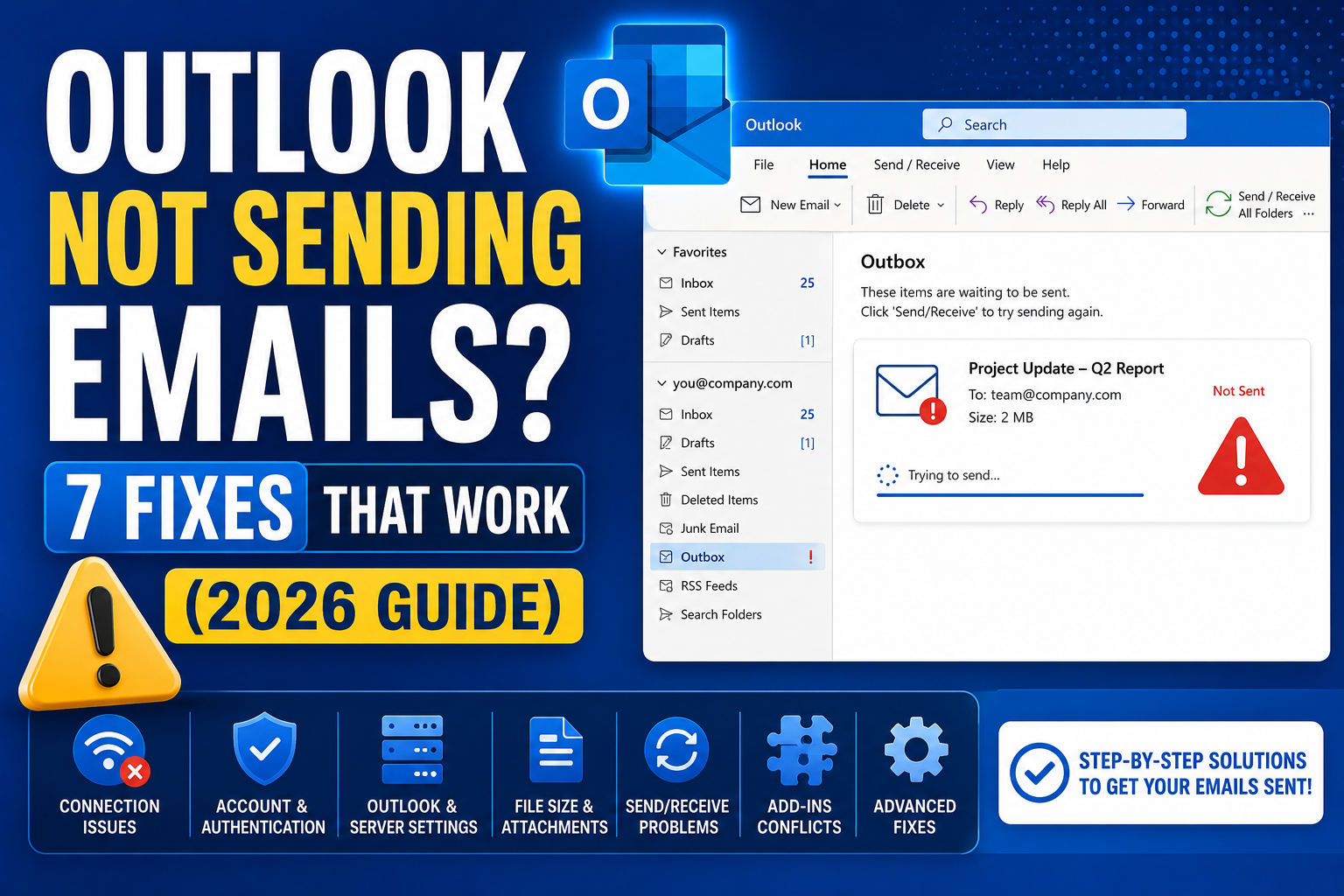
Outlook not sending emails is one of the most frustrating issues because emails pile up in the Outbox with no delivery. The message stays “Sending…” forever or bounces back with a cryptic error. Common causes include large attachments, incorrect server settings, offline mode, corrupt profile, or password expired. Here are 7 proven fixes that work in 2026, ordered from quickest to try to most involved.
Fix 1: Check that Outlook is not in Work Offline mode
- Look at the bottom-right of Outlook.
- If it shows Working Offline or Disconnected, that is the problem.
- Click the Send/Receive tab in the ribbon.
- Click Work Offline to toggle it OFF.
- Try sending again.
Work Offline is often triggered by accident. If your emails have been stuck, this is the fastest fix.
Fix 2: Send a small test email
- Compose a new email to yourself with no attachments.
- Just type “test” in the subject and click Send.
- If the test email sends: your original email likely has a huge attachment. Delete from Outbox, resend without the attachment or use OneDrive/Drive link.
- If the test email also gets stuck: proceed to next fix.
Fix 3: Clear stuck emails from Outbox
- Click Outbox in the folder list.
- Look for emails stuck in “Sending” status.
- Delete or move any 25MB+ attachment emails.
- Try to open each stuck email and click Send again.
- Or right-click a stuck email → Move to Drafts, edit if needed, then send.
A single stuck large email can block all others behind it in the queue.
Fix 4: Check password (may have expired)
If your Microsoft 365 or Google App Password recently expired, Outlook silently stops sending. It often does not show an error clearly.
- Try signing in to outlook.office.com in a browser using the same account.
- If prompted to update password, do so.
- Then re-enter the new password in Outlook desktop when prompted.
- For Gmail IMAP: regenerate an App Password at myaccount.google.com/apppasswords.
Fix 5: Repair Outlook account
- Click File → Account Settings → Account Settings.
- Select your email account.
- Click Repair at the top.
- Follow the wizard. Outlook re-tests server connectivity and fixes minor issues.
- Restart Outlook after the repair completes.
Fix 6: Rebuild Outlook data file
If the Outlook profile is corrupted, sending stops even with valid credentials.
- Close Outlook.
- Open Control Panel → Mail (or search “Mail” in Windows Start).
- Click Show Profiles.
- Select your profile and click Copy to make a backup.
- Delete the original profile.
- Click Add and re-create the account with same email + password.
- Reopen Outlook. It rebuilds the data file (may take 30-60 minutes for large mailboxes).
Fix 7: Check outgoing server settings (POP3/IMAP accounts)
For non-Exchange accounts, incorrect SMTP settings block sending.
- File → Account Settings → Account Settings.
- Select account → Change.
- Click More Settings → Outgoing Server tab.
- Check My outgoing server (SMTP) requires authentication.
- Select “Use same settings as incoming mail server”.
- Click Advanced tab. Verify SMTP port and encryption:
- Gmail SMTP: port 465 (SSL/TLS) or 587 (STARTTLS).
- Outlook.com SMTP: port 587 (STARTTLS).
- Yahoo SMTP: port 465 or 587 with TLS.
- Click OK to save.
Additional troubleshooting steps
- Restart Outlook: closes and reopens all connections. Often clears transient issues.
- Restart your computer: catches Windows network stack issues.
- Check internet connection: ping google.com from Command Prompt to verify connectivity.
- Disable antivirus temporarily: some antivirus scanners block SMTP connections. Test with AV disabled briefly.
- Update Outlook: Microsoft ships bug fixes for send issues regularly. File → Office Account → Update Options → Update Now.
- Check Microsoft 365 service status: at portal.office.com/servicestatus for known outages.
Common Outlook not sending error messages
- 0x800CCC0F: connection lost. Usually antivirus or firewall. Try disabling AV.
- 0x800CCC7D: SSL/TLS mismatch. Fix outgoing server settings.
- 0x80042109: no outgoing server. Enable SMTP authentication in server settings.
- Attachment too large: over 25MB limit. Use OneDrive link instead.
- Server rejected recipient: recipient’s server bounced. Check spelling of their email address.
Common Outlook mistakes to avoid
- Not using folders and rules. An Outlook inbox with 5,000 unread emails is unmanageable. Set up folders per project and rules to auto-file routine mail.
- Forgetting the Signature preview before sending. Signatures render differently across clients. Send yourself a test to catch layout issues before external recipients see them.
- Ignoring Focus Inbox. Outlook’s Focus Inbox auto-filters non-priority mail. Not perfect but a huge time saver once trained.
- Overusing Reply All. The workplace curse. Reply only to the sender unless everyone truly needs the response.
- Not linking Outlook to Teams/OneNote. Microsoft 365 integrations turn Outlook into a hub. Enable calendar-to-Teams and email-to-OneNote linking.
Power-user tips for Outlook
- Use Quick Steps. One-click multi-action shortcuts. Common Quick Step: “File to Project X + mark as read + reply with template”.
- Master search operators. from:name, subject:keyword, hasattachments:yes, received:this-week. Combine for laser-focused inbox search.
- Delay all sends by 60 seconds. File > Options > Mail > Delivery. Prevents accidental sends. Set to 1 minute; retract by editing outgoing.
- Set up conditional formatting for VIPs. Emails from your boss appear in red. Instant priority visibility.
- Use categories, not folders, for tagging. Categories work across folders. A “Follow-up” category surfaces across your entire mailbox.
Outlook desktop vs web vs mobile
Outlook desktop (Windows/Mac) has the most features: full rules engine, advanced search, offline access. Best for heavy email users.
Outlook Web App (OWA) works from any browser. Rules and rules editor slightly limited compared to desktop. Search is fast because it hits the server directly.
Outlook mobile (iOS/Android) is streamlined for on-the-go. Swipe gestures customizable. Good for triage; not ideal for composing long emails.
For most professionals, desktop for morning triage, mobile for meetings, web for occasional access from unfamiliar computers. Sync happens instantly across all three.
Best practices summary
- Zero-inbox mindset. Every email gets a decision: reply, defer, delegate, or delete. No email stays “read but not decided”.
- Rules for routine mail. Newsletter to Reading folder. Reports to Reports folder. Approvals to Approvals folder. Never manually file the same type twice.
- Categorize actively. Follow-up, waiting-for, this-week. Categories cross folder boundaries.
- Schedule email review windows. Not constant checking. Two focused sessions per day beat 40 distracted glances.
- Archive, do not delete. Storage is cheap. Full-text search is powerful. Archive lets you find anything years later.
Official documentation
Recommended Outlook troubleshooting resources
The links below are affiliate links. We may earn a commission at no extra cost to you when you buy or sign up. See our affiliate disclosure.
Quick step-by-step summary (click to expand)
- Check your internet connection. Confirm you have a working internet connection. Try opening a website in your browser to verify.
- Check the Outbox folder. Open the Outbox and look for stuck emails. Delete any oversized attachments and try again.
- Verify your outgoing SMTP settings. Go to File then Account Settings and verify the outgoing server (SMTP) address and port match your provider.
- Reset your account password. If your email password recently changed, update it under File then Account Settings then Change.
- Disable then reenable Send/Receive. Go to Send/Receive tab then Send/Receive Groups then Disable Scheduled Send/Receive, then reenable it.
- Run Outlook in Safe Mode. Close Outlook, hold Ctrl and reopen it to launch in Safe Mode. This bypasses add-ins that may block sending.
- Repair the Outlook data file. As a last resort, run SCANPST.EXE against your PST file to repair corruption blocking outbound mail.
Frequently Asked Questions
Why does my email get stuck in Outbox but no error appears?
Most commonly: a large attachment is blocking the queue, or Outlook is in Work Offline mode without warning. Check both first.
Does Outlook Web have the same sending problems?
Rarely. Outlook Web uses Microsoft’s servers directly with no local caching. If the web version works but desktop does not, the issue is in your desktop profile or configuration.
Can antivirus block Outlook sending?
Yes. Some antivirus products intercept SMTP connections to scan outgoing emails. Add Outlook to your AV exceptions or configure the AV to skip SMTP scanning.
Should I switch to Outlook Web if desktop keeps failing?
As a temporary workaround yes. Long-term: fix the desktop issue with the repair or profile rebuild steps. Web is more reliable but lacks some desktop features (offline mode, advanced rules, PST access).
Is Outlook not sending a Microsoft outage?
Sometimes. Check status.office365.com or portal.office.com/servicestatus for known outages. If a service is down, wait for Microsoft’s fix. Usually within an hour.

Caren Bautista
Technical Writer at PIES IT Solution
Responsible for crafting clear, well-structured, and beginner-friendly content across the platform. Handles the writing, proofreading, and editorial review of tutorials, guides, and documentation to ensure every article is accurate, readable, and easy to follow.
Expertise: Technical Writing · Content Creation · Documentation · Editorial Writing · JavaScript · TypeScript · Python · Python Errors · HTTP Errors · MS Excel · View all posts by Caren Bautista →