
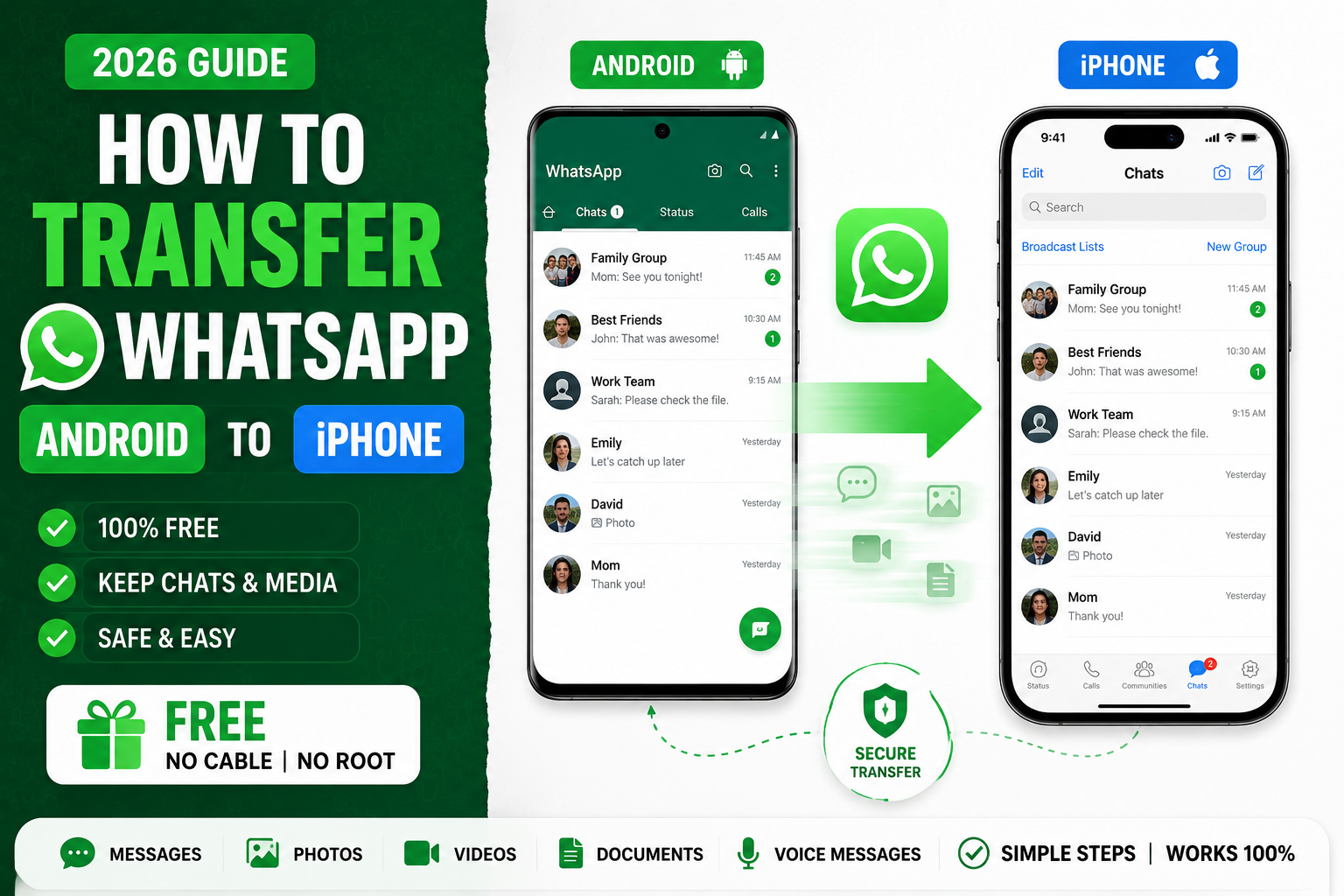
Transferring WhatsApp from Android to iPhone was impossible for years, chats stayed trapped on the old phone. In 2021, Apple’s Move to iOS app finally added WhatsApp migration. This 2026 tutorial walks you through the free official method plus alternatives if you already set up your iPhone.
Requirements
- iPhone: iOS 15.5 or later.
- Android: Android 5 (Lollipop) or later.
- WhatsApp on Android: version 2.21.16.20 or later.
- WhatsApp on iPhone: version 2.21.160.17 or later.
- New iPhone with WhatsApp NOT yet installed and set up.
- Both phones charged.
- Both connected to same WiFi.
- Google account signed in on Android (backup source).
Step 1: Prepare Android (source phone)
- Update WhatsApp to latest version via Play Store.
- Update Android system if needed.
- Ensure a recent backup exists: WhatsApp > Settings > Chats > Chat backup > Back up now.
Step 2: Prepare iPhone (target phone)
- Set up iPhone but DO NOT install WhatsApp yet.
- Update iOS to latest via Settings > General > Software Update.
- If iPhone was already set up: erase and reset. Settings > General > Transfer or Reset iPhone > Erase All Content and Settings.
- Restart iPhone setup.
Step 3: Install Move to iOS on Android
- Open Play Store on Android.
- Search “Move to iOS”.
- Install the app (published by Apple).
- Open the app.
- Grant permissions requested.
Step 4: Start iPhone setup
- Turn on iPhone (or reset if already used).
- Follow setup screens until you reach Apps & Data.
- Tap Move Data from Android.
- iPhone displays a 6- or 10-digit code.
Step 5: Enter code on Android
- Open Move to iOS on Android.
- Enter the code from iPhone.
- Move to iOS asks what to transfer.
- Select WhatsApp.
- Tap Continue.
Step 6: Prepare WhatsApp on Android
- Android prompts to open WhatsApp.
- Tap Start in WhatsApp.
- WhatsApp prepares chats for export.
- May take 5-30 minutes depending on chat history size.
Step 7: Wait for transfer
- Both phones show transfer progress.
- Do NOT close either app.
- Do NOT let phones sleep (plug them in).
- Transfer takes 10 min to several hours for large histories.
- When complete, iPhone shows “Transfer complete”.
Step 8: Install WhatsApp on iPhone
- Continue iPhone setup as normal.
- After setup: install WhatsApp from App Store.
- Open WhatsApp. Verify your phone number (same as Android).
- WhatsApp prompts Import Chats.
- Tap Continue. Chats appear.
Alternative: iPhone already set up
If you skipped the migration during iPhone setup:
- Third-party tools like Wondershare MobileTrans, dr.fone, iCareFone Transfer offer WhatsApp migration.
- Cost: $30-70 for single license.
- Alternative: erase iPhone and redo setup with Move to iOS (loses iPhone data).
- Free alternative: skip chat history, just start fresh on iPhone.
What transfers vs what doesn’t
| Transfers | Does NOT transfer |
|---|---|
| Chat text | Call history |
| Photos and videos | Status posts |
| Voice notes | Payment history (India) |
| Documents | Wallpapers |
| Group chat memberships | Notification tones |
Transfer iPhone to Android (reverse)
Google Data Transfer feature (Pixel phones) or third-party tools support iPhone-to-Android WhatsApp transfer. Steps similar but Android-native.
Common transfer issues
- Move to iOS won’t connect: ensure both phones on same WiFi, hotspot off, firewall off.
- Transfer stuck: DO NOT force quit. Wait, large histories take hours.
- WhatsApp says “Import Failed”: usually incompatible versions. Update both apps to latest.
- iPhone doesn’t show WhatsApp option in Move to iOS: iOS version too old. Update to iOS 15.5+.
- Chats imported but no media: media transfer failed separately. Retry the whole transfer.
- Number verification failed: use SIM in iPhone that matches the number of your WhatsApp account.
Common WhatsApp mistakes to avoid
- Not backing up chats before switching phones. Chat history disappears if you skip the backup step. Always back up to Google Drive (Android) or iCloud (iPhone) before the switch.
- Sharing large videos without compression. Original quality uses your phone data quota and takes longer to send. WhatsApp’s default compression is usually fine.
- Trusting “last seen” as availability. People turn it off. Do not judge responsiveness by last seen visibility.
- Forgetting about disappearing messages. Sensitive info shared in a chat with disappearing messages goes away. Do not use for shared reference material.
- Publishing personal number for business. Use WhatsApp Business for business contacts. Keeps personal separate.
Power-user tips for WhatsApp
- Use WhatsApp Web on desktop. Type faster on a real keyboard. Sync happens instantly.
- Star important messages. Long-press > Star. Access the Starred section from the Chats menu to jump back later.
- Reply privately in group chats. Long-press a message > Reply Privately. Removes the person from group awareness of your reply.
- Enable Two-Step Verification. Prevents SIM-swap account theft. Settings > Account > Two-step verification.
- Mute noisy groups. Chat info > Mute notifications > Always. Message you when directly @-mentioned only.
WhatsApp vs Telegram vs Signal
WhatsApp is the largest user base worldwide. Best if everyone you know already uses it. End-to-end encryption by default.
Telegram offers larger group sizes (200,000 members), file sharing up to 2 GB, and bot API. Not encrypted by default (secret chats are).
Signal is the privacy champion. Best encryption, minimal metadata, non-profit funded. Smaller user base means fewer contacts already on it.
Most Philippines and Southeast Asia users lean WhatsApp for personal, Telegram for larger groups and file sharing. Signal picks up as privacy consciousness grows.
Best practices summary
- Enable 2-factor authentication. Blocks SIM-swap attacks that hijack WhatsApp accounts.
- Regular backups. Weekly automatic backup to Drive or iCloud. You will thank yourself when you lose the phone.
- Use Voice Messages sparingly. Text respects the recipient’s time. Voice for tone-heavy conversations only.
- Mute non-essential groups. Family groups do not need to buzz every 10 seconds.
- Separate personal and business. WhatsApp Business or dedicated phone for work contacts.
WhatsApp Business vs personal WhatsApp
WhatsApp offers two apps: WhatsApp Messenger for personal use and WhatsApp Business for small businesses. Both are free but serve different purposes.
- Business profile. Display business name, address, hours, and website. Personal WhatsApp lacks these fields.
- Automated messages. Set up greeting messages, away messages, and quick replies. Personal WhatsApp requires manual typing every time.
- Product catalog. Showcase up to 500 products directly in the chat. Great for small stores.
- Labels for organization. Tag customers as “New”, “Paid”, “Follow up”. Personal WhatsApp only has starred messages.
- Broadcast lists. Send announcements to up to 256 contacts at once. Both apps support this but Business has better tracking.
WhatsApp Web and desktop workflow
Once you connect WhatsApp Web to your phone, you can type on your desktop keyboard which is dramatically faster than mobile typing. A few tips:
- Keep phone connected to internet. WhatsApp Web relays through your phone. Phone offline = Web disconnects.
- Use keyboard shortcuts. Ctrl+N new chat, Ctrl+Shift+M mute, Ctrl+F search. Full list in Menu > Keyboard shortcuts.
- Log out from Web when done on shared computer. Menu > Log out. Prevents others from reading your chats.
- Download the desktop app. Faster than the web version, works even when browser is closed.
- Emoji shortcuts. Type
:smile:or:heart:for quick emoji. Works in both mobile and desktop.
Privacy best practices for WhatsApp
- Review privacy settings. Settings > Privacy. Control who sees your Last Seen, Profile Photo, About, and Status.
- Turn on Read Receipts thoughtfully. Disabling them hides your read status from others but also hides theirs from you.
- Use Disappearing Messages for sensitive info. Auto-delete after 24 hours, 7 days, or 90 days.
- Enable Two-Step Verification. Settings > Account > Two-step verification. Prevents SIM-swap account takeover.
- Verify group invites. Settings > Privacy > Groups > “My Contacts” prevents strangers from adding you to random groups.
Official documentation
Recommended phone accessories
The links below are affiliate links. We may earn a commission at no extra cost to you when you buy or sign up. See our affiliate disclosure.
Quick step-by-step summary (click to expand)
- Update WhatsApp on both phones. Install the latest WhatsApp version on both the Android and the new iPhone before starting.
- Install Move to iOS on Android. Download the Move to iOS app from the Google Play Store. It will handle the transfer wirelessly.
- Set up your iPhone until the Move Data screen. On the new iPhone, follow setup until you reach the Move Data from Android screen. Tap that option.
- Enter the code shown on iPhone. Open Move to iOS on Android and enter the 6-digit code your iPhone displays.
- Select WhatsApp during transfer. Choose WhatsApp from the list of apps to transfer, then wait for the migration to complete.
- Open WhatsApp on iPhone. Launch WhatsApp on iPhone, verify with your phone number, and your chats will be restored automatically.
Frequently Asked Questions
Do I need to be online during transfer?
Both phones must be on same WiFi during transfer. Cellular data can’t be used. Ensure phone is not on Battery Saver mode.
Does the Android phone lose chats?
No. Chats remain on Android too. Only “active” account moves to iPhone (WhatsApp only works on one phone at a time per number). Android becomes a backup copy.
Can I transfer to a different phone number?
No. WhatsApp is tied to phone number. Same number must be used on both phones. To change number: use Change Number feature after transfer.
Is the transfer safe?
Yes. Move to iOS uses AES-256 encryption. Data goes directly between phones, not through Apple or Google servers. Only encrypted between the two phones.
Can I stop and resume transfer?
No. If interrupted, must restart from scratch. Plug in both phones, disable auto-sleep, and don’t interact with either during transfer.

Caren Bautista
Technical Writer at PIES IT Solution
Responsible for crafting clear, well-structured, and beginner-friendly content across the platform. Handles the writing, proofreading, and editorial review of tutorials, guides, and documentation to ensure every article is accurate, readable, and easy to follow.
Expertise: Technical Writing · Content Creation · Documentation · Editorial Writing · JavaScript · TypeScript · Python · Python Errors · HTTP Errors · MS Excel · View all posts by Caren Bautista →