
HOW TO FIND MY GMAIL PASSWORD – When locked out of your Gmail account on an Android device, it’s crucial to regain access swiftly to resume using essential Google services.
Avoiding potential risks associated with searching for solutions online, our guide offers a secure method to recover your Gmail password.
How to Find My Gmail Password: Different Methods to Find Your Lost Gmail Password
Forgetting your Gmail password could lead to being locked out of various Google services.
Rather than resorting to internet searches fraught with potential risks, our guide provides a safe method for recovering your Gmail password.
Method 1: Find Gmail Password via Recovery Email or Phone Number
- Step 1: Begin by navigating to the Gmail sign-in page using your web browser. Input your email address and proceed.
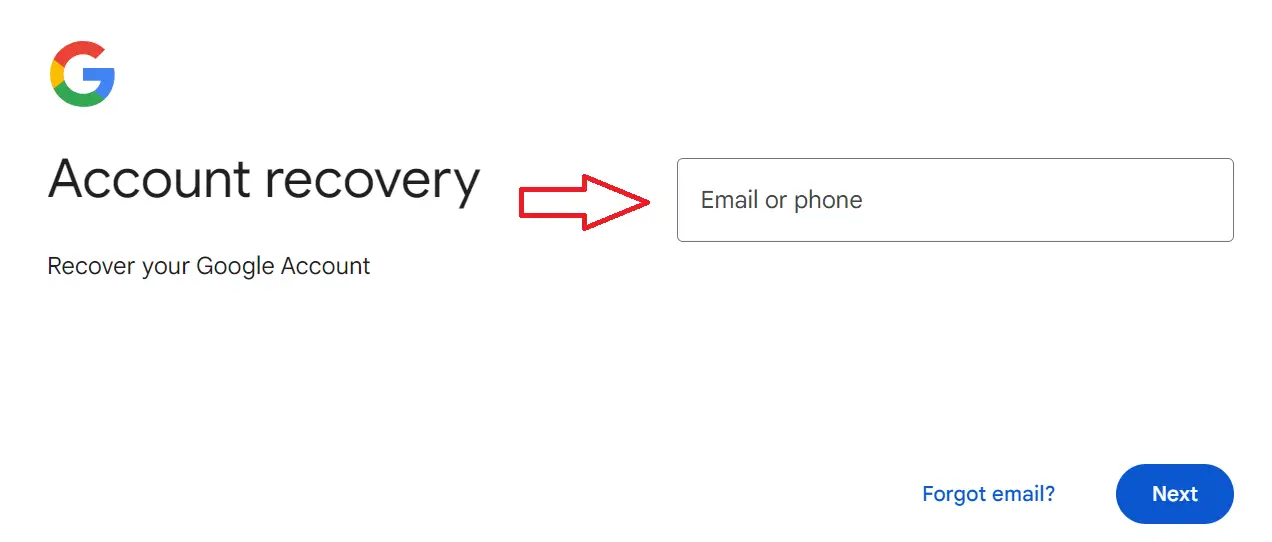
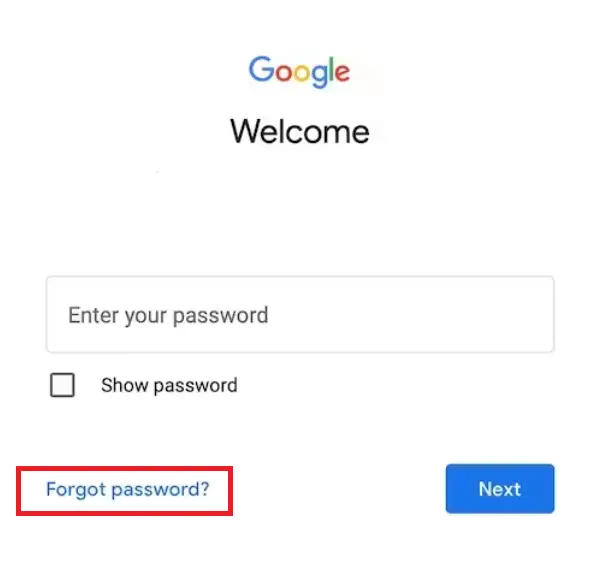
- Step 2: Select the “Forgot Password” option to move forward.
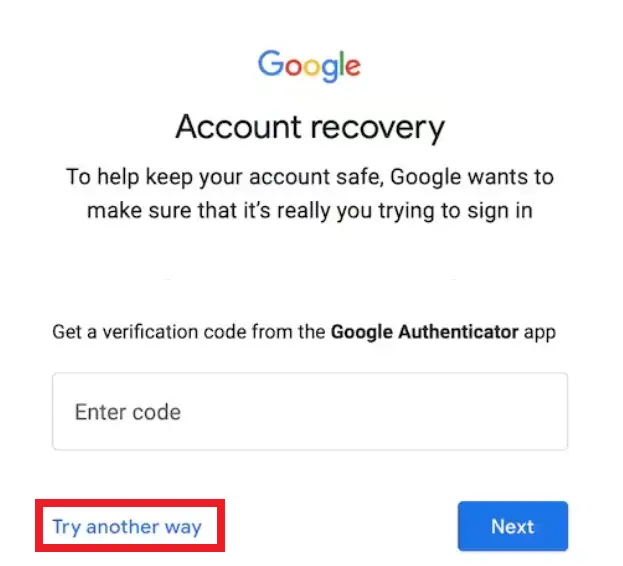
- Step 3: If you’ve activated 2-factor Authentication, you’ll need to input a six-digit code. Otherwise, choose the alternative option labeled “Try Another Way.”
- Step 4: If you’ve previously set up a Recovery Phone number, Gmail will prompt you to enter a code sent to that number.
- Once you’ve entered the code accurately at this stage, you’ll be able to reset your password and regain access
Method 2: Find Saved Gmail Password in Browsers
Find the Saved Gmail Password on Chrome
- Step 1: Begin by opening Chrome and then navigate to the top-right corner.
From there, select your profile and choose “Passwords.” Alternatively, if you don’t see this option, click on the ellipses (…) and go to “Passwords” under Settings followed by Autofill.
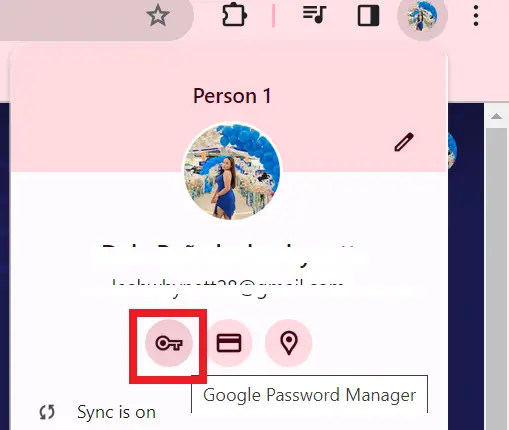
- Step 2: Once you’ve located the password you wish to view, click on the eye icon situated to the right of it.
Find Saved Gmail Password on Mozilla Firefox
- Launch Firefox and access the hamburger icon located in the upper right corner.
- Choose “Passwords” from the menu.
- You will be presented with a compilation of your stored login details.
Find Saved Gmail Password on Safari
- Step 1: Select “Settings” from the Safari menu located in the menu bar.
- Step 2: Access the “Passwords” tab, input your computer password for authentication, and utilize the search bar to locate your Gmail login details.

- Step 3: Finally, hover over the password to uncover it.
Find Saved Gmail Password on Internet Explorer
- Step 1: Press the three dots situated in the upper-right corner, then select “Settings.”
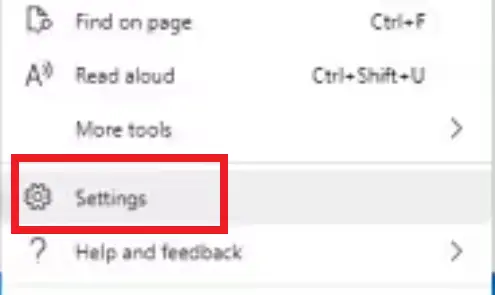
- Step 2: Navigate to “Passwords” within the Settings menu.
- Step 3: Within the Passwords section, locate your Gmail login and click on the eye icon.

Method 3: Find Gmail Password with a Password Finder Application on iOS
- Step 1: Download Wondershare Dr.Fone onto your computer and opt for the Password Manager module.
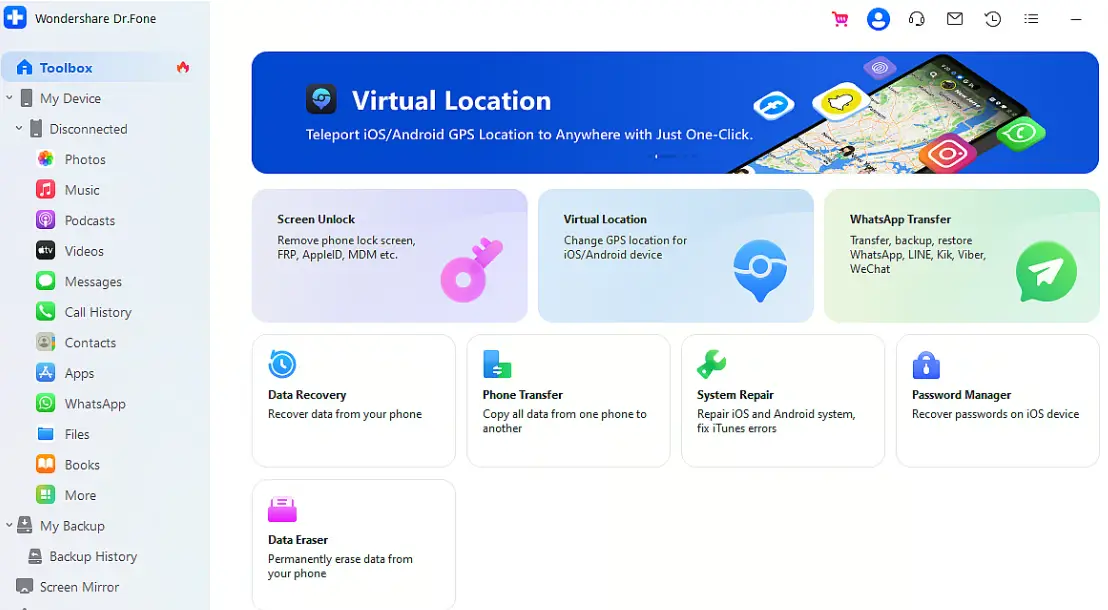
- Step 2: Next, link your iPhone to the computer using the authentic lightning cable and allow the application to identify your device. Once the device is recognized, click on “Start Scan.”
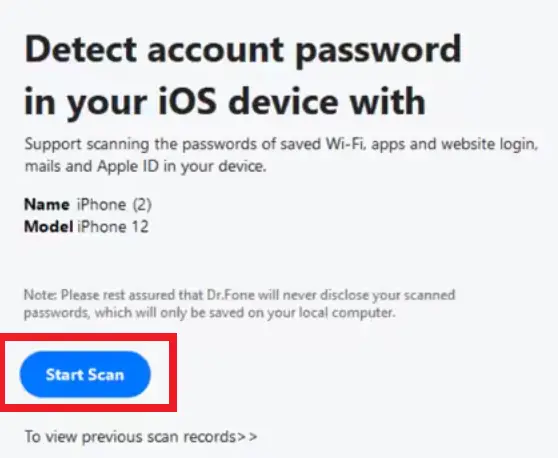
- Step 3: Identify your Gmail password within the list and click on the eye icon to reveal it. Additionally, you have the option to export passwords in bulk in CSV format.
Method 4: Find your Gmail Password with your Android Phone
- Step 1: Open Chrome on your Android device, touch the three dots, then select Settings.
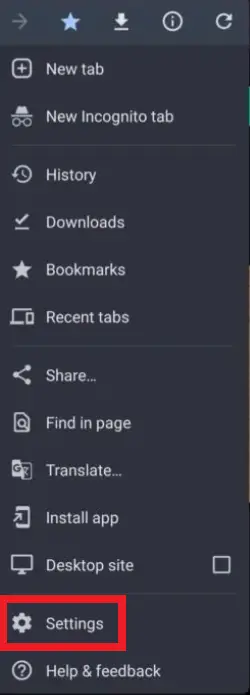
- Step 2: Scroll down until you find the Password Manager option, then tap on it.
- Step 3: All passwords saved in your Google Account will be displayed here. Therefore, if your Gmail password is saved in Chrome on your computer, it will also be stored here.
Quick step-by-step summary (click to expand)
- Check browser saved passwords. Browser Settings > Passwords > search google.com. Click the eye icon to reveal the saved password.
- Use Google Password Manager. Go to passwords.google.com. Sign in and search Gmail. Reveal the saved password with your device verification.
- Check keychain/credential manager. Mac: Keychain Access > search Google. Windows: Credential Manager > Google.
- If nothing works, reset via recovery. Go to google.com/accounts/recovery and reset. You cannot recover the old password, only create a new one.
2026 update: finding your Gmail password with Google Password Manager
Google Password Manager evolved significantly through 2025-2026 with a standalone app, passkey support, and expanded on-device biometric verification. If your last attempt to find a saved Gmail password was pre-2024, the flow has changed.
- Standalone Password Manager app (Android + iOS, 2024): Google Password Manager is no longer buried in Chrome settings on Android. It has its own app icon (or a shortcut from Settings > Google > Autofill > Google Password Manager) with a cleaner list view and search.
- Biometric verification required (2024 onward): viewing a saved password now requires fingerprint, face unlock, or device PIN every time, even if you unlocked the phone seconds ago. Optional passkey verification also works if the account has a passkey attached.
- Passkeys shown alongside passwords: if you converted your Gmail sign-in to a passkey (recommended by Google in 2024), the Password Manager entry shows both the classic password AND the passkey. Deleting one does not delete the other.
- Chrome sync + Password Manager separation (2025): passwords now sync via a dedicated Password Manager sync channel, separate from browsing history. Turning off Chrome sync no longer disables password sync.
- Import/export in CSV (both platforms): Password Manager gained CSV import in 2024 and export retained. Useful for migrating from LastPass, 1Password, or Apple Keychain into Google’s ecosystem.
- Password Checkup alerts (proactive, 2026): Google now proactively notifies you when a saved password appears in a data breach OR is being reused across sites. Check
passwords.google.com/checkupfor the current report.
If you can not find a specific Gmail password in the Manager, the account may have been signed in on a device you no longer own. Check myaccount.google.com/security for a full list of currently signed-in devices and remove any you no longer recognize.
Sep 2026 update: Google Password Manager redesign
Google rolled out a redesign of the Password Manager interface across Chrome, Android, and iOS in Q2 2026. Practical changes if you rely on it to recover your Gmail password:
- Password Checkup is now surfaced by default. Visit passwords.google.com and the top card immediately shows how many of your saved passwords are compromised, reused, or weak. Previously buried three clicks deep. Fix the flagged accounts first; they are the ones attackers already have credentials for.
- Passkey-first suggestions replaced password-first suggestions. When you visit a site that supports passkeys, Chrome now defaults to prompting “Create a passkey?” instead of “Save your password?” Passkeys work on Gmail as of 2023 and are more secure than any password you can remember. Switch when prompted.
- Cross-device password sync is opt-in for new Chrome installs. Older versions turned this on automatically. New Chrome 138 setups ask during first launch. If you skip the prompt and later want it, enable via Chrome → Settings → You and Google → Sync → Passwords.
The recovery workflow: if you forgot your Gmail password but Chrome remembers it, open Chrome → Settings → Autofill and passwords → Google Password Manager, search for “google.com,” click the eye icon, and Chrome will re-authenticate you before revealing the saved value. Copy it to sign in fresh. This is the fastest recovery path if you have any device where you were still signed into Chrome.
Frequently Asked Questions
Official documentation
Featured guides worth reading next
Can Google show me my current Gmail password?
Where does Chrome store my saved Gmail password?
How do I view my Gmail password without changing it?
What if Google Password Manager doesn’t show my Gmail password?
Can I see my Gmail password on iPhone Keychain?
Is it safe to use a password manager for Gmail?
Conclusion
In conclusion, recovering your Gmail password involves several methods depending on your situation and device.
You can start by navigating to the Gmail sign-in page and selecting the “Forgot Password” option, using recovery options, or contacting Google support as necessary.
Additionally, if you’ve saved your password in your browser, you can access it through the browser’s settings.
Whether through Google Account Recovery, browser settings, or other means, regaining access to your Gmail account is achievable with the right steps.
Related Gmail tutorials
- How to Recover an Old Gmail Account
- Keep Me Signed In on Google Gmail
- How to Unsend an Email in Gmail
- How to Edit a Group in Gmail
- How to Send an Email as Urgent in Gmail
- How to Show More Than 100 Emails per Page
- How to Change Email Line Spacing in Gmail
- Gmail Guest Login Guide
- How to Create Apple ID with Gmail
Other troubleshooting + career resources
- Fix “Private DNS Server Cannot Be Accessed” Error
- How Much Does It Cost to Be a Software Engineer
- Best Python Books for Beginners and Advanced
- What is Information Systems
About this guide. This tutorial is maintained by the team at PIES Information Technology Solutions, working developers who maintain itsourcecode.com as a free resource for 12,000+ BSIT students monthly. For custom development needs, see our Hire Us page.

Joken E. Villanueva
Founder & Lead Developer at PIES IT Solution
Founder of PIES Information Technology Solutions, a software company building production-grade applications for institutions across the Philippines. Over 8 years of hands-on full-stack development experience, currently leading the development of ClinicAI, an AI-powered clinic management platform.
Expertise: PHP · MySQL · JavaScript · AI Integration · SaaS Architecture · VB.NET · Database Design · Capstone Documentation · Java · View all posts by Joken E. Villanueva →
Method 5 for 2026: Chrome password sync
If you signed into Chrome with the same Google account, your Gmail password is already saved in Chrome. This is the fastest method most people forget about.
Open Chrome, click your profile icon, then choose Passwords and autofill. Type “gmail” in the search box, and your saved password appears with a small eye icon. Click it, verify with your device PIN or fingerprint, and you have your password.
This also works on your phone. Open Chrome on Android, tap the 3-dot menu, then Settings > Password Manager. Same flow, same result.
One catch I ran into last month: if you have Chrome Enhanced Safe Browsing turned on, Chrome may hide the password for accounts flagged in a data breach. In that case you get prompted to change the password before it will show. That is annoying but safer.
Try the tools
The links below are affiliate links. We may earn a commission at no extra cost to you. Read our affiliate disclosure.
- Grammarly for writing cleaner Gmail messages, catching tone issues, and fixing typos before you click Send.
- Notion for organizing important email threads, contact notes, and follow-ups outside your inbox.
- LinkedIn Learning for Google Workspace productivity courses if you want to master Gmail power features.