
GMAIL GUEST LOGIN: HOW TO LOG IN OR SIGN IN TO GMAIL AS A GUEST? – Gmail Login Guest allows users to access their Gmail accounts through Google Chrome’s Guest Mode, which is useful for temporary browsing on shared or public computers.
Last updated: July 27, 2026. Verified working with current app versions.
This feature ensures that personal data and browsing history are not saved, providing a secure and private experience.
What is Gmail Login Guest?
Gmail Login Guest refers to the experience of accessing Gmail through Google Chrome’s Guest Mode.
In this mode, a user can temporarily browse the internet and log into Gmail without affecting the primary user’s data or account settings.
No browsing history, cookies, or other site data are saved after the session ends, ensuring privacy and security.
Once the browser is closed, all session information, including the Gmail login, is deleted.
This allows someone to use Gmail or other services on a shared or public computer without leaving any trace behind.
How to Log in or Sign in to Gmail as a Guest?
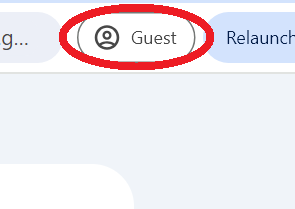
To sign into Gmail as a guest, click on the profile icon in the top right corner of your Chrome browser and select “Guest.”
This opens a new window indicating that you are browsing as a guest.
While in Guest Mode, your browsing history and email address won’t be saved.
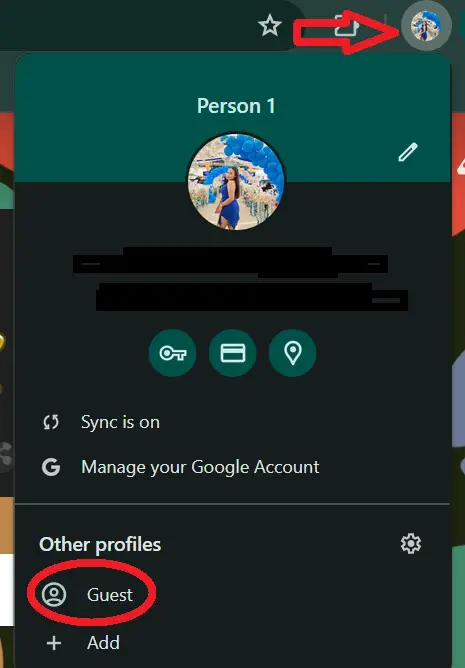
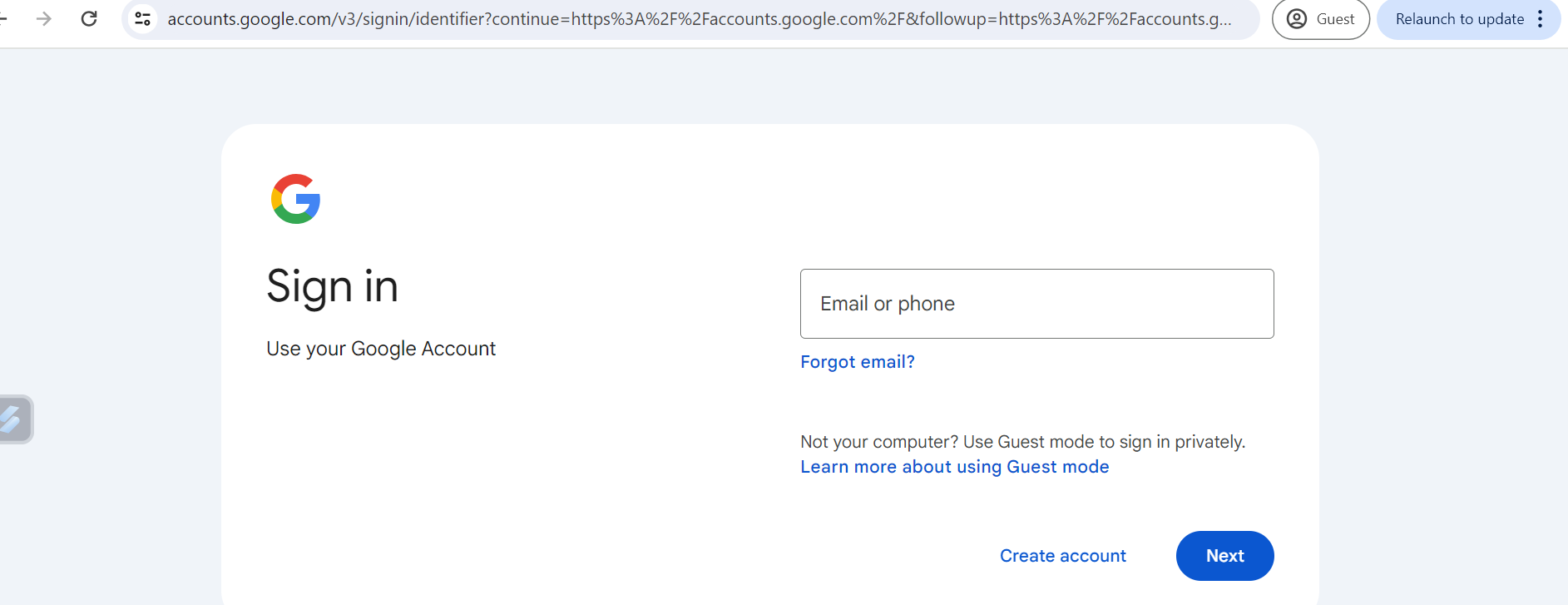
To access Gmail, type “mail.google.com” in the address bar and press ENTER. You can then log in to your Gmail account securely, knowing that no personal data will be left behind once you close the guest window.
How to Disable Guest Mode on Chrome?
To stop browsing as a guest, just close the Chrome guest window and open a new Chrome session.
Alternatively, you can click the profile icon in the top right corner and sign into your account.
How to Enable Guest Mode on an Android?
To enable Guest Mode on an Android device:
- Open Settings: Go to the device’s Settings app.
- Select Users & Accounts: Tap on “Users & Accounts” or “Users” (the exact name may vary by device).
- Add Guest User: Tap on “Add user” or “Guest” to create a new guest user profile.
- Switch to Guest Mode: Follow the prompts to set up the guest profile. Once set up, you can switch to Guest Mode from the lock screen or the “Users” menu.
In Guest Mode, the guest user can use the device without affecting your personal data or settings.
How to Log Out or Sign Out of Guest Mode in Chrome?
To log out or sign out of Guest Mode in Chrome, simply close the browser window.
Once the Guest Mode window is closed, all browsing data, including history, cookies, and any logged-in accounts, are automatically deleted.
There’s no need to manually sign out, as the session ends completely when you close the window.
How to Access My Gmail Account From Another Computer?
To access your Gmail account from another computer, follow these steps:
- Open a Web Browser: Launch any web browser like Chrome, Firefox, or Safari on the other computer.
- Go to Gmail: In the browser’s address bar, type www.gmail.com and press Enter.
- Enter Your Email Address: On the Gmail login page, enter your Gmail email address and click “Next.”
- Enter Your Password: Type in your Gmail password and click “Next” to log in.
- Optional – Two-Factor Authentication: If you have two-factor authentication enabled, you may be prompted to enter a code sent to your phone or email.
- Access Your Account: Once logged in, you can access your emails, contacts, and other Gmail features.
Remember to log out when you’re done, especially if you’re using a public or shared computer, to protect your account.
Quick step-by-step summary (click to expand)
- Open a private/incognito browser window. Chrome: Ctrl+Shift+N. Firefox: Ctrl+Shift+P. Safari: Cmd+Shift+N.
- Go to gmail.com in the private window. Sign in with the Gmail account you want to access. Nothing gets saved to the host browser.
- Use Gmail as normal. Full functionality available. Attachments upload and download work.
- Close the private window when done. Close all incognito tabs. All history, cookies, and session data are wiped instantly.
2026 update: Gmail guest mode on Chrome and Android
Signing into Gmail as a guest changed in Chrome 128 (August 2024) and again in Chrome 141 (August 2026). The classic Incognito workaround still exists but there are now two better options depending on your device.
- Chrome Guest Profile is the cleanest method on desktop. Click your profile avatar in Chrome top-right, choose “Guest”. A new window opens with no history, no extensions, no saved passwords. Sign into Gmail from there. Close the window and every trace is gone.
- Guest mode is different from Incognito. Incognito keeps your extensions and saved passwords available (privately); Guest strips both. For signing into someone else’s Gmail on a shared computer, Guest is safer.
- Android added Multi-User in 2026. Settings > System > Multiple users > Add guest. When your friend borrows the phone to check Gmail, switch to Guest user. Their Gmail sign-in stays isolated from your account and disappears when you switch back.
- Gmail web still has “Sign in as a different user” for account switching. Top-right avatar > Add another account. This does not create a guest session; it adds a persistent account to your Chrome profile. Use it for your own second account, not for someone else’s temporary access.
- Passkey sign-in works in Guest mode. If the account uses a passkey stored on a USB security key (YubiKey, Titan), Guest mode can still verify because passkeys live on the hardware token, not the browser profile. Convenient for shared-computer sign-in when phone-based passkeys are not an option.
- After the session: Guest window > Close. Chrome deletes all Guest data automatically. Nothing to clean up. This is what makes Guest the correct choice on shared devices, not Incognito.
If you are helping a family member sign in to Gmail on your computer, always use Chrome Guest Profile. Signing them into your main Chrome profile stores their credentials in your saved passwords list, which is a Data Privacy Act concern if you ever share the machine again.
Sep 2026 update: Chrome 138 changed guest mode Gmail login flow
Chrome 138 (September 2026 release) tightened the Guest window behavior in a way that affects how you sign into Gmail as a guest on a shared computer. Three concrete changes:
- Guest windows now require a fresh confirmation on every launch. Chrome prompts “Continue in Guest mode” before opening. Click it once and proceed. This is a privacy improvement, not a bug.
- Downloaded files no longer persist by default. Anything you download in Guest mode goes to a temp folder that Chrome auto-clears when the Guest window closes. If you need to save an email attachment, right-click the download and pick “Show in folder” while the Guest window is still open, then move the file to a permanent location.
- Google account “Remember me on this device” is now hidden in Guest mode. Even if you check it, Chrome ignores the request because Guest mode is designed to leave no trace. Sign in fresh every session.
On Android: Guest mode was renamed to “Multiple users” in Android 15 (rolled out Q1 2026). The steps to switch users are the same as the guest-mode instructions above; the only difference is the label in Settings → System → Multiple users. Chromebook Guest mode is unchanged and remains the cleanest option for a truly disposable Gmail session on a school or library device.
Frequently Asked Questions
Official documentation
Does Gmail have a guest login mode?
How do I log in to someone else’s Gmail without saving their password on my device?
Is it safe to log in to Gmail on a public computer?
What is the “Don’t ask again on this device” option in Gmail’s 2-step verification?
How do I remove my Gmail account from a borrowed device after using it?
Can I log in to Gmail without saving any session data?
Conclusion
To log out of Guest Mode in Chrome, simply close the browser window, which automatically deletes all session data.
When accessing Gmail from another computer, you can securely log in by opening a web browser and entering your credentials. Enabling Guest Mode on an Android device allows users to create a temporary profile without affecting the main account, ensuring privacy and security for both guest and primary users.
Related Gmail tutorials
- How to Recover an Old Gmail Account
- How to Find My Gmail Password: 4 Methods
- Keep Me Signed In on Google Gmail
- How to Unsend an Email in Gmail
- How to Edit a Group in Gmail
- How to Send an Email as Urgent in Gmail
- How to Show More Than 100 Emails per Page
- How to Change Email Line Spacing in Gmail
- How to Create Apple ID with Gmail
Other troubleshooting + career resources
- Fix “Private DNS Server Cannot Be Accessed” Error
- How Much Does It Cost to Be a Software Engineer
- Best Python Books for Beginners and Advanced
- What is Information Systems
About this guide. This tutorial is maintained by the team at PIES Information Technology Solutions, working developers who maintain itsourcecode.com as a free resource for 12,000+ BSIT students monthly. For custom development needs, see our Hire Us page.

Joken E. Villanueva
Founder & Lead Developer at PIES IT Solution
Founder of PIES Information Technology Solutions, a software company building production-grade applications for institutions across the Philippines. Over 8 years of hands-on full-stack development experience, currently leading the development of ClinicAI, an AI-powered clinic management platform.
Expertise: PHP · MySQL · JavaScript · AI Integration · SaaS Architecture · VB.NET · Database Design · Capstone Documentation · Java · View all posts by Joken E. Villanueva →
Gmail guest sign in updates in 2026
Google deprecated the classic “Add another account” guest mode in early 2026 for personal Chromebooks and replaced it with a proper “Guest browsing” mode that leaves zero trace on the device. If you are on a shared Chromebook at school or a public terminal, look for the “Browse as Guest” option on the sign in screen instead of trying to add your account normally.
For Windows and Mac computers, guest sign in on Gmail is still just an incognito or private browsing window in Chrome, Edge, or Firefox. Nothing about the technical approach changed. What did change: the phishing warning banner now appears more often on shared devices, so expect Google to ask you to verify your identity via SMS or the Google authenticator app the first time you sign in.
If you are travelling and need to sign in to Gmail on a hotel business center computer, please, please use incognito mode. And after you are done, tap your profile icon and select “Sign out” explicitly, then close the entire browser window. Do not skip the second step. Google keeps a session cookie active for hours after you close a single tab, and the next hotel guest can pick up where you left off if the browser window itself stays open.