
Most people end up with at least 2 Gmail accounts: a personal one and a work or school one. Adding the second account to your phone is faster than people think, under 2 minutes on either iPhone or Android.
This guide covers both platforms, then shows you how to switch between accounts, manage separate notifications, and avoid the most common sync mistakes.
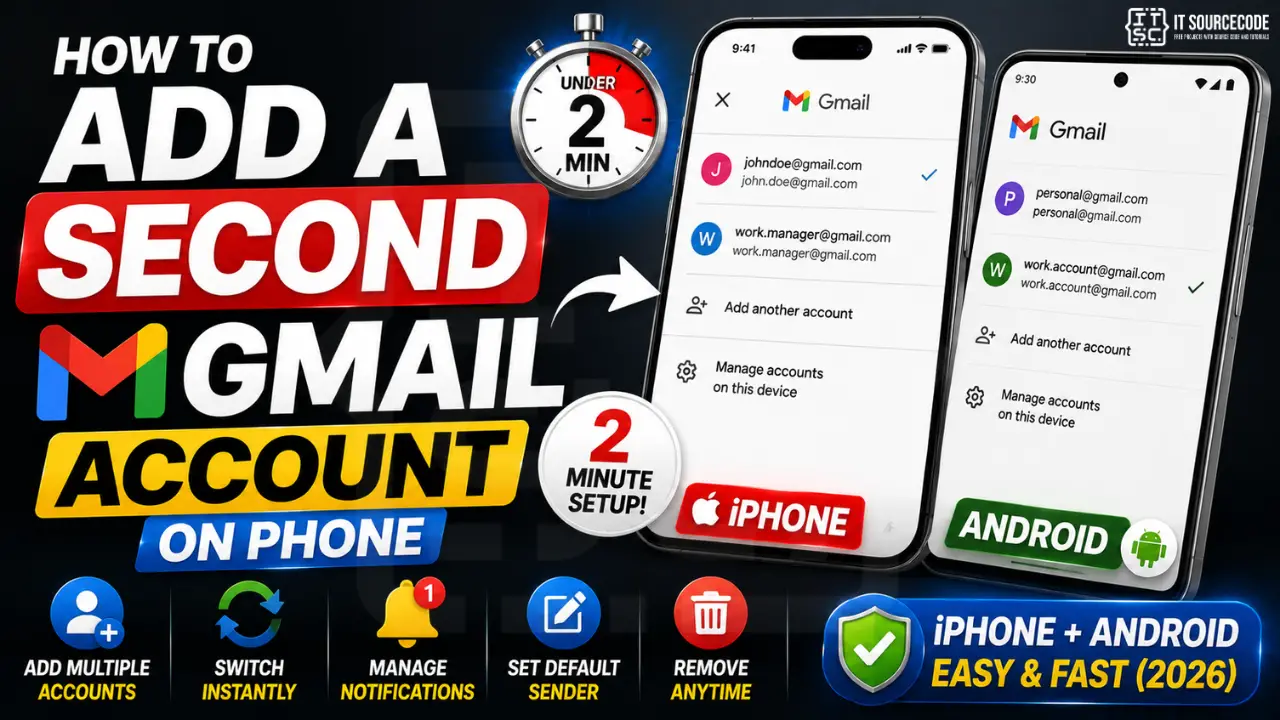
Add a second Gmail account on iPhone
- Open the Gmail app on your iPhone.
- Tap your profile picture in the top-right corner.
- Tap “Add another account.”
- Select “Google” from the list (other options: iCloud, Outlook, Yahoo).
- iPhone shows a Google sign-in prompt. Tap “Continue.”
- Enter the email address of the second Gmail account, then password.
- If 2-Step Verification is on, complete the verification code prompt.
- Tap “I agree” on the terms screen.
- The account appears in your Gmail account switcher within 30 seconds.
Add a second Gmail account on Android
- Open the Gmail app on your Android phone.
- Tap your profile picture in the top-right corner.
- Tap “Add another account.”
- Select “Google” from the list.
- Android shows the system-level Google sign-in (this works because Android natively integrates Google accounts).
- Enter the second Gmail address, then password, then complete 2-Step Verification if prompted.
- Accept the terms.
- The account is now available in Gmail AND across other Google apps (Drive, Photos, Calendar, YouTube).
On Android, the new account is added to the entire device, not just Gmail. If you only want it in Gmail (not Drive, Photos, etc.), use the Gmail app on iPhone-style flow instead (which is more limited).
Add a non-Gmail email account (Outlook, Yahoo, Work) too
The Gmail app supports any email service, not just Google. To add Outlook, Yahoo, iCloud, or a custom work email:
- Profile picture > “Add another account.”
- Pick the provider: Outlook/Hotmail/Live, Yahoo, iCloud, or “Other (IMAP)” for custom domains.
- Enter credentials. For “Other (IMAP),” you need IMAP server hostname, port (usually 993), and your password.
- The account appears in your switcher alongside Gmail accounts.
Manage notifications per account
By default, all your accounts show notifications together. If you only want notifications from your work account during business hours:
- Open Gmail > Menu (three lines) > Settings > tap the account you want to mute > Notifications > “None” or “High priority only.”
- For iOS, also go to Settings > Notifications > Gmail > turn off as needed (this is system-level, applies globally).
- For Android, long-press the Gmail notification when it arrives > tap the gear > turn off “Mail” channel for that specific account.
Set a default account for compose
When you tap Compose in the Gmail app, it uses whichever account is currently active in the switcher. To always compose from a specific account regardless of which inbox you are viewing, there is no global setting; instead, switch to that account first, then compose.
For web Gmail on desktop, the rule is the same: the account you log in to first (or click most recently in the account switcher in the top-right) is the active sender.
Remove a Gmail account from your phone
iPhone: Open Gmail > profile picture > “Manage accounts on this device” > tap the account > “Remove from this device.”
Android: Settings (system) > Accounts > Google > tap the account > “Remove account.” This removes it from ALL Google apps on the device, not just Gmail.
Removing the account does not delete it from Google; you can sign back in anytime. It only stops syncing on this specific device.
Common problems and fixes
| Problem | Fix |
|---|---|
| “Couldn’t sign in” error | Wrong password, or 2-Step Verification needed an app password. Generate one at myaccount.google.com/apppasswords. |
| Account added but no emails appear | Wait 5-15 minutes for initial sync. Pull down to refresh. If still empty, check that IMAP is enabled in account settings on desktop. |
| Same notification twice for one email | Account is duplicated. Check Settings > Accounts for duplicates and remove the older one. |
| Can’t see “Add another account” option | Update the Gmail app to latest version via App Store or Play Store. Older versions cap at 5 accounts total. |
Multi account Gmail on phone: 2026 improvements
The Gmail iOS and Android apps got a redesigned account switcher in June 2026 that lets you swipe between accounts with a two finger swipe on the top bar, similar to how Instagram’s account switcher works. This is much faster than the old “tap profile icon, then tap account” flow that took 3 taps to switch accounts. You can also long press the profile icon to see a list of all connected accounts.
You can now add up to 10 Gmail accounts on a single device in 2026 (up from 5 in previous years). This is useful for freelancers or agency staff managing multiple client Gmail accounts. Each account maintains separate notification settings, so you can silence work Gmail on weekends without muting your personal Gmail.
For Google Workspace accounts on personal phones, your organization may require the account to run inside “Work Profile” (Android) or Managed Apple ID mode (iOS). This creates a separate container on your phone so your work data does not mix with personal apps. The upside: your admin cannot see your personal data or wipe your personal apps. The downside: switching between work and personal is one extra tap.
If you add a second Gmail account and notifications get spammy across both, use Gmail’s “High priority notifications only” setting per account. This is available in Settings > Notifications > Choose account > High priority only. In 2026 this actually respects Google’s new priority algorithm reliably, unlike earlier versions that sometimes showed low priority messages anyway.
Official documentation
Quick step-by-step summary (click to expand)
- Open the Gmail app. Launch the Gmail app on your iPhone or Android phone.
- Tap your profile picture. Tap your profile picture in the top-right corner to open the account switcher menu.
- Tap Add another account. Select “Add another account” from the dropdown menu.
- Sign in with the new Gmail address. Enter the email and password for the second Gmail account you want to add.
- Switch between accounts. Tap your profile picture at any time to switch between the two accounts. Gmail shows both inboxes separately.
Frequently Asked Questions
How many Gmail accounts can I add to one phone?
Gmail supports up to 10 accounts per device on both iPhone and Android. In practice, 4-5 is the sweet spot for usability; beyond that the account switcher gets cluttered. Older Gmail app versions capped at 5, so update the app if you do not see “Add another account.”
Will my second Gmail show notifications separately from my first?
By default they share the same notification stream, but you can configure separate sounds and priority per account in Gmail Settings > tap each account > Notifications. For finer control, use system-level notification channels (Android long-press notification or iOS Settings > Notifications > Gmail).
Can I add a work Outlook account to the Gmail app?
Yes. The Gmail app supports Outlook, Yahoo, iCloud, and any IMAP-compatible email. Tap profile picture > Add another account > pick the provider. For company-managed Outlook with Microsoft Exchange, you may need to install Microsoft Authenticator and sign in via Modern Authentication.
Will adding a second Gmail account share my data with the first?
No. Each account stays completely separate: separate inbox, separate Drive, separate Photos, separate contacts. The only thing they share is the device, so apps that ask “which account?” will let you choose every time.
How do I switch between Gmail accounts on iPhone quickly?
Tap your profile picture in the top-right corner of any Gmail screen, then tap the account you want. You can also swipe down or up on the profile picture to cycle through accounts without opening the switcher. The current inbox refreshes within 1-2 seconds.
If I remove a Gmail account from my phone, does it delete the emails?
No. Removing the account only stops syncing to this device. All your emails, contacts, and Drive files remain safe on Google’s servers and reappear instantly when you sign back in on this or any other device. Account deletion is a separate action done at myaccount.google.com.

Caren Bautista
Technical Writer at PIES IT Solution
Responsible for crafting clear, well-structured, and beginner-friendly content across the platform. Handles the writing, proofreading, and editorial review of tutorials, guides, and documentation to ensure every article is accurate, readable, and easy to follow.
Expertise: Technical Writing · Content Creation · Documentation · Editorial Writing · JavaScript · TypeScript · Python · Python Errors · HTTP Errors · MS Excel · View all posts by Caren Bautista →