
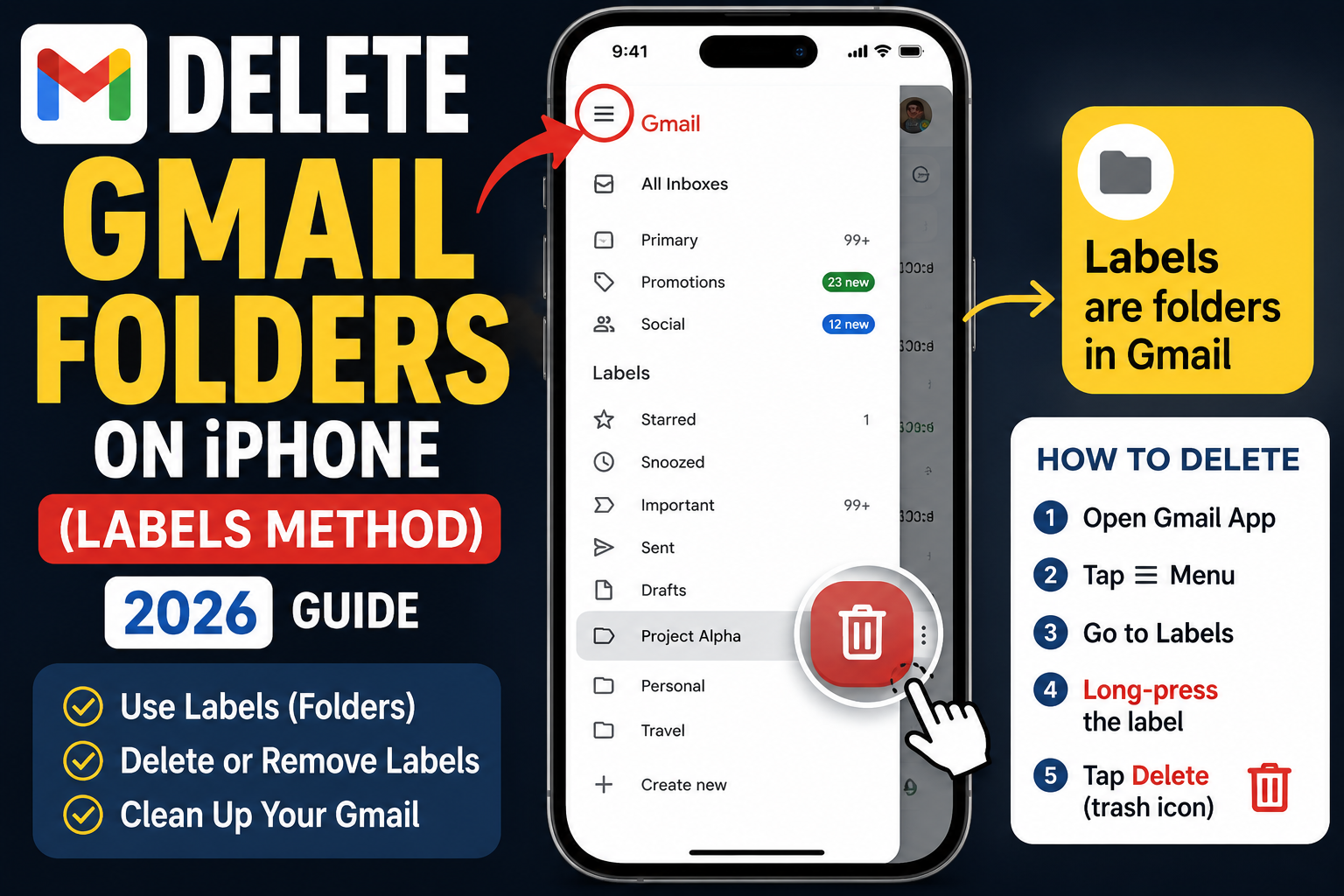
Gmail on iPhone calls labels “folders” but they behave identically. To delete one, go through the Gmail app settings menu, tap the label, and choose Delete. This 2026 guide covers the exact taps on iPhone (and Android for reference), what happens to emails inside deleted labels, and how to hide labels without deleting them.
Deleting a folder is safe. Only the label goes away; the emails inside stay in All Mail or Inbox depending on where they were.
Understand: Gmail folders are actually labels
The terminology gets confusing across platforms.
- Gmail uses “labels” everywhere internally. iPhone and Android apps call them “folders” in the UI to match user expectations.
- An email can have multiple labels applied at once. Traditional folders can only have one per email.
- Deleting a label removes it from every email that had it. The emails themselves are not deleted.
- Labels are tied to your Gmail account, so deleting on iPhone deletes across all your devices instantly.
Delete a Gmail folder (label) on iPhone
The primary iPhone path.
- Open the Gmail app on your iPhone.
- Tap the hamburger menu (three horizontal lines) in the top left.
- Scroll down through the labels in the left sidebar.
- Find the label you want to delete.
- Long-press the label name (hold your finger on it).
- A menu appears with Rename and Delete options.
- Tap Delete.
- Gmail asks to confirm. Tap Delete again.
- The label disappears from the sidebar. Emails that had the label are unchanged.
Delete a Gmail folder on Android (for reference)
Nearly identical to iPhone.
- Open the Gmail app on Android.
- Tap the hamburger menu in the top left.
- Long-press the label you want to delete.
- Tap Delete.
- Confirm.
Delete a Gmail folder from the desktop web
The desktop path if you prefer.
- Open Gmail in your browser.
- In the left sidebar, hover over the label you want to delete.
- Click the three-dot menu that appears next to the label name.
- Choose Remove label.
- Confirm the delete dialog.
- The label is removed from every synced device.
What happens to emails inside a deleted label
Understanding the aftermath prevents confusion.
- Emails that were labeled with the deleted label lose that label but stay in Gmail.
- If the email was in Inbox with the label, it stays in Inbox after deletion.
- If the email was archived with only that label, it stays in All Mail after deletion.
- Nothing is permanently deleted. You just lose the ability to filter by that label.
Hide a label instead of deleting
If you might want the label back someday, hiding is safer than deleting.
- On desktop web, open Settings > See all settings > Labels.
- Find the label in the list.
- Under the Show/Hide column, click Hide.
- The label disappears from the sidebar but is not deleted.
- Click Show to bring it back visible whenever needed.
Common folder-deletion mistakes
- Assuming deletion removes emails. Only the label is removed. Emails are unchanged.
- Trying to delete system labels. Inbox, Sent, Drafts, Trash, Spam are Gmail-managed and cannot be deleted.
- Deleting instead of hiding. If you might want the label back, use Hide first. Delete is permanent.
- Not checking sub-labels. If your label has sub-labels (like Work/Projects/Alpha), deleting the parent may affect children. Review the tree first.
- Deleting the wrong label. On mobile, similar names can be easy to mis-tap. Verify before confirming.
When to delete vs hide vs rename
Delete a label when you are completely done with a project or category, the label is empty, or you have too many labels and need to clean up.
Hide a label when the label is dormant but might come back (e.g., a client you haven’t worked with in a while). Hide preserves the label for future use.
Rename a label when you want to reorganize without losing the categorization. Common case: renaming “2024 Projects” to “Archive/2024” for archival.
For long-term organization, review your label list quarterly. Delete truly-done labels, hide dormant ones, and consolidate overlapping ones.
Power-user tips for Gmail label management
- Use nested labels for organization. Create parent-child hierarchies like Work/Projects/Alpha for easy browsing.
- Color-code important labels. Right-click a label > Label color to make critical labels stand out visually.
- Combine labels with filters. Auto-apply labels to incoming email via filters. Your label list becomes an automated organization system.
- Star + label for priority tracking. Star important emails within a label to find the critical ones fast.
- Review annually. Set a calendar reminder to review your label list once a year. Delete dead labels, consolidate overlaps.
Best practices for Gmail label organization
Well-organized labels save hours per year in email searching and processing. A few conventions keep your label list useful over time.
- Start with categories, not projects. “Clients” and “Vendors” as parents, then specific project labels as children. Prevents label list bloat.
- Prefix hierarchies with dashes. Naming like “Work-Projects-Alpha” beats deep nesting in mobile app UIs.
- Color-code the top 5 labels. Only the most-used labels get colors. Reserves visual weight for what matters.
- Archive old projects, do not delete. Rename “2024 Alpha Launch” to “Archive-2024-Alpha” for historical reference.
- Review quarterly. A 15-minute quarterly cleanup keeps the label list from becoming an unusable mess.
Quick label-management checklist
Before deleting any label, run through this quick check:
- Confirm the label is not a system label (Inbox, Sent, Drafts cannot be deleted).
- Check whether any active filters use this label as a target action.
- Verify no important emails are labeled ONLY with this label (they will lose their organization).
- Consider Hide instead of Delete if you might want the label back later.
- Back up important labeled emails to a Google Doc or export before deleting the label.
Official documentation
Recommended email productivity resources
The links below are affiliate links. We may earn a commission at no extra cost to you when you buy or sign up. See our affiliate disclosure.
Frequently Asked Questions
Does deleting a Gmail folder delete the emails inside?
No. The emails remain in All Mail or Inbox depending on where they were. Only the label is removed.
Why can I not delete some folders in Gmail?
System labels like Inbox, Sent, Drafts, Trash, and Spam are Gmail-managed and cannot be deleted. Only custom labels you created can be removed.
Can I delete Gmail folders on Android as well?
Yes. The steps are identical: long-press the label in the hamburger menu and choose Delete.
How do I delete a Gmail label via desktop?
Hover over the label in the left sidebar, click the 3-dot menu, and choose Remove label. Confirm the dialog.
Will deleted labels come back automatically?
No. Once deleted, labels are permanently removed. To bring one back, create a new label with the same name.
Can I recover a deleted label?
No, the label itself is gone permanently. However, the emails that had the label are still in All Mail. You can find them by search and re-apply a new label.