
Blocking someone in Gmail stops their emails from reaching your inbox. Future messages go straight to Spam and never trigger a notification.
This works for both personal contacts you no longer want to hear from and marketing senders that keep bypassing the unsubscribe.
Here is how to block someone in Gmail on desktop, Android, and iPhone in 2026.
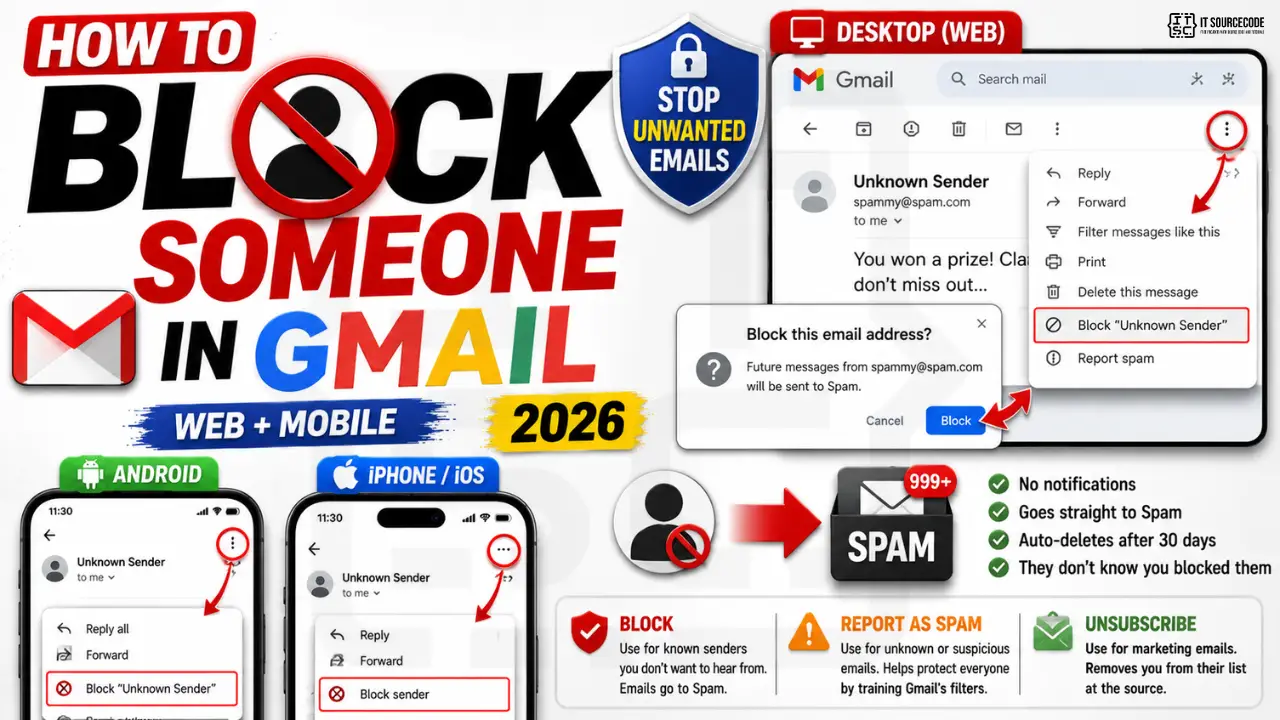
Block someone in Gmail on desktop (web browser)
- Open Gmail at
mail.google.com. - Open any email from the sender you want to block.
- Click the three vertical dots (More menu) in the top-right corner of the message.
- Select Block [sender name] from the menu.
- Confirm by clicking Block in the popup.
All future emails from this sender will land in your Spam folder automatically. Existing messages already in your inbox stay put unless you delete them.
Block someone in Gmail on Android
- Open the Gmail app on your Android phone.
- Tap the email from the sender you want to block.
- Tap the three dots in the top-right corner.
- Tap Block “sender name”.
The same block applies across all your devices signed into that Google account, including desktop and iOS.
Block someone in Gmail on iPhone or iPad
- Open the Gmail app on your iPhone or iPad.
- Tap an email from the person you want to block.
- Tap the three dots at the top-right of the email header.
- Tap Block sender.
iOS handles the block identically to Android. The block syncs to your Google account within seconds.
Unblock a sender in Gmail
If you change your mind, unblocking is easy:
- Open Gmail on desktop and click the gear icon in the top-right.
- Click See all settings.
- Go to the Filters and Blocked Addresses tab.
- Scroll to the “The following email addresses are blocked” section.
- Find the sender in the list and click unblock.
Their future emails will resume landing in your regular inbox.
Block vs Report as Spam vs Unsubscribe
Gmail gives you three different tools for unwanted emails. Pick the right one:
- Block: use when you know the sender and want their emails routed to Spam. Personal use case.
- Report as Spam: use for unknown senders that look suspicious or phishing. Trains Google’s spam filter across all users.
- Unsubscribe: use for legitimate marketing emails you signed up for. Uses the email’s built-in unsubscribe link and removes you from their list at the source.
Create a Gmail filter to auto-delete blocked-adjacent emails
Blocking only works per exact email address. If a sender switches to a different address, you have to block that one too. A filter is more powerful because it can target any pattern.
- Open Gmail on desktop. Click the search bar at the top.
- Click the Show search options icon on the right side of the search bar.
- Enter the sender email, subject keyword, or domain in the appropriate field.
- Click Create filter at the bottom of the search box.
- Choose “Delete it” or “Skip the Inbox” to auto-remove matching emails.
- Click Create filter.
What happens when you block someone in Gmail
- Their emails still get sent to your address, but land in Spam instead of Inbox.
- Spam auto-deletes after 30 days, so you never see them again.
- You do NOT get a “delivery failed” bounce back to them. They do not know they were blocked.
- Blocking does NOT block them from seeing your Gmail-linked profile, calendar sharing, or Meet invites.
- If you need to block calendar invites too, remove them from Google Contacts and revoke calendar sharing separately.
Official documentation
Recommended email productivity resources
The links below are affiliate links. We may earn a commission at no extra cost to you when you buy or sign up. See our affiliate disclosure.
Common Gmail blocking problems
Blocking someone in Gmail should be simple, but users hit these five common problems. Here are the fixes.
- Blocked sender still shows in Inbox. Blocking sends future emails to Spam, not immediately deletes existing ones. Delete the existing emails from Inbox manually to clean up.
- Sender changes email address and bypasses the block. Blocking is per-email-address. Persistent spammers rotate addresses. Use a filter that catches keywords in the sender name or subject line as backup.
- Blocked sender appears in “spam” folder anyway. Blocking routes to Spam by design. Set Gmail to auto-delete Spam after 30 days or manually purge weekly.
- Blocking a colleague accidentally. Blocked emails still fire read receipts and calendar invites, but you never see them. If you accidentally blocked a coworker, unblock them under Settings > Filters and Blocked Addresses.
- Blocking on mobile does not sync to desktop. Both apps use the same Gmail settings so blocking should sync. If it does not, wait 5 minutes for sync or sign out and back in on the mobile app.
When blocking is not enough
Gmail blocking works well for casual spam and unwanted contacts. It does not stop determined harassers or phishers who rotate email addresses. For those cases, layer additional defenses on top of blocking.
Report abusive emails to Google via the Report Phishing option in the three-dot menu. Google uses these reports to improve site-wide spam detection, which helps everyone. If the harasser threatens you, save the emails as evidence and report to law enforcement, then close down the Gmail conversation by blocking and archiving.
For workplace harassment, coordinate with your IT department. They can add domain-level blocks that prevent harasser email addresses from reaching any employee inbox, not just yours. This is stronger than personal blocking and creates an audit trail.
For persistent spam campaigns, combining Gmail blocking with a service like SimpleLogin or Firefox Relay lets you use disposable email aliases for sign-ups. If a spammer captures one alias, you delete that alias without changing your real Gmail address. This is the best defense against the spam economy in 2026.
Quick step-by-step summary (click to expand)
- Open the email from the person. Find and open an email from the sender you want to block.
- Click the three-dot menu. In the top right of the email, click the three vertical dots to open the menu.
- Click Block [sender name]. Confirm the block by clicking Block in the dialog.
- Verify in settings. Check Settings > Filters and Blocked Addresses to confirm the sender is on your blocked list.
- Delete existing emails from Inbox. Blocking sends future emails to Spam, but does not delete existing ones. Manually delete or archive them.
Frequently Asked Questions
Does the blocked person know you blocked them?
No. Gmail does not notify the sender when you block them. Their emails still deliver to your account but land in Spam. They see the message as sent normally.
Can I block an entire domain in Gmail?
Not directly with the Block button. Use a filter instead. Search for from:@example.com then create a filter to delete or archive all matching emails.
How many senders can I block in Gmail?
Google does not publish a hard limit but the practical limit is thousands. If you find yourself blocking a large number of senders, use domain-level filters instead for cleaner management.
Does blocking work if they send from a different address?
No. Blocking is per-email-address. If a sender switches to another Gmail address or personal domain, you need to block that one too or set up a domain-level filter.
Will blocking delete emails already in my inbox?
No. Existing emails stay in your inbox. Only future emails get routed to Spam. To also delete old emails, search for from:sender@example.com and delete the results.

Caren Bautista
Technical Writer at PIES IT Solution
Caren Bautista is a technical writer at PIES IT Solution responsible for clear, beginner-friendly tutorials and error-fix guides.
Expertise: Technical Writing, JavaScript, Python, Python Errors, MS Excel, Gmail Productivity