
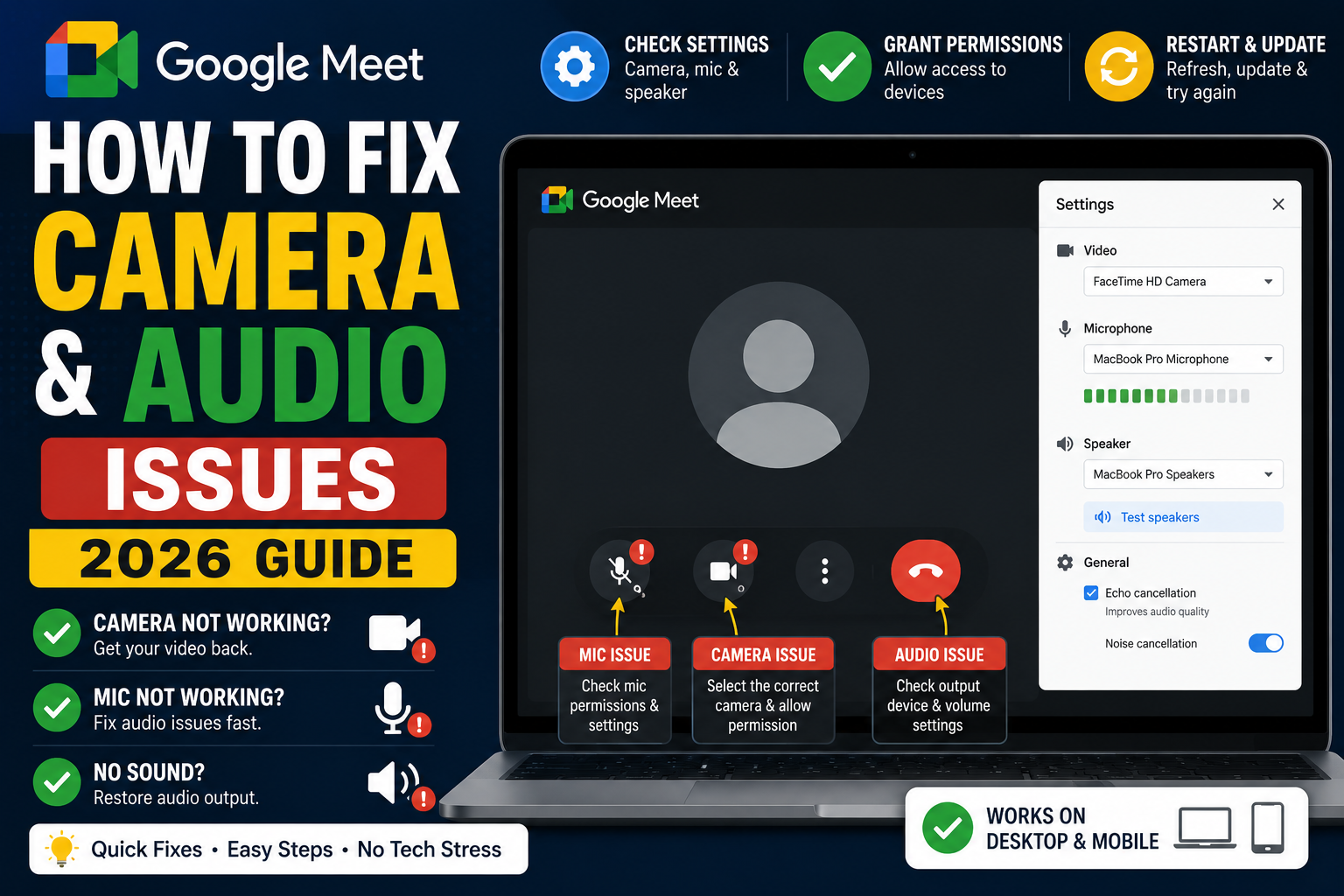
Google Meet camera and audio issues almost always come from browser permissions, wrong device selection, or driver problems, not from Meet itself. This 2026 tutorial walks through every fix in order, from the fastest (browser permission) to the deepest (drivers), covering camera, microphone, speaker, and quality issues.
Fix 1: Grant browser permissions
- In Chrome: click the lock icon in the URL bar.
- Ensure Camera and Microphone are set to Allow.
- If blocked: click X > select Allow > reload page.
- Test again in Meet.
Fix 2: Check OS permissions
Mac: System Settings > Privacy & Security > Camera. Ensure Chrome (or your browser) is checked.
Windows: Settings > Privacy & security > Camera. Ensure “Let apps access your camera” is on.
Mobile: Settings > Apps > Google Meet > Permissions > enable Camera + Microphone.
Fix 3: Select correct device in Meet
- In Meet, click the three-dot menu > Settings.
- Under Audio: verify Microphone and Speaker are correct devices.
- Under Video: verify Camera is correct.
- Test with the built-in test.
Fix 4: Test camera outside Meet
Rule out hardware/driver issues:
- Mac: open Photo Booth. If it works, camera hardware is fine.
- Windows: open Camera app. If it works, hardware is fine.
- Mobile: open camera app.
- If camera works elsewhere but not Meet: permission or device selection issue.
- If camera doesn’t work elsewhere either: hardware/driver issue.
Fix 5: Test microphone outside Meet
- Mac: System Settings > Sound > Input. Watch the level meter as you talk.
- Windows: Settings > Sound > Input. Watch the level meter.
- Mobile: use voice memo app.
- If mic works elsewhere but not Meet: permission or device selection.
- Mic silent everywhere: hardware/driver.
Fix 6: Close conflicting apps
Only one app can use the camera/mic at a time:
- Close Zoom, Teams, Skype, other browser tabs using camera.
- Also close obs-studio or virtual camera software.
- Restart Chrome.
- Retry Meet.
Fix 7: Restart browser or computer
- Close all Chrome windows.
- Reopen Chrome.
- Test Meet.
- If still broken: fully restart your computer.
Fix 8: Update browser and camera drivers
- Chrome: chrome://settings/help > update if available.
- Windows: Device Manager > Cameras > right-click > Update driver.
- Mac: System Settings > General > Software Update.
- Firmware updates on external webcams sometimes needed.
Fix 9: Fix audio echo
- Use headphones instead of speakers.
- Reduce speaker volume, feedback loop causes echo.
- Ask other loud people to mute.
- Move mic further from speaker.
- Enable Noise cancellation (Workspace Business Standard+).
Fix 10: Fix choppy video
- Check internet speed (fast.com). Meet needs at least 3 Mbps up/down.
- Close other bandwidth-heavy apps (streaming, torrents, cloud sync).
- Move closer to WiFi router or use Ethernet.
- Reduce Meet video send resolution: Settings > Video > Send resolution > 360p.
- Turn off camera for audio-only mode.
Fix 11: Fix no audio (can’t hear others)
- Check volume: system speaker volume up.
- Check Meet speaker selection: three-dot menu > Settings > Audio > Speakers.
- Pick different output device.
- Unplug headphones if wanting speakers, or vice versa.
- Some Bluetooth headphones drop mid-call; try wired.
Fix 12: Fix camera black screen
- Physical camera cover, check that lens isn’t blocked.
- Close/reopen browser to release camera.
- Restart camera on Windows: Device Manager > Cameras > right-click > Disable, then Enable.
- Update webcam driver.
Fix 13: Fix camera mirror (backwards image)
- Meet mirrors your video for YOU by default, you see mirrored, but others see normal.
- Text may look reversed to you but is correct to others.
- To fix your view: three-dot menu > Settings > Video > uncheck “Mirror image”.
Common Meet audio/video issues summary
- No camera: browser permission blocked.
- No mic: browser permission blocked or wrong device.
- Black screen: camera in use by another app.
- Echo: speaker feedback to mic. Use headphones.
- Choppy video: bandwidth issue.
- Can’t hear anyone: wrong output device selected.
- Others can’t hear me: mic muted, wrong input, or system audio mixer routing.
When to give up and reboot
- Tried all fixes above? Restart your computer.
- Persistent issues after reboot? Reinstall Chrome or camera driver.
- Still broken? Test on another device (phone). If phone works, laptop hardware.
- All devices broken? Router or ISP issue.
Common Google Meet mistakes to avoid
- Not testing camera and mic before the meeting. Meet has a preview page at meet.google.com/hangouts/preview where you can test devices before joining any meeting.
- Joining from mobile when you need to share screen. Screen sharing works on mobile but is limited. Use desktop when you need to share content in detail.
- Forgetting to mute when not speaking. Background noise disrupts everyone. Press Ctrl+D (Cmd+D on Mac) to toggle mute.
- Assuming recordings are automatic. Meet only records when the host clicks Record. Enable at the start; you cannot recover an unrecorded meeting.
- Ignoring the noise cancellation feature. Workspace tiers include background noise cancellation. Enable in Settings > Audio.
Power-user tips for Google Meet
- Use keyboard shortcuts. Ctrl+D to mute, Ctrl+E for camera, Ctrl+Alt+H to raise hand, Ctrl+Alt+M for the chat panel. All work on Windows and Mac (swap Ctrl for Cmd on Mac).
- Add captions. Turn on live captions at the bottom-right menu. Useful for accessibility and noisy environments.
- Enable Q&A for large meetings. Attendees can submit written questions without interrupting. Available on Workspace tiers.
- Use polls to gather feedback. Quick pulse checks during long meetings keep attention.
- Share a specific tab, not the whole desktop. Prevents accidentally sharing notifications or personal information.
When to use Meet vs alternatives
Meet works best when your organization is already on Google Workspace, calls are 3-10 participants, and simplicity matters more than advanced features. It integrates seamlessly with Calendar and Gmail, which is unbeatable for Google-first teams.
For large webinars (100+ attendees), Zoom or Webex offer better host controls. For persistent team chat with video, Slack Huddles or Microsoft Teams work better. For high-quality recorded content, tools like Riverside or Descript produce cleaner output.
For BSIT capstone defenses and student meetings, Meet is the right choice on any campus with Google Workspace for Education. Free tier supports up to 100 participants for 60 minutes.
Best practices summary
- Test devices 5 minutes before start. Camera, mic, network. Nothing worse than the “can you hear me?” opening.
- Share agenda in Calendar description. Attendees arrive knowing what to discuss.
- Assign a note-taker at start. Distributes cognitive load and produces action items.
- End on time or early. Respect people’s calendars. Reschedule if content overflows.
- Follow up with meeting notes within 24 hours. Consolidates decisions and prevents forgotten action items.
Official documentation
Recommended reliable video call gear
The links below are affiliate links. We may earn a commission at no extra cost to you when you buy or sign up. See our affiliate disclosure.
Frequently Asked Questions
Why is my camera showing a black screen?
Another app is using the camera. Close Zoom, Teams, Skype, browser tabs, or virtual camera software. Restart Chrome. Also check that camera privacy cover isn’t blocking.
Why can others hear me but I can’t hear them?
Speaker/output device issue. Meet Settings > Audio > pick correct Speaker. Also check system volume up.
Why is my video pixelated?
Low bandwidth. Meet reduces resolution to keep call stable. Close bandwidth-heavy apps. Or use Ethernet instead of WiFi. Or reduce send resolution in Settings.
Why does Meet keep dropping my mic?
Bluetooth headphones sometimes lose connection. Switch to wired. Also check Bluetooth priority in system settings. Or update Bluetooth drivers.
Should I use Chrome or another browser?
Chrome offers the most stable Meet experience. Edge is second best. Safari and Firefox work but may have quirks. Meet is a Google product optimized for Chrome.