
If you can no longer recover or sign in to your Gmail account, or if you notice emails in your Sent folder that you did not write, your account has most likely been compromised or hacked. Speed matters here: attackers often use a freshly hacked Gmail account to reset every linked service (banking, social media, work tools) within the first hour.
This guide gets you back in control in under 30 minutes, then locks the account down so it does not happen again.
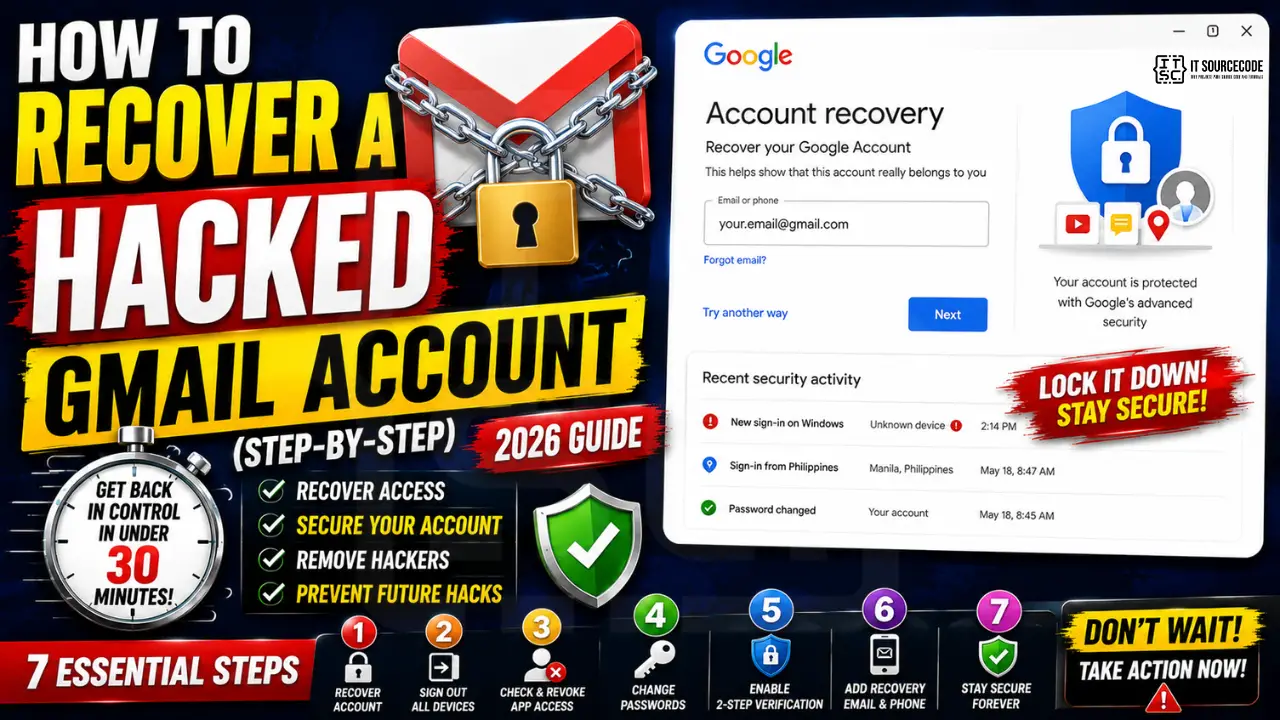
Step 1: Recover access using the official Google form
Go to accounts.google.com/signin/recovery in a private browser window (no extensions, no autofill). The private window matters because saved logins or cached cookies can interfere with Google’s verification flow.
- Enter the email address of the hacked account.
- Click “Try another way” until you reach the option to “Enter the last password you remember.”
- Type the most recent password you remember, even if you think the attacker changed it. Google uses your password history to verify identity.
- Google sends a verification code to your recovery email or recovery phone number. Enter it.
- If you no longer have access to either recovery method, click “Try another way” again and answer the account-history questions (creation month and year, common contacts, security questions).
- Once verified, Google forces you to set a new password. Use a long passphrase, minimum 16 characters, never reused on any other site.
If Google rejects your recovery attempt, wait 24 hours and try again from the same device on the same Wi-Fi network. Google’s algorithm weights “device and location consistency” heavily.
Step 2: Sign out all other sessions and check active devices
The attacker may still have an active session on their device. To kick them out:
- Open
myaccount.google.com/device-activity. - Review the list of recent devices and locations. Any entry you do not recognize is the attacker’s device.
- Click the suspicious device and then click “Sign out.” This invalidates their session token immediately.
- Repeat for every device in the list that is not yours.
- Go to
myaccount.google.com/securityand scroll to “Your devices.” Confirm only your devices remain.
Step 3: Audit and revoke app permissions
Attackers often add their own app or grant a third-party app access to your data before you regain control. These permissions persist even after you change the password.
- Go to
myaccount.google.com/permissions. - Review every connected app. Remove anything you did not personally authorize.
- Pay special attention to anything labeled “Has access to Gmail” or “Has access to Drive.”
- Also check Filters and Forwarding in Gmail settings (gear icon > See all settings > Filters and Blocked Addresses, then Forwarding and POP/IMAP). Attackers often set a forwarding rule to siphon incoming mail to their own address.
Step 4: Reset passwords on every linked service
Your Gmail address is the recovery email for dozens of accounts. Even if the attacker only had your Gmail for 10 minutes, they may have triggered password resets that are still pending in your inbox. Now that you have access back, work through this list:
| Priority | Service category | Examples |
|---|---|---|
| 🔴 First (now) | Banking + payment | Bank login, PayPal, GCash, Maya, Wise, crypto exchanges |
| 🟠 Within 1 hour | Social + identity | Facebook, Instagram, X, LinkedIn, TikTok |
| 🟡 Within 6 hours | Cloud + work | Dropbox, OneDrive, Slack, Notion, Trello, GitHub |
| 🟢 Within 24 hours | Subscriptions + shopping | Netflix, Spotify, Amazon, Shopee, Lazada, Steam |
Check your Trash and Spam folders for password reset emails from the attacker’s attempts; they may have moved them to hide the activity.
Step 5: Turn on 2-Step Verification (mandatory)
2-Step Verification (2SV, sometimes called 2FA) blocks 99% of automated account takeovers. Even if an attacker steals your new password, they cannot sign in without your phone.
- Go to
myaccount.google.com/signinoptions/two-step-verification. - Click “Get started” and re-enter your password.
- Add your phone number for SMS codes as the fallback method.
- More secure option: add an authenticator app (Google Authenticator, Authy, 1Password) as the primary method. Apps work offline and resist SIM-swap attacks.
- Most secure option: add a physical security key (YubiKey, Google Titan). Hardware keys cannot be phished.
- Generate and save 10 backup codes in a password manager. These let you sign in if you lose your phone.
Step 6: Add a recovery email and phone
Recovery contacts are how Google verifies you next time. Set both:
- Go to
myaccount.google.com/recovery. - Add a recovery email that is on a different provider (Outlook, ProtonMail, Yahoo). This avoids losing both if Gmail is down.
- Add a recovery phone number you control. Avoid VoIP numbers (Google Voice, Skype), they sometimes fail verification.
- Confirm both with the codes Google sends.
Prevention checklist (do this once, never get hacked again)
- ✅ Use a unique 16+ character password for Google (never reused anywhere)
- ✅ Turn on 2-Step Verification with an authenticator app, not SMS
- ✅ Run Google’s Security Checkup quarterly at
myaccount.google.com/security-checkup - ✅ Use a password manager (Bitwarden, 1Password, Proton Pass) so unique passwords are sustainable
- ✅ Never click “sign in with Google” prompts from emails; type the URL yourself
- ✅ Avoid public Wi-Fi when signing in to Google; use a VPN if you must
- ✅ Review device-activity and permissions monthly
- ✅ Set a memorable recovery question only you can answer
Most Gmail compromises in 2026 happen via password reuse, fake “Google security alert” phishing emails, and malicious browser extensions. None of those work if you follow the checklist above.
Quick step-by-step summary (click to expand)
- Go to the Google account recovery page. Open google.com/accountrecovery immediately. Time matters for account recovery.
- Select “someone else is using my account”. Choose the option that best describes your situation. This flags your recovery as a security incident.
- Verify identity with recovery methods. Use your recovery phone, recovery email, or a device where you were previously signed in. Google prioritizes trusted devices.
- Reset your password immediately. Once verified, create a new strong password. Never reuse a password across services.
- Review security settings and active sessions. Sign out of all devices. Enable 2-factor authentication. Review recent activity for suspicious sign-ins and report them to Google.
If your 2FA is also compromised (Sep 2026 recovery)
The recovery flow above assumes the attacker has your password but not your 2FA method. That is the common case. If the attacker also has your 2FA (took over your SIM through porting, drained your Authy vault, or intercepted the backup codes email), the standard “verify by SMS” path will not help because the attacker receives the code.
Step 1: Report SIM swap or 2FA hijack to Google
Go to Google Account Recovery Troubleshooter and pick “Someone else is using my account.” This routes you to a human review path instead of the automated SMS check. You will be asked to prove account ownership through: (a) an old password you actually used, (b) the month/year the account was created, (c) recent contacts you emailed.
Step 2: Freeze the recovery email on your end
Log into the recovery email account (usually Yahoo or Outlook) and change its password FIRST, then enable 2FA there with a different method (hardware key if possible). If the attacker gets into your recovery email, the Gmail recovery form becomes useless because Google emails recovery codes to it.
Step 3: Contact your carrier about the SIM
If the attacker did a SIM swap, your phone number now belongs to them until the carrier reverses it. Call the carrier’s fraud line (not the general support line) and quote “port fraud recovery.” US carriers reverse this in 24 to 48 hours as of Sep 2026 policy. Until then, do not use SMS-based 2FA anywhere else either, because every account that uses your number is exposed.
Step 4: Rebuild 2FA on a hardware key
Once Google returns the account, immediately disable SMS 2FA and add a hardware security key (YubiKey 5, Google Titan) as the primary method. Hardware keys cannot be phished or SIM-swapped. Backup codes printed on paper are the secondary method. This closes the same hole the attacker used the first time.
Frequently Asked Questions
Official documentation
How long does Google take to recover a hacked Gmail account?
If you have access to a recovery phone or recovery email and remember a past password, recovery takes 10-15 minutes. Without those, Google’s manual identity-verification process can take 3-5 business days because they cross-check account history (creation date, common contacts, browsing patterns).
What if I do not have my recovery phone or email anymore?
Use the account history questions instead. Google asks for your account creation month/year, common recipient addresses you email, and security questions you set previously. Answer from the same device and Wi-Fi you used to access the account historically; Google weights location and device fingerprint heavily in manual recovery.
Should I delete a hacked Gmail account?
Only as a last resort. Once you delete a Google account, you lose Drive files, Photos, YouTube history, and the address itself (Google holds the address forever, no one else can re-claim it). Try every recovery step first, and use the Google account specialist support form at support.google.com/accounts if manual recovery fails.
Is SMS 2FA safer than no 2FA at all?
Yes, much safer. SMS 2FA stops 96% of automated bot attacks even though it is vulnerable to SIM-swap attacks targeted at high-value individuals. For most people, SMS 2FA is good enough, and you should add it immediately if you have not. For better protection, switch to an authenticator app (Google Authenticator, Authy) or hardware key (YubiKey).
How do I know if someone is still in my Gmail account right now?
Open Gmail in a browser, scroll to the very bottom of any inbox view, and click the small “Last account activity” link in the lower right. A pop-up shows the last 10 sign-ins with IP addresses and country. If you see any IP you do not recognize, click “Sign out all other sessions” at the top of the same pop-up.
Can I report the person who hacked my Gmail to Google?
Yes. Submit a report at support.google.com/mail/answer/8253 with the IP addresses from your device-activity log. Google does not pursue criminal action directly but flags the attacker’s account for review and may lock it. For financial loss, file a police report in your local jurisdiction and submit the case ID to Google for evidence support.

Caren Bautista
Technical Writer at PIES IT Solution
Responsible for crafting clear, well-structured, and beginner-friendly content across the platform. Handles the writing, proofreading, and editorial review of tutorials, guides, and documentation to ensure every article is accurate, readable, and easy to follow.
Expertise: Technical Writing · Content Creation · Documentation · Editorial Writing · JavaScript · TypeScript · Python · Python Errors · HTTP Errors · MS Excel · View all posts by Caren Bautista →
What changed in 2026 for Gmail account recovery
Google rebuilt the account recovery flow at accounts.google.com in February 2026. The new flow prioritizes device signals over recovery email and phone. If you have signed in on your Android phone or iPhone in the past 30 days, recovery is often as simple as tapping “Yes, this is me” on that trusted device. If you have not, the flow falls back to security questions and recovery contacts.
The single most helpful thing to have set up BEFORE getting hacked in 2026 is a physical security key (YubiKey, Google Titan Key) enrolled as your primary 2 factor method. If you have one, account recovery is instant when you plug it in. If you do not, and the attacker has changed your recovery phone and email, recovery can take 3 to 14 days with Google’s automated review process. Buy a YubiKey now if you have not.
Google’s new “Advanced Protection Program” for personal accounts (rolled out January 2026) blocks all recovery attempts that do not use a physical key. If your account was in Advanced Protection when it got hacked, the attacker cannot change recovery settings without the physical key, which makes recovery much easier for you. Turn this on at g.co/advancedprotection if you consider your account high risk.
If you are certain your account was hacked (you got a security alert, someone else logged in, or your password does not work), also change your password on every OTHER account that used the same password within 1 hour. Hackers who compromise one Gmail typically try the same credentials at Facebook, Instagram, Amazon, and banking sites within an hour of the initial breach. Password reuse is the single biggest vulnerability people have.