
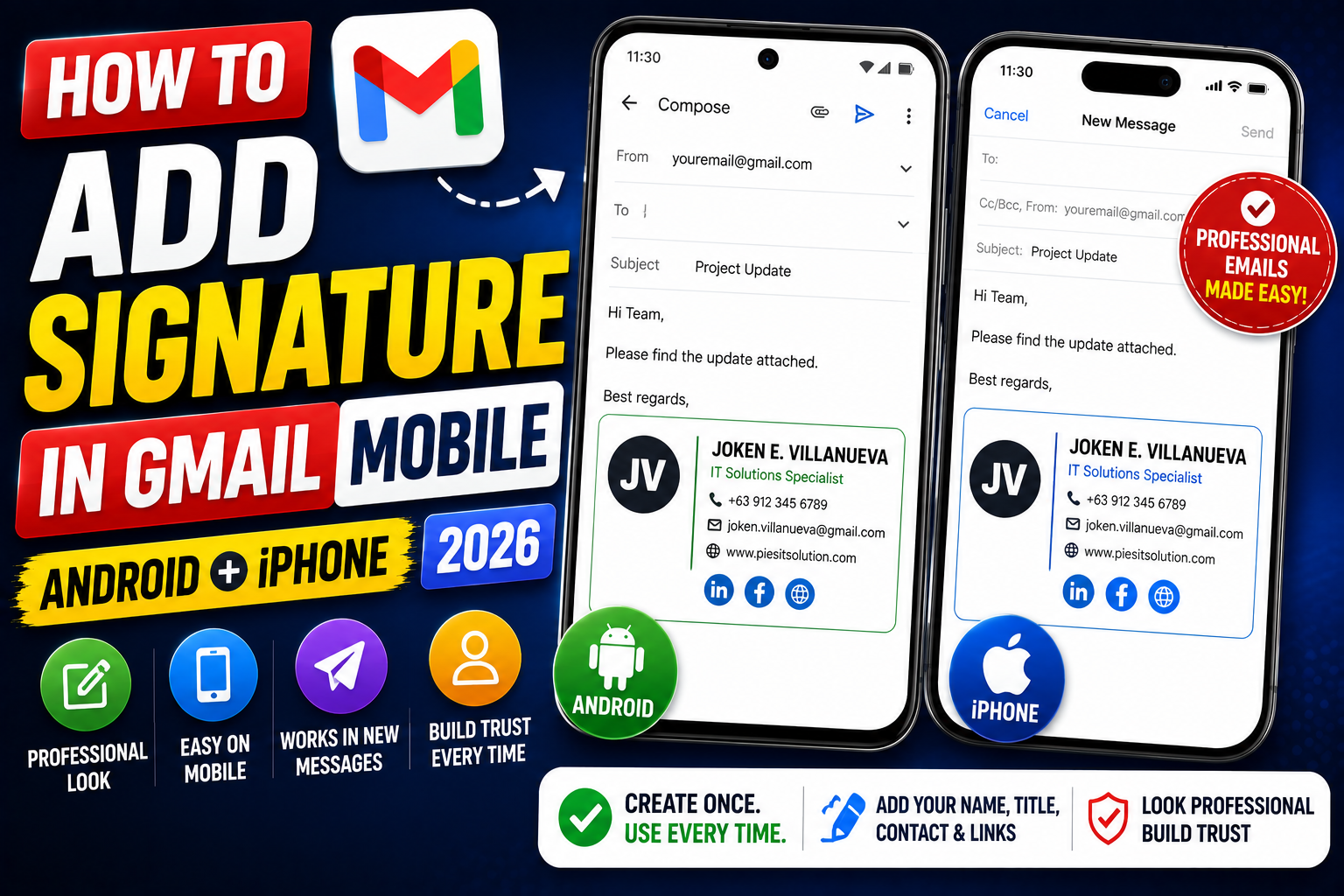
Gmail’s mobile app supports its own signature separate from your desktop signature. That means you can have a longer detailed signature on desktop and a shorter “Sent from Gmail app” style signature on mobile. Or match them if you prefer consistency. Here is how to add and edit a signature in the Gmail mobile app on both Android and iPhone in 2026.
Add a signature in Gmail app on Android
- Open the Gmail app on your Android phone.
- Tap the hamburger menu (three lines) in the top-left corner.
- Scroll to the bottom and tap Settings.
- Tap the Gmail account you want to add a signature to.
- Tap Mobile Signature.
- Type your signature in the text field. Keep it short. Mobile signatures work best under 3 lines.
- Tap OK or the back arrow to save.
The signature automatically appears at the bottom of every new email you send from the Gmail app on this device.
Add a signature in Gmail app on iPhone or iPad
- Open the Gmail app on your iPhone or iPad.
- Tap the hamburger menu in the top-left.
- Scroll to the bottom and tap Settings.
- Tap your Gmail account.
- Tap Signature settings.
- Toggle Mobile signature to ON.
- Type your signature in the text field.
- Tap the back arrow to save.
Best practices for mobile signatures
- Keep it short: 1-3 lines maximum. Mobile screens are small and long signatures push the reply body off-screen.
- Include name and role: essential for professional emails.
- Optional: one contact detail: phone number or website. Skip full addresses.
- Skip social media icons: mobile Gmail does not support image signatures well. Use text URLs if needed.
- Avoid “Sent from my iPhone”: replace the default with your custom signature.
Example mobile signature templates
Minimal professional:
Ana Reyes
Senior Developer
With contact:
Ana Reyes
Senior Developer, PIES IT Solutions
+63 917 xxx xxxx
Freelancer style:
Ana Reyes | Full-stack developer
Portfolio: yourname.com
Add an image or logo to your mobile signature
The Gmail mobile app has NO native support for image signatures. Workarounds:
- Use desktop signature with image instead. Desktop Gmail supports image signatures and syncs across.
- Note: mobile Gmail uses the mobile signature setting first. If you want the desktop image signature on mobile too, disable Mobile signature on Android/iOS and the desktop signature will be used.
- To disable mobile signature: toggle Mobile signature OFF in Settings. Now emails sent from mobile use the desktop signature with images.
Set different signatures for different Gmail accounts on mobile
If you have multiple Gmail accounts in the app, each gets its own signature setting.
- Open Gmail app → Settings.
- Tap the specific Gmail account.
- Tap Mobile Signature (Android) or Signature settings (iOS).
- Set the unique signature for that account.
- Repeat for each account.
Great for people who juggle personal + work + freelance Gmail accounts on the same phone.
Common problems with Gmail mobile signatures
- Signature not appearing: force-close and reopen the Gmail app. Or sign out of the Google account and back in.
- Signature shows old version: Google syncs signature changes across devices. Restart the app if the update is not visible.
- Signature shows twice: usually caused by having BOTH mobile signature ON and pasting into the reply body. Disable one.
- Cannot save signature: check for very long text. Mobile signature has a soft length limit (~10,000 chars). Trim it.
- Signature not on replies: Gmail mobile always adds signature to new emails. For replies, you may need to enable “Include signature on replies” in some app versions.
Common Google Meet mistakes to avoid
- Not testing camera and mic before the meeting. Meet has a preview page at meet.google.com/hangouts/preview where you can test devices before joining any meeting.
- Joining from mobile when you need to share screen. Screen sharing works on mobile but is limited. Use desktop when you need to share content in detail.
- Forgetting to mute when not speaking. Background noise disrupts everyone. Press Ctrl+D (Cmd+D on Mac) to toggle mute.
- Assuming recordings are automatic. Meet only records when the host clicks Record. Enable at the start; you cannot recover an unrecorded meeting.
- Ignoring the noise cancellation feature. Workspace tiers include background noise cancellation. Enable in Settings > Audio.
Power-user tips for Google Meet
- Use keyboard shortcuts. Ctrl+D to mute, Ctrl+E for camera, Ctrl+Alt+H to raise hand, Ctrl+Alt+M for the chat panel. All work on Windows and Mac (swap Ctrl for Cmd on Mac).
- Add captions. Turn on live captions at the bottom-right menu. Useful for accessibility and noisy environments.
- Enable Q&A for large meetings. Attendees can submit written questions without interrupting. Available on Workspace tiers.
- Use polls to gather feedback. Quick pulse checks during long meetings keep attention.
- Share a specific tab, not the whole desktop. Prevents accidentally sharing notifications or personal information.
When to use Meet vs alternatives
Meet works best when your organization is already on Google Workspace, calls are 3-10 participants, and simplicity matters more than advanced features. It integrates seamlessly with Calendar and Gmail, which is unbeatable for Google-first teams.
For large webinars (100+ attendees), Zoom or Webex offer better host controls. For persistent team chat with video, Slack Huddles or Microsoft Teams work better. For high-quality recorded content, tools like Riverside or Descript produce cleaner output.
For BSIT capstone defenses and student meetings, Meet is the right choice on any campus with Google Workspace for Education. Free tier supports up to 100 participants for 60 minutes.
Best practices summary
- Test devices 5 minutes before start. Camera, mic, network. Nothing worse than the “can you hear me?” opening.
- Share agenda in Calendar description. Attendees arrive knowing what to discuss.
- Assign a note-taker at start. Distributes cognitive load and produces action items.
- End on time or early. Respect people’s calendars. Reschedule if content overflows.
- Follow up with meeting notes within 24 hours. Consolidates decisions and prevents forgotten action items.
Official documentation
Recommended email signature resources
The links below are affiliate links. We may earn a commission at no extra cost to you when you buy or sign up. See our affiliate disclosure.
Quick step-by-step summary (click to expand)
- Open the Gmail app. Tap the hamburger menu (top-left three lines).
- Tap Settings. Scroll to bottom of the sidebar.
- Tap your account. Select the Gmail address you want to add a signature for.
- Tap Mobile signature. Toggle on if off. Type your signature text.
- Save. Tap OK or the back arrow. Signature appears on all future mobile emails.
Frequently Asked Questions
Can I add an image to my Gmail mobile signature?
Not directly in the mobile app. Workaround: disable the mobile signature, then the desktop signature with image will be used automatically on mobile emails too.
Does the mobile signature sync to desktop Gmail?
No. Mobile signature is per-device and per-account. Desktop signature is separate. They can be identical or different depending on your setup.
Can I have different signatures on Android and iPhone?
Yes. Each device has its own mobile signature setting. Set them individually.
Why does my signature not appear on replies?
Gmail sometimes omits signature on replies within the same conversation. Enable “Include signature on replies” in settings if available in your app version, or manually add it.
Should my mobile signature match my desktop signature?
Depends on preference. Many professionals use a shorter mobile signature (name + role only) and a longer desktop signature with contact details. Others prefer consistency across devices.

Caren Bautista
Technical Writer at PIES IT Solution
Responsible for crafting clear, well-structured, and beginner-friendly content across the platform.
Expertise: Technical Writing · Content Creation · Documentation · Editorial Writing · JavaScript · TypeScript · View all posts by Caren Bautista →